




Account Settings & Password
Help articles may not be fully accurate — they can lag behind the app due to frequent updates and automated translation. If in doubt, please contact support.
On this page
Your profile page holds your personal details, language, password, two-factor authentication and the option to delete your account. Open it with My Profile in the account sidebar or in the menu under your avatar in the top right. For the shared basics every role has, see My Profile.
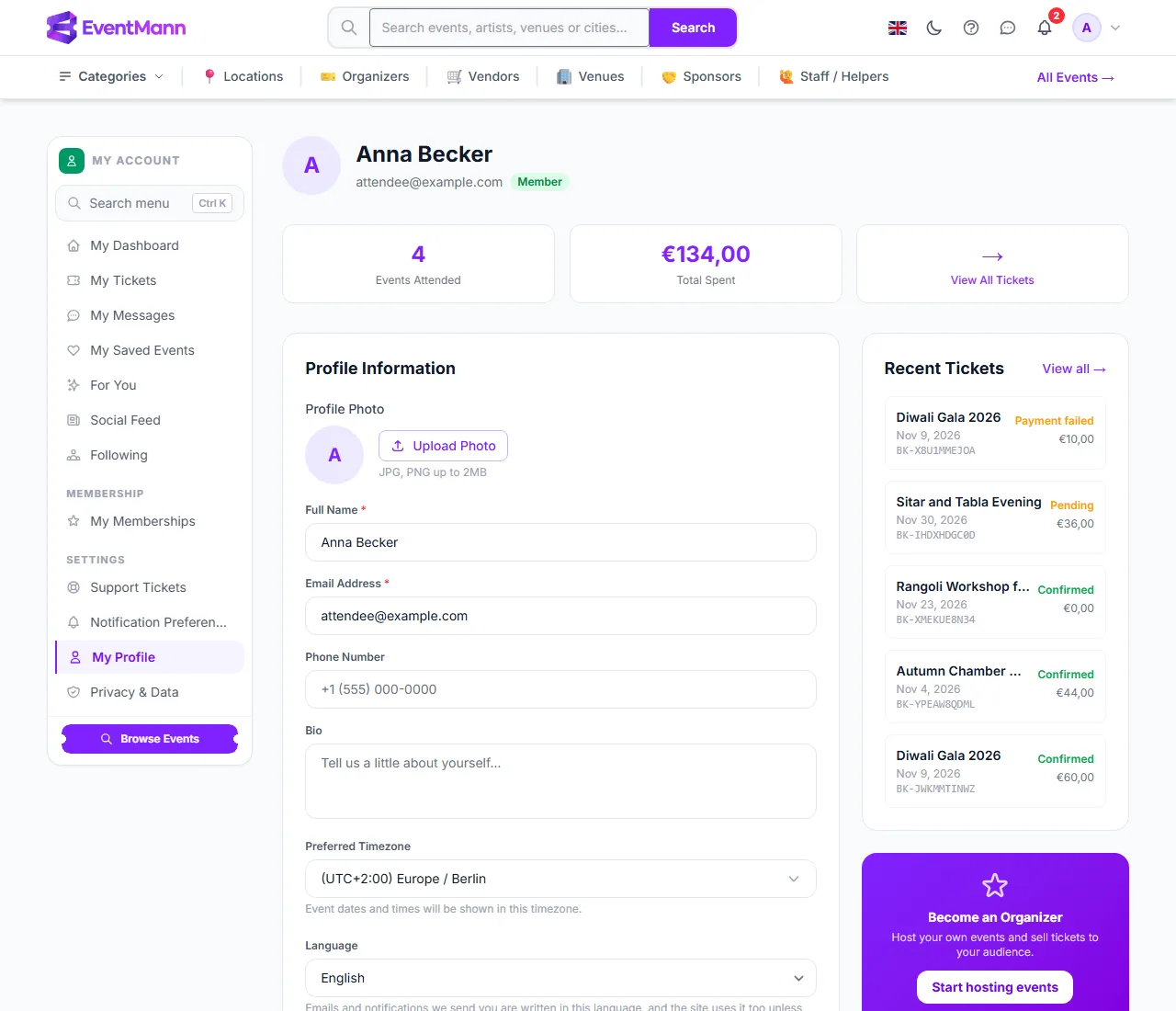
Change your details
- Open My Profile.
- To change your photo, click Upload Photo ① and choose a JPG or PNG up to 2 MB. Use the remove option next to it to go back to your initial.
- Edit Full Name, Phone Number and Bio as you like. Name and email are required.
- If you change your Email Address ②, your email becomes unverified until you click the link in the message we send to the new address. Until then, features and messages that need a confirmed address pause (see below).
- Choose your Preferred Timezone. Event times are shown in this zone; it never moves an event, which always runs on its own venue’s time.
- Choose your Language ③. The site, the emails and notifications we send you and your ticket PDFs use it. The choice applies on all your devices; the language flag in the top bar still lets you change the page language for a visit.
- Click Save Changes ④.
Change your password
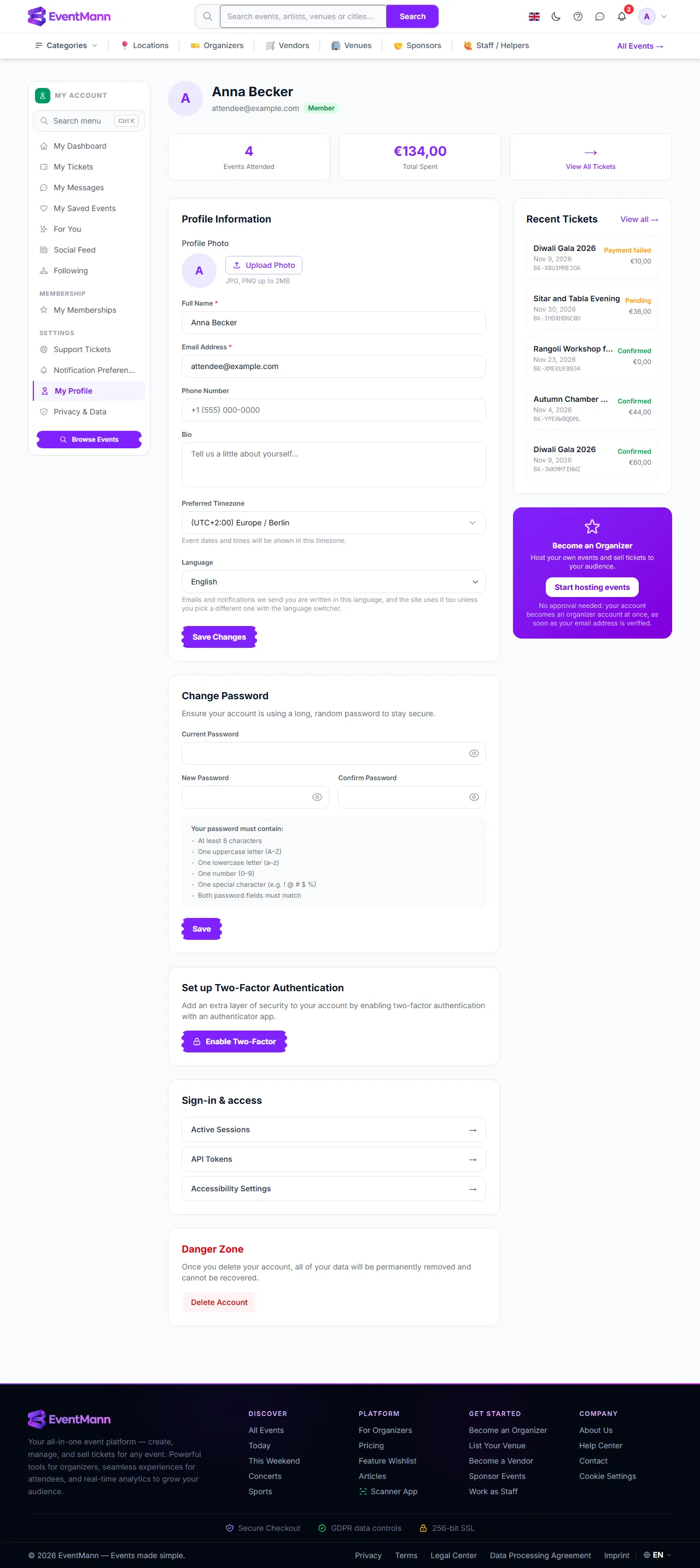
- Scroll to Change Password ①.
- Enter your Current Password, then the New Password twice. The checklist under the field shows what is still missing: at least 8 characters, an uppercase letter, a lowercase letter, a number and a special character.
- Click Save.
If you signed up with Google, Facebook or LinkedIn, you never chose a password, so the form does not ask for the current one and you can simply set a new one. If you are locked out, use Forgot your password? on the sign-in page; the reset link in the email is valid for 60 minutes.
Turn on two-factor authentication
- Click Enable Two-Factor ②. A page with a QR code opens.
- Scan the code with an authenticator app such as Google Authenticator or Authy, or type the secret shown under the code if you cannot scan.
- Enter the 6-digit code from the app and press Verify.
- Save the 8 recovery codes shown once on the next screen. Each works once if you lose your phone.
The full explanation, including what to do if you lose your phone, is in Account Security & Two-Factor Authentication.
Danger Zone
Delete Account ③ asks for your password and then anonymizes your account for good. Read Privacy & Data first: it says what is kept and what is erased, and where to download your data beforehand.
Good to know
- The cards at the top show how many bookings you have and how much you have spent, and Recent Tickets lists your five latest orders with their status.
- A theme switch (the moon icon in the top bar) toggles light and dark mode; your choice is saved to your account.
- Active sessions (signed-in browsers), API tokens and accessibility settings are linked from the Sign-in & access card on the profile page; sessions are described in Account Security.
- A session that is idle for a while is signed out automatically. The bell polling in the background does not keep it alive.
Troubleshooting
- I changed my email and stopped getting some messages — open the verification email sent to the new address and click the link. It is valid for 72 hours; ask for a new one from the notice that appears in the site if it expired.
- My authenticator code is always rejected — the codes are time based. Set your phone’s clock to automatic and try the next code.
- The password form has no current password field — your account was created with a social sign-in.
- The language did not change in an email — emails use the language saved here, not the page language you picked with the flag.