




Event Email Templates
Help articles may not be fully accurate — they can lag behind the app due to frequent updates and automated translation. If in doubt, please contact support.
On this page
- 1. The ten templates
- 2. Edit a template
- 3. Good to know
- 4. Troubleshooting
- 5. Related
Every email an attendee gets about a booking starts from a platform default. Email Templates lets you rewrite that email for one event only, without touching the default or any other event. Open it from Manage → Marketing → Attendee comms and click the Email Templates tab.
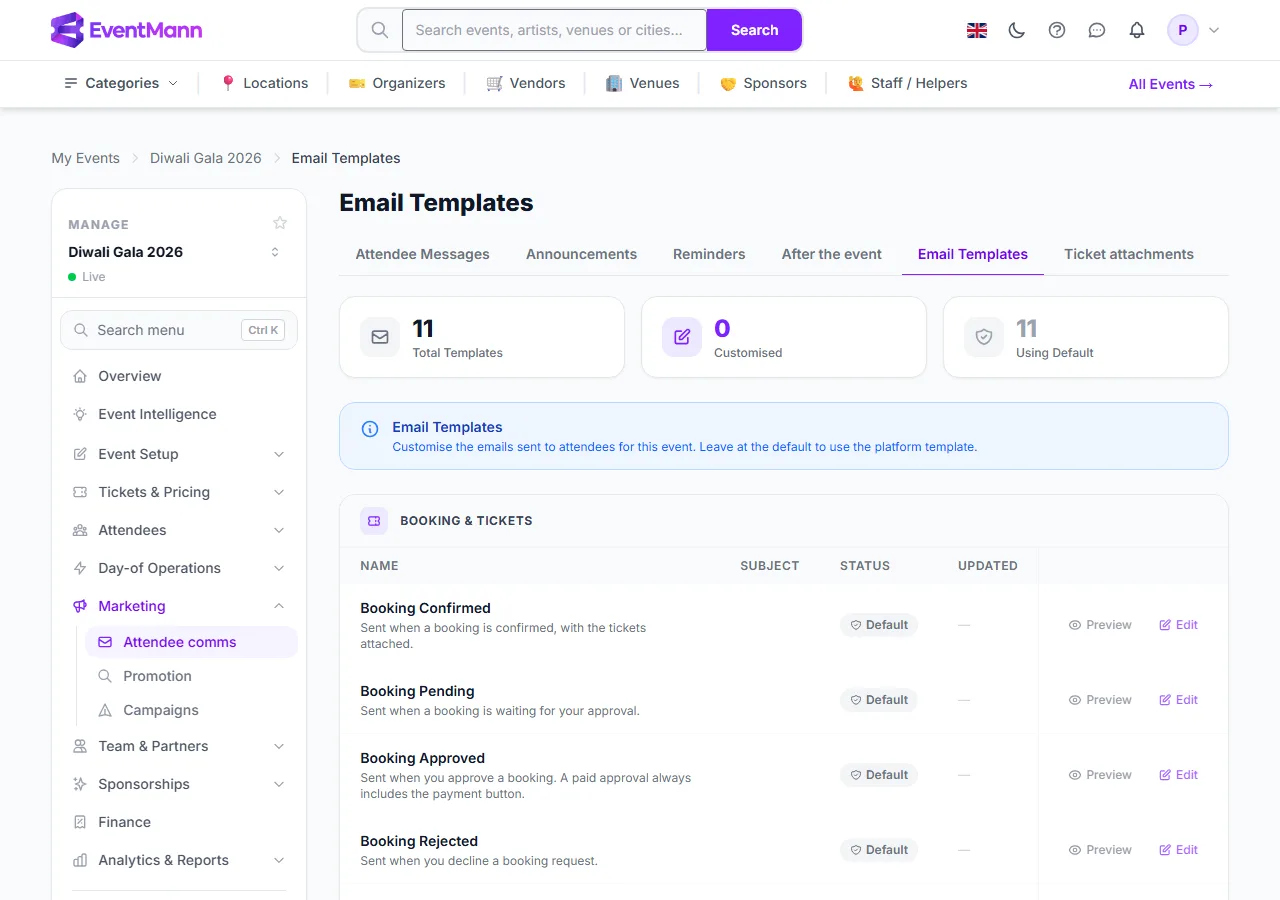
- The top counters show how many templates exist ①, and how many you have changed ②.
- Templates are grouped: booking and tickets, waitlist, reminders and event notices. Preview ③ shows the email as an attendee would see it.
- Click Edit ④ to change one. A template you changed is marked Customised instead of Default.
The ten templates
Booking Confirmed, Pending, Approved, Rejected and Cancelled; Refund Processed; Waitlist Promoted and Waitlist Rejected; Event Cancelled Notice and Event Updated Notice. Each one replaces an email that is really sent; the attendee still receives exactly one mail per occasion.
Edit a template

- Change the Subject line ①.
- Click a variable in Available Variables ② to copy it, then paste it into the subject or a block. Each template offers only the variables its email can fill; they differ per template.
- Build the body from blocks: use Add block ③ for a header, text, button, image, divider, spacer, alert or footer; click a block to edit it in the panel on the right; use the Layers list to move or remove blocks.
- Click Preview to see your unsaved draft, and Send Test Email ④ to receive it in your own inbox.
- Click Save Preferences ⑤. This creates or updates the override for this event only.
The Templates button offers ready-made designs to start from; picking one replaces your current design after you confirm. Every ready-made design, and every new header block, starts with your organizer name and the logo from your profile.
Good to know
- A variable the email cannot fill is refused on save, and the message names it. One unfillable variable would otherwise make the whole design be dropped, and the attendee would receive the standard body under your subject.
- Some lines are always added back, whatever your design says: the payment button on a paid approval, the sentence about the right to refund when an event changes, and your own note on a refund. They are obligations.
- Reset to Default deletes your override. The event then uses the default as it is today, which may be newer than the one you started from.
- An override applies to the one event only. Repeat the edit on another event to reuse the wording.
- A logo in the header is a public https image link; many mail apps hide images at first, so your name shows in the header colour meanwhile.
- Emails go out through your own mail server when you have connected one (Who your emails are sent from).
Troubleshooting
- My change did not reach the attendees — check you edited the right template on the right event. If a template is marked as not in use, it carries a variable nothing can fill; open it and save to see which.
- Save is refused over a variable — use the variables listed for that template.
- Can I send the test to a colleague? — no. A test goes to your own address only, so this cannot be used to mail strangers from EventMann’s name.
- The test did not arrive — check your own inbox and spam first, then your mail server settings.