




Invoices
Organizer Guide
4 min read
Help articles may not be fully accurate — they can lag behind the app due to frequent updates and automated translation. If in doubt, please contact support.
On this page
Money → Invoices lists every invoice issued in your name: the receipts EventMann creates for paid orders and membership purchases, and the invoices you write yourself for sponsors, partners or anyone else who owes you money. Invoices are your documents — you are the seller — so they carry your details, your tax ID and your own numbering. How they look is set on Invoice design.
The three kinds of invoice
- Booking — created automatically when a paid order is confirmed, if Issue invoices automatically is switched on under Invoice design. It lists the tickets, any discount, fees and tax, is marked Paid, and is attached to the buyer’s confirmation email. The buyer can also download it from their bookings, and you from the order’s page. Free orders get no invoice.
- Membership — created for every paid membership, whether or not ticket invoicing is on. The price includes VAT and the invoice shows it separately.
- Custom — invoices you create here by hand. They have no tax line: put any tax in the line items or the tax note.
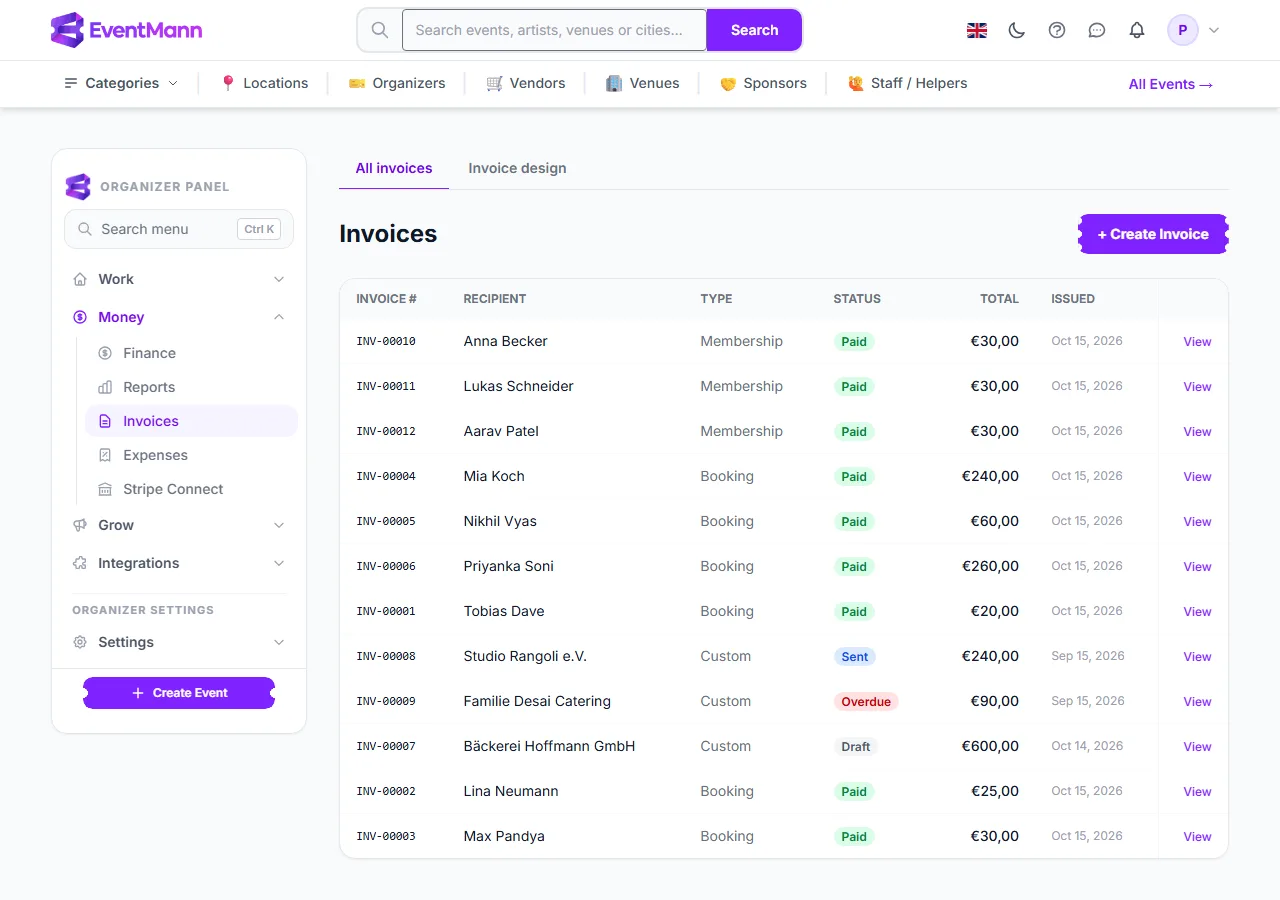
The list shows each invoice’s number, recipient, Type ③, Status ④ and total. Click + Create Invoice ① to write one, Invoice design ② to change how invoices look, or View ⑤ to open one.
How to create a custom invoice
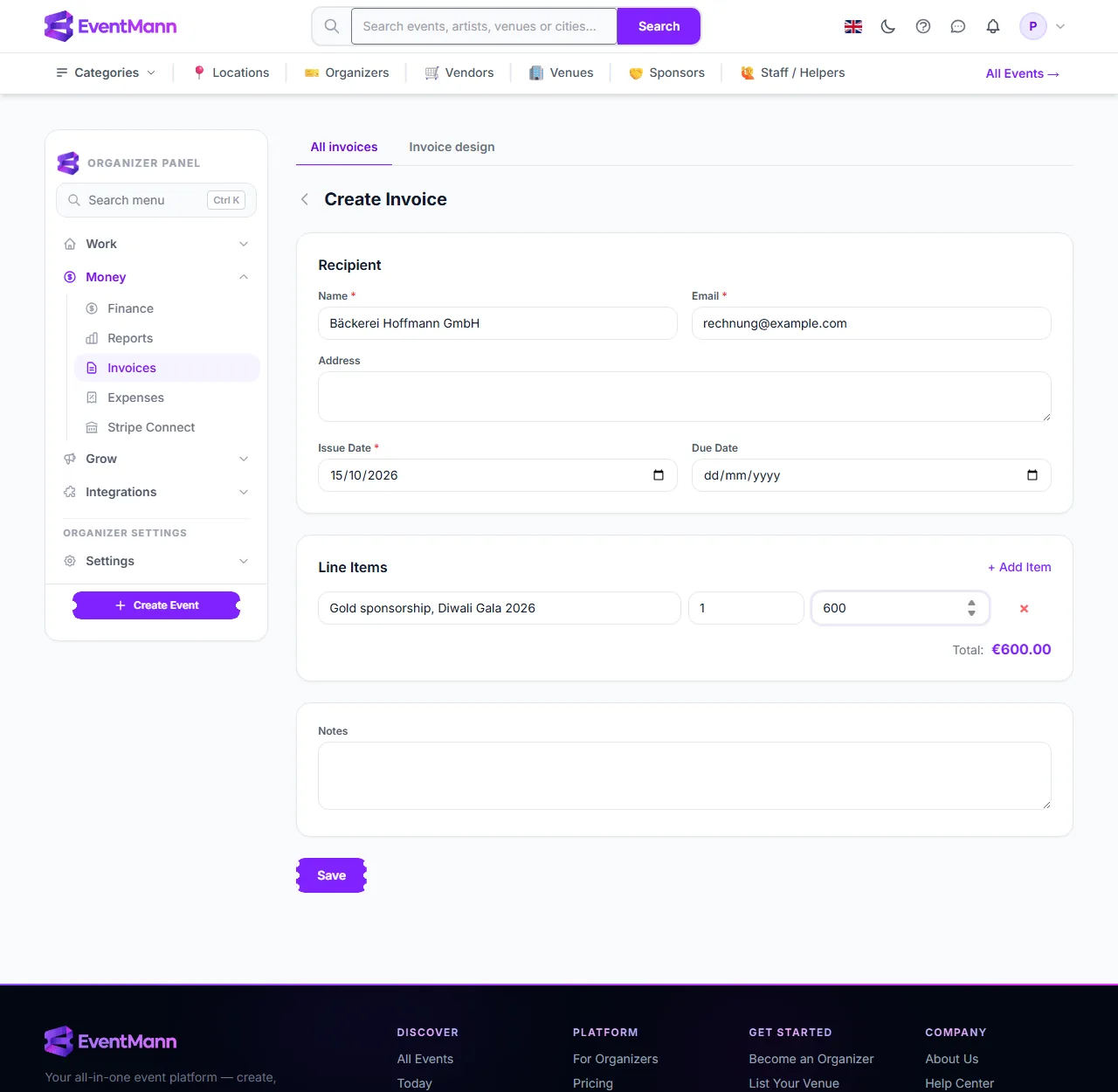
- Click + Create Invoice.
- Enter the recipient’s Name ① and Email; an address is optional.
- Set the Issue Date ② and, if you want one, a Due Date ③ on or after it.
- Fill in the first line item ④ — description, quantity and unit price — and use + Add Item ⑤ for more. The total is calculated for you, in your account’s payment currency.
- Optionally add notes, then click Save ⑥. You land on the invoice, which starts as Draft.
Send, download, edit
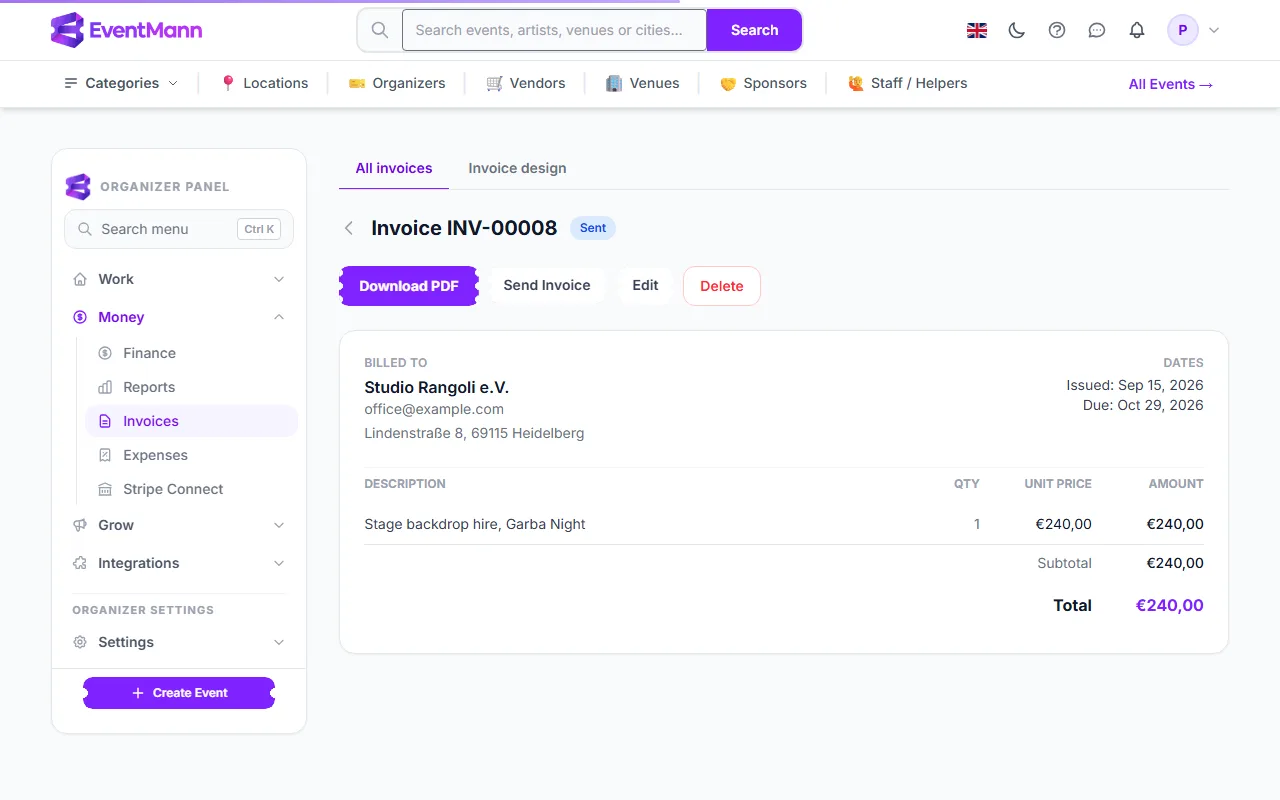
- Open an invoice with View in the list.
- Download PDF ① gives you the document.
- Send Invoice ② emails the PDF to the recipient and marks it Sent. If you configured your own mail server under SMTP & Mail, it leaves from there.
- Edit ③ changes the recipient, dates and notes — not the amounts. To change an amount, delete the invoice and create a new one. Delete removes an invoice for good; its number is not handed out again.
Settings explained
- Invoice number — assigned automatically, in one running sequence for your account (INV-00001, INV-00002, …), shared by all three kinds. You cannot type or change a number.
- Status — Draft, Sent, Overdue or Paid. Sending moves a draft to Sent. Overnight, a Sent invoice whose due date has passed becomes Overdue. Order and membership receipts are Paid from the start. There is no “mark as paid” button for custom invoices, so keep track of those payments yourself.
- Currency — a custom invoice is in your account’s payment currency.
- The recipient’s labels (“Invoice”, “Total”, …) follow the buyer’s language on order invoices; text you write yourself stays as written.
Good to know
- The figures on an order invoice are fixed when it is issued. Changing the design later restyles the PDF but never restates an invoice that was sent.
- Invoices are stored privately and reachable only through your own signed link.
- Switching Issue invoices automatically off stops new order invoices only. Existing ones keep their number and stay available.
Troubleshooting
- No invoice for an order. It was a free registration, or automatic invoices were off when it was paid.
- The recipient did not receive it. Check the email address on the invoice; sending again repeats the same send and cannot confirm delivery.
- I cannot edit the amounts. Edit only changes recipient, dates and notes. Create a new invoice instead.
- I do not see invoices in the menu. Only the organizer account has this page; team members do not.