




Browse Packages
Sponsor Guide
3 min read
Help articles may not be fully accurate — they can lag behind the app due to frequent updates and automated translation. If in doubt, please contact support.
On this page
- 1. What you can do here
- 2. Find an event
- 3. Read an event’s packages
- 4. Good to know
- 5. Troubleshooting
- 6. Related
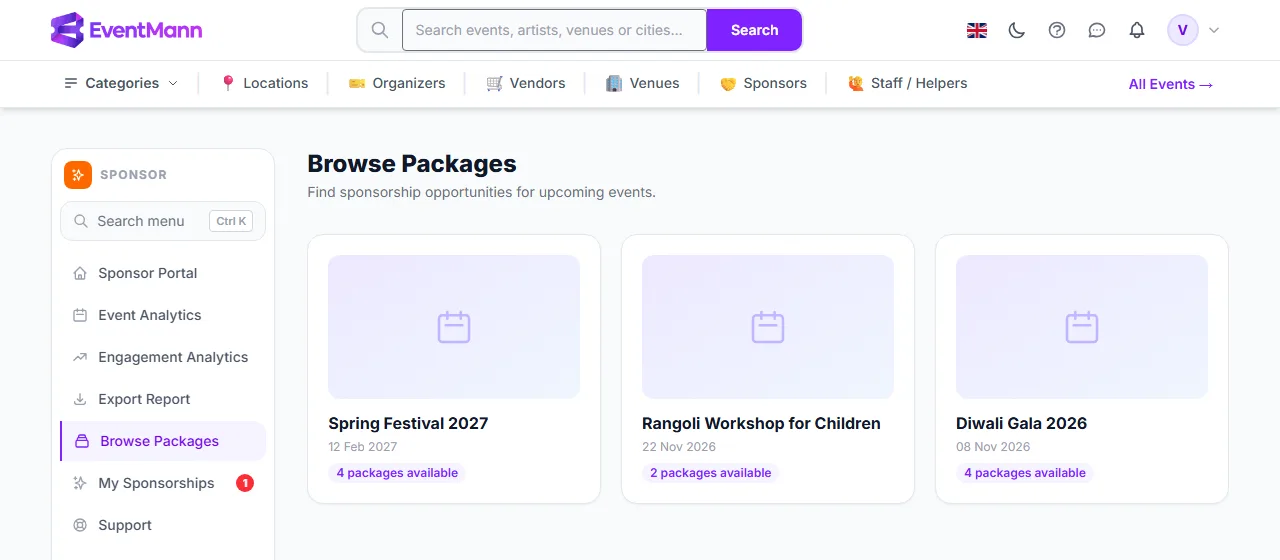
Browse Packages in the sponsor sidebar lists the events that are looking for sponsors. Each card is one event; opening it shows that event’s sponsorship packages and is where you apply.
What you can do here
- See every published event that has at least one active sponsorship package, newest start date first, twelve per page.
- Open an event to compare its packages: tier, price, benefits, placements and how many spots are left.
- Apply for a package straight from the event page.
Find an event
- Click Browse Packages in the sidebar. The page title is Browse Packages ① and each event is a card ②.
- Read the card: the event image (or a placeholder), its title, the date and a badge such as 3 packages available ③.
- Click the card to open the event’s packages.
Read an event’s packages
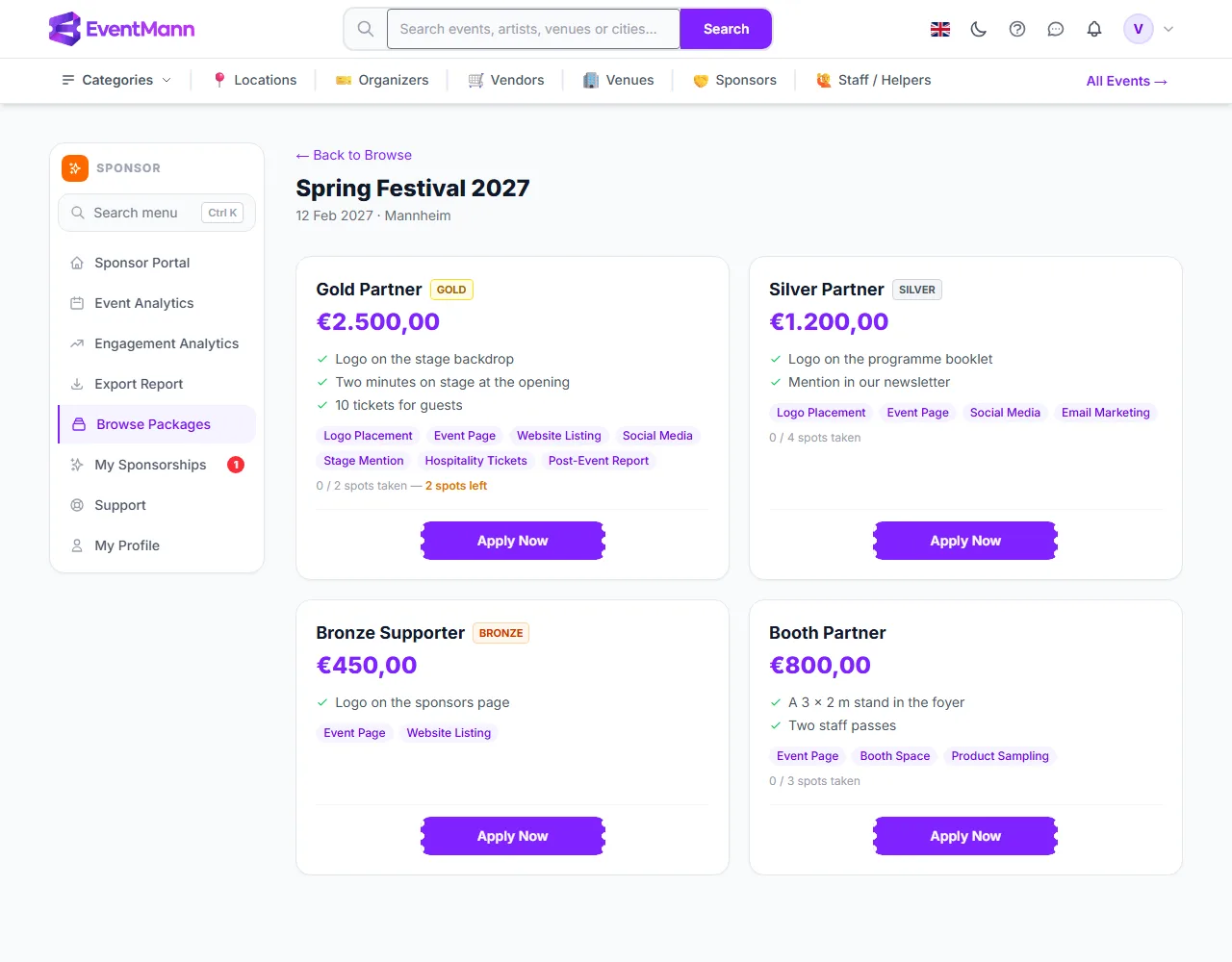
The event page shows the title, date and city (or Online), then one card per package. Packages are ordered Platinum, Gold, Silver, Bronze and then the untiered ones, and within a tier in the order the organizer chose. A card contains:
- Name, tier badge and price ①② — the price is what you would agree to pay, in the package’s currency.
- Description and benefit bullets ③ — free text written by the organizer for that package.
- Placement chips ④ — the standard items the organizer ticked, such as Logo Placement, Stage Mention or Booth Space. See Understanding Sponsorship Tiers for the full list.
- Spots ⑤ — for a limited package, x / y spots taken, with n spots left once two or fewer remain.
- Apply Now ⑥ — opens the application form on the same page.
Good to know
- An event only appears here while it is live and public, and a package only appears while the organizer keeps it active. Draft, private and finished events are not listed, and their package pages answer “not found”.
- Spots are counted from sponsorships that are Approved or Active. A pending application does not take a spot until the organizer approves it. When all spots are taken the button reads This package is full. and cannot be clicked.
- If you already have an application on the event (in any state except withdrawn), every button on the page reads Already Applied. You can apply for one package per event.
- Some organizers also show a Sponsor this event section on their public event page. For a signed-in sponsor its button leads here; for everyone else it leads to the For Sponsors page.
- There is no search or filter on this page. If you are looking for one event, ask the organizer to send you the link, or page through the list.
Troubleshooting
- “No sponsorship opportunities available at the moment” — no live event currently has an active package. Check again later.
- An event you were told about is missing — it may still be a draft, be private, or have its packages switched off. Ask the organizer.
- A package shows no tier badge — the organizer left the tier on Custom. It simply sorts last.
- The price differs from what the organizer quoted — the price you apply under is the one shown on this page. It is saved on your application when you submit it, so a later change to the package does not re-price an application you already sent.