




After-the-event Follow-ups
Help articles may not be fully accurate — they can lag behind the app due to frequent updates and automated translation. If in doubt, please contact support.
After-the-event follow-ups are emails you write once and EventMann sends automatically after the event ends: a thank-you, a link to the photos, a quick poll or survey, a look at your next events. Find them under Marketing → Attendee comms, on the After the event tab — the counterpart of Reminders, which go out before the event. Anyone who can view the event can read the page; creating, editing and sending needs permission to edit it.
What you can do here
- Write a follow-up in a full-page editor with a live preview, saved as a draft until you decide.
- Choose who gets it: everyone with a ticket, only those who came, or only those who did not arrive.
- Add a feedback poll or survey, photo and social links, and your next events.
- Schedule it, watch delivery live, stop and resume sending, and share a public web version.
- Keep the event’s photo and video links in one place.
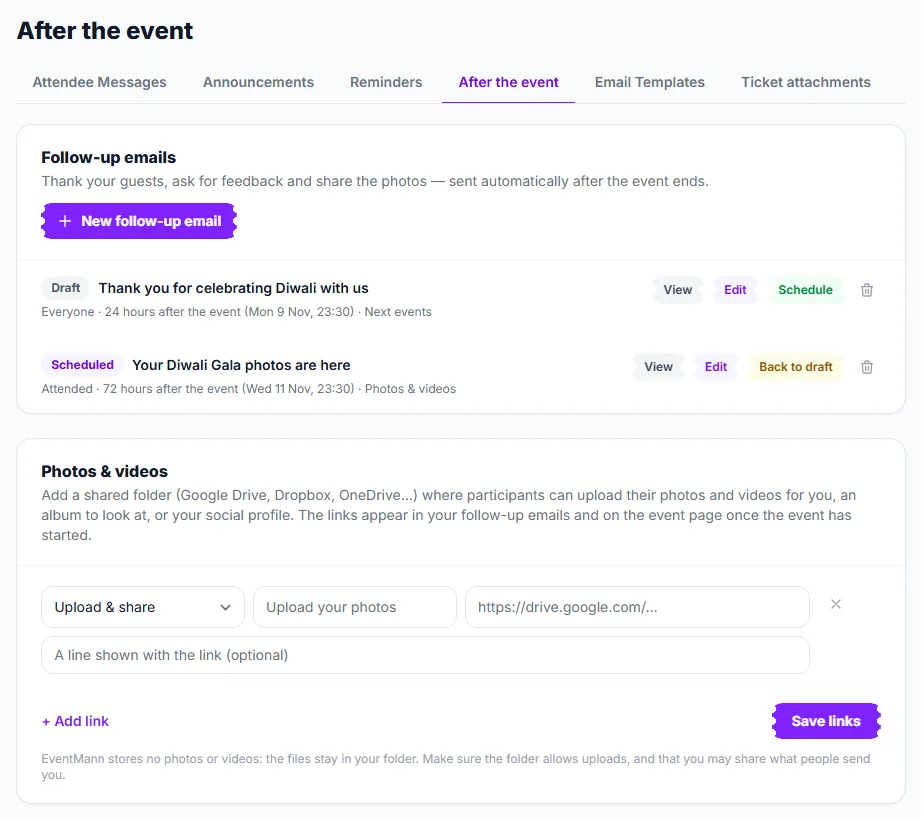
Click New follow-up email ① to start. Each row shows its status (Draft, Scheduled, Sending, Stopped or Sent), who it goes to and when it is due — for example “24 hours after the event (Mon 9 Nov, 23:30)”. A draft has Schedule ②; a scheduled one has Back to draft ③. The Photos & videos panel ④ holds your shared links (see below).
How to write and schedule one
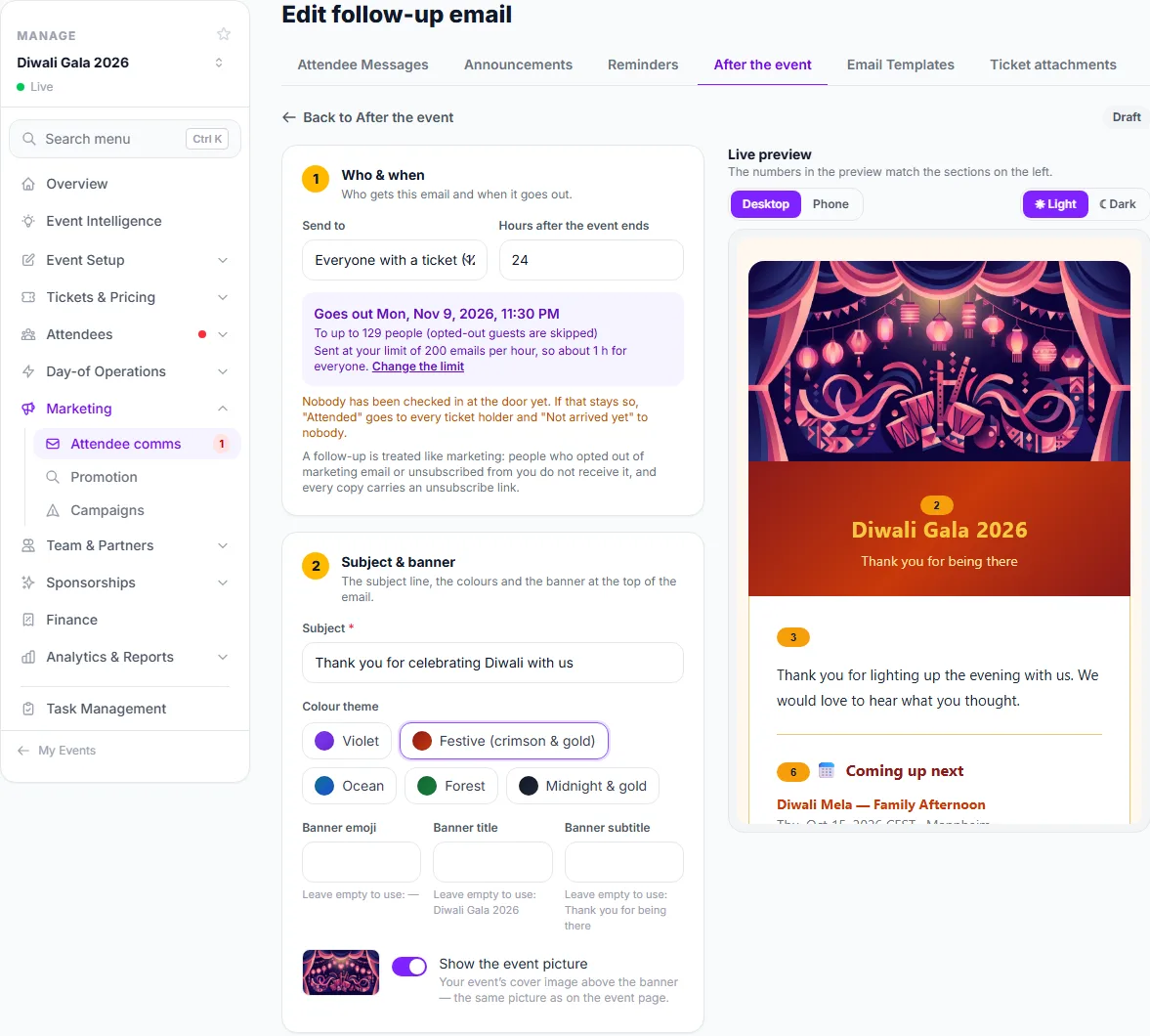
- Click New follow-up email. The editor has seven numbered sections ①, and the same numbers appear in the live preview ③ beside the part of the email each one changes.
- Who & when — pick Send to and the Hours after the event ends (1–720). A box below shows the exact send time, how many people it reaches and how long sending will take at your hourly limit (Change the limit opens that setting).
- Subject & banner — the Subject ②, a colour theme (Violet, Festive, Ocean, Forest or Midnight & gold), and an optional banner emoji, title and subtitle. A switch shows your event picture above the banner.
- Your message — the text under the banner.
- Photos & social — buttons to your shared photo folder and your social profiles.
- Feedback — choose a poll or survey (see below).
- Your next events — up to three of your upcoming public events. If you have none, the block is left out.
- Closing & footer — your sign-off and the band at the bottom.
- Check the preview. Switch Desktop / Phone and Light / Dark to see how it looks. Click Send me a test for a real copy in your own inbox.
- Click Save draft to keep working, or Schedule and confirm. Nothing is sent to your guests until you press Schedule.
Who it goes to
- Everyone with a ticket — every confirmed order.
- Attended — orders where at least one ticket was scanned at the door.
- Not arrived yet — orders where nobody was scanned.
Each option shows how many orders it covers. If nobody has been scanned at the door at all, EventMann has no attendance data: then Attended goes to everyone and Not arrived yet goes to nobody, and the editor warns you.
Sending, pace and consent
- It goes out at the event’s end plus your hours, checked every five minutes. If that moment has already passed when you schedule, it goes within about five minutes.
- Mail is paced at your organizer hourly sending limit (200 an hour by default; change it under Settings → SMTP & Mail). If you have set a sending window, mail due outside it waits for the next opening.
- A follow-up is treated like marketing. People who opted out of marketing email, or unsubscribed from you, do not receive it, and every copy carries an unsubscribe link.
Feedback blocks: polls, stars and surveys
Pick a poll or survey (created under Surveys) and the email shows its first choice question as tap-to-answer options, its first rating question as stars, and a Give feedback button for the rest. Three switches let you turn each off. A tap preselects the answer on the survey page; the person still presses Submit, so a mail scanner can never vote for anybody.
Watching delivery, stopping and resuming
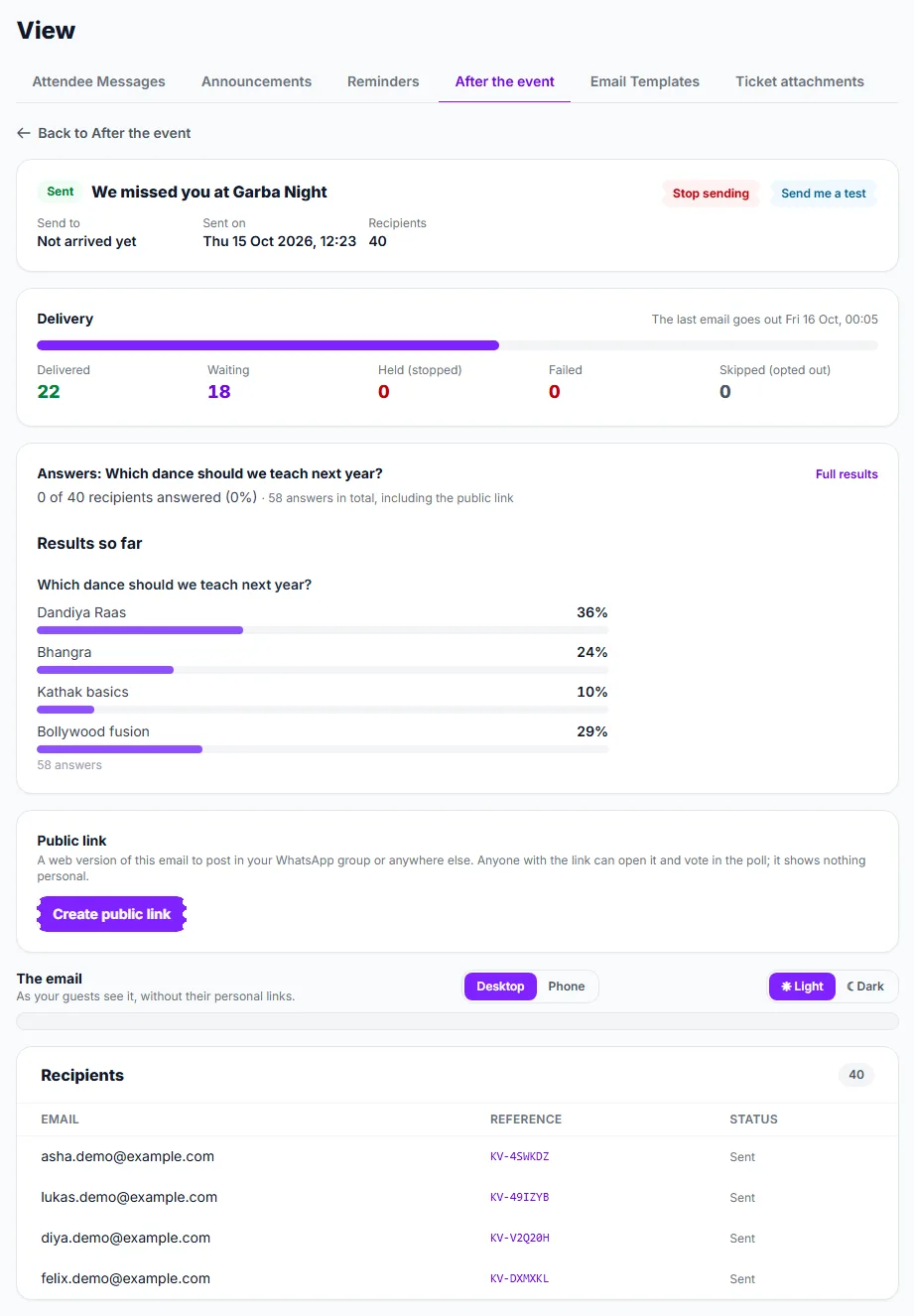
- Open a sent follow-up with View. The Delivery panel ① shows Delivered, Waiting, Held (stopped), Failed and Skipped (opted out), and when the last email goes out.
- Click Stop sending ② to hold the mails not yet sent. Nothing is lost: they wait.
- Click Resume sending to send exactly the held ones again, at your pace. Nobody is mailed twice.
- The Answers panel shows poll or survey results as they arrive.
- Under Public link ③ click Create public link for a web version of the email you can post in a WhatsApp group (Share on WhatsApp, Copy, Open). It shows nothing personal; anyone with it can open it and vote in the poll. Stop sharing kills it at once.
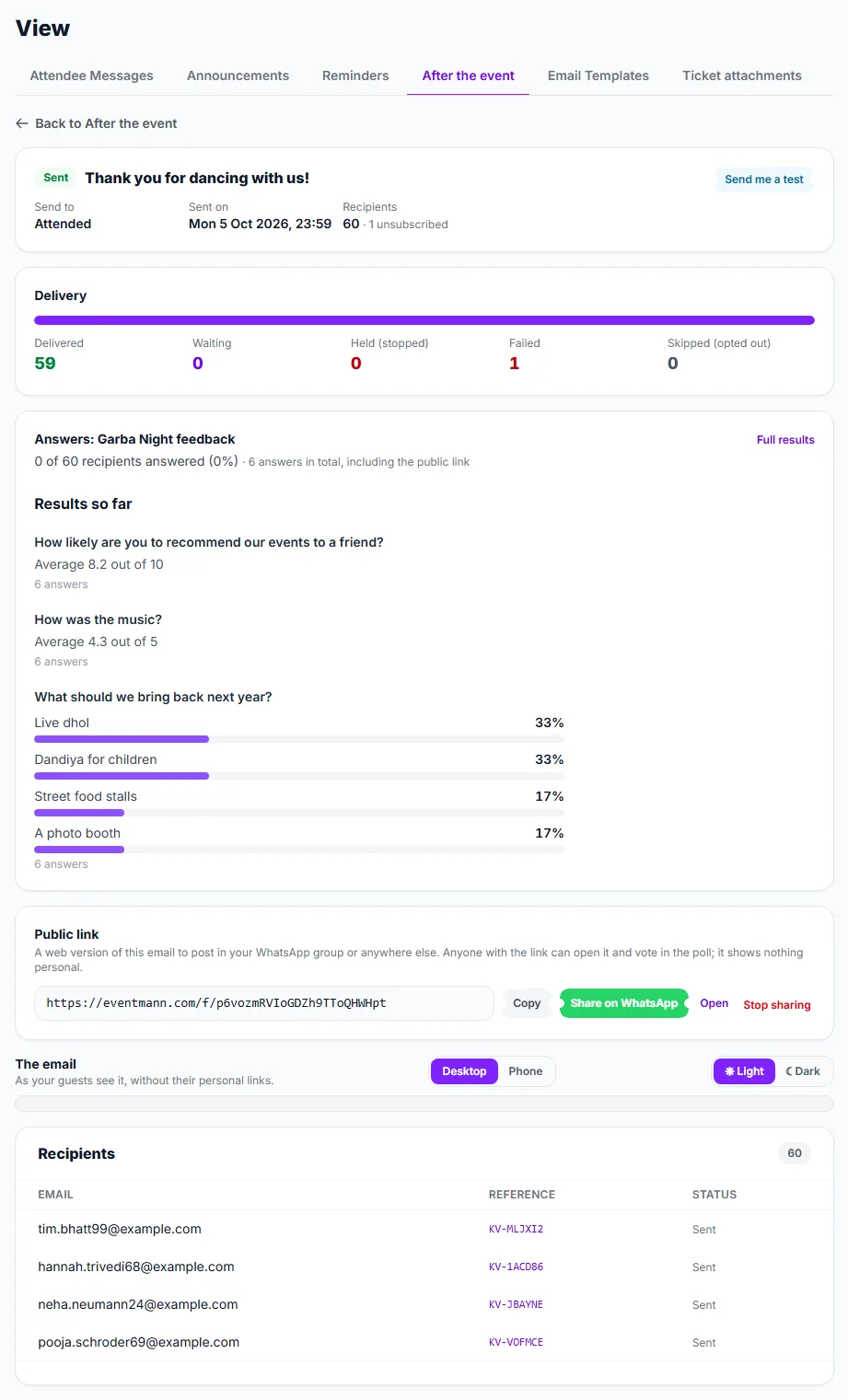
The page ends with the recipient list. Unsubscribed addresses are marked. A mail that still failed after repeated attempts counts under Failed.
Photos & videos links
EventMann stores no photos or videos. On the After the event tab you add up to ten links to a shared drive people can upload to (Upload & share), an album or aftermovie (View album / video), or your social profile (Social profile), each with button text and an optional note. They appear in your follow-ups and, once the event has started, on the event page. Make sure the folder allows uploads and that you may share what people send you.
Good to know
- A follow-up that has been sent cannot be edited or sent again; write a new one. A follow-up can be deleted from the list with the bin icon.
- “Sent” means delivered, not merely queued: the page counts real deliveries so you can tell queued from done.
- A test copy has the same blocks as the real thing but no personal links, and it does not count as a recipient.
Troubleshooting
- It did not go out — it may still be a draft (press Schedule), or the event has no date. Scheduled and Sent badges tell you.
- Fewer people than expected — opted-out guests are skipped, and several tickets on one address are one email.
- Some are Failed — the address rejected the mail after repeated tries. They are listed on the page.
- I stopped it by mistake — click Resume sending.