




QR labels
Organizer Guide
3 min read
Help articles may not be fully accurate — they can lag behind the app due to frequent updates and automated translation. If in doubt, please contact support.
On this page
- 1. Print labels
- 2. Scan a label
- 3. Good to know
- 4. Troubleshooting
- 5. Related
A QR label on an item lets someone open it with a phone: scan it and the item page opens, with its location, its place on the packing list and the buttons to mark it taken or back. Print the labels from Inventory → QR labels.
Print labels
- On the Inventory page, optionally filter by Team; the QR labels button keeps your filter, so you print one team’s labels at a time.
- Click QR labels. A plain sheet opens with one label per active item: the QR code, the name, the team (or Shared pool) and the SKU.
- Click Print ①. The button and the header do not print, only the labels ②.
- Cut along the dashed lines and stick each label on its item or box.
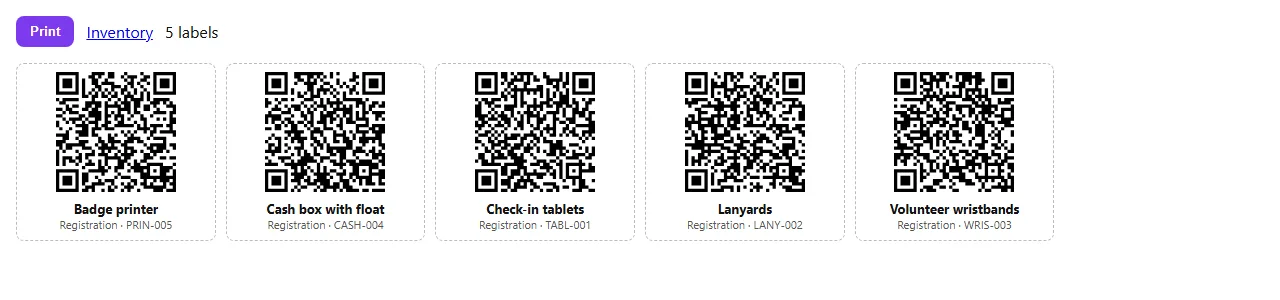
Each label shows the item name ③ under the code.
Scan a label
- Point a phone camera at the code and open the link. You need to be signed in.
- If you are the organizer, the item opens on your Inventory page. If you lead the team the item belongs to, it opens on your own team inventory page.
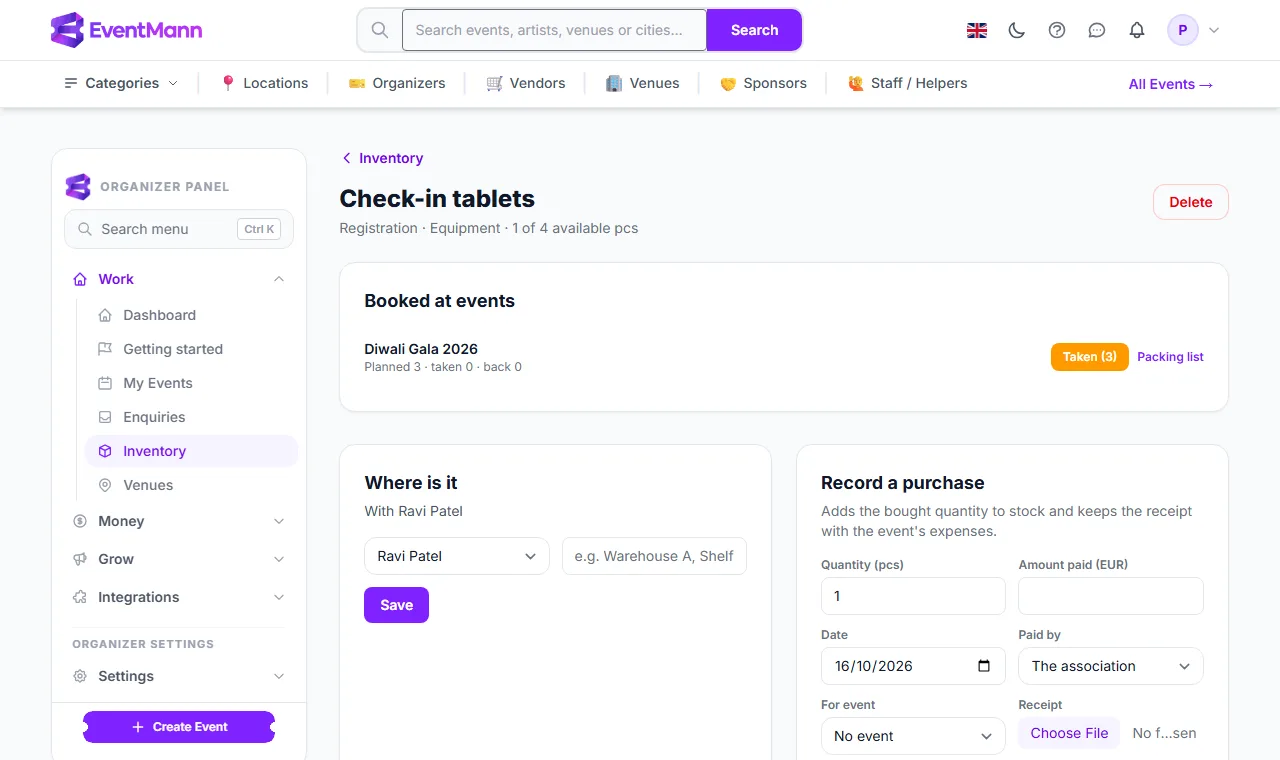
- If the item is on the packing list of a current or coming event, the top panel Booked at events shows the figures and two buttons: Taken marks all that are still to be taken, All back marks all that are out as returned. Use the full packing list for used-up, damaged or missing items.
The panel heading ① introduces the events; Taken ② records the whole planned quantity as taken, and Packing list ③ opens the event’s list. Events that ended more than seven days ago are no longer shown.
Good to know
- The code contains a random token, never an id, and nothing about the item itself. Anyone who finds a label without permission is refused, and sees nothing about the item or who holds it.
- Shared pool items open only for the organizer, because they have no team lead.
- The label of an item you deactivate is no longer printed. Printing again never changes an existing code, so old labels keep working.
Troubleshooting
- The scan says access denied — you are signed in with an account that neither owns the inventory nor leads that team.
- The scan asks me to sign in — that is expected; sign in and open the label again.
- The sheet is empty — the chosen team has no active items.