




Event Schedule
Organizer Guide
2 min read
Help articles may not be fully accurate — they can lag behind the app due to frequent updates and automated translation. If in doubt, please contact support.
On this page
- 1. What you can do here
- 2. Fields
- 3. Good to know
- 4. Troubleshooting
- 5. Related
Event Schedule is the agenda of an event — the sessions, breaks and performances in order — shown to attendees on the public event page. Open it from Manage → Event Setup → Details & dates → Event Schedule.
What you can do here
- Decide whether attendees see the agenda with the switch Show the schedule on the event page ① and click Save Changes. It is on by default. Switch it off while an agenda is still being drafted on an event that is already live.
- To add a session, fill in the row at the bottom: the Day ②, Start time ③, End time and Session title ④, then click Add.
- To remove a session click Delete at the end of its row and confirm.
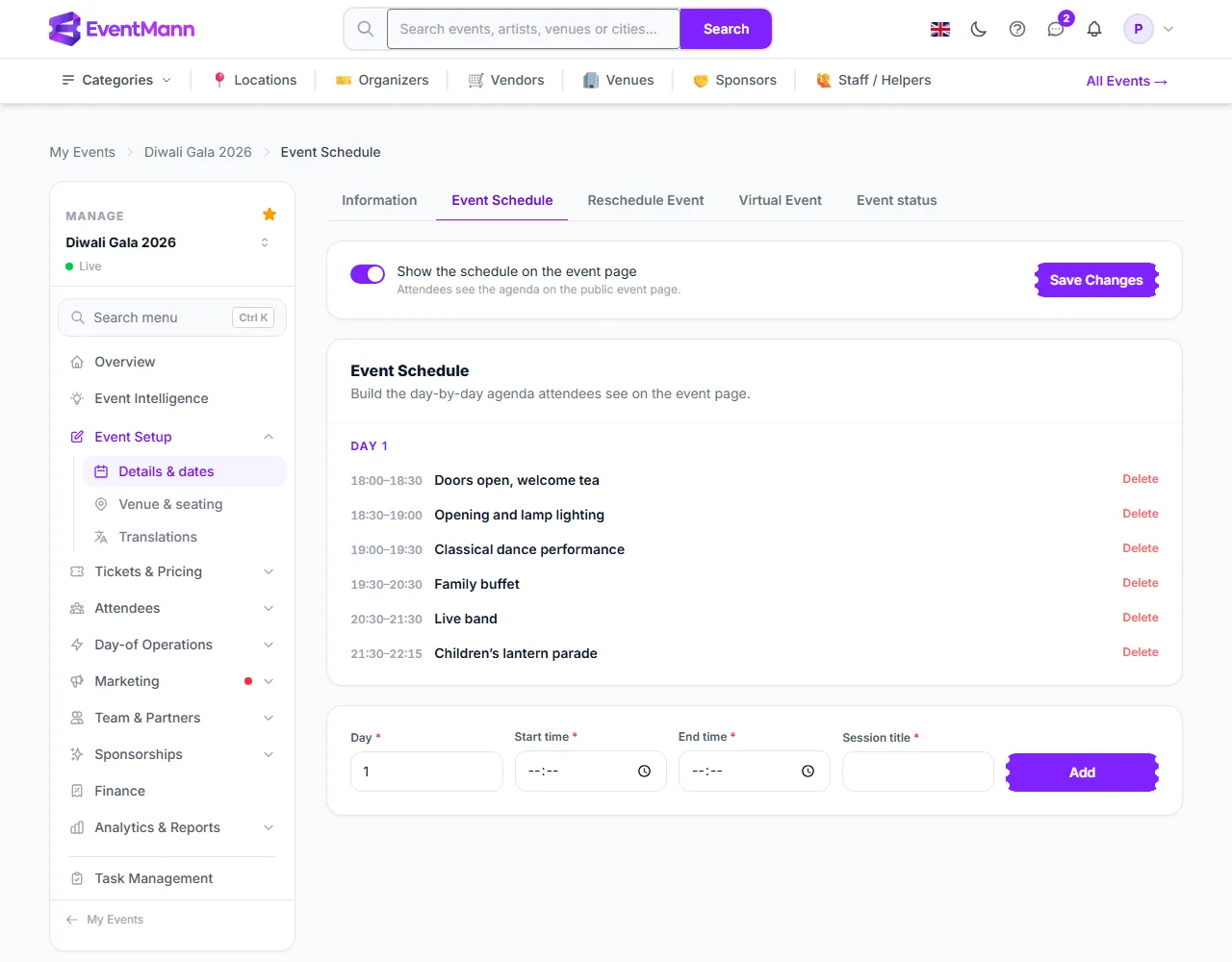
Fields
- Day — a number that groups sessions under “Day 1”, “Day 2” and so on. It is a sequence, not a calendar date, so it keeps working if you reschedule the event.
- Start time and End time — plain times of day in the event’s timezone. The end must be after the start.
- Session title — required, up to 255 characters.
Good to know
- Sessions are listed by day, then by their position, then by start time.
- Each session is saved as a plain session. Speakers, locations, descriptions and a type (session, break, keynote, workshop, networking) exist in the data but this form does not ask for them.
- The schedule is separate from the event’s own start and end. Moving the event on Reschedule Event does not move the sessions, so check them afterwards.
- The public page shows the agenda only if the switch is on and at least one session exists.
Troubleshooting
- The end time error — the end time must be later than the start time.
- The sessions are in the wrong order — check each session’s Day number first; the order is by day.
- The agenda does not show on the event page — the switch is off, or the schedule is empty.