




My Tickets
Help articles may not be fully accurate — they can lag behind the app due to frequent updates and automated translation. If in doubt, please contact support.
On this page
My Tickets is your list of every order you made with this account, paid or free: its tickets, its status and everything you can still do with it. Open it with My Tickets in the account sidebar or in the menu under your avatar.
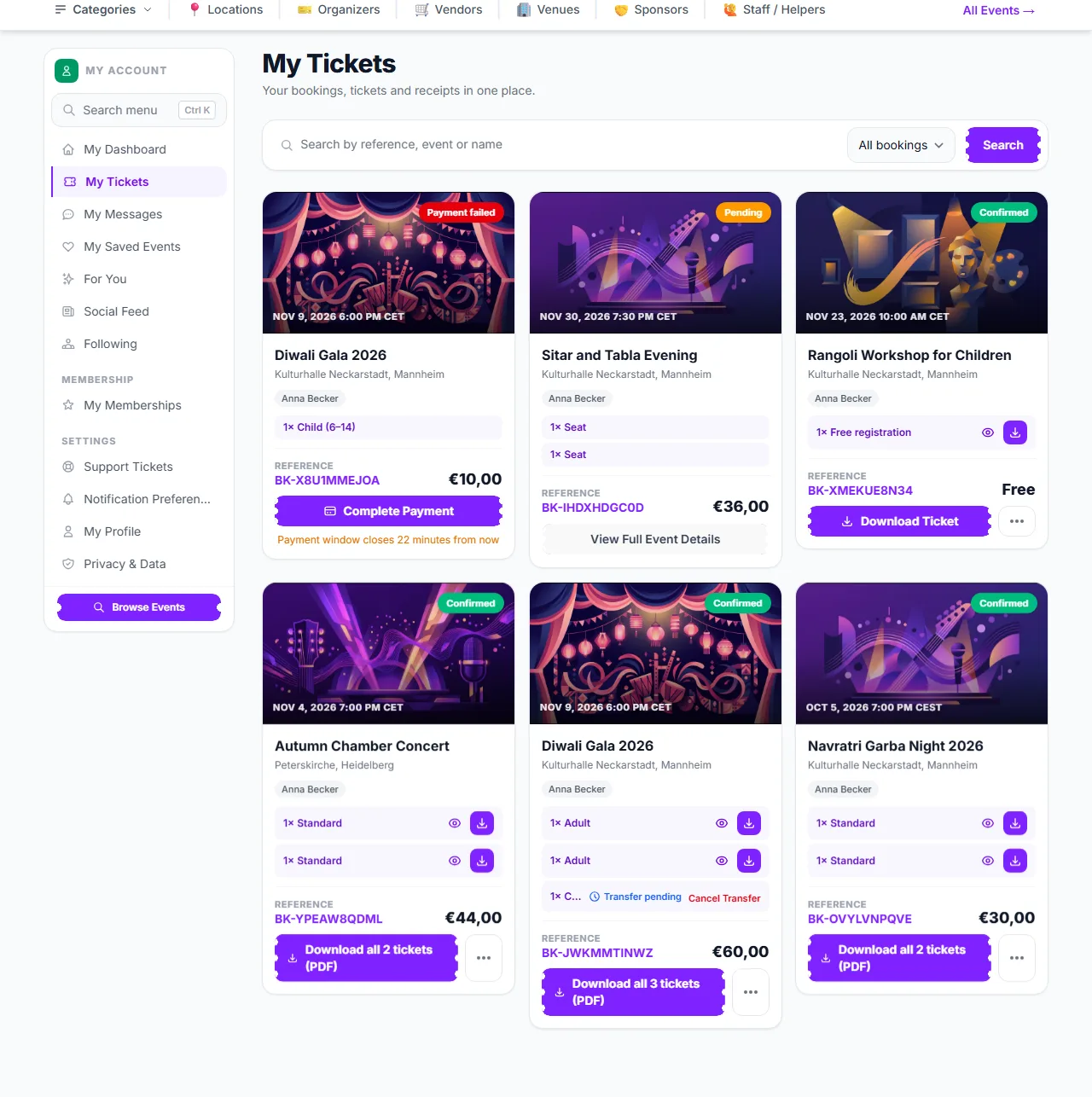
What you can do here
- Search ① — by booking reference, event name or the attendee name on the order.
- Filter ② — the list next to it shows All bookings, Upcoming, Past, or only orders that are Confirmed, Pending, Cancelled or Refunded. Search and filter work together; Clear filters resets them. Ten orders show per page.
- Open or download a ticket — on a confirmed order every ticket is a row with a ticket icon (view the ticket and its QR code) and a download icon (PDF). When the order has several tickets, the main button reads Download all 3 tickets (PDF) ③ and gives one PDF with all of them.
- See what happened to a ticket — a ticket you offered to somebody shows Transfer pending ④ with a Cancel Transfer link until they accept, then Transferred. A ticket given to you shows Received via transfer.
- Pay for an order — an order you still owe shows Complete payment with the time left (see Pending Bookings).
- Find your waitlist places — My Waitlists at the bottom lists events you are waiting for.
More actions
The three-dot button on an order opens a menu. Which entries you see depends on the order and on what the organizer allows.
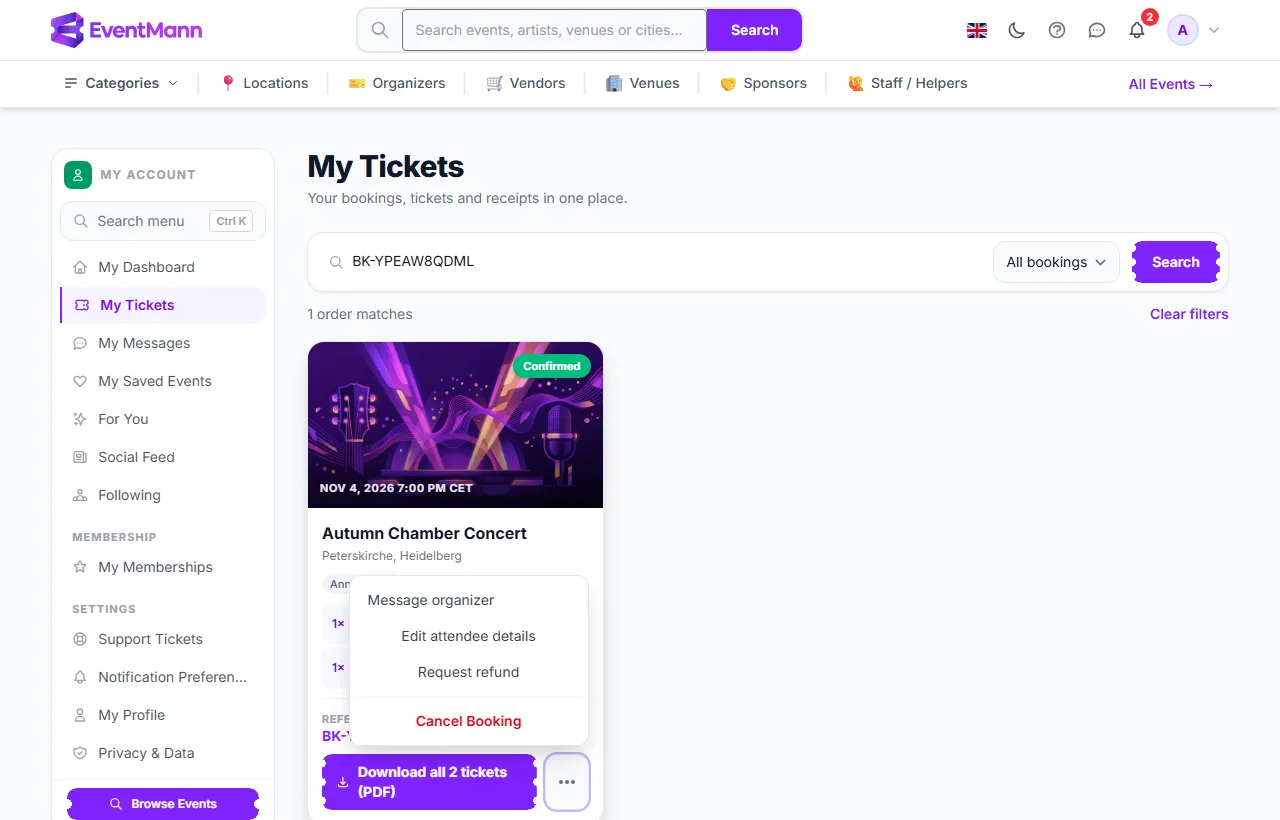
- Message organizer ① — write to the organizer about this event (see How to Contact the Organizer).
- Edit attendee details ② — change the name and email on each ticket before the event starts, if the organizer allows it.
- Request refund ③ — ask the organizer for money back (see How to Get a Refund).
- Cancel Booking ④ — cancel the whole order after a confirmation question. On a paid order the question says how much comes back, or that nothing does.
- Invoice — the organizer’s invoice for a paid order, when they issue invoices.
- Leave a review — once the event has started. It becomes Already reviewed after you wrote one.
Name the ticket holders
Choose Edit attendee details in the menu to open one small form per ticket.
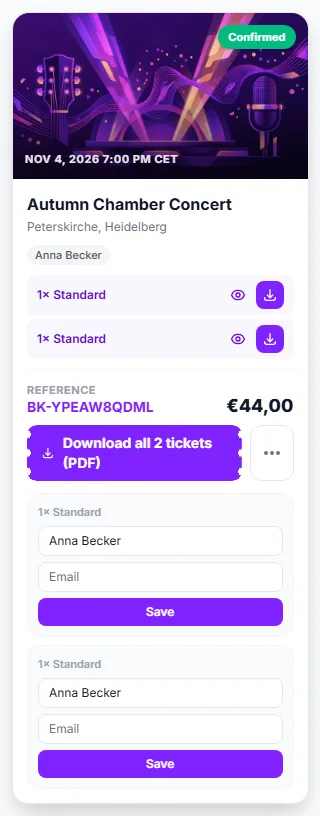
- Change the Name ① and, if you wish, the Email ② for a ticket.
- Press Save under that ticket. Each ticket is saved on its own.
The name is printed on the ticket. This is offered while the organizer allows edits and until the event starts.
What the statuses mean
| Status | Meaning |
|---|---|
| Confirmed | Paid, free or approved. Your tickets exist and can be viewed and downloaded. |
| Pending | Waiting for the organizer’s approval, or for a payment to clear. No tickets yet. |
| Payment failed | The card was declined or the payment was not completed. The order is kept for a short while; Complete payment lets you try again. |
| Cancelled | The order was cancelled. Money is only returned if the cancellation terms said so and a refund was started. |
| Refunded | A refund was issued for the whole order. Its tickets no longer admit anyone. |
The Pending filter shows every order still waiting: pending ones, orders the organizer approved that you still have to pay, and orders whose payment failed, each with its Complete payment button where you owe money.
Good to know
- Cancel Booking and Request refund are only offered on confirmed orders for events that have not started and whose tickets have not been scanned. An organizer can switch cancelling off completely, and can set a deadline for it. If the deadline passed, the card says so and Request refund stays available when the terms still return something.
- An order that includes a ticket you gave away or received by transfer cannot be cancelled or refunded from here.
- An organizer can add a free ticket to your order after you booked, for example a child’s place. It appears as an extra ticket on the same order.
- A pass covering several events appears as one order per event, with a note that it also covers the others.
- Only orders placed while signed in to this account are listed. A guest order is reached with the link in its email, or with Email me my bookings on the contact page.
Troubleshooting
- The page says I have no bookings — you are signed in with another account than the one you booked with, or you booked as a guest.
- I cannot see Download on a ticket — the order is not confirmed yet, or the ticket was transferred away or cancelled.
- My search finds nothing — a filter may still be set; press Clear filters.
- There is no Cancel Booking button — see the conditions above; Request refund may still be there.