




Export attendee data
Help articles may not be fully accurate — they can lag behind the app due to frequent updates and automated translation. If in doubt, please contact support.
On this page
You can download the people who booked an event as a CSV file, to open in Excel or any spreadsheet. The export is on the event’s Attendees → Orders page and always follows the filters you have set there. It is available to the organizer account. Whether a team member sees the button depends on their role; box-office and staff roles do not have it.
How to export
- Open the event and go to Attendees → Orders.
- Choose the tab (Confirmed is selected by default) and any filters — search, ticket type, discount, dates. The export contains exactly the orders you filtered to.
- Click Export CSV ① and choose a file.
- Orders — one row per order ② is the booking list, with names, contact details and money.
- Tickets — one row per ticket, with the price actually paid ③ lists every ticket, with the ticket holder’s name and what that ticket really cost after discounts.
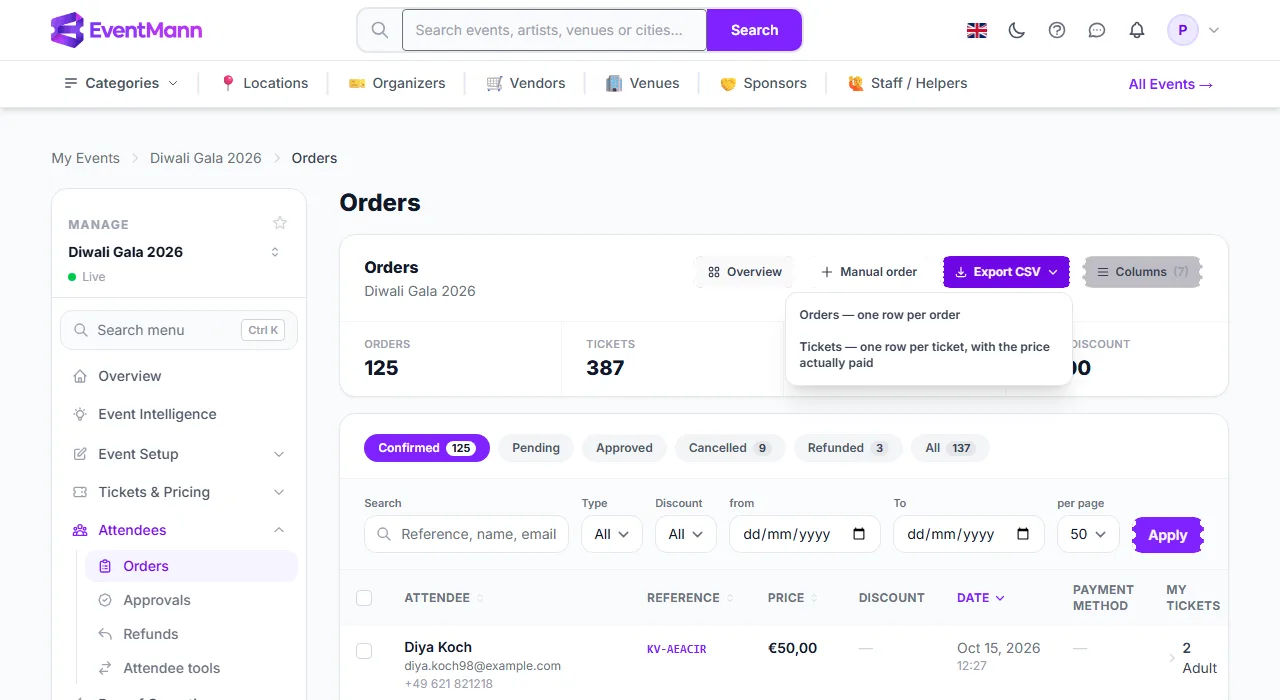
The file downloads straight away; there is nothing to wait for.
What is in the files
| File | Columns |
|---|---|
| Orders | Reference, Name, Email, Phone, Tickets (for example “2x Adult”), Subtotal, Discount code, Discount, Fees, Tax, Total, Status, Date, Payment method, then one column for each checkout question you set up, with the buyer’s answers |
| Tickets | Reference, Attendee, Email, Ticket type, Ticket holder, List price, Discount, Price paid, Discount code, Status, Date |
Subtotal minus Discount plus Fees plus Tax equals Total, so you can reconcile an order in a spreadsheet. Cancelled tickets are left out of the Tickets column and file. Dates are in the event’s own time zone.
Export only some orders
Tick the boxes in front of individual orders and use Export selected in the bar that appears. That file is shorter: Reference, Name, Email, Phone, Tickets, Total, Status, Date, Payment method and the checkout-question columns.
Your responsibility once you download it
- The files contain personal data — names, emails, phone numbers and the answers to your checkout questions. Once the file is on your computer, you are responsible for storing, sharing and deleting it under GDPR or whatever data-protection law applies to your attendees.
- EventMann removes old attendee records on its own retention schedule, but that does not reach copies you have exported. If someone asks you to delete their data, delete it from your exports too.
- Export only what you need and keep as few copies as possible.
Good to know
- You cannot add or remove columns. Hiding columns in the table (the Columns button) changes only what you see on screen; both exports always contain every column.
- Cells that start with a character a spreadsheet would treat as a formula are made safe, so a hostile answer cannot run code when you open the file.
- Financial summaries across events are separate: see Financial Exports.
Troubleshooting
- An attendee is missing. Check the tab and filters on the Orders page. The export includes only what you are looking at.
- A checkout-question column is empty for some rows. The order was placed before the question existed, or the question was optional.
- I do not see Export CSV. You are signed in as a team member whose role does not include exporting bookings (box office and staff do not; the Finance Manager role does). Ask the organizer to export, or to give you a role that includes it.
- I need Excel format. Open the CSV in Excel; it reads CSV directly.