




Handling Booking Requests
Help articles may not be fully accurate — they can lag behind the app due to frequent updates and automated translation. If in doubt, please contact support.
On this page
A booking request is an organizer’s inquiry to hire your venue for a date range, optionally for one of their events and with a package and services. You answer it from My Venues → the venue → Booking Requests. This article follows a request from the organizer’s form to the completed booking, and explains how an approved request links the organizer’s event to your venue.
What you can do here
- See every request for a venue, filter by status and read the organizer’s message.
- Approve a request with a final price, a deposit and a message — or decline it.
- Record the deposit and mark the booking completed after the event.
What the organizer sends
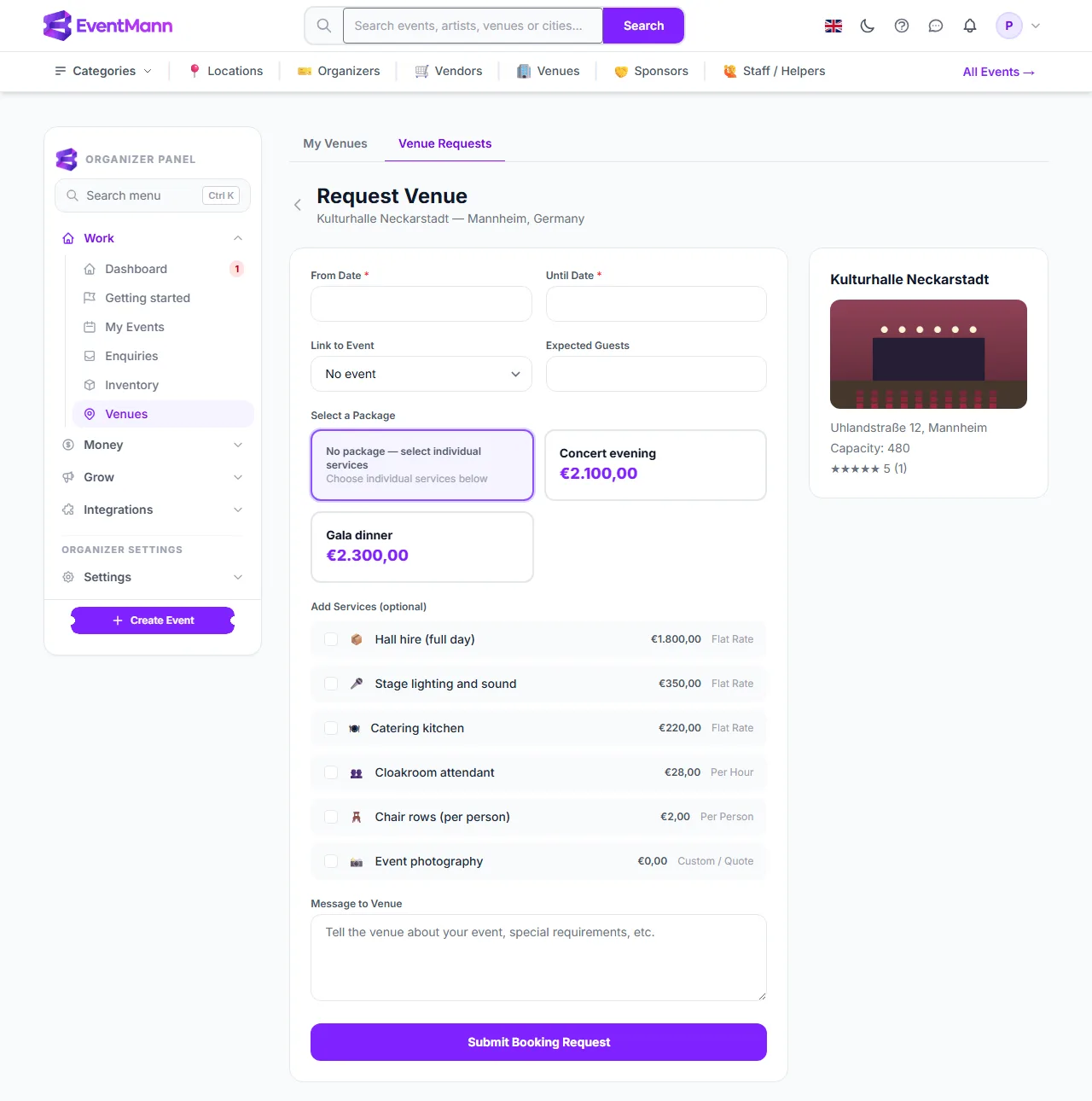
Organizers find your venue under Venues → Browse Venues in their panel, or on your public page, and click Book venue. The Request Venue form asks for:
- From Date ① and Until Date (required; the start must not be in the past, the end must be after the start).
- Link to Event ② (one of their upcoming events), Expected Guests.
- A package or single services with quantities, and a Message to Venue of up to 3,000 characters.
The organizer clicks Submit Booking Request ③. The request is created as Pending and you are told in the bell and, if your Venue booking requests preference is on, by email. If the dates overlap something that is already blocked or booked, the organizer sees a warning, but the request still comes to you.
Answer a request
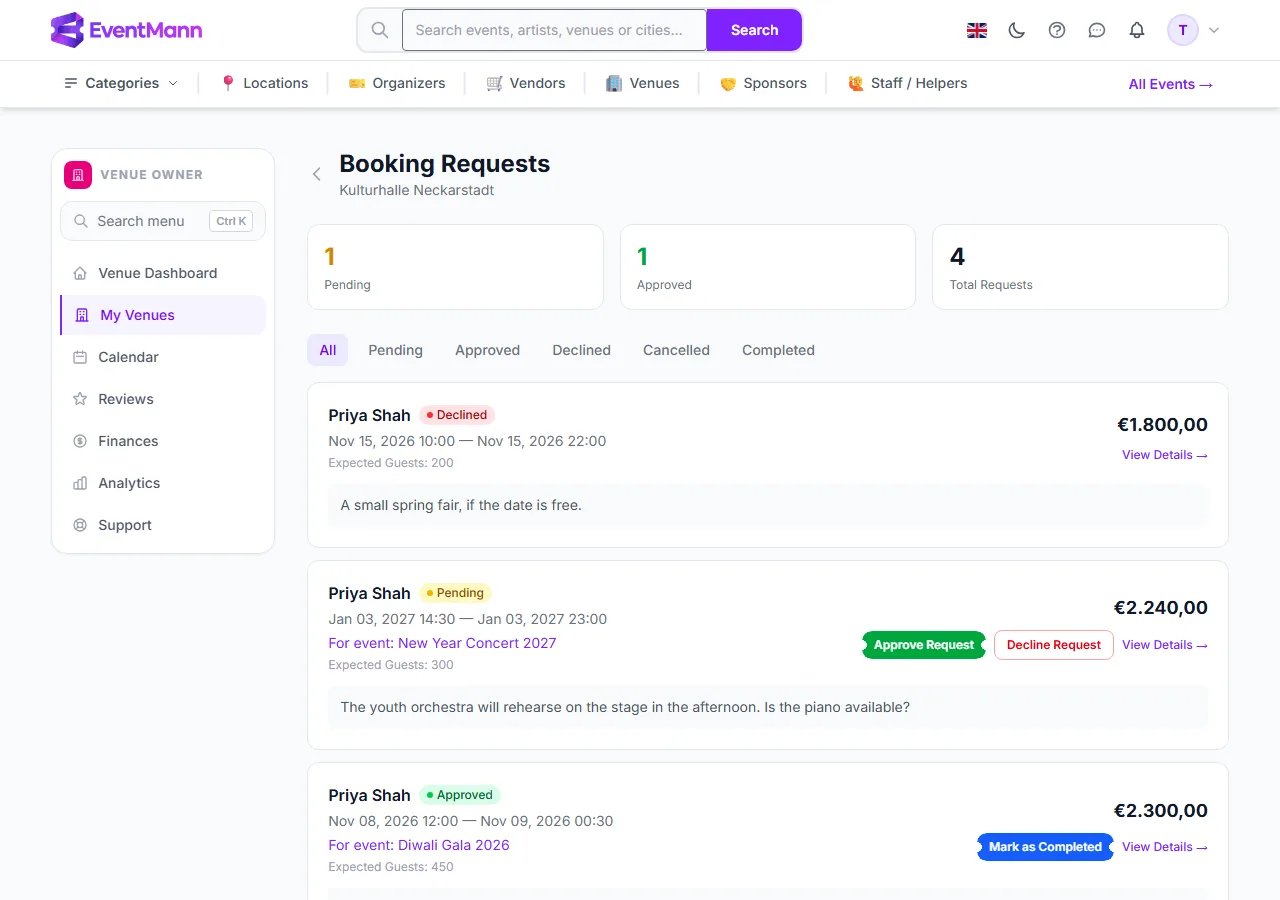
- Open Booking Requests for the venue. Three cards show Pending, Approved and Total Requests. The tabs ① (All, Pending, Approved, Declined, Cancelled, Completed) filter the list.
- Each card shows the organizer, status, dates, the linked event, expected guests, the first 200 characters of the message and the total price.
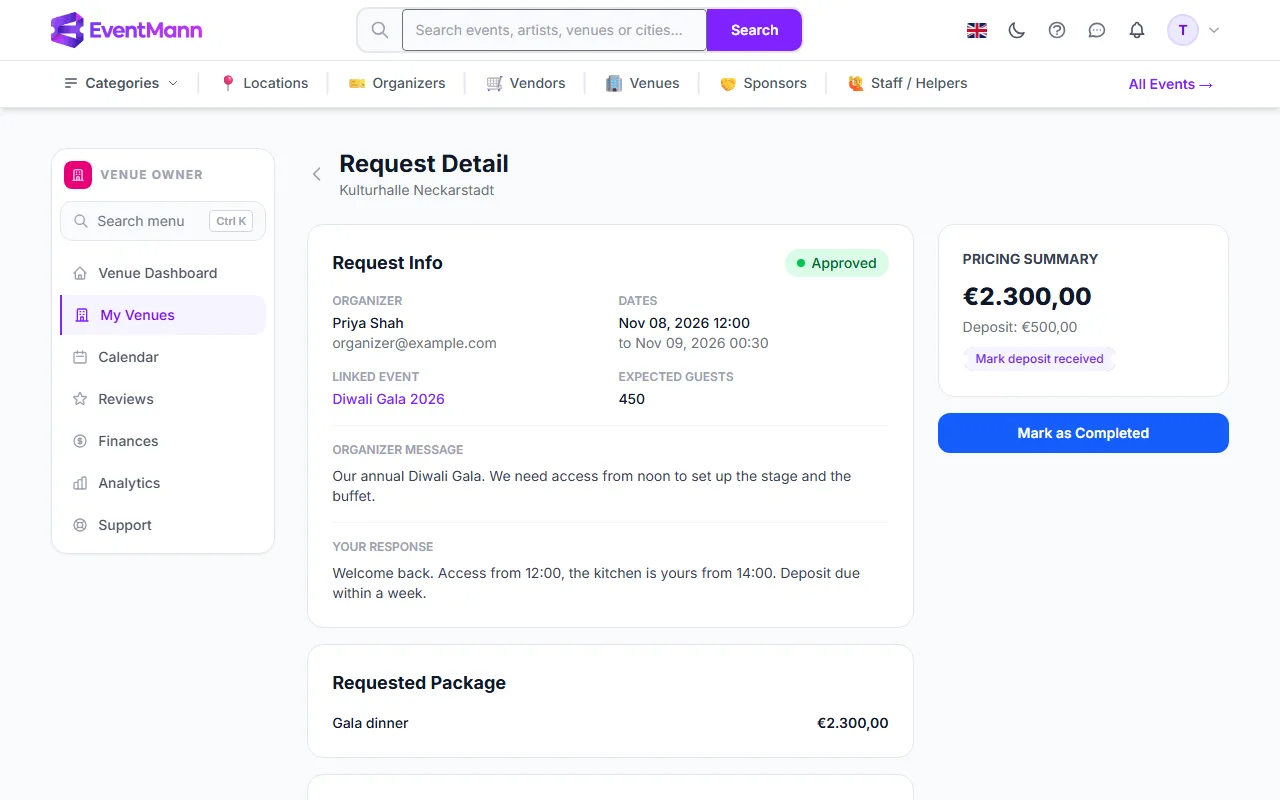
- Click View Details ④ to read everything and set the price and deposit — this is the better route, see Venue Pricing.
- For a quick answer use the buttons on a pending card: Approve Request ② approves it at once; Decline Request ③ opens the request’s page at its decline form, so you can tell the organizer why.
- When an approved booking has taken place, click Mark as Completed ⑤.
What each action does
| Action | Result |
|---|---|
| Approve Request | Status Approved. The dates are checked first: if they overlap a blocked period, an event at the venue or another approved request, the approval is refused and the message names the clash. The organizer gets an email and a bell notification. If the request names an event that has no venue yet, your venue is assigned to that event. From the list the request is approved with the requested total and no deposit; open the details to change them. |
| Decline Request | Status Declined. The organizer is notified. You decline on the request’s page, where the reason you write goes into the organizer’s email. |
| Mark deposit received | Only on an approved request that has a deposit amount. Records the date; Mark deposit unpaid undoes it. |
| Mark as Completed | Only on an approved request. Status Completed. The organizer can then rate the venue, and the rating appears under Reviews. |
If the organizer cancels
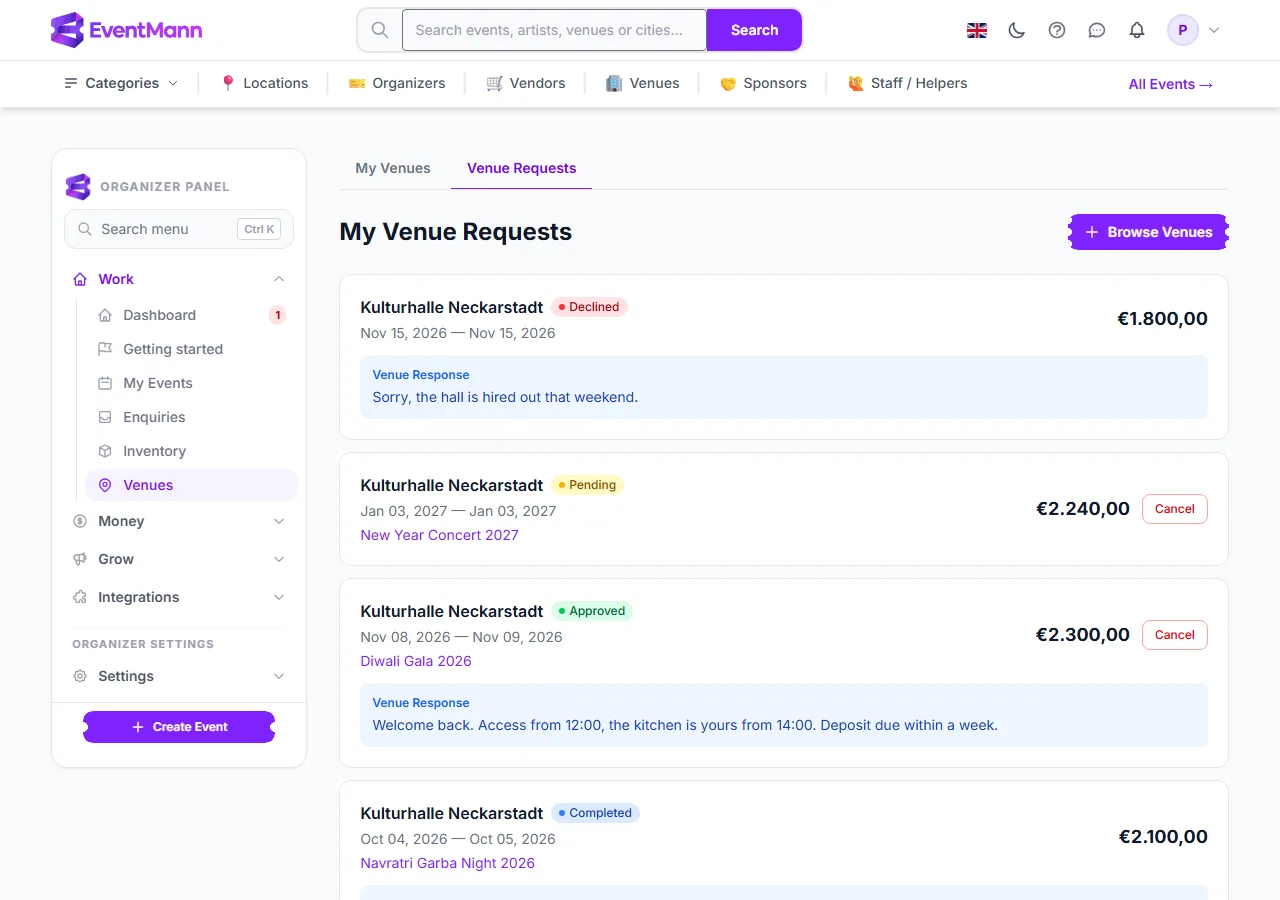
An organizer can cancel a pending or an approved request from their My Venue Requests list ① with the Cancel button ②. The status becomes Cancelled, you are notified, and if that request was what linked the event to your venue, the link is removed, so the dates are free again.
How the event is linked to your venue
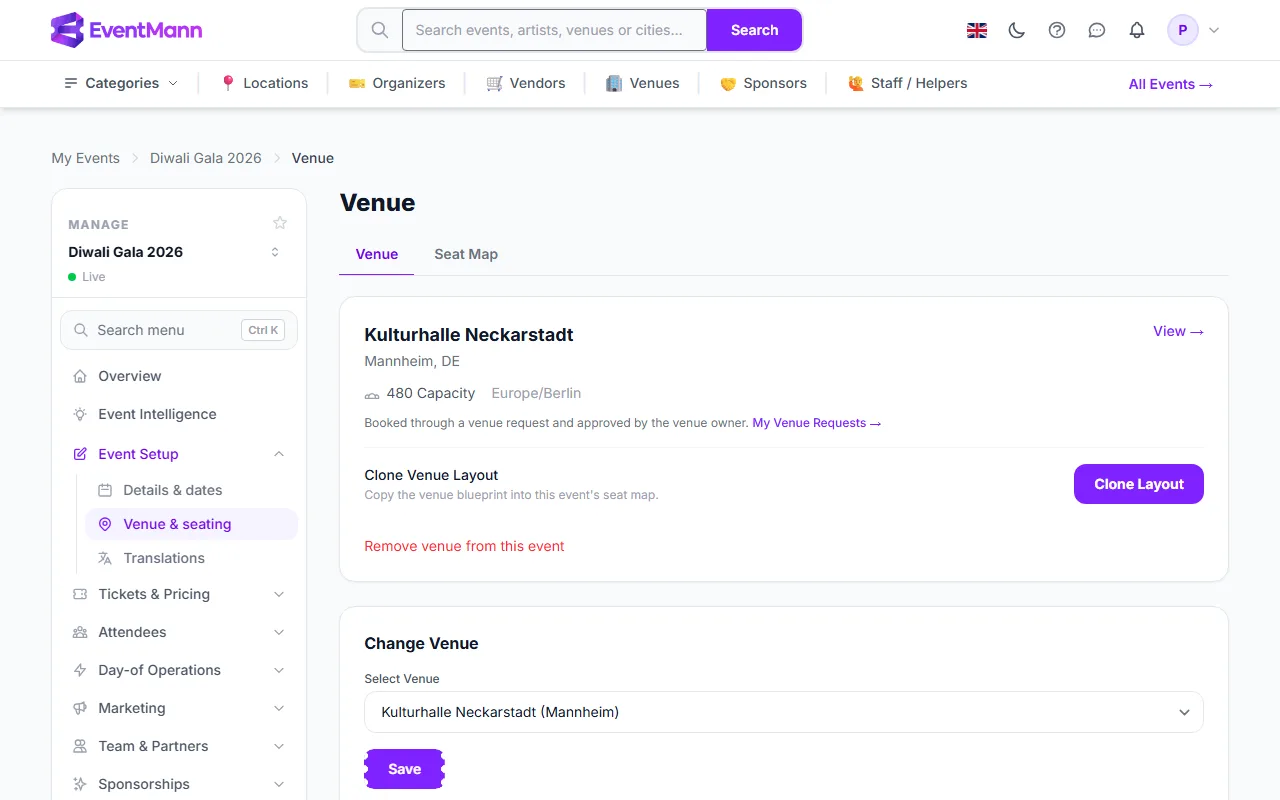
On the organizer’s side, the event’s Venue & seating page shows the venue with a link to the request. The venue list on that page contains the organizer’s own venues and every venue where one of their requests was approved — so your approval is what makes your hall selectable for them. From there they can also Clone Layout to copy your seat layout (see Floor Plans & Layouts).
Good to know
- Organizers can only find venues that are approved and active, so requests normally arrive only for those.
- The request detail shows the organizer’s name and email, so you can contact them outside EventMann.
- Only pending requests can be approved or declined; only approved ones can be completed. There is no way to reopen a declined request — ask the organizer to send a new one.
- If an organizer picked a package, the detail shows it under Requested Package; the total is that package plus the single services.
- Approving and declining are final for the request. Changes after approval (a new price, other dates) are agreed with the organizer directly.
Troubleshooting
- “Cannot approve — the venue is already committed for those dates” — the text in brackets names what is in the way: the reason of a blocked period, an event title or another organizer. Remove the block, or decline one of the requests.
- You did not get an email — check Venue booking requests in your notification preferences. The bell entry is always created.
- The organizer says the venue is not selectable for their event — the request must be Approved, and be for that organizer.
- Mark deposit received is missing — the request has no deposit amount. Set one when you approve.