




Notification Preferences
Help articles may not be fully accurate — they can lag behind the app due to frequent updates and automated translation. If in doubt, please contact support.
On this page
- 1. Change what you receive
- 2. Settings explained
- 3. Browser push
- 4. The notification bell
- 5. Good to know
- 6. Troubleshooting
- 7. Related
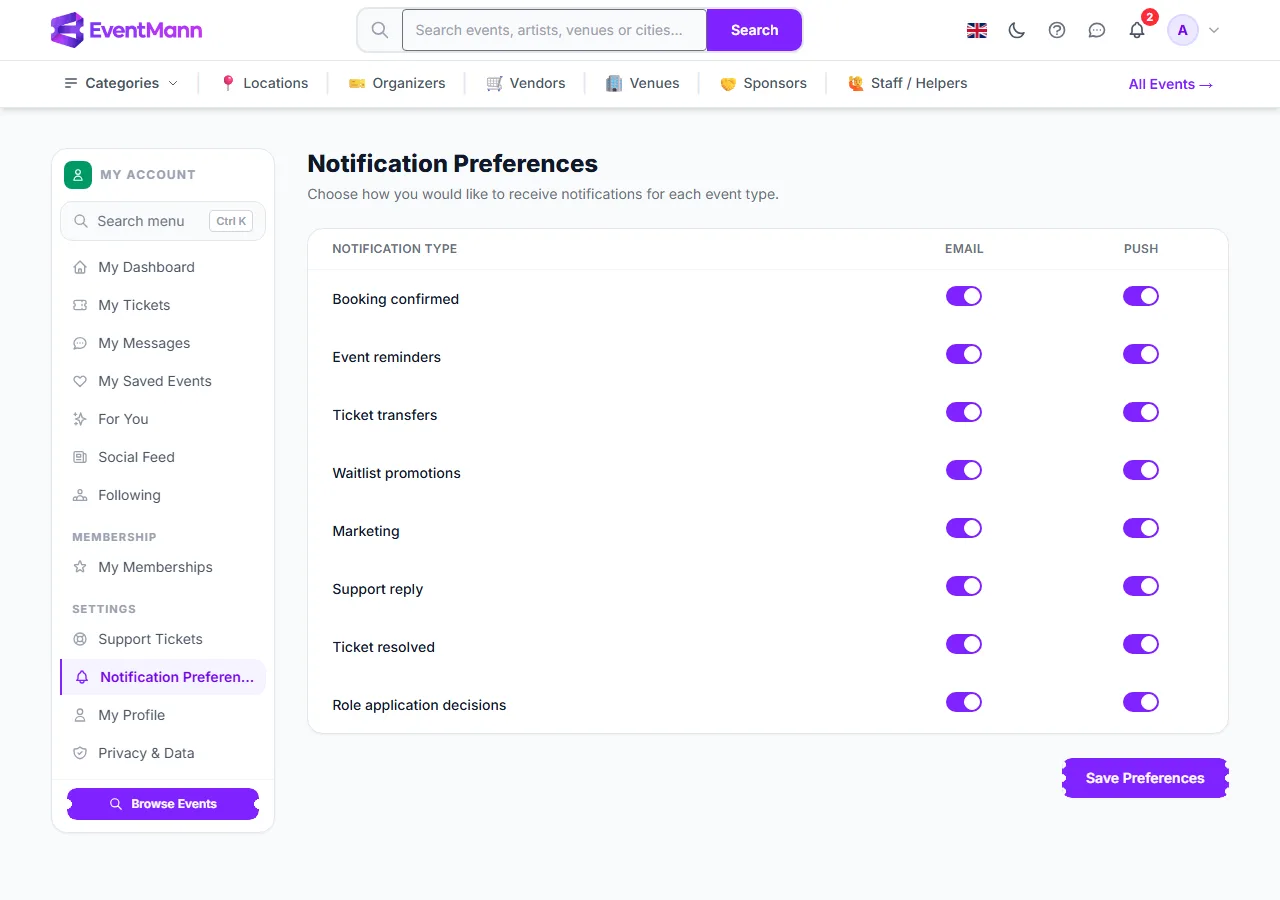
Notification Preferences decide which messages EventMann sends you by email and as browser push notifications. Open Notification Preferences in the account sidebar, or from your avatar menu. This article also explains the notification bell and the Notifications page, which hold the same messages inside the site.
Change what you receive
- Find the message type in the left column. There is one row for each kind of message.
- Switch the Email column ① on or off for that row, and the Push column ② if you use browser push.
- Click Save Preferences ③. Nothing is changed until you save.
Settings explained
| Type | What it covers |
|---|---|
| Booking confirmed | The confirmation email with your tickets, and the matching push message. |
| Event reminders | The reminder before an event, and notices when the organizer changes the date or venue of an event you booked. |
| Ticket transfers | An offer to receive a ticket, and the answer to an offer you sent. |
| Waitlist promotions | The message that a place has opened for you on a waitlist. |
| Marketing | News and offers that organizers send you. You can also unsubscribe from the link in any such email. |
| Support reply / Ticket resolved | An answer to, or the closing of, a support ticket you opened. |
| Role application decisions | The outcome when you applied to be a vendor, sponsor or venue owner. |
Browser push
Where your platform has push switched on, a card titled Browser push notifications appears above the grid. Click Enable on this device on each device and browser you want to be notified on, and allow notifications when the browser asks. Disable on this device turns it off for that device. The Push column then chooses which message types may use it. If your browser does not support push, the card says so.
The notification bell
The bell in the top bar shows how many unread notifications you have. Click it for the latest ones, or View all notifications for the full page.
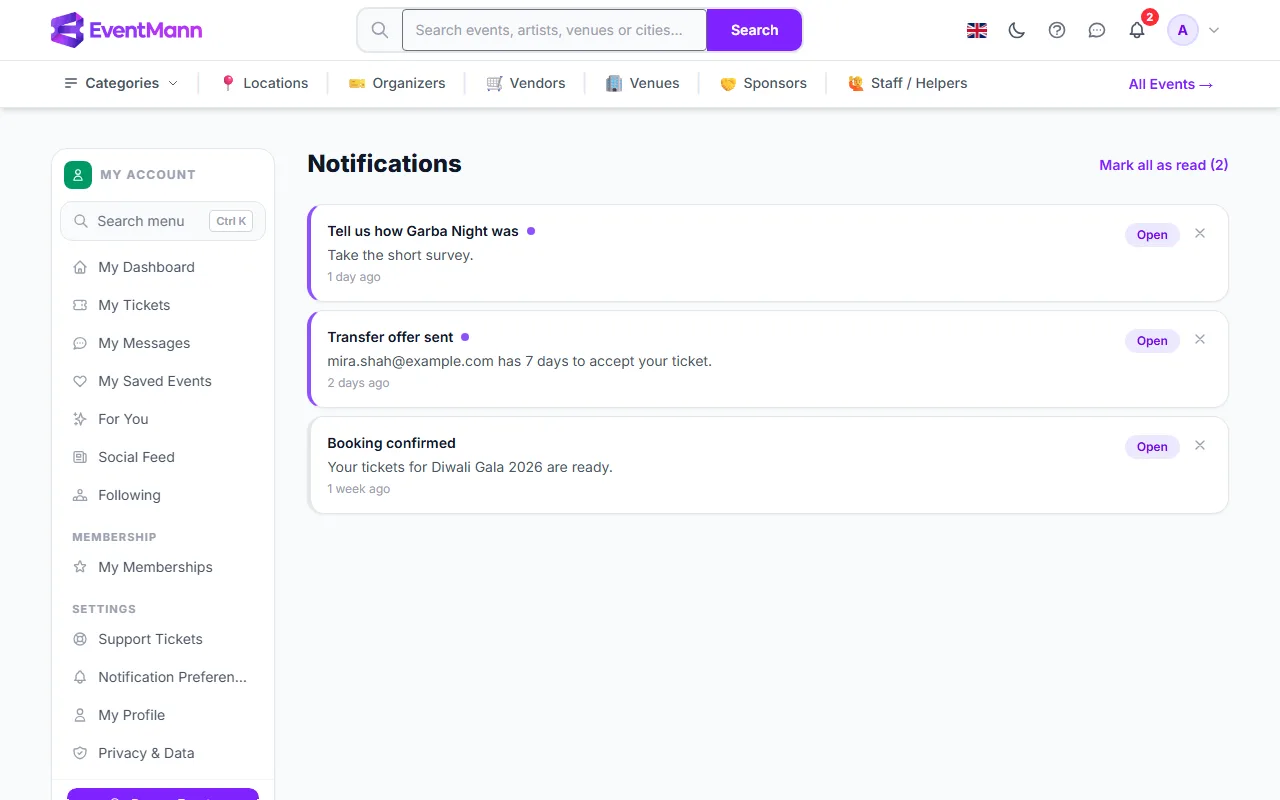
- Mark all as read ① clears the unread count.
- Click a message, or its Open link ②, to jump to what it is about, for example a survey or a booking. Opening it marks it as read.
- The bin icon on a message deletes it.
Good to know
- Switching off Email for Booking confirmed means the confirmation email, and the tickets attached to it, are not sent to you. Your tickets are still in My Tickets, but keep this switch on unless you are sure.
- These settings apply to your account. If you check out as a guest, you have no preferences and every email for that order is sent to the address you entered.
- Emails that are part of a purchase you are making, such as a payment link, a password reset or a verification email, are not optional messages and are not controlled here.
- Following an organizer does not create any notification; see Following.
- Organizer and admin accounts are sent to their own settings pages for this; vendor, sponsor, staff and venue accounts see this grid with the extra message types that apply to their role.
Troubleshooting
- I am not getting booking emails — check that Email is on for Booking confirmed, then check your spam folder. See Where Are My Tickets?.
- I turned a switch off and still got an email — mail already queued before you saved can still arrive. Messages that belong to an order or a security action are not affected by these switches.
- There is no Push column or push card — browser push is not available on this platform or in your browser.
- I get no browser notifications — you must allow notifications for the site in the browser and press Enable on this device.