




Pricing Rules
Help articles may not be fully accurate — they can lag behind the app due to frequent updates and automated translation. If in doubt, please contact support.
On this page
- 1. Add a rule
- 2. Reading the list
- 3. How the price is worked out
- 4. Good to know
- 5. Troubleshooting
- 6. Related
A pricing rule changes the price of one ticket type automatically: an early-bird price until a date, or a higher price once most seats are sold. Open it under Manage → Tickets & Pricing → Pricing & offers → Pricing Rules. The tab strip ① also leads to Flash Sales, Bundles and Discounts.
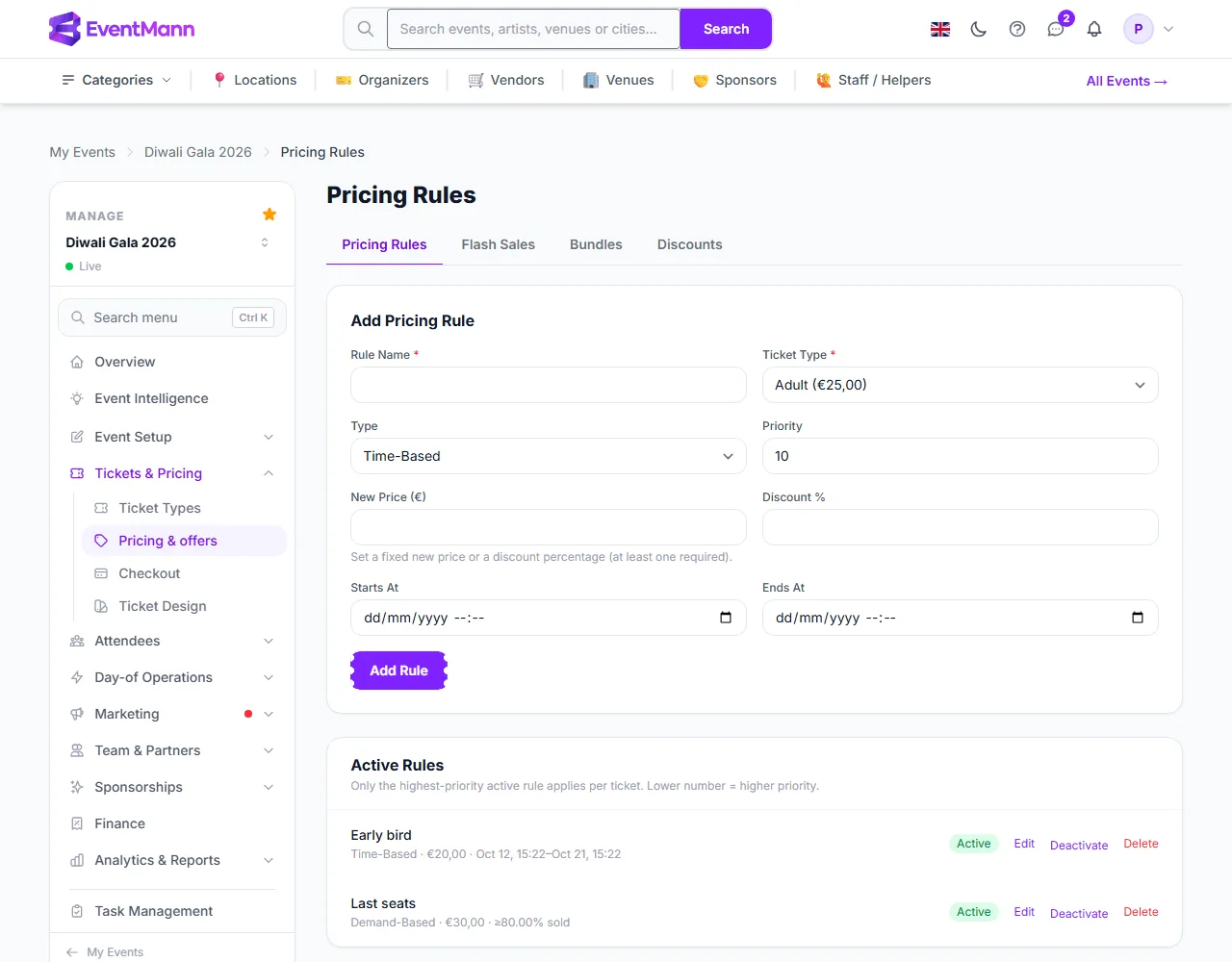
Add a rule
- Enter a Rule Name, for example “Early bird”. It is for you; buyers do not see it.
- Choose the Ticket Type ② the rule applies to. A rule belongs to one ticket type.
- Choose the Type ③:
- Time-Based — the price changes inside a date window. Set Starts At and Ends At; both are required, and the end must not be before the start.
- Demand-Based — the price changes once sales reach a threshold. Set the Demand Threshold, the percentage of the ticket type’s capacity that must be sold (0 to 100).
- Choose the effect: a fixed New Price, or a Discount % off the regular price (0.01 to 90). One of the two is required. A fixed price cannot be below 10% of the regular price.
- Set the Priority ④ (default 10). When several rules are active for the same ticket, only the one with the lowest number applies.
- Click Add Rule. It appears under Active Rules ⑤.
Reading the list
Each rule shows its type, its effect and its window or threshold — for example “Time-Based · €20,00 · Oct 12–Oct 21” or “Demand-Based · €30,00 · ≥80.00% sold”. Edit changes it, Deactivate switches it off (and Activate back on) and Delete removes it.
How the price is worked out
- The regular ticket price is the starting point.
- The active rule with the lowest priority number sets the price (a New Price replaces it, a Discount % reduces it). Others are ignored.
- An active flash sale then takes its percentage off the result.
- The result never goes below 10% of the regular price.
- A member price, if the buyer has one and it is lower, wins.
The ticket list shows the current price next to the regular price, and the figure on the event page is the figure charged.
Good to know
- Dates and times are in the event’s timezone.
- A demand rule counts what has actually been sold against the type’s capacity. It does not apply to a type without a capacity.
- Changing a rule never changes an order that is already paid.
Troubleshooting
- “Enter either a new price or a discount percentage” — fill one of the two fields.
- “Set a start date and time for a time-based rule” — time-based rules need both ends of the window.
- “Set a threshold percentage for a demand-based rule” — enter the share sold at which the rule starts.
- “The new price can’t be below … (10% of the regular price)” — raise the price or use a smaller discount.
- The rule does not seem to apply — it may be inactive, outside its window, below its demand threshold, or another rule with a lower priority number applies.