




Sending, progress and unsubscribes
Help articles may not be fully accurate — they can lag behind the app due to frequent updates and automated translation. If in doubt, please contact support.
Sending a campaign is deliberately careful: it runs in the background in small batches, shows you how far it has got, can be stopped and resumed, honours the hours you allow, and skips people who asked not to be mailed. This article explains each part. You will meet it on a campaign’s page after you press Send Now.
Watch a send: the progress panel
On an event campaign’s page (Manage → Marketing → Campaigns) the Send progress panel updates by itself every few seconds while the campaign is Sending or Scheduled.
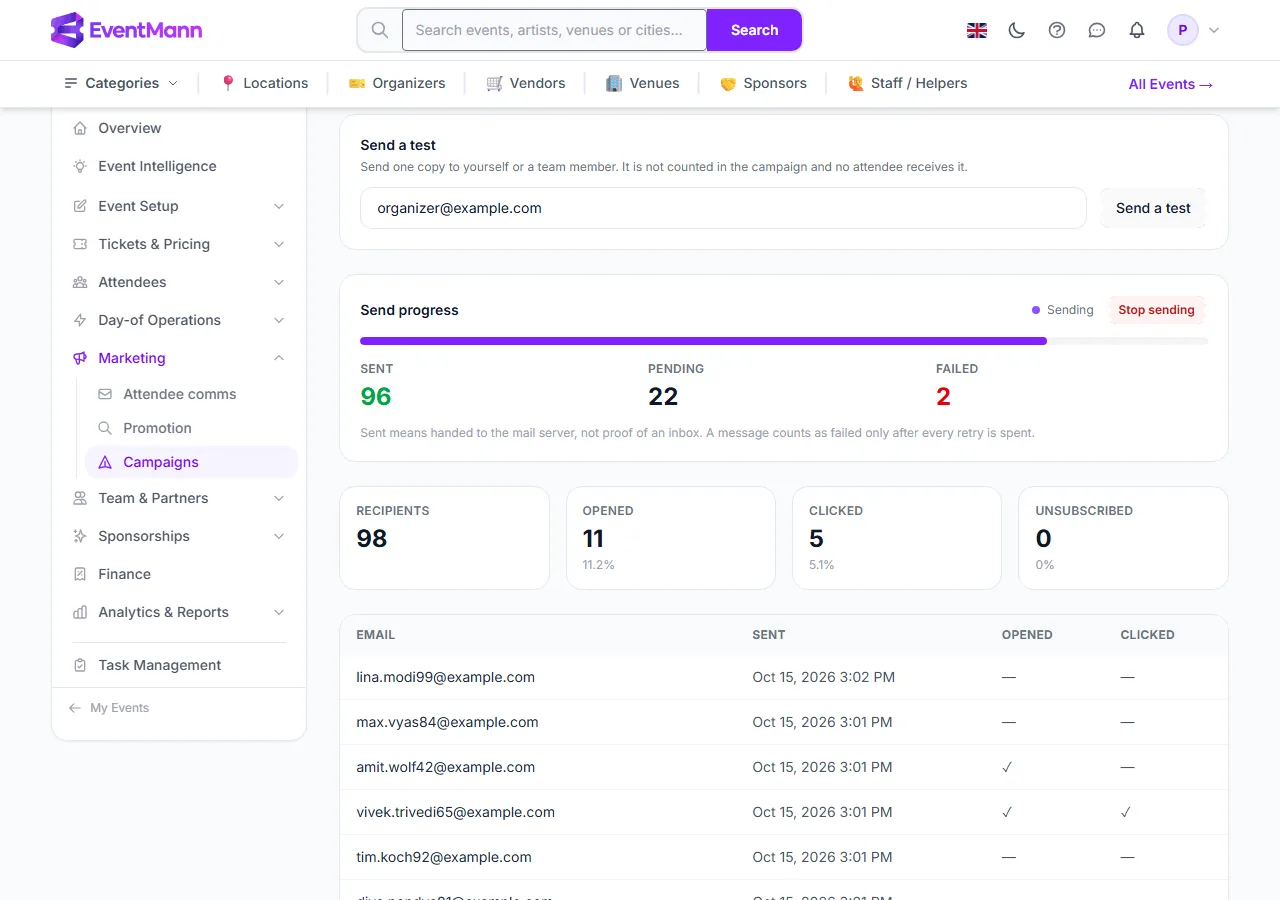
- The Send a test box ① lets you mail yourself a copy at any time.
- The Send progress panel ② shows a bar and three numbers.
- Stop sending ③ halts the send (see below).
- Pending ④ is everyone the send set out to reach who has not been mailed yet.
- Failed ⑤ counts messages that could not be delivered even after every retry.
The first number, Sent, is the count of messages handed to the mail server. That is not proof the message reached an inbox. A message only counts as failed after its whole retry schedule (up to six hours) is spent, so a short hiccup at your mail provider does not show up as a failure. Once a campaign settles, Pending drops to zero.
Choose when campaigns may go out
You decide the hours and the pace under Settings → SMTP & Mail, in the Campaign sending pace card.
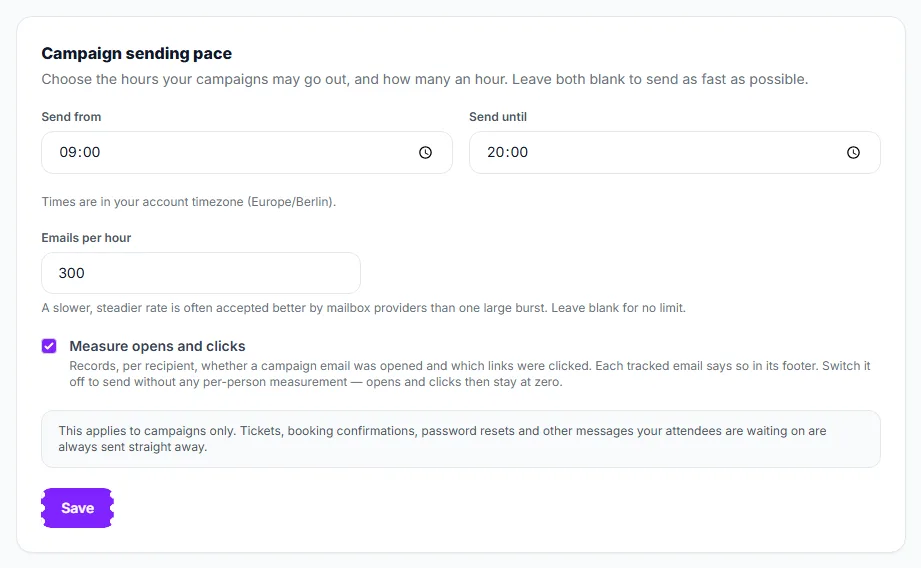
- Send from ① and Send until ② — the hours campaign mail may leave, in your account time zone (the card names it; change it under Account). Set both or neither. The window may cross midnight, for example 20:00 to 06:00.
- Emails per hour ③ — a ceiling on how many campaign emails go out in an hour. A slower, steadier rate is often accepted better by mailbox providers than one large burst. Leave it empty for no limit of your own.
- Measure opens and clicks ④ — switch it off to send without any per-person measurement. Opens and clicks then stay at zero, and the email carries no tracking image or notice.
- Click Save.
These are your own brakes, not a promise about delivery. EventMann also protects its sending address with a platform-wide budget that nothing here can raise. The hours and the cap apply to marketing mail only: tickets, booking confirmations, password resets and anything else your attendees are waiting for are always sent straight away. The sending hours also apply to your After the event follow-ups.
When nothing is moving: a held campaign
If you press Send outside your sending hours, the campaign does not send at 3 a.m. It goes back to Scheduled with the next opening as its time, and the panel says why.
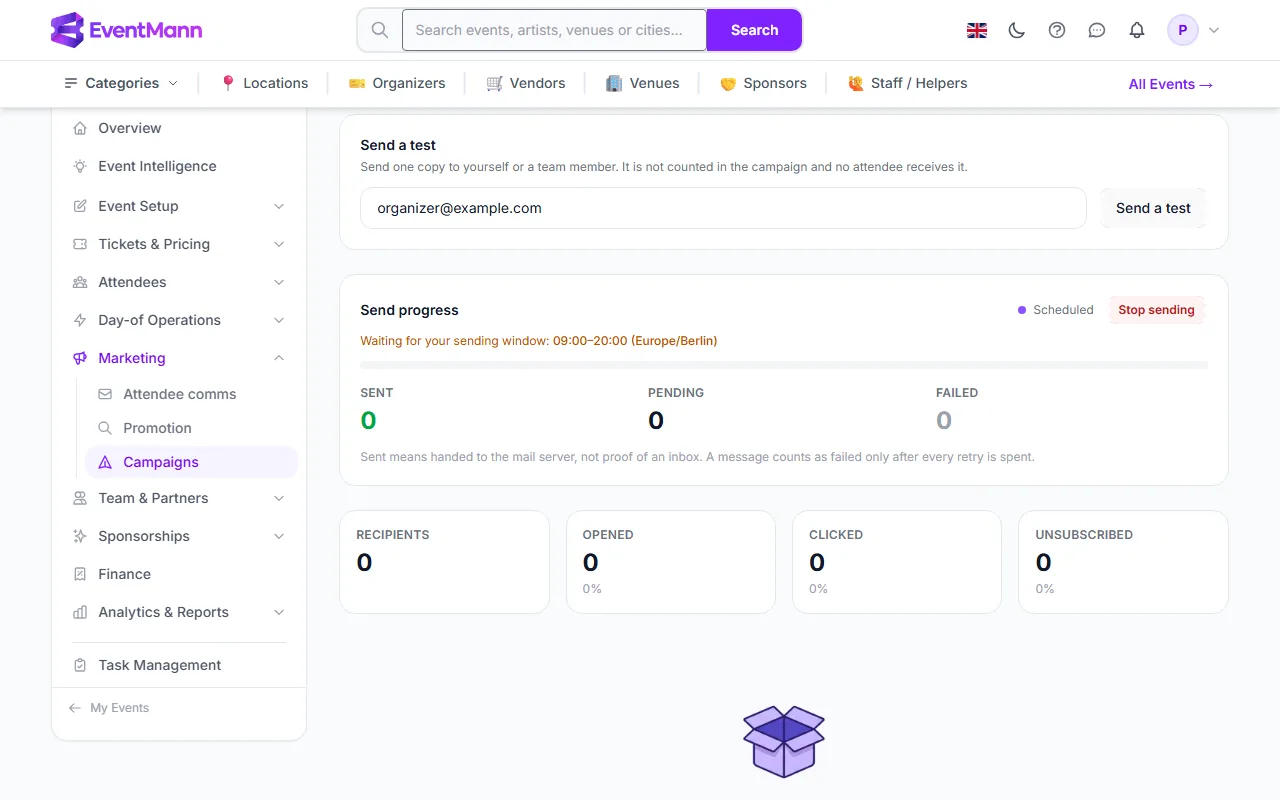
The line Waiting for your sending window ① names your hours. You can still Stop sending ②. A send that is already running also stops at the closing time and carries on at the next opening, however long it takes.
Stop a send, and resume it
If you spot a mistake while a send is running, click Stop sending.
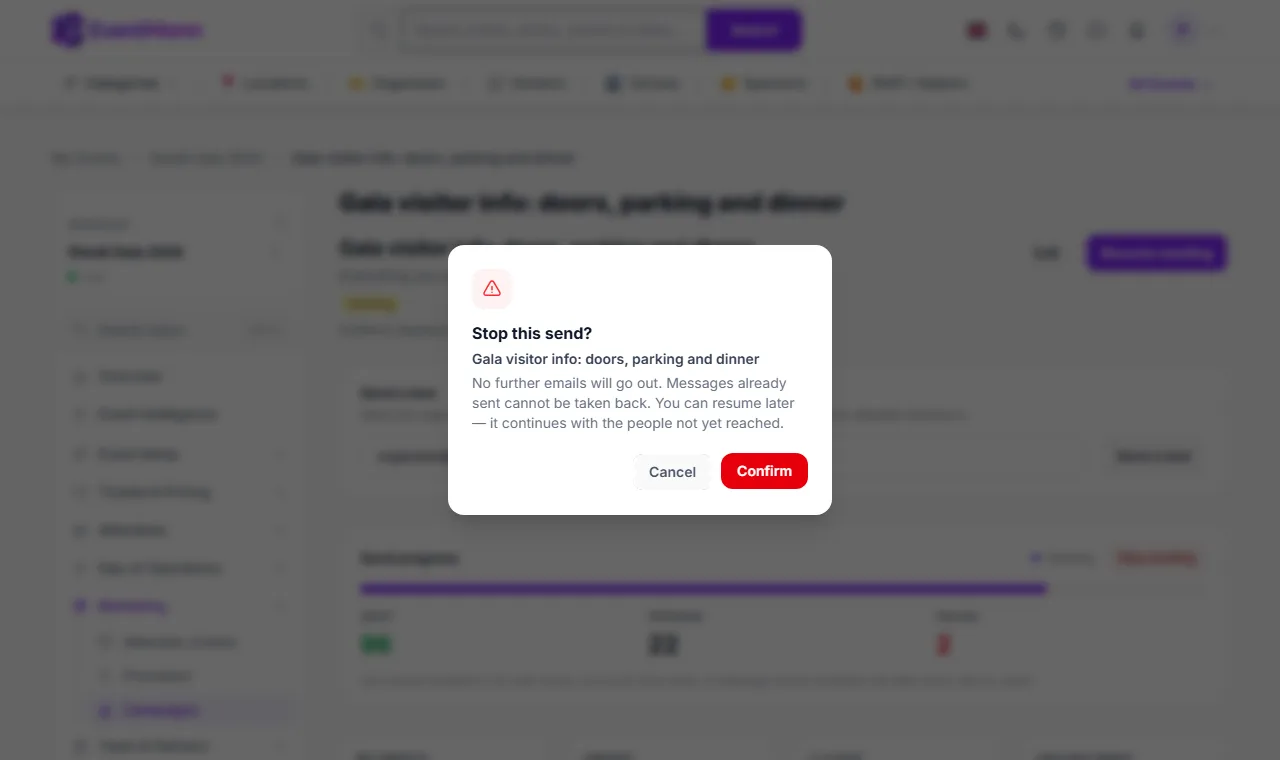
- Read the warning ①: no further emails will go out, and messages already sent cannot be taken back.
- Click Confirm ②.
Mail stops within about one message. The campaign is parked as Paused. If nothing is sending, EventMann tells you so instead of pretending it stopped something.
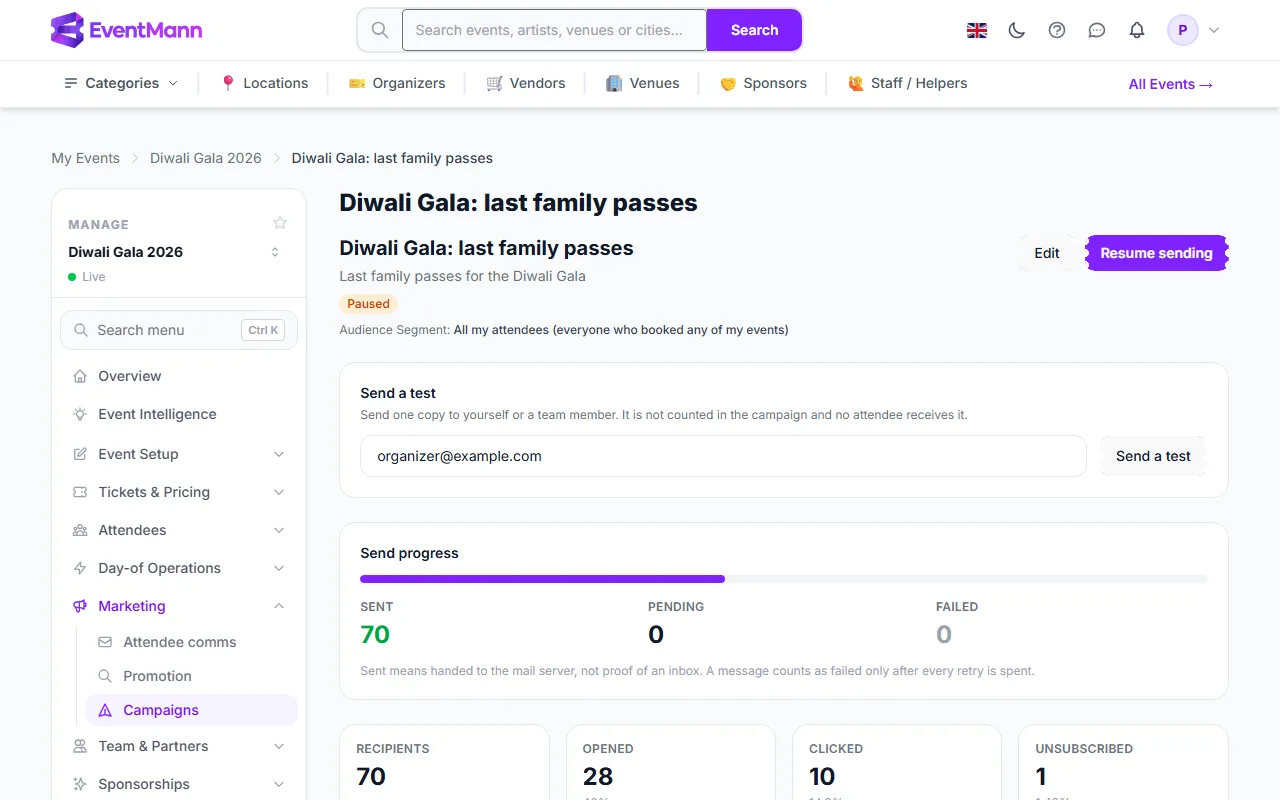
A Paused campaign shows a Paused badge ① and a Resume sending button ②. Resuming continues with the people the stopped send had not reached; nobody who already received the email gets it twice. A send that ends with failed batches also lands in Paused, so resuming finishes it. The same button un-sticks a campaign that stays on Sending after a server restart.
Who is skipped, and why
- People who switched marketing email off on their EventMann account are removed from the audience before you confirm, and checked again for each message, so an unsubscribe that arrives mid-send is honoured.
- The unsubscribe link in every campaign works in one click. For someone with an account it switches marketing email off for their whole EventMann account. For a guest buyer it adds their address to a list that only blocks your campaigns. Either way the person remains able to receive their tickets and confirmations.
- Addresses that no longer exist (a clear “mailbox does not exist” reply) are blocked from all campaigns. Policy rejections and full mailboxes are deliberately not treated this way: they say nothing about the address itself.
- Each unsubscribe is counted on the campaign (Unsubscribe Rate) and marked in its Send Log.
Good to know
- The whole send is split into batches of 100 recipients, so a long list takes minutes or hours depending on your pace settings.
- Your own mail server is used for campaigns when you have connected one (Who your emails are sent from); otherwise campaigns go out from EventMann’s sender.
- The organizer-wide campaign page has no live progress panel; it shows the totals and the Send Log. Open the same campaign from the event if you want to watch it live.
Troubleshooting
- The campaign has been Sending for hours with nothing moving — check whether your sending hours are closed, or whether your hourly limit is low. The panel explains a deliberate wait. If neither applies, press Resume sending; it continues where it left off without duplicating anyone.
- Failed is not zero — hover the red cross in the Send Log for the reason, usually a mailbox that does not exist or a full one. Those addresses will not be retried.
- Pending shows 0 but the status is Paused — Pending is only counted while a send is running. Resume to reach the remaining people.
- Opens look too low — many mail apps hide the tracking image until the reader allows it. Clicks are the more reliable signal.