




My Tasks
Staff & Volunteers
2 min read
Help articles may not be fully accurate — they can lag behind the app due to frequent updates and automated translation. If in doubt, please contact support.
On this page
- 1. What you see
- 2. Change a status
- 3. On a phone
- 4. Good to know
- 5. Troubleshooting
- 6. Related
My Tasks (sidebar → My Tasks) lists the jobs an organizer has given you for the events you are approved for. Tasks are grouped by event and sorted by due date, earliest first.
What you see
- The event ① as a heading above its tasks.
- Title and description — what the organizer wrote.
- Due — the due date, when there is one. A task past its date is shown in red with Overdue ② and the row is tinted. The due day is inclusive: a task due on Saturday is still on time all day Saturday.
- Status — a dropdown ③ with Pending, In Progress and Completed. Finished tasks show a green Completed badge ④ instead and cannot be changed any more.
Change a status
- Open the dropdown on the task ③.
- Choose In Progress when you start and Completed when you are done. The page saves as soon as you choose — there is no Save button.
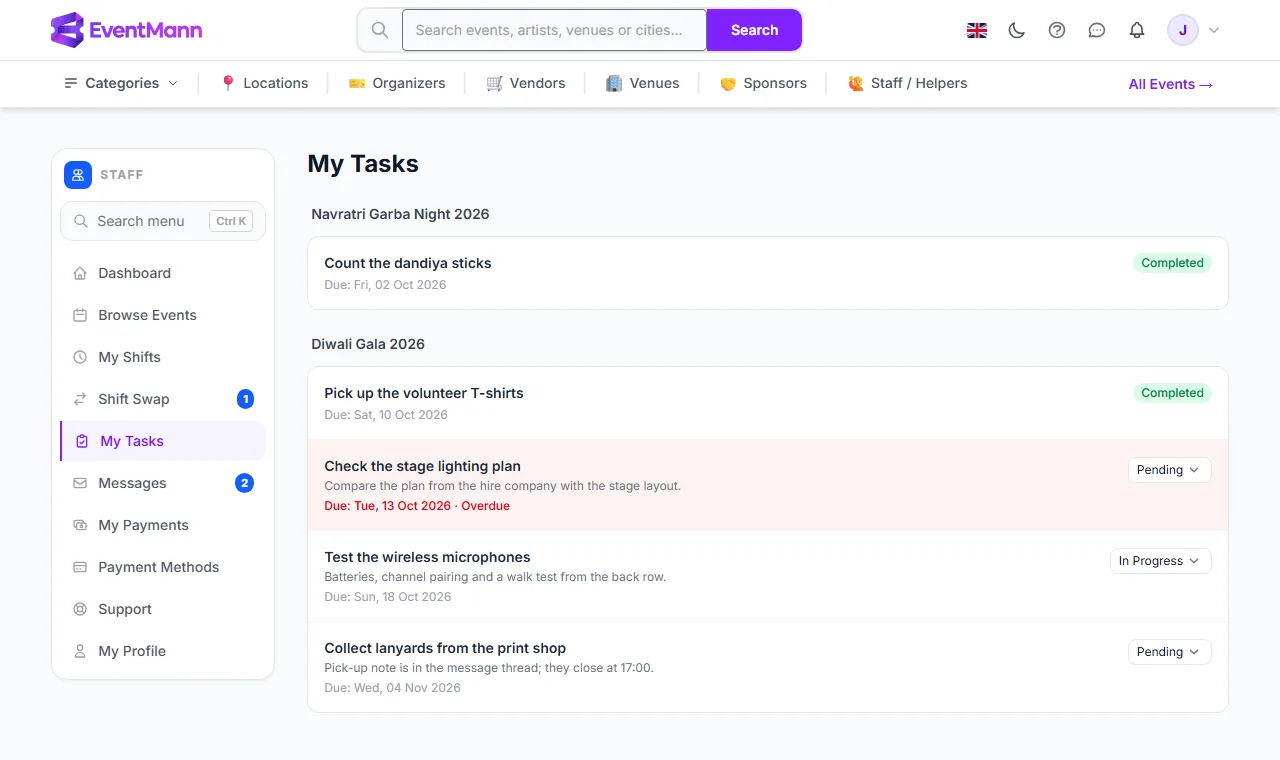
The organizer gets a notification each time you change a status. Read Completing Assigned Tasks for what completion means.
On a phone
The dropdown ① is on the right of each task, and an overdue date ② is red. Tap the dropdown, choose a status and the page reloads with the change.

Good to know
- There are no priorities, comments, attachments or sub-tasks. If you need to say something about a task, write to the organizer in Messages.
- Only the organizer creates and deletes tasks.
- Tasks of an event you were removed from disappear from this list.
- On the Dashboard, the Tasks Overdue counter counts only overdue tasks.
Troubleshooting
- No tasks. You must be approved for an event and the organizer must have assigned you a task. Approval alone brings none.
- I set Completed by mistake. A completed task cannot be reverted. Message the organizer and ask them to reset it.