




Duplicate an event and save templates
Organizer Guide
3 min read
Help articles may not be fully accurate — they can lag behind the app due to frequent updates and automated translation. If in doubt, please contact support.
On this page
When you run the same kind of event again, start from the last one instead of from a blank form. There are two ways: Duplicate copies an existing event under a new date, and a template is a setup you saved in the wizard to start new events from.
Duplicate an event
Open My Events, click the ••• menu on the event and choose Duplicate (or use the same action inside the event’s Manage area). You need the duplicate permission for the event.
- Edit the New Event Title ①. It starts as the old title followed by “(Copy)”.
- Enter the Start Date & Time ② (required) and optionally the End Date & Time. If you leave the end blank the copy keeps the original’s duration.
- Leave Copy ticket types ③ ticked to copy them with their capacity; the sales counters start at 0. Untick it to start with no tickets.
- Click Duplicate Event ④. You land on the new event’s Overview.
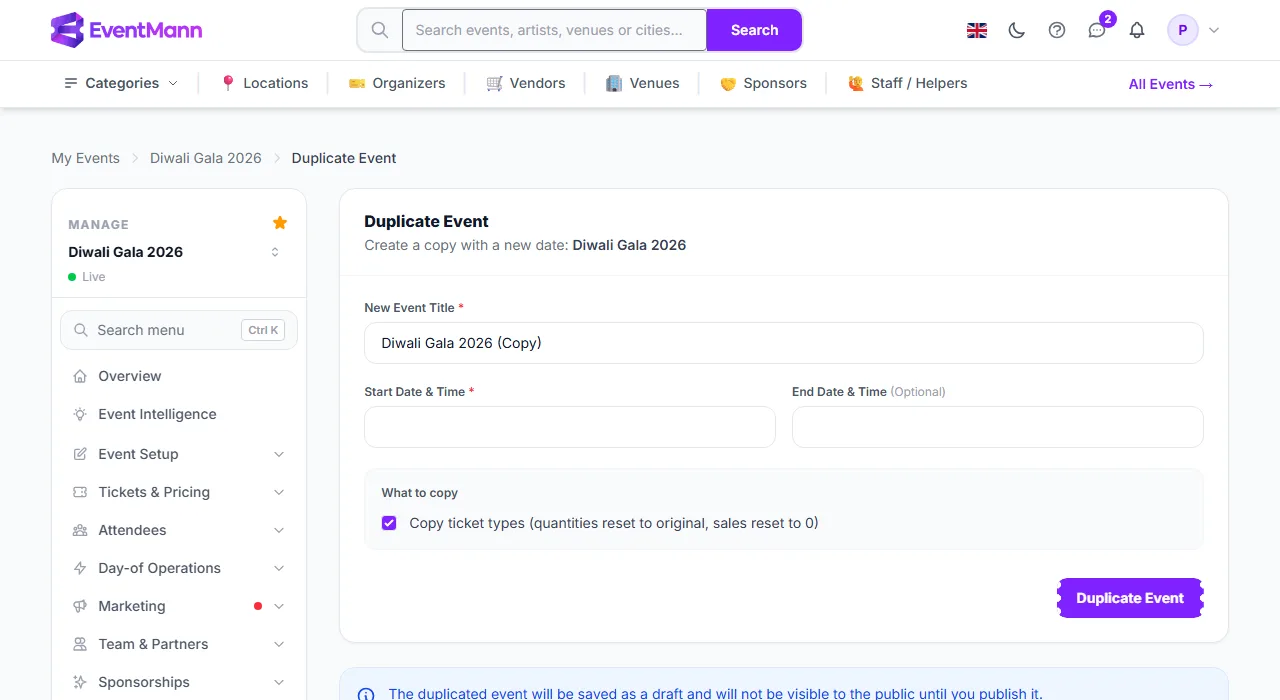
What the copy contains
- The copy is a Draft with a new public URL. It is not visible until you publish it, and the normal publishing conditions apply.
- It carries the event’s settings and details: description, venue, category, currency and timezone, booking rules, cancellation terms, and the ticket design. Dates, time and venue text typed into the ticket design are removed, because they described the old event.
- The cover image is copied as a separate file, so replacing it on one event never changes the other.
- With Copy ticket types ticked, ticket types come across with their prices and rules. No orders are copied.
- Not copied: orders, discount codes, pricing rules, flash sales, bundles, checkout questions, schedule items and the seat map. Set those up again on the copy, or use More copy options at the bottom of the Duplicate page: it can also copy the seat map, checkout questions, reminders, pricing rules and translations, move all dates by a number of days, or create several copies at once from a list of dates (one per line,
YYYY-MM-DD). Those copies are Drafts too.
Save and use a template
A template is an event you marked as a template while creating it.
- In the event wizard, fill in the event and click Save as Template at the bottom. Give it a Template Name, for example “Concert evening”.
- The next time you open the wizard, a row Start from a template: lists your templates. Click one to fill the form with its title, description, dates, location, currency, timezone, custom fields, settings and ticket types.
- Adjust the date and anything else and create the event as usual. The new event gets its own copy of the cover image.
Good to know
- A template is a real event: it also appears in My Events and can be managed or published like any other. Delete it there when you no longer need it, and it disappears from the template row.
- Templates belong to you; team members do not see them.
- For many dates of the same event, a recurring event creates them all from one pattern.
Troubleshooting
- Duplicate is not in the menu — you lack the duplicate permission for that event.
- The copy has no tickets — Copy ticket types was unticked.
- My template is missing from the wizard — it was deleted, or it was saved by another organizer account.
- The copy cannot be published — the usual conditions still apply: see Event status.