




Support
Help articles may not be fully accurate — they can lag behind the app due to frequent updates and automated translation. If in doubt, please contact support.
On this page
- 1. Raise a ticket
- 2. Follow a ticket
- 3. What the statuses mean
- 4. Good to know
- 5. Troubleshooting
- 6. Related
Use Support for anything about the platform itself: your account, a payment, a technical error, or a problem that the organizer cannot solve. Questions about a specific event, such as directions, the programme or what is included, are faster to answer if you ask the organizer (see How to Contact the Organizer). Open Support Tickets in your account sidebar. You need to be signed in; guests can use the Help & Contact page.
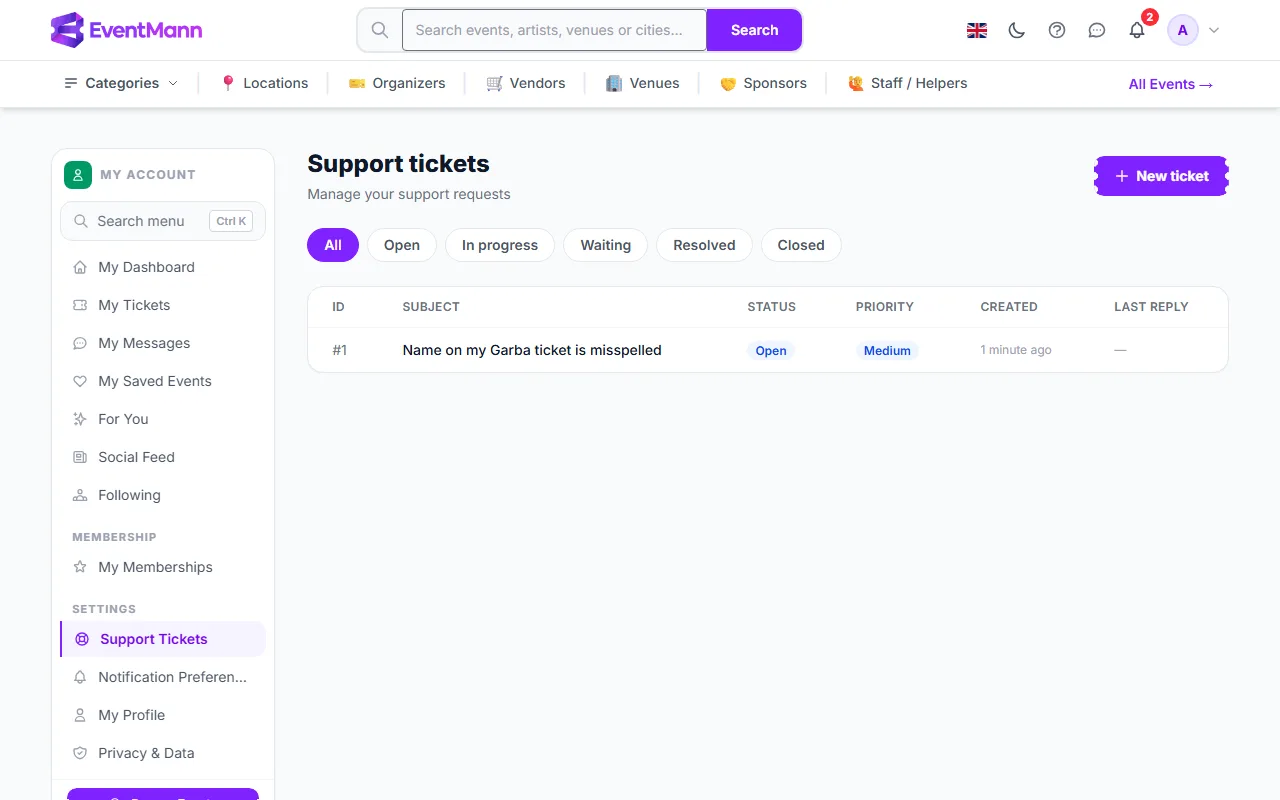
Raise a ticket
- Open Support Tickets and press New ticket ①.
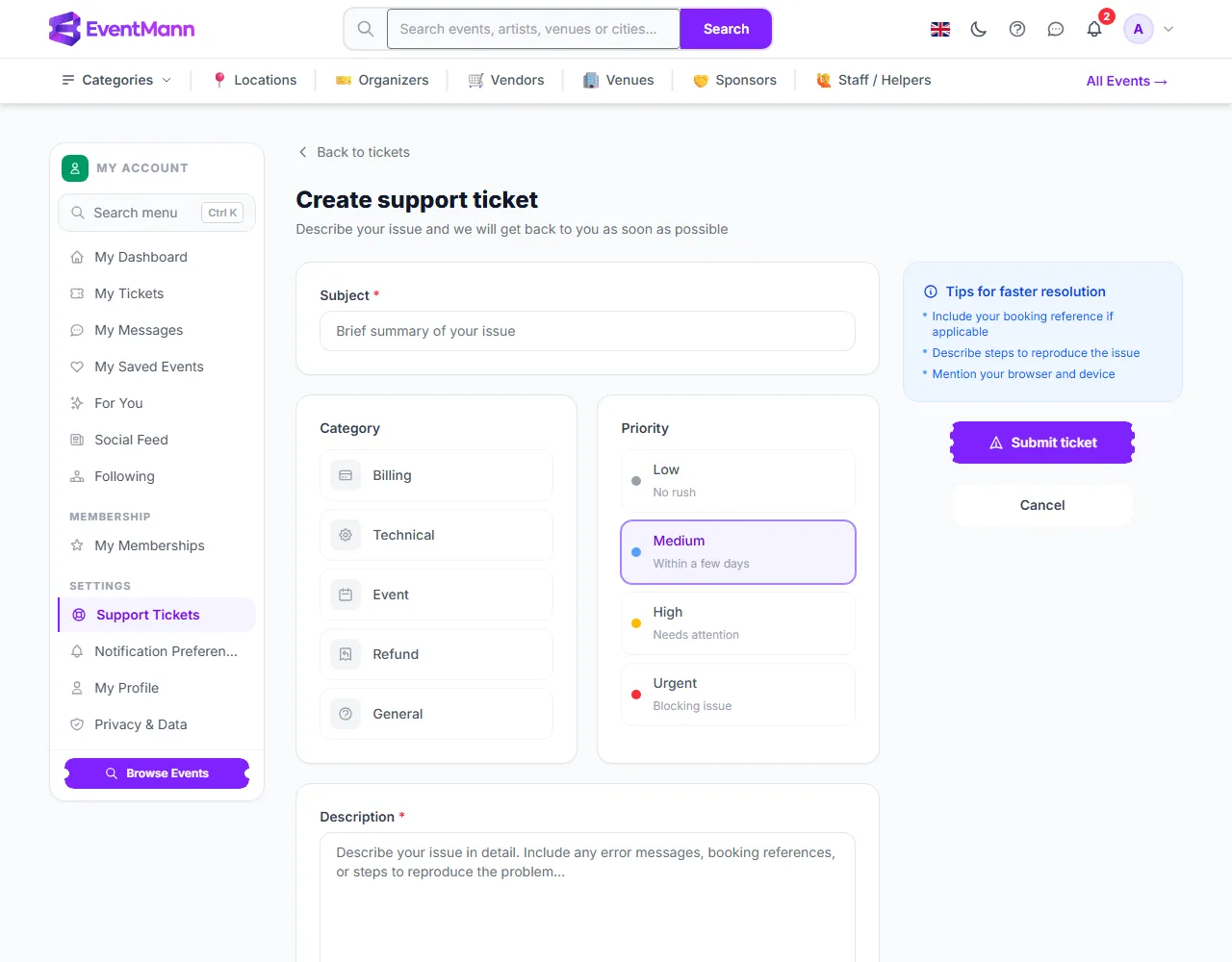
- Write a short Subject ①.
- Choose a Category ②: Billing, Technical, Event, Refund or General.
- Choose a Priority ③: Low (no rush), Medium (within a few days), High (needs attention) or Urgent (blocking issue). Pick honestly: it helps the right things get looked at first.
- Describe the problem in the Description (up to 5,000 characters). The tips beside the form suggest what to include: your booking reference, the steps to reproduce the problem, and your browser and device.
- Press Submit ticket ④.
Always give the booking reference (it starts with BK-) for anything about a purchase: it is how we find your order. You find it on your confirmation email and on the order in My Tickets.
Follow a ticket
- The list shows each ticket’s number, subject, status, priority and last reply. Filter it with All, Open, In progress, Waiting, Resolved or Closed.
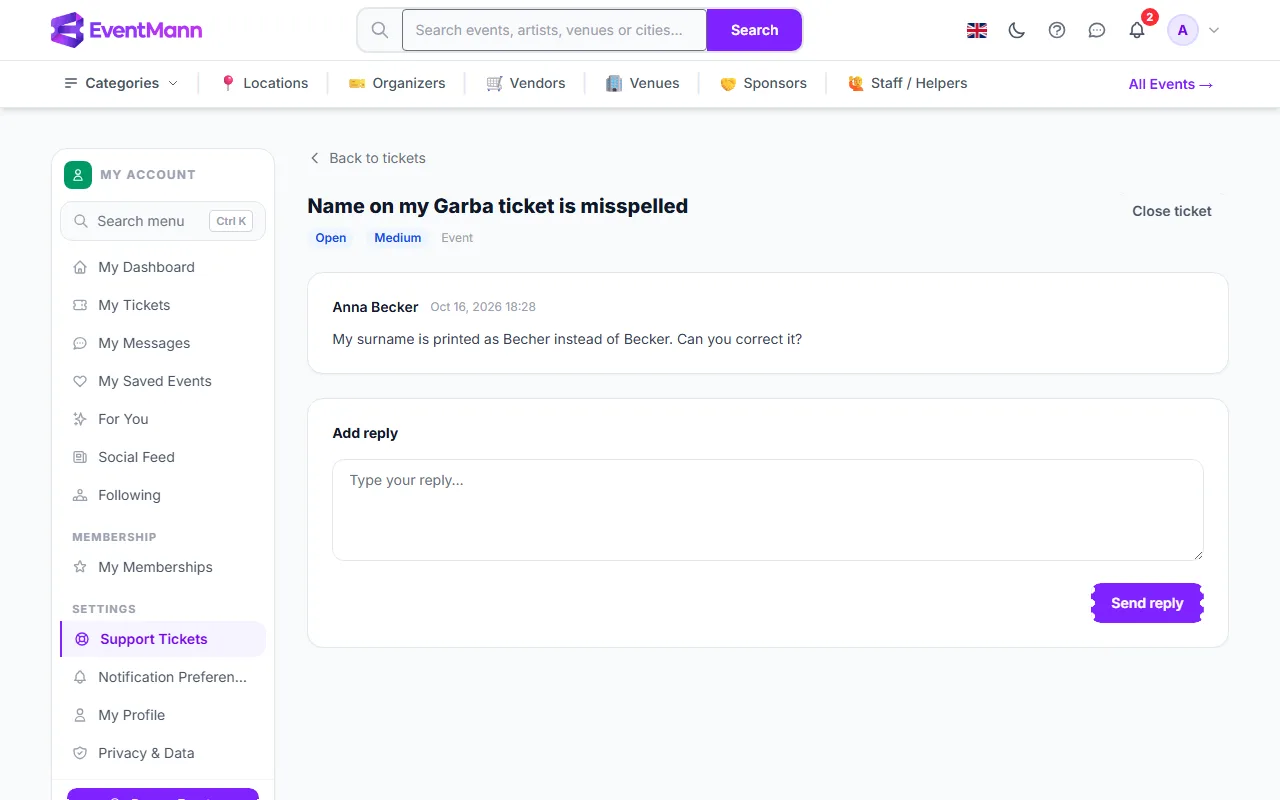
- Open a ticket to read the conversation. Type under Add reply ② and press Send reply. New answers appear in the thread without reloading the page.
- Close ticket ① ends the conversation when you no longer need help.
- You are notified of a reply and when a ticket is marked resolved, in the bell and by email, according to your Notification Preferences (Support reply and Ticket resolved).
What the statuses mean
| Status | Meaning |
|---|---|
| Open | Your ticket is in the queue and has not been answered yet. |
| In progress | The support team has replied and is working on it. |
| Waiting | On hold while the ticket waits for further information. |
| Resolved | The team believes the issue is dealt with. If you reply, the ticket reopens automatically. |
| Closed | Finished; no more replies are expected. |
Good to know
- Only you, the person handling the ticket and administrators can see a ticket. It is not public.
- Replying to a resolved ticket reopens it; you do not need to open a new one.
- There is no fixed response time. A correct priority and a clear description speed things up.
- Support cannot decide a refund for an organizer’s event: the organizer decides, under their cancellation terms. See How to Get a Refund.
Troubleshooting
- My ticket has been Open for a while — it moves to In progress when someone replies. Until then it is waiting in the queue.
- I forgot something — open the ticket and add a reply with the missing information.
- It says Resolved but it is not — reply on the same ticket and it reopens.
- I cannot reach the support form — sign in first. If you cannot sign in, use the contact page.