




Cancellation Terms
Help articles may not be fully accurate — they can lag behind the app due to frequent updates and automated translation. If in doubt, please contact support.
On this page
Cancellation terms say what a buyer gets back when they cancel a paid order. They are also your refund policy: buyers see them on the event page and at checkout before they pay, and the terms shown at the time of purchase are recorded on the order. Every event with paid tickets needs terms before it can go on sale. You set them under Event Setup → Details & dates (in the Cancellation terms section), or in the event wizard when you create the event. The Refunds strip also has a Cancellation terms tab that jumps straight there.
What you can do here
- Start from a preset — Full refund, Flexible, Moderate, Strict or No refunds, then adjust it.
- Set standard terms — a full refund, a cancellation charge (a percentage of the order of at most 50%, or a fixed amount), or no refund.
- Add steps by date — for example no refund within 2 days of the event and 50% within 14 days. The tightest step that matches applies.
- Add notes for buyers — shown beside the terms on the event page, for example how to ask for a refund.
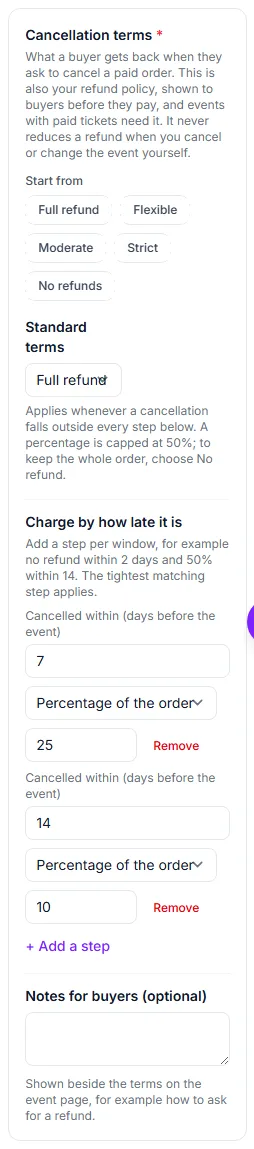
- Optionally click a preset under Start from (Full refund, Flexible, Moderate, Strict, No refunds).
- Pick the Standard terms ① — Full refund (no charge), Percentage of the order, Fixed amount or No refund. These apply whenever a cancellation falls outside every step below.
- Under Charge by how late it is, click Add a step ② for each window: “Cancelled within (days before the event)”, the kind of charge and the amount. Up to six steps; the tightest matching one applies.
- Optionally write Notes for buyers, then save the section.
The example in the picture reads: a full refund earlier than 14 days out, 10% kept within 14 days, 25% kept within 7 days.
Settings explained
- Cancellation cutoff — hours before the start after which buyers can no longer cancel themselves. Leave it blank for no cutoff, or enter 0 to close when the event starts.
- Cancelable (Details & dates) — on: attendees can cancel or ask for a refund. Off: the event cannot be cancelled. Buyers can neither cancel nor ask for a refund, and the event page and checkout show no cancellation terms. You can still refund any order yourself.
- Refundable (Details & dates) — decides whether a self-service cancellation refunds the money automatically or waits for you. Attendees can always ask for a refund while the terms return something; you decide those requests by hand.
What the numbers mean
- A percentage charge is capped at 50% of the order. To keep the whole order choose No refund — that one is not capped.
- A step is measured in whole days before the event starts, in the event’s own time zone.
- When you cancel an order or tickets yourself, you choose the reason: We cancelled it is always refunded in full and never charged; Attendee asked to cancel applies these terms.
Good to know
- Changing the terms later does not change orders already sold: each order keeps the terms shown when it was bought.
- Self-service cancellations, approved refund requests and the refund suggested when you cancel tickets from an order all use the same terms, so a buyer gets the same figure whichever way they ask.
- If you cancel the whole event, every paid order is refunded in full, whatever the terms say.
Troubleshooting
- I cannot publish a paid event — choose terms first. “Full refund” is a valid choice; leaving the section blank is not.
- The event page shows no terms — Cancelable is switched off, so no terms are shown.
- A buyer got a different figure than the terms say — they bought under the terms that applied at the time of purchase; later changes never touch existing orders.