




Your volunteer tasks
Help articles may not be fully accurate — they can lag behind the app due to frequent updates and automated translation. If in doubt, please contact support.
On this page
Tasks are the jobs you are asked to do for an event, such as “Set out 420 chairs”. They are on your card in My Volunteering under Tasks. You can tick them off, move them along, work through a checklist and write comments, all from your phone.
Which tasks are yours
- Tasks given to you by name, alone or together with others.
- Tasks for a shift you work: everyone on that shift sees it.
- Tasks for your team at that event, when your team is set.
- Tasks left open to the whole volunteer team.
- Tasks from the organizer’s own task board, when the organizer handed one to you by name.
- If you are a core member of a team: every task of that team, under Your teams at the top of the page.
Work on a task
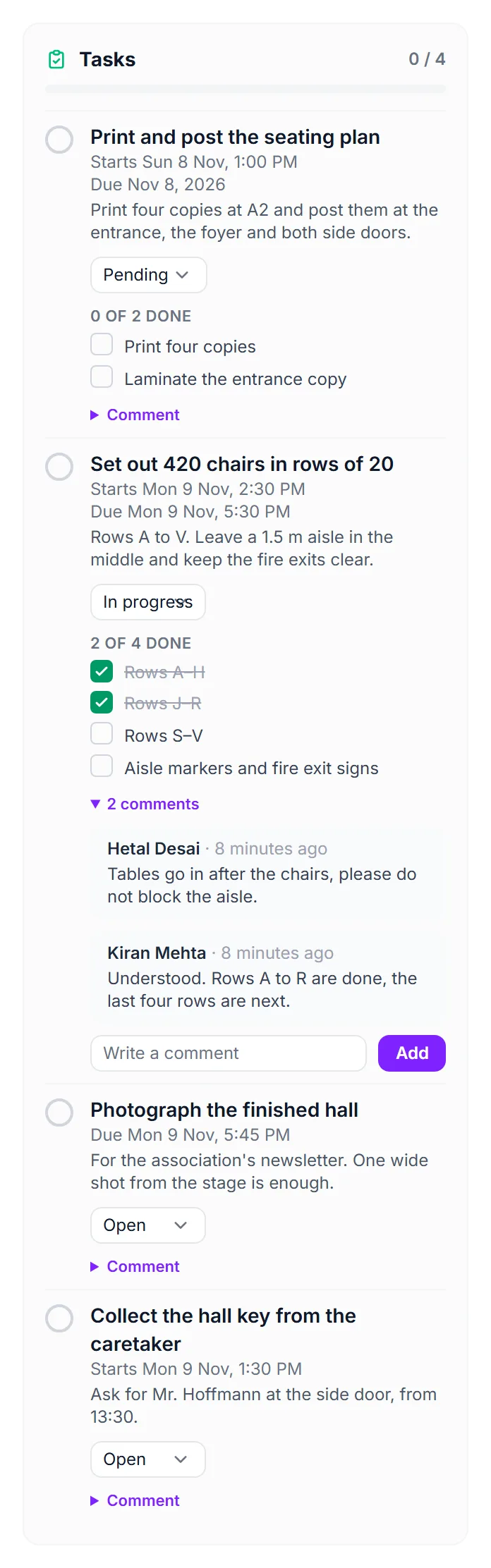
- Read the title, the start and due time and the description under it.
- When you are done, tap the square ① in front of the task. Tap it again to reopen the task.
- To show how far you are, change the status ②. Your own list offers Open, In progress, Blocked and Done; choose Blocked when you are waiting for something. The change saves by itself.
- If the task has a checklist, tap each line ③ as you finish it. The heading says “2 of 4 done”.
- Open comments ④ to read what the team wrote and add your own. The list opens by itself when somebody wrote in the last day.
Tasks from the organizer’s task board
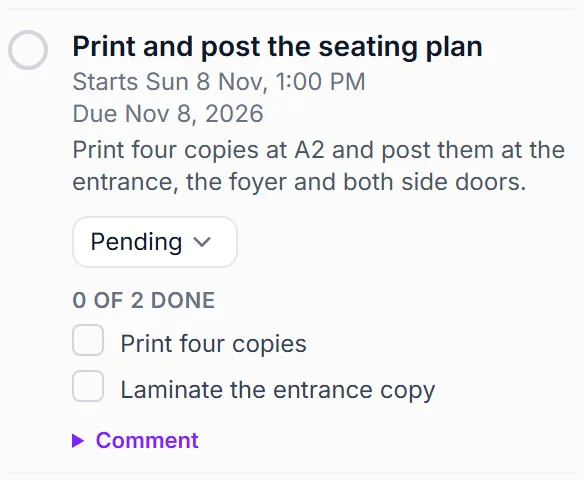
A task the organizer gave you on their own task board looks the same, with its own statuses: Pending, In Progress, Blocked and Completed.
Tick it ①, or move it along with the status ②.
Your team’s tasks (core members)
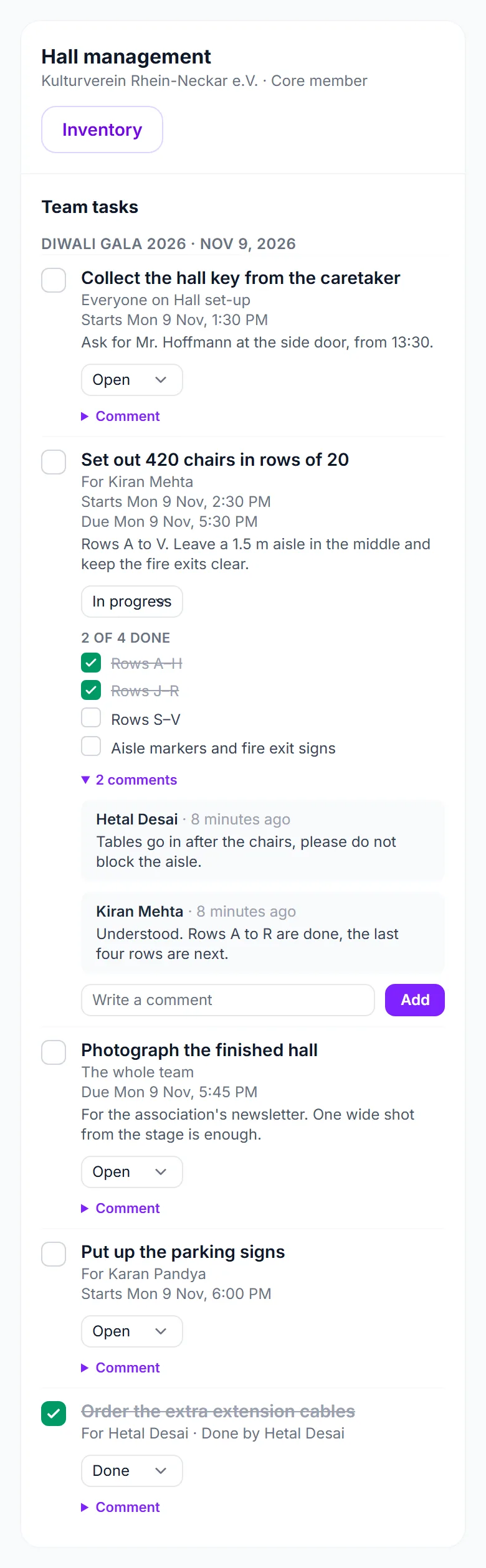
A core member of a standing team sees the whole team’s work, not only their own. At the top of My Volunteering, the block Your teams has one card per team you are core in, with the tasks of that team at the events you are confirmed for, grouped by event. Coming events come first; an event stays there for 30 days after it ends, so a follow-up such as finding missing items is still in reach.
- Find the card of your team ①. Inventory ② opens the team’s stock.
- Under each task you see who it is for ③: named people, everyone on a shift, or the whole team.
- Tick a task, change its status ④, work through its checklist or comment, exactly as on your own tasks. You can do this on any task of your team, for example to help a teammate who is stuck.
Adding, deleting and handing tasks to people stays with the team lead and the organizer. A task that is also yours appears both here and on the event card; a change in one place shows in the other.
Good to know
- A task shared by a shift or a team is a single task for many people. The organizer sees who ticked it.
- You can only touch tasks that are yours, or tasks of a team you are a core member of. Everything you do on a task is checked against your confirmed place on that event.
- If you step back from an event, tasks that were given to you by name go back to the team.
- Tasks with a start time send you an email shortly before it begins; tasks for a shift appear in the shift reminder.
Troubleshooting
- “No tasks yet” — nothing has been given to you or your team. Ask your lead.
- A comment does not save — it must not be empty, and is at most 2,000 characters.
- I ticked a task by mistake — tap the square again.