




Purchases, receipts and the shopping list
Help articles may not be fully accurate — they can lag behind the app due to frequent updates and automated translation. If in doubt, please contact support.
On this page
- 1. Record a purchase
- 2. The Purchases page
- 3. The shopping list
- 4. Good to know
- 5. Troubleshooting
- 6. Related
When a team buys something for the inventory, you record it as a purchase: the quantity goes onto the stock, the receipt is kept, and the money appears among the event’s expenses. If a volunteer paid out of their own pocket, the purchase stays open until you mark it paid back. Find the list under Inventory → Purchases, and what to buy under Inventory → Shopping list.
Record a purchase
- Open the item you bought on the Inventory page (Edit).
- In Record a purchase enter the Quantity bought, the Amount paid, and the Date.
- Under Paid by choose The association, or the volunteer who paid. A volunteer’s purchase is marked To pay back until you settle it.
- Optionally choose For event and attach the Receipt (PDF, JPG, PNG or WebP, up to 10 MB).
- Click Record a purchase. The quantity is added to the item’s stock straight away.
The Purchases page
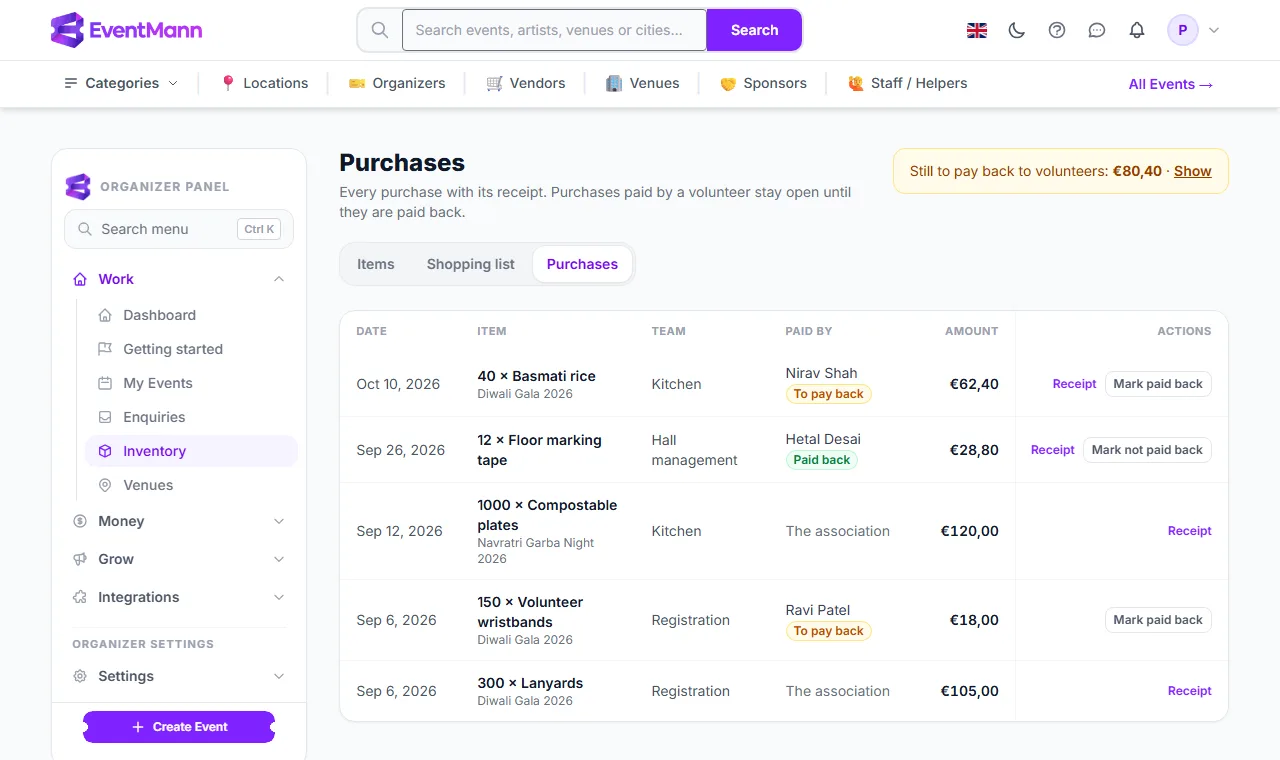
Every purchase from every team is listed, newest first, with its date, the item, the team, who paid and the amount. A team lead sees the purchases of their own team only.
- The yellow notice ① gives the total still to pay back to volunteers. Click Show to list only the open ones.
- The Paid by column ② shows the volunteer and To pay back or Paid back. Purchases paid by the association carry no badge.
- Click Receipt ③ to open the file you attached. Receipts are private: only you and the team’s lead can open them.
- When you have paid the volunteer, click Mark paid back ④. Mark not paid back undoes it. Only you, the organizer, can do this; a lead sees the status but has no button.
The shopping list
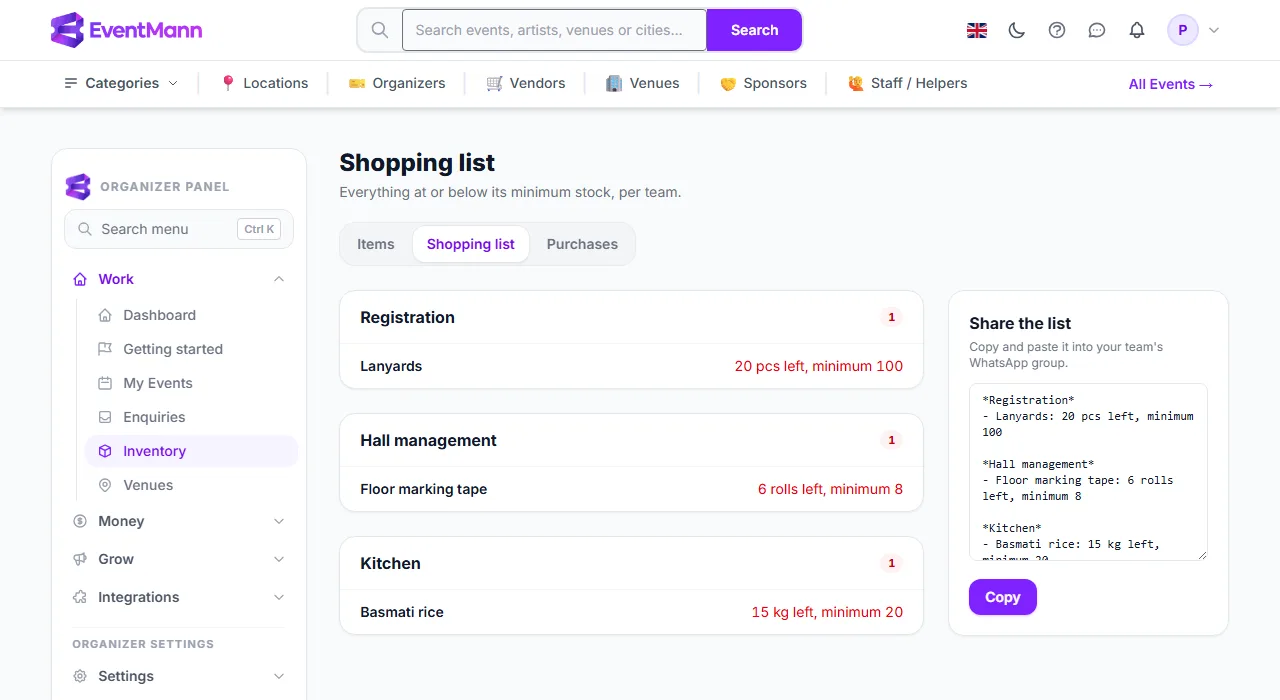
The shopping list shows every active item at or below its minimum stock, grouped by team. Teams without items do not appear, and the Shared pool is a group like any other.
- Each team group ① lists its items; the line on the right ② says how many are left and the minimum.
- The box Share the list ③ holds the same list as plain text, with the team name in bold for WhatsApp.
- Click Copy ④ and paste it into your team’s group.
Good to know
- A purchase is an ordinary expense. It shows in the event’s expenses and its profit and loss; the title reads “40 × Basmati rice”. Equipment is filed under the category equipment, consumables under other. The currency is the item’s, or euro if it has none.
- If you pick no event, the purchase belongs to your organization rather than to one event.
- The money is only recorded. The platform does not pay anyone back; you do that yourself and then mark it.
- Use Restock on the item page instead of a purchase when nothing was bought.
Troubleshooting
- The item is not on the shopping list — it has no minimum set, or its available quantity is still above it. Quantities planned for an event count as not available.
- A receipt link says not found — the purchase was recorded without a file.
- The volunteer is missing under Paid by — only people on your volunteer roster are offered.