




What a finance team member can see
Organizer Guide
3 min read
Help articles may not be fully accurate — they can lag behind the app due to frequent updates and automated translation. If in doubt, please contact support.
On this page
You can invite someone to keep an eye on the money without handing over your account: add them to your team with the Finance Manager role under Settings → Teams. This article shows what that role opens and what it deliberately keeps closed, so you know what to expect before you invite your treasurer. How to invite and manage team members is in Teams.
What a Finance Manager can open
Team members work inside the events you add them to. From My work they open an event you added them to and see a short Manage menu: Overview, Event Intelligence, Attendees, Finance and Analytics & Reports.
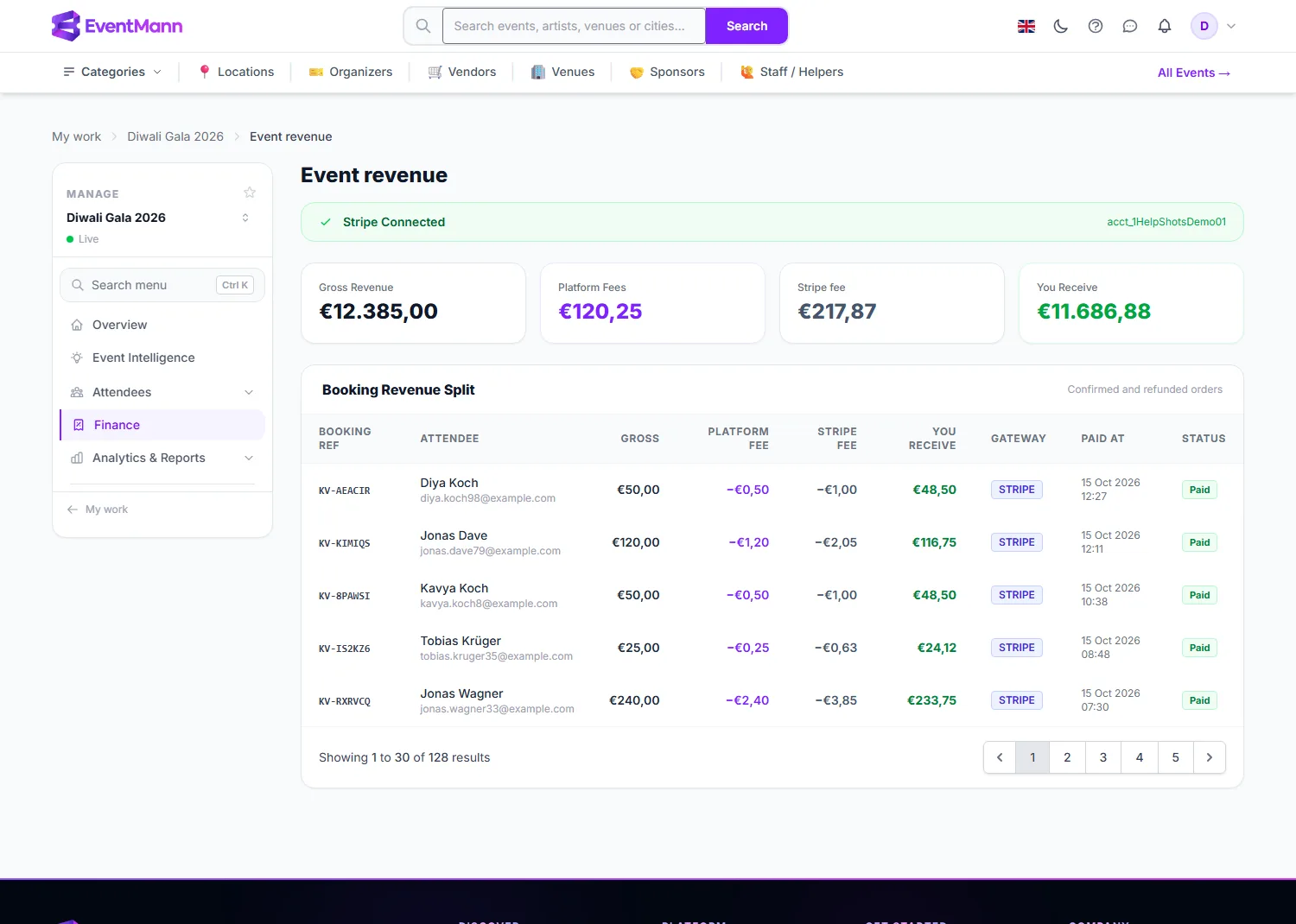
- Under Finance ① they see Event revenue: gross revenue, platform fees, the Stripe fee and what the event receives ②, with the order-by-order split below.
- Under Attendees they can read the order list and work the Refunds queue. The role includes exporting bookings, so the Export CSV button on the order list is there for them too; see Export attendee data.
- Under Analytics & Reports they can read the event’s reports and insights.
- The payout history is not on the event’s pages: Stripe pays the organizer’s account, not an event, so only the organizer account sees the Looking for your payouts? card and its View payouts link. Stripe’s dashboard or the organizer has that information.
What stays closed
- The organization-wide Money pages — Finance Overview, Payouts, Tax Rates, Revenue Shares, Exports, Invoices, Expenses and Stripe Connect — are for the organizer account only. A team member who opens them gets a “This area is off-limits” page.
- Each event’s Expenses & Income tab needs the permission to edit the event, which the Finance Manager role does not include. So does Checkout → Payments, where the fee settings live.
- They cannot change tickets, prices, discounts or the event itself.
Good to know
- If someone needs Expenses & Income as well, create a custom role that combines the permissions you want. Check what each permission allows first — the permission to edit an event also lets the person change it.
- Access is per event: a Finance Manager sees only the events they were added to.
Troubleshooting
- My treasurer gets “off-limits” on Finance. That is the organizer-wide page. Point them to the event’s own Finance → Event revenue.
- They cannot see an event. Add them to that event’s team.
- They need to edit expenses. Use a custom role, or enter the expenses yourself.