




Volunteer roles and team leads
Help articles may not be fully accurate — they can lag behind the app due to frequent updates and automated translation. If in doubt, please contact support.
On this page
A volunteer can be given a role for one event: the right to run part of it — the door, the finances, the other volunteers — without ever becoming a member of your organizer team. A role belongs to one event, starts the moment you give it and ends 30 days after the event. Roles are what make it possible for an association whose whole event team is volunteers to share the work. You set them on the People tab under Team & Partners → Volunteers, or for a whole team on the Teams page.
What you can do here
- Give a confirmed volunteer one or several roles for this event, and take them away again.
- Give a role to many people at once with the bulk bar.
- Let every lead or member of a team hold a role automatically (set on the Teams page).
The roles and what they open
| Role | What the person can do at this event |
|---|---|
| Volunteer coordinator | Open the event overview, work with all volunteers (People, Shifts, Tasks, Run sheet, Live, Messages, Roster) and run the event task board. Cannot edit the event itself, see money or change settings other than volunteer settings. |
| Box office | Scan and check in tickets, see and create orders, answer attendee messages. |
| Door / check-in | Scan tickets and see the order list. |
| Venue manager | Edit the event’s details and dates, work with the venue, run the task board, see reports and live check-in figures, and process refunds. |
| Marketing | Discounts, email campaigns and reports. |
| Finance | Orders and their export, reports, the payout breakdown and refunds. |
| Team lead | Not given by hand: it comes from leading a standing team. The volunteer pages, limited to the teams they lead. See below. |
| Your own custom roles | Whatever you ticked in Custom Roles. |
These are the same permission sets as the roles of your organizer team, so the person sees the same pages a box office agent or finance manager would, for this event only.
Give a role to one volunteer
- Open the People tab and find the confirmed volunteer. The Roles column shows what they hold — for example Volunteer coordinator ① — or Helper if nothing.
- Click Change roles ② under it.
- Tick the roles you want ③. A role you cannot give is greyed out; see “Who may give what” below.
- Click Save ④. The volunteer gets an email “You can now help run …” that names the role and tells them what to do next.
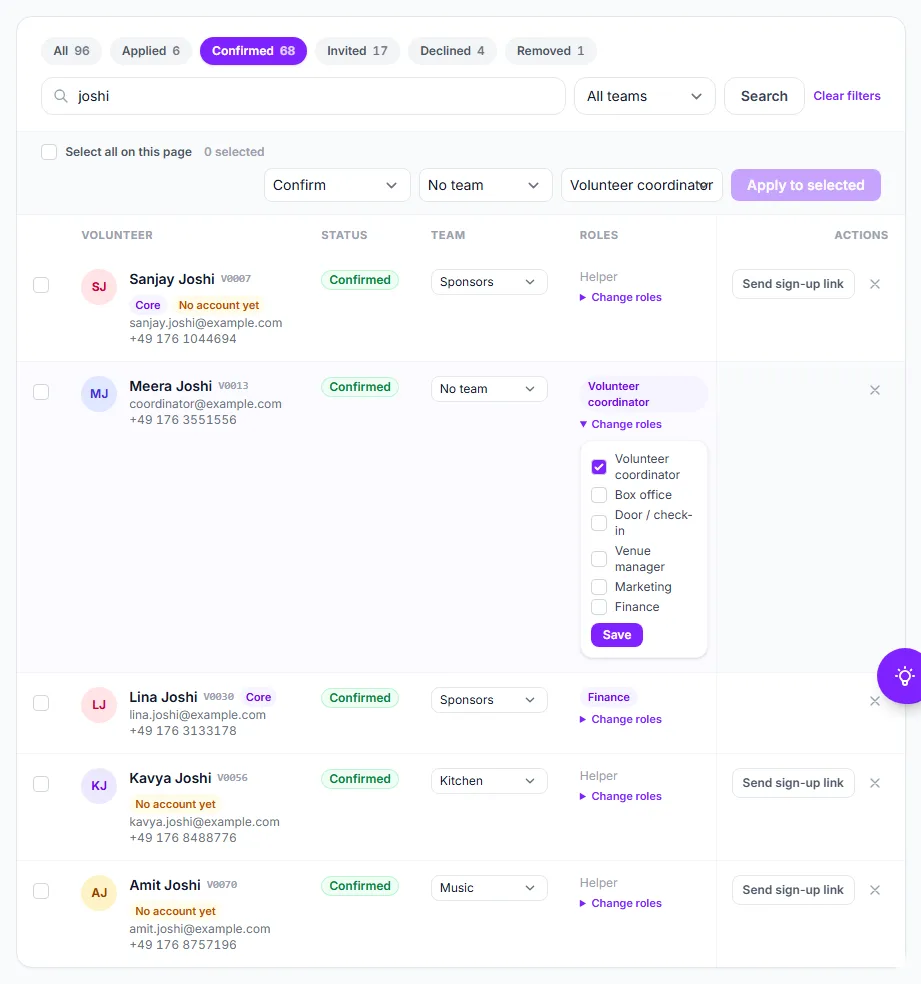
For many people at once, tick them on the People list, choose Give role or Remove role in the bulk bar, choose the role beside it and click Apply to selected. See Inviting volunteers to an event.
Roles from a team
On the Teams page, Leads get access to and Members get access to give a role to everyone in a team, without touching each person. A lead holds the team’s lead role at every event they help at; a member holds the member role at events where this is their team. They also hold anything you gave them by hand for that event.
Team leads
Leading a standing team gives the Team lead role automatically. A lead:
- sees the whole People list and the Roster, read-only, to recruit from;
- confirms, declines, moves and removes only the people of their own teams, and may claim somebody with no team into one of theirs;
- chooses, when recruiting, whether a person is invited by email or already confirmed;
- plans their teams’ shifts and tasks, and writes messages to their own teams and those teams’ shifts only;
- sees the run sheet and the Live view for their own teams;
- sets the target and join link of their own teams;
- may give the people of their own teams any role they hold themselves — see “Who may give what”.
For a lead, the People page is narrowed to their own teams. Here the Registration lead sees only the Registration card ① under Teams at this event, can switch the list to My teams ②, change the team ③ of the rows that are theirs and remove people ④ from their own team.
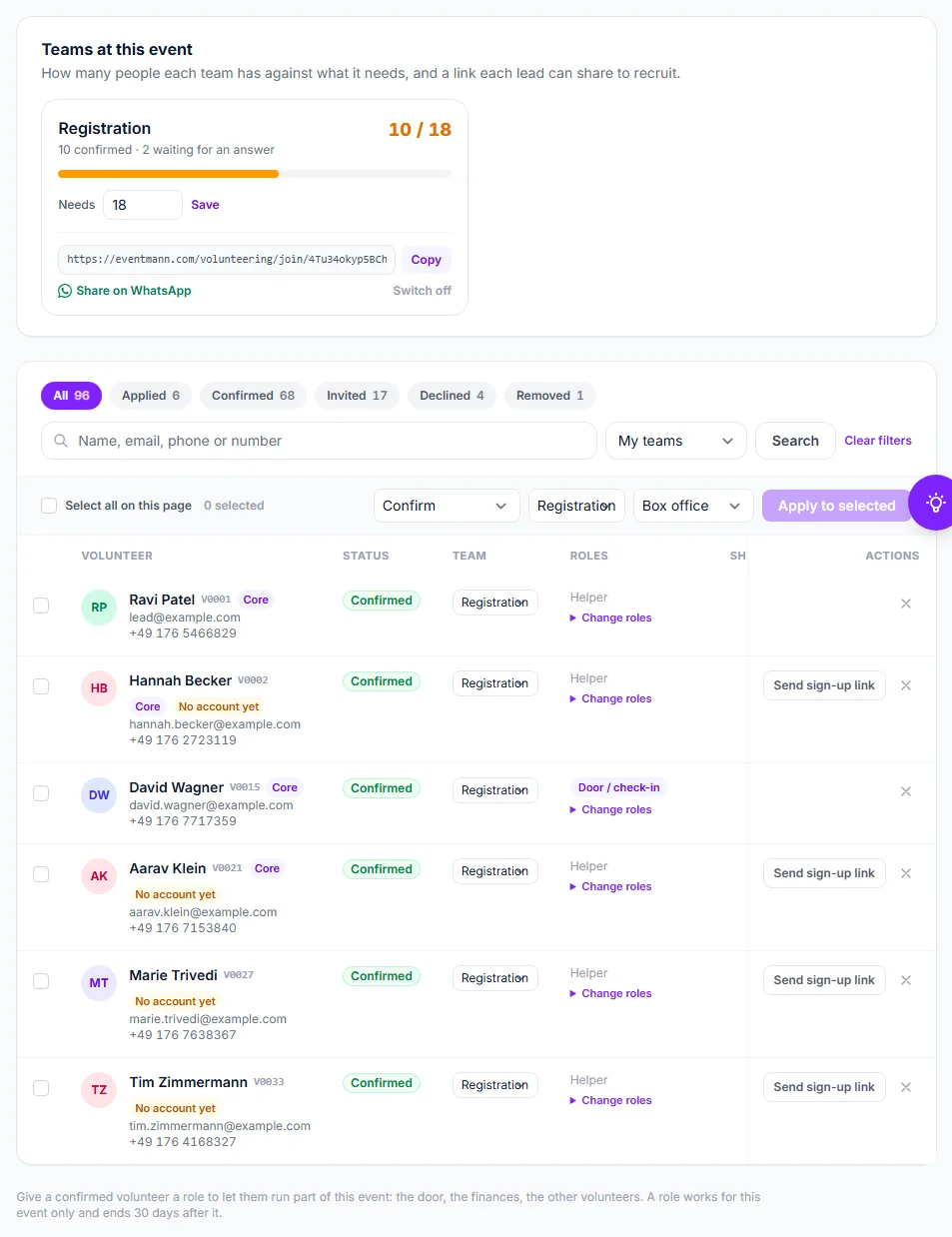
A lead does not see Settings, cannot message everybody and cannot define teams. The page from the lead’s own point of view is described in the Team lead guide.
Who may give what
Nobody can give a role they do not fully hold themselves. As the organizer you can give every role. A Volunteer coordinator can make another coordinator, but cannot give Finance, because they do not hold it. A Registration lead whose team carries Box office can give Box office and Door / check-in to their team, and nothing more. Roles a person may not touch show greyed out with a note, and when they save a person’s roles, any role they could not change is kept as it was.
What the volunteer needs
- They must be Confirmed on this event. Taking somebody off the event, or their stepping back, removes their roles.
- They need an account on the same email address as on your roster, with the address confirmed. Until they have one, the row shows “Needs an account on this email address to use these roles” and the email offers a button to set it up.
- Once they have it, they find the event under My work in their account, with the hat they wear and the one action it is for. See Volunteer roles and My work.
Good to know
- A role ends 30 days after the event, so finance work such as the last refunds can still be finished. Nothing stays on afterwards.
- Roles are saved per event row. A volunteer who coordinates the gala is not a coordinator of your concert unless you give it there too (or their team does).
- Use a custom role to hand out a precise mix, for example volunteers who may see orders and nothing else.
Troubleshooting
- The Change roles link is missing — the person is not confirmed, or you do not hold any role you could give.
- A volunteer holds a role but cannot open the event — they have no account on the roster email address, the address is not confirmed, or the event ended more than 30 days ago.
- A role disappeared after the person stepped back — roles are removed when a volunteer steps back or is taken off the event. Give it again once they are confirmed.