




Expenses
Help articles may not be fully accurate — they can lag behind the app due to frequent updates and automated translation. If in doubt, please contact support.
On this page
Use Money → Expenses (the page is titled Expenses & Income) as a running ledger of money in and out that is not a ticket sale: venue deposits, printing, equipment, sponsorship you were paid, donations. It is your own bookkeeping; attendees never see it. For one event’s profit and loss, use the event’s own page — see Event revenue and event expenses.
What you can do here
- Record income and expenses, optionally linked to an event, with a reference, notes and a receipt.
- See totals for income, expenses and net balance, shown separately for each currency you use.
- Filter the list to All Entries, Income or Expenses.
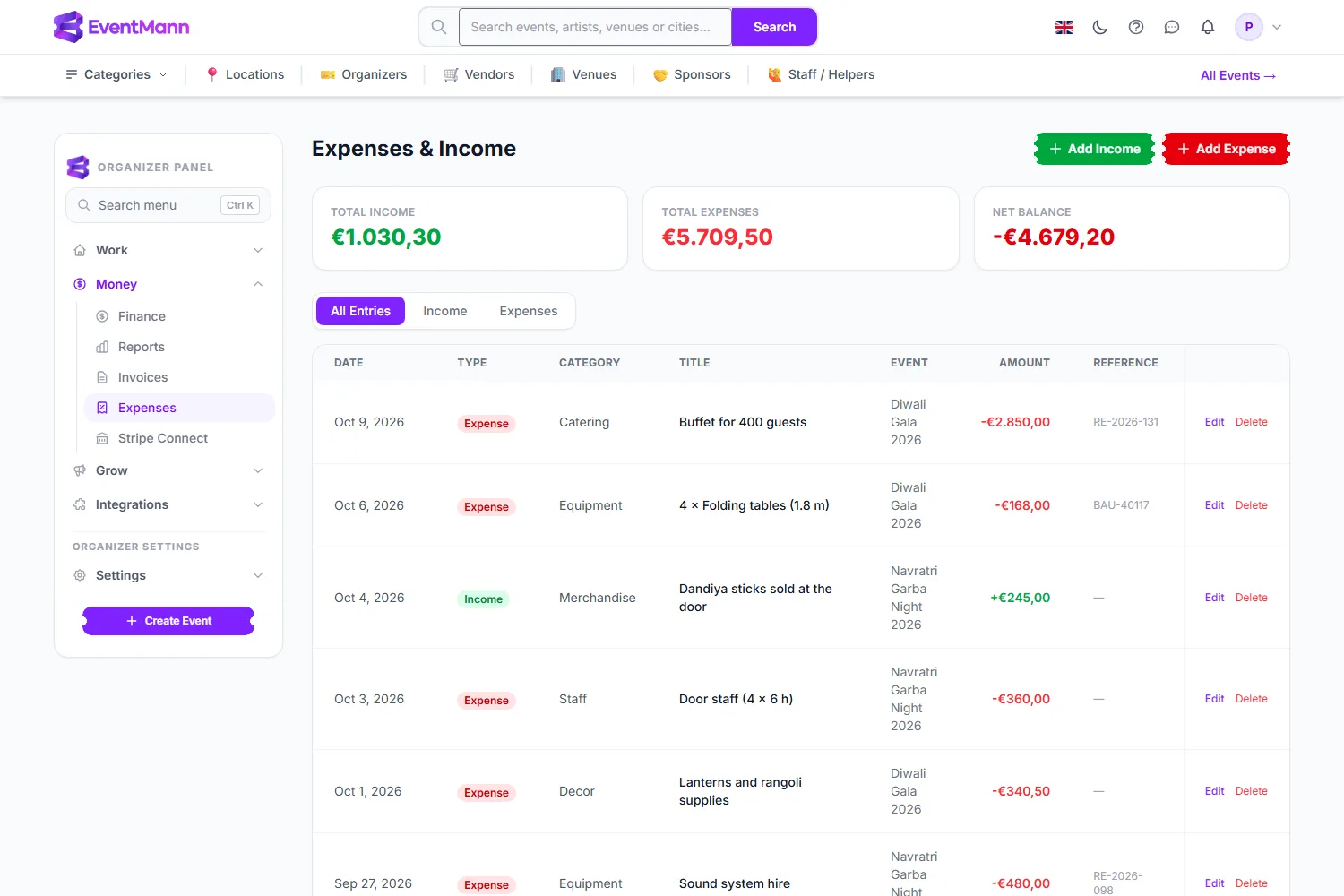
How to add an entry
- Click Add Income ① or Add Expense ②. The entry type is already chosen, and you can switch it on the form.
- Give it a title, a category, the date, the amount and the currency.
- Optionally pick the event it belongs to, add a description, your own reference (an invoice or receipt number) and notes, and attach a receipt.
- Save. The entry appears at the top of the list and the totals update.
- To change or remove an entry later, use Edit ⑤ or Delete on its row. The Income tab ④ and the Expenses tab filter the list; the Net Balance card ③ is always the total of everything.
On the form, Entry type ① switches between income and expense, Title ② names it, Category ③ files it, Amount ④ takes the figure, Linked Event ⑤ ties it to one event and Attachment ⑥ holds the receipt.
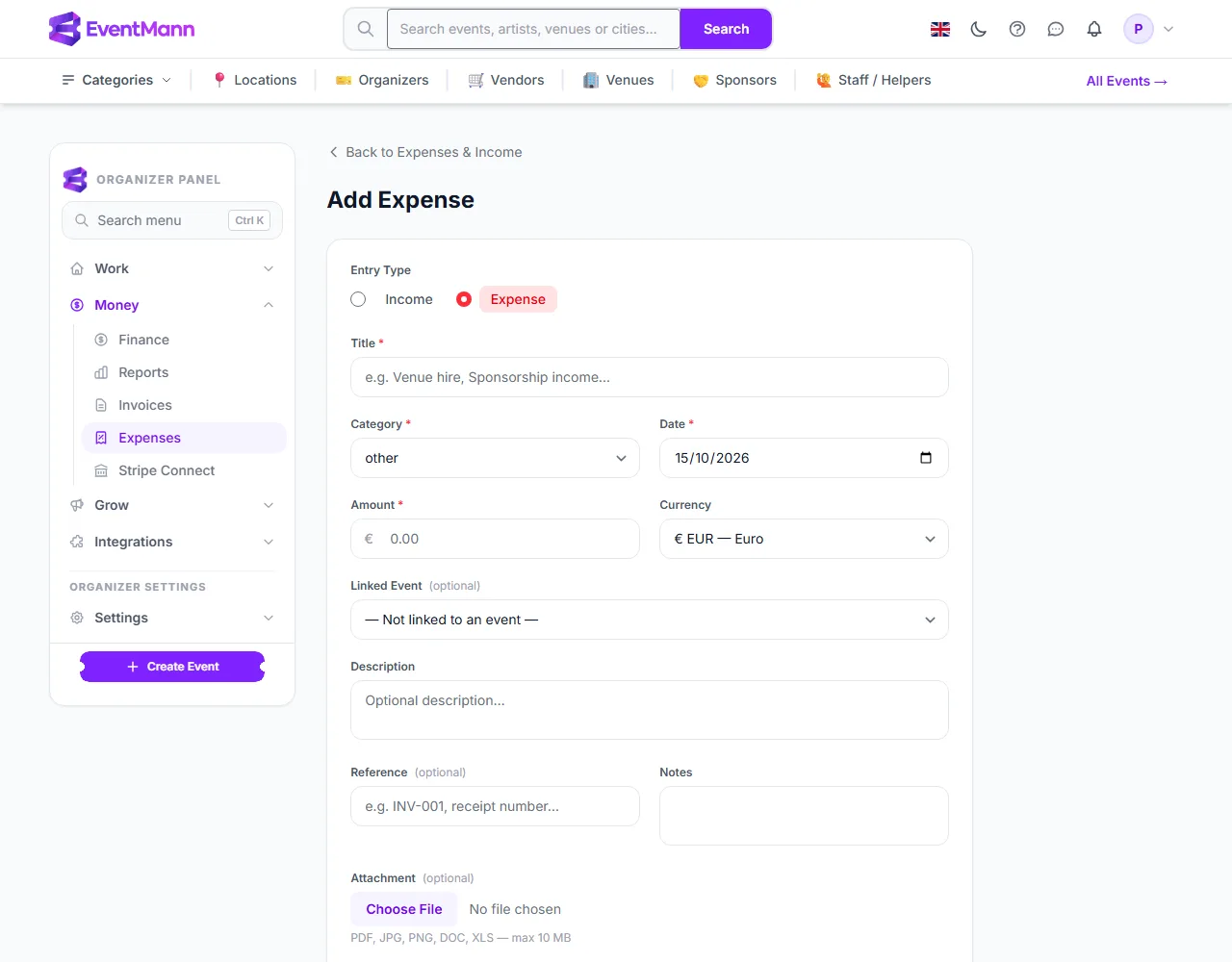
Settings explained
- Income categories: Ticket Sales, Sponsorship, Merchandise, Donations, Grants, Other.
- Expense categories: Venue, Equipment, Marketing, Staff, Catering, Travel, Insurance, Logistics, Permits, Decor, Technology, Other.
- Linked Event — leave it empty for organization-wide costs (hosting, general marketing). Link it for anything that belongs to one event, so it shows in that event’s profit and loss.
- Attachment — PDF, JPG, PNG, WebP, Word or Excel, up to 10 MB, stored privately. Only you can open it, through the View file link on the row. Replacing or removing a receipt deletes the old file at once.
- Reference — free text for your own invoice or purchase-order number. EventMann does not check it.
Stock purchases appear here too
When you (or a volunteer team lead) record the purchase of an inventory item, for example four folding tables, EventMann creates an ordinary expense for it: category Equipment (or Other for consumables), the quantity in the title, the receipt attached and, if you chose one, the event. It then counts in your event’s expenses like any other cost. A purchase that a volunteer paid out of their own pocket stays marked as awaiting reimbursement until you mark it paid back under Inventory → Purchases. The inventory itself is described in Volunteers.
Good to know
- This ledger is entirely separate from ticket sales. The organization-wide totals here contain only what you entered by hand; ticket income is added on each event’s own Expenses & Income page.
- If you also type your ticket sales in as income, they will be counted twice on that page. Leave ticket sales to EventMann.
- Each currency gets its own row of totals, so a euro event and a pound event never mix.
- Only the organizer account can use this page.
Troubleshooting
- Net Balance looks wrong. It is always income minus expenses across every entry, whichever tab you are on, and it excludes ticket sales.
- Upload rejected. The limit is 10 MB and the file must be one of the listed types. Save it again in a supported format.
- An old receipt is gone. It was replaced or its entry deleted; there is no recovery.