




Team inventory: overview
Organizer Guide
4 min read
Help articles may not be fully accurate — they can lag behind the app due to frequent updates and automated translation. If in doubt, please contact support.
On this page
Inventory is the list of everything your association owns, borrows or buys for its events: chairs, speakers, a dhol, lanyards, rice, plates. It lives under Inventory in the Work group of your organizer sidebar. Every item belongs to one volunteer team that looks after it, or to the Shared pool that you and your volunteer coordinators run yourselves.
What you can do here
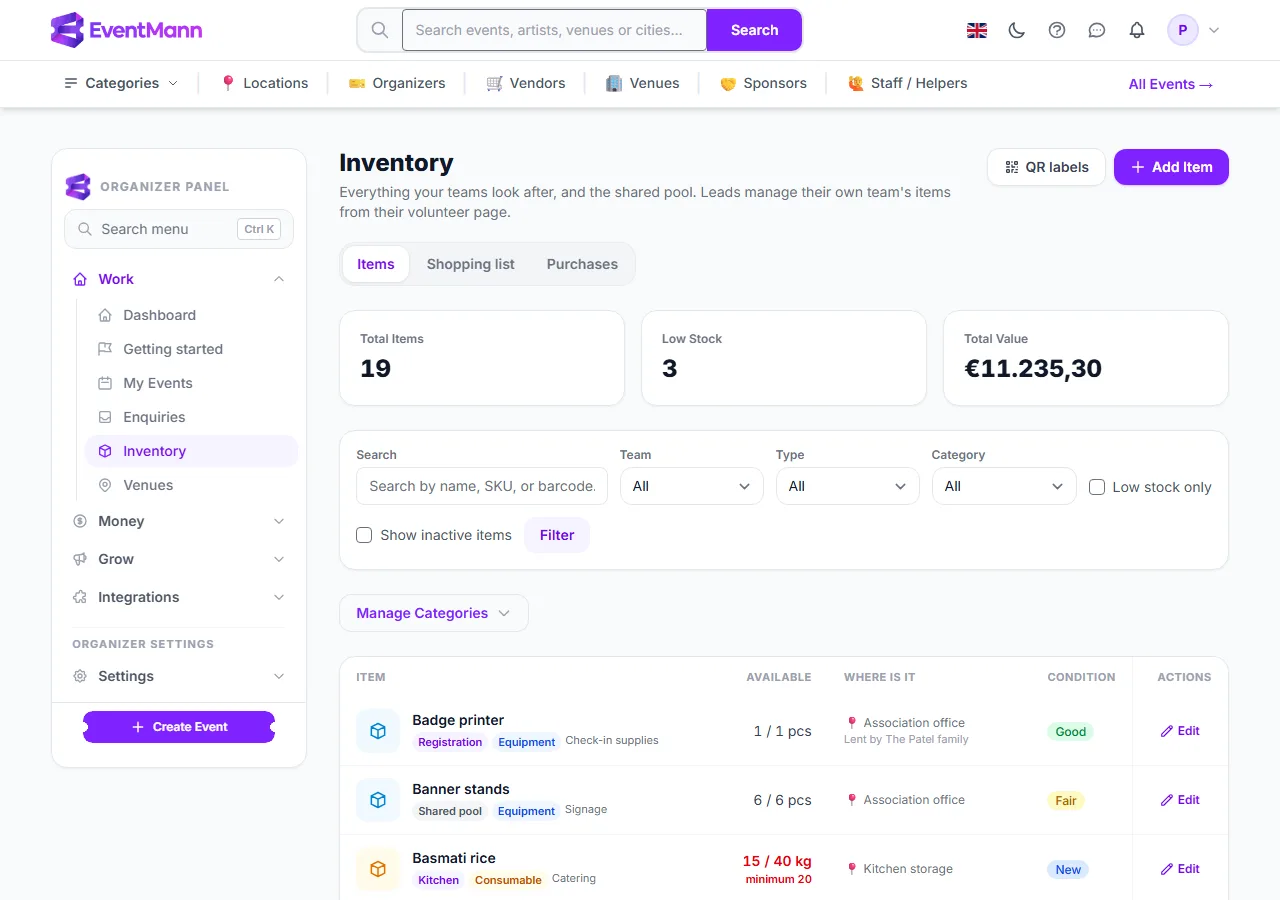
- Keep one list for every team. You see all items. Each row shows the team badge, whether the item is Equipment or a Consumable, its category, how many are available out of the total, where it is, and its condition.
- See who has it. Between events an item is either held by a person from your volunteer roster or kept at a place you name, such as “Kulturhalle store room B”. Borrowed items also say who lent them.
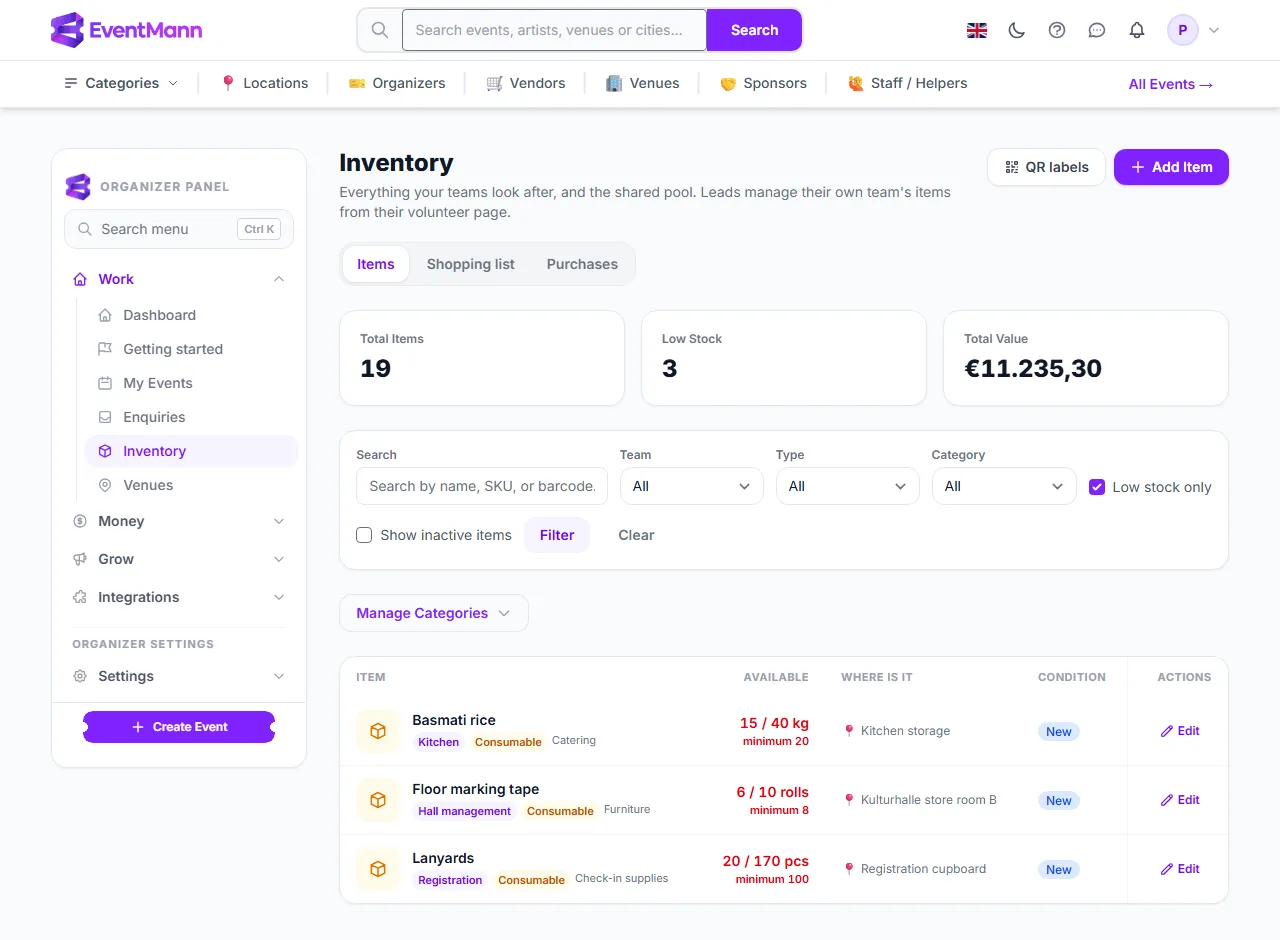
- Know what to buy. Items that run low show in red and appear on the Shopping list.
- Record purchases with their receipts and see who still has to be paid back — see Purchases, receipts and the shopping list.
- Plan each event with one packing list per team — see Event packing lists.
- Print QR labels to stick on the items — see QR labels.
Read the Inventory page
- The three tiles at the top show Total Items (active items only), Low Stock and Total Value, which is unit cost times total quantity. Click the Low Stock tile to open the shopping list.
- The tabs under the title open the Shopping list ① and Purchases; beside the title are QR labels, which opens a print sheet, and Add Item ④.
- Narrow the list with the filters: search by name, SKU or barcode, Team ② (a team, or Shared pool), Type (Equipment or Consumable), Category, Low stock only and Show inactive items. Clear removes them again.
- Each row starts with the team badge ③. Click Edit on a row to open the item — see Items: adding, finding and looking after them.
Under Low stock only ① you see what has fallen to its minimum. The available count ② turns red and says “minimum 20”. An item is low when it has a minimum above zero and the number available is at or below it.
Teams, the shared pool and who can see what
- You see and change every item, including the Shared pool, and you are the only one who manages categories (the Manage Categories button).
- A team lead sees and changes only the items of the team they lead, from their own page: Your team’s inventory. They never see another team’s stock, and they cannot put an item in the Shared pool.
- A coordinator or event manager works with the packing lists of an event from Manage → Event Inventory. The Shared pool has no lead, so it is looked after by you and the coordinators.
- Borrowing between teams is not a function of the platform: teams ask each other outside the system.
Good to know
- Equipment comes back after an event. Consumables get used up and are bought again; when you record the return of an event you say how many were used up.
- An item that is checked out to an event cannot be deleted until it is back.
- Used-up and missing quantities leave the stock for good. Damaged items stay counted in the total but are not available.
- Items you switch off with the Active checkbox on the item page disappear from the list and from the packing list picker. Tick Show inactive items in the filters to list them again, marked Inactive; open one and tick Active to bring it back.
- Categories (for example Sound & lighting, Furniture, Catering) are shared by all teams. Add one under Manage Categories.
Troubleshooting
- An item is missing from the list — check the Team filter, and tick Show inactive items in case the item was switched off. A lead’s own page lists only their team.
- The Low Stock tile shows zero although something is nearly out — the item has no minimum set. Open it and enter a Min. Stock Threshold.
- The available count is lower than what is on the shelf — the rest is planned on an event’s packing list or still out. Open the item: the Booked at events panel shows where.