




Venue Owner Dashboard
Venue Owner Guide
3 min read
Help articles may not be fully accurate — they can lag behind the app due to frequent updates and automated translation. If in doubt, please contact support.
On this page
- 1. What you can do here
- 2. The counters
- 3. The venue rows
- 4. Good to know
- 5. Troubleshooting
- 6. Related
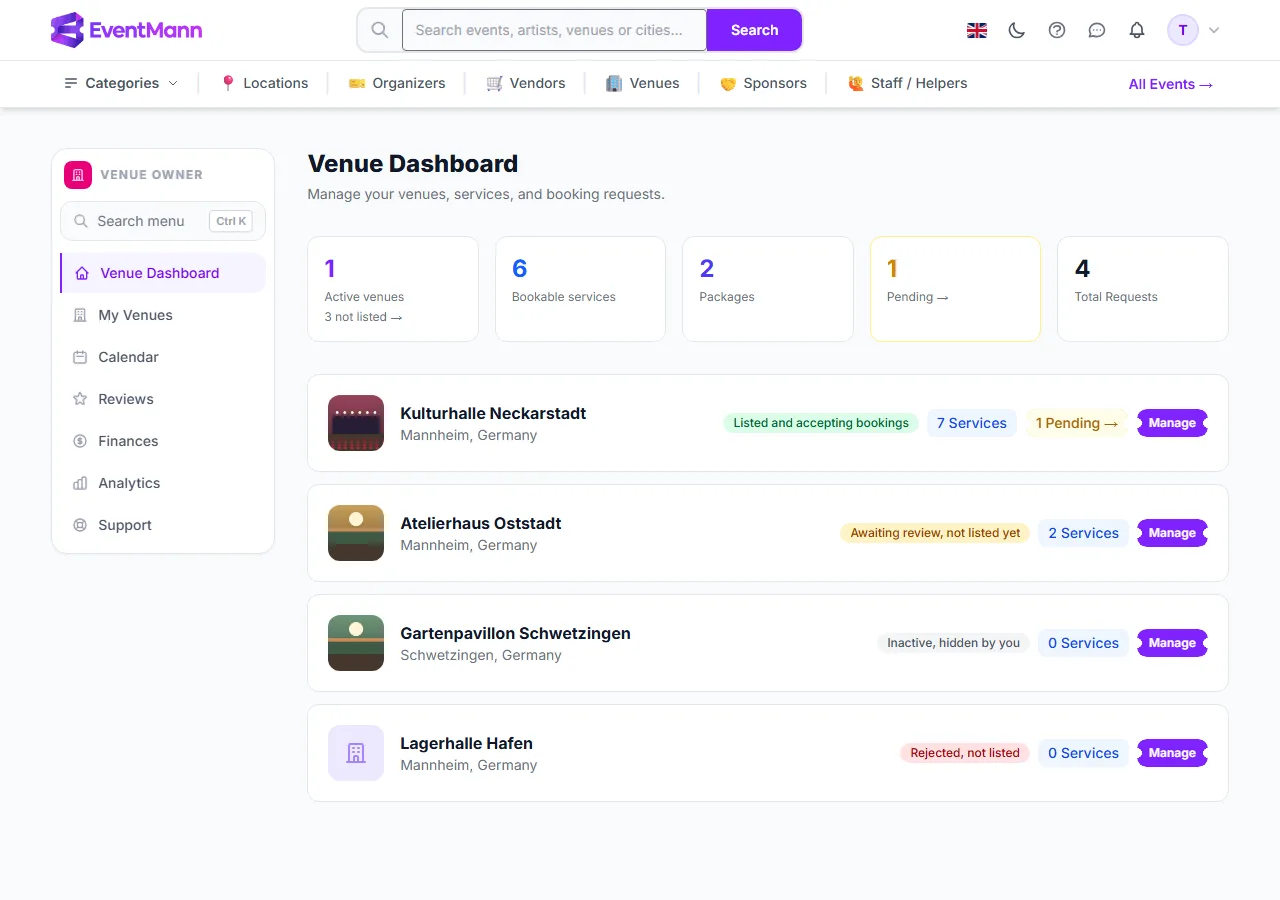
The Venue Dashboard (Venue Dashboard in the sidebar) is the first page you see after signing in. It tells you in one glance how many of your venues organizers can actually book, how many services and packages you offer, and whether any booking request is waiting for your answer. It has nothing to configure; every card and row links to the place where you act.
What you can do here
- Check the five counters at the top.
- Jump to the pending requests of a venue.
- See the state of every venue and open it with Manage.
- Add your first venue when you have none.
The counters
| Counter | What it counts |
|---|---|
| Active venues ① | Venues that organizers can find and book: approved by an administrator and switched on by you. Venues that are awaiting review, rejected or switched off are not counted. When there are such venues, a link n not listed ② takes you to My Venues. |
| Bookable services | Active services of your listed venues. A service you switched off, or one at an unlisted venue, is not counted. |
| Packages | All service packages across your venues. |
| Pending ③ | Booking requests waiting for your decision. When they all belong to one venue the card is a link straight to that venue’s pending requests. |
| Total Requests | All booking requests ever received, whatever their status. |
The venue rows
- Each venue shows its first photo (or a placeholder), its name ④, city and country.
- A coloured badge says what the world sees: Listed and accepting bookings, Awaiting review, not listed yet, Inactive, hidden by you or Rejected, not listed. See Approval and Your Public Listing.
- n Services counts all services of the venue, including switched-off ones.
- A yellow chip n Pending → appears when requests are waiting; it opens that venue’s list filtered to Pending.
- Manage ⑤ opens the venue’s page.
Good to know
- A venue counts as active only when it is both approved and switched on, so the dashboard never reports a venue as live that organizers cannot reach.
- With no venue yet, the page shows an empty state with Add your first venue.
- New booking requests also arrive as a bell notification and, if your Venue booking requests preference is on, as an email.
- The counters read your data when the page opens; there is no automatic refresh.
Troubleshooting
- Active venues says 0 but you added a venue — it is still being reviewed, was rejected, or is switched off. The row badge tells you which.
- The Pending card is not a link — requests are waiting in more than one venue. Use the yellow chips on the individual venue rows.
- Bookable services is lower than the services you created — some are switched off, or their venue is not listed.