




Recurring events
Organizer Guide
4 min read
Help articles may not be fully accurate — they can lag behind the app due to frequent updates and automated translation. If in doubt, please contact support.
On this page
- 1. Set up a series
- 2. What is created
- 3. Running a series
- 4. Monthly series
- 5. Good to know
- 6. Troubleshooting
- 7. Related
A recurring event is one you run again and again on a pattern — a weekly practice evening, a monthly market. You describe the pattern once in the event wizard and EventMann creates a separate event for each date, so each date has its own tickets, sales and orders.
Set up a series
- In the wizard choose Event Type Recurring. The Location card is replaced by a note that no location fields are needed for this type, and a Recurrence Pattern appears under Date & Time.
- Enter the Start and End of the first date. Every later date has the same length and time of day.
- Choose the Frequency ① — Weekly or Monthly — and Every N weeks / months ② (1 to 12).
- For weekly series, tick the days of the week. With several days ticked, each ticked day is created in every repeat week. With none ticked, the weekday of your start date repeats.
- Decide when the series stops: an Ends on date, Or after N occurrences ③ (at most 52), or both — the first limit reached wins. If you set neither, the series stops at its maximum of 52 dates, as the note under the fields says.
- Add at least one ticket type, choose how to publish and click Create Event.

What is created
- The event you filled in is the first date. It keeps the recurrence pattern.
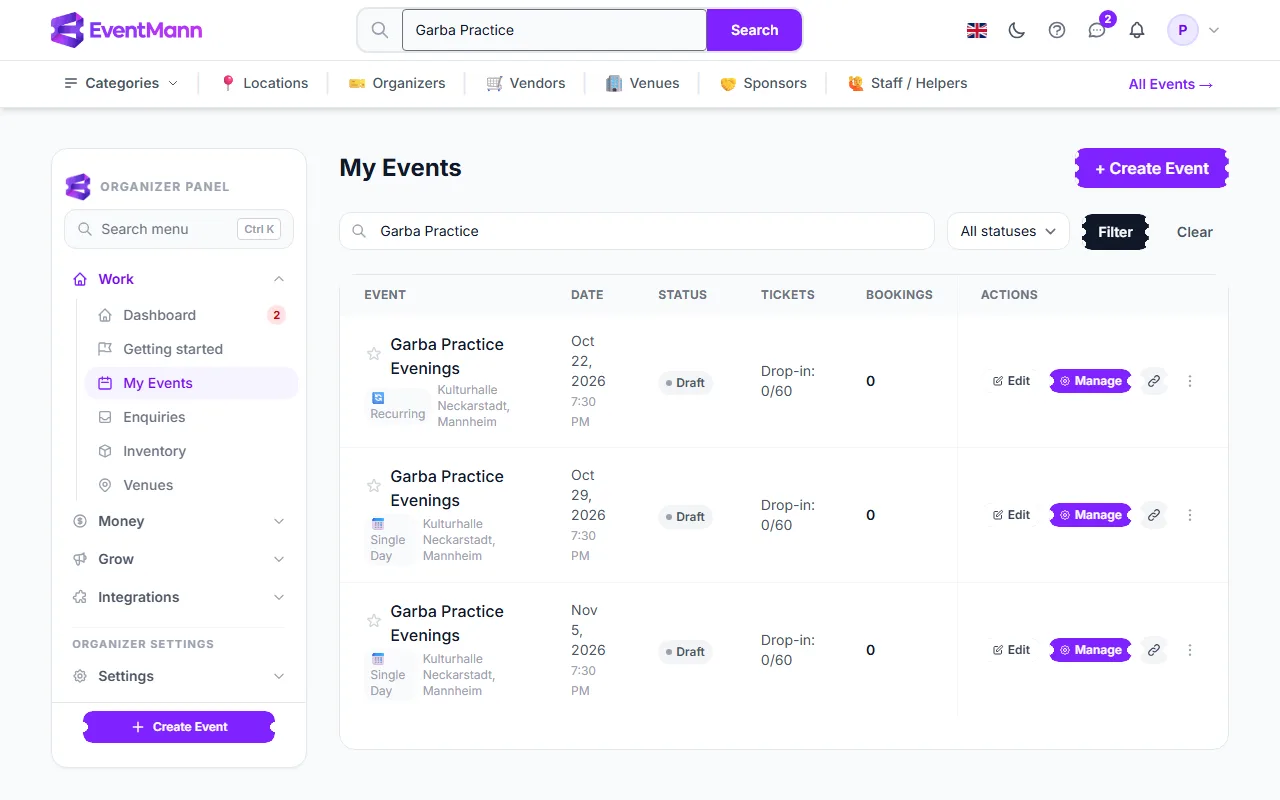
- Each following date is its own single-day event, created as a Draft, with the same title, description, settings and a copy of the cover image. Its public URL is the title plus its date.
- Each date gets copies of the ticket types (name, description, price, capacity, maximum per order and whether active). Sale windows, member prices and other per-ticket rules are not carried over; pricing rules, flash sales and discounts are separate for every date.
- A background job runs every night and creates dates that are missing, so a series with a long horizon fills in over time and never repeats a date that already exists. A date you delete is not recreated.
Running a series
- Find the dates in My Events ①: search for the series title to list them all, one row per date.
- Open a date with Manage. Every date has its own Overview, orders, check-in and reports.
- Publish each date when you are ready: the generated dates are Drafts, and the usual publishing conditions apply to each one (see Event status).
- To change a detail for the whole series, edit the dates one by one, or edit the first date and use Duplicate for new dates later. Editing the first date does not update the dates already generated.
Monthly series
A monthly series repeats on the same calendar day. In a month that does not have that day, such as the 31st in April, the date falls on the last day of the month instead; the next month is back on the original day.
Good to know
- Cancelling one date does not cancel the others. Each is a separate event with its own refunds and notices.
- Dates, venue and format of each date are promises to the people who bought a ticket for that date; changing them notifies them. See Details & dates.
- For a series of different events linked by a theme, choose the Series event type; it is a label for your own organization and creates no dates.
- A pass that covers several dates sold as one purchase is a bundle — see Ticket Bundles.
Troubleshooting
- I do not see recurrence fields — choose the event type Recurring first.
- Far too many dates appeared — no end date or occurrence count was set; up to 52 dates are created in that case. Delete the extras in Manage → Delete Event (only possible for events without orders).
- The dates are not on sale — they start as Drafts; publish each one.
- The later dates have fewer ticket settings than the first — only the basics of each ticket type are copied; set the rest per date.