




Shift Swaps
Staff & Volunteers
3 min read
Help articles may not be fully accurate — they can lag behind the app due to frequent updates and automated translation. If in doubt, please contact support.
On this page
- 1. Ask for a swap
- 2. The Shift Swap page
- 3. What happens at each step
- 4. Good to know
- 5. Troubleshooting
- 6. Related
If you cannot work a shift you were given, ask for a swap. You ask from My Shifts; the requests you sent and received are on Shift Swap (sidebar). Nothing changes until the organizer approves — your colleague saying yes is a step, not the end.
Ask for a swap
- Open My Shifts and find the shift. The button is only there while you have not checked in.
- Click Request Swap ①.
- Under Open (anyone) ② choose a colleague, or leave it open. Only people approved for the same event are listed.
- Write a short Reason (optional) ③ — the organizer reads it.
- Press Submit Swap Request ④.
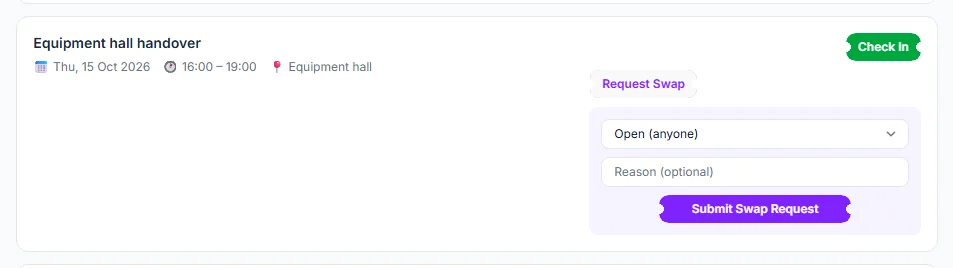
The card then shows Swap requested with the colleague’s name. Only one request can wait on a shift. Press Cancel beside the label to withdraw it; the colleague is told.
The Shift Swap page
Every request you sent or were asked to take is listed with the shift, its date and times, who it is From and To, the reason and a status badge.
- A request you sent shows Cancel ① while it is Pending or Accepted.
- A request addressed to you shows Accept ② and Decline ③. The sidebar badge counts these.
- The status badge ④ tells you where it stands: Pending, Accepted (the colleague agreed), Approved (the organizer agreed), Rejected (the organizer said no) or Cancelled.

What happens at each step
- Request sent to a colleague — they get a bell notification and an email (setting Shift swaps).
- Colleague accepts — the status becomes Accepted and you are told. The shift is still yours.
- Organizer approves — the shift moves to the colleague. Both of you are notified. The organizer can approve a request that is still Pending or already Accepted. An open request (no colleague named) takes you off the shift and puts the place back on it for the organizer to fill.
- Organizer rejects — the shift stays with you. Both are notified.
Good to know
- A swap hands your shift over. It is not an exchange of two shifts — if you want to trade, ask each other and request both.
- An open request has no colleague. Once the organizer approves it the shift leaves your My Shifts; finding the cover is the organizer’s job. Once you have checked in to a shift, the organizer can no longer approve a swap for it.
- Until a request is approved you are still responsible for the shift.
- A colleague whose staff profile is suspended cannot accept.
Troubleshooting
- There is no Request Swap button. You have already checked in to this shift, or a request is already waiting.
- The colleague I want is not in the list. They are not approved for this event yet.
- The organizer refused with a conflict message. The colleague already has a shift at that time.