




Event Reminders
Organizer Guide
4 min read
Help articles may not be fully accurate — they can lag behind the app due to frequent updates and automated translation. If in doubt, please contact support.
On this page
Event Reminders sends a scheduled email and/or in-app notification to attendees, staff, or both, timed relative to when your event starts or ends — useful for last-minute logistics or a short thank-you. Find it under Marketing → Attendee comms, on the Reminders tab. For a full, designed follow-up with photos and a poll, use After-the-event follow-ups instead. Anyone who can view the event can see the list; creating and changing reminders needs permission to edit it.
What you can do here
- Create a reminder — choose when it fires, who receives it, and how.
- Edit an existing reminder inline, or send yourself a test copy.
- Enable or disable a reminder without deleting it.
- Delete a reminder.
- See who it reached — after it runs, a summary shows the email and in-app counts and a sample of recipient addresses.
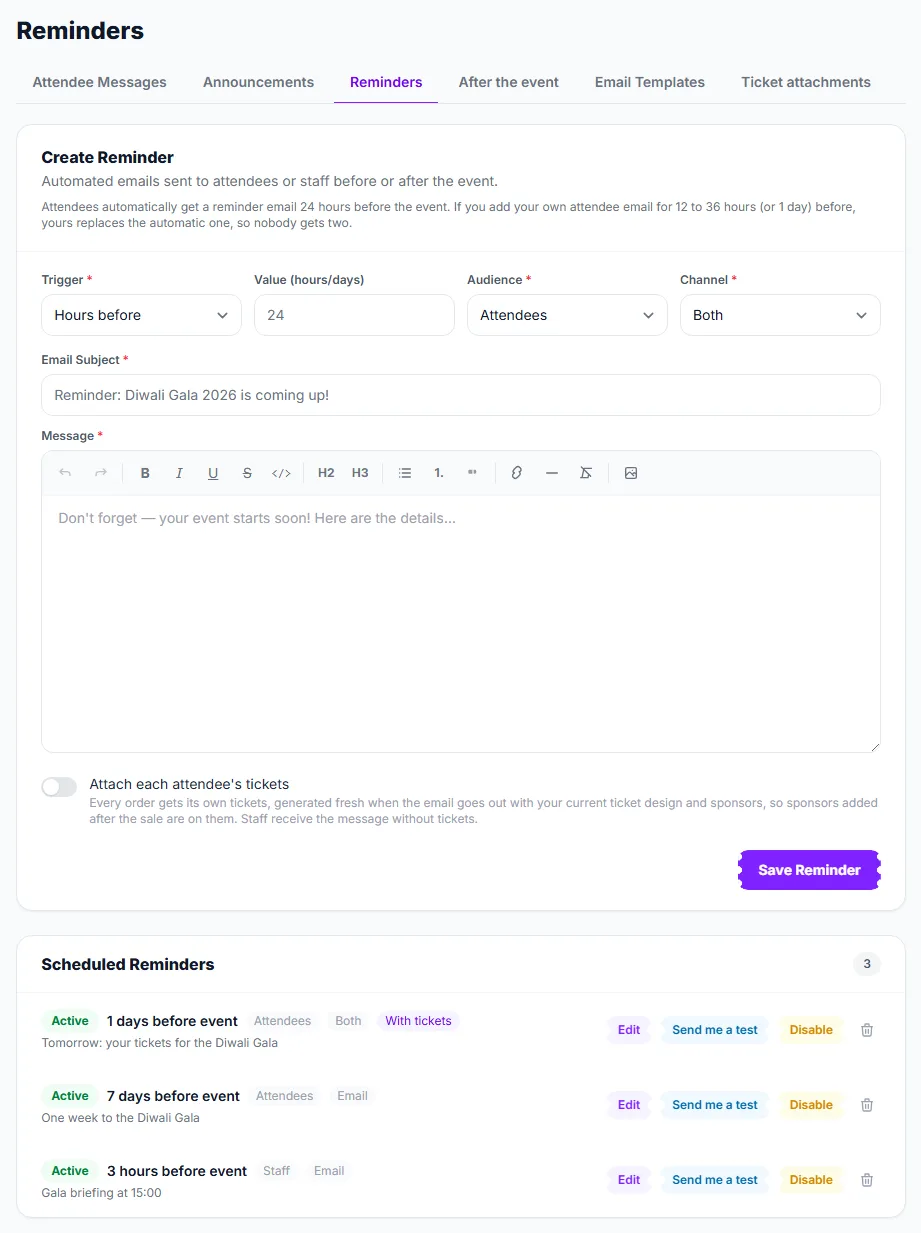
How to schedule a reminder
- Pick a Trigger ①: Hours before, Days before, Day of event or Hours after.
- Enter the value, e.g. 24 for "24 hours before" — ignored for "day of".
- Choose the Audience ② — Attendees, Staff, or Everyone.
- Choose the Channel ③ — Email, In-App, or Both.
- Write the Email Subject and Message in the editor. Switch on Attach each attendee’s tickets ④ if you want the tickets with it.
- Click Save Reminder ⑤. Under Scheduled Reminders, Send me a test ⑥ sends a copy to your own address first.
Settings explained
- Trigger value — accepts 1 to 720 (up to 30 days); required for every trigger type except "day of".
- Audience: Attendees — everyone with a confirmed booking, honoring each account holder's email-reminder preference; guest bookings with no account always receive it since there is no preference to opt out of.
- Audience: Staff — every active team member for this event, plus you as the organizer.
- Channel: Both — sends the email and also raises an in-app notification with the notification-bell counter.
- Attach each attendee’s tickets — every order gets its own tickets with the email, generated fresh with your current ticket design and sponsors. Staff and other recipients without an order get the email without tickets.
Good to know
- Attendees automatically get a reminder 24 hours before the event. If you add your own attendee email for 12 to 36 hours (or 1 day) before, yours replaces the automatic one, so nobody gets two.
- A reminder fires exactly once. After it has sent, re-enabling it will not send it again — create a new reminder if you need another round.
- Reminder emails go out at a steady pace rather than all at once: by default 200 an hour, which you can change under Settings → SMTP & Mail → Reminder sending pace. They always finish before the event starts, sending faster if they have to.
- EventMann can also send its own automatic reminder 24 hours before the event. It is off unless you switch it on under Details & dates, and a reminder of yours for about the same time replaces it. It carries their tickets (switch that off under Details & dates) and your event rules, which you write once under Details & dates → Event rules & what to know.
- Staff and other recipients without a booking receive a standalone reminder email rather than the ticket-table layout attendees with a booking see.
Troubleshooting
- The sent summary shows 0 recipients — for Attendees, there may be no confirmed bookings yet, or everyone opted out of reminder emails; for Staff, check whether any team members are marked active.
- A reminder never fired — either the event's start or end time has already passed the trigger window, or it already ran once before (see above).
- I edited a reminder but the old message still went out — edits only affect runs that haven't fired yet; a reminder that already ran won't re-send with the new text.