




The run sheet and the Live view
Help articles may not be fully accurate — they can lag behind the app due to frequent updates and automated translation. If in doubt, please contact support.
On this page
- 1. What you can do here
- 2. The run sheet
- 3. The Live view
- 4. Good to know
- 5. Troubleshooting
- 6. Related
Two tabs of an event’s volunteers are made for the days around the event. Run sheet puts every shift and every task with a time into one list, in order, so everybody works from the same plan, on paper if you like. Live shows what is happening right now: who is on shift, who has not turned up, and what is overdue. Open the event, then Team & Partners → Volunteers, and choose the tab. Both are open to the organizer, volunteer coordinators and — for their own teams — team leads.
What you can do here
- See the whole event as one timeline, per day, with who is doing what and where.
- Print the run sheet, or open it on a phone at the door.
- Narrow the plan to one team.
- On the day, see how many volunteers are checked in, call or message the ones who are missing, and check them in yourself.
- Spot tasks that are blocked or overdue before they cost you the evening.
The run sheet
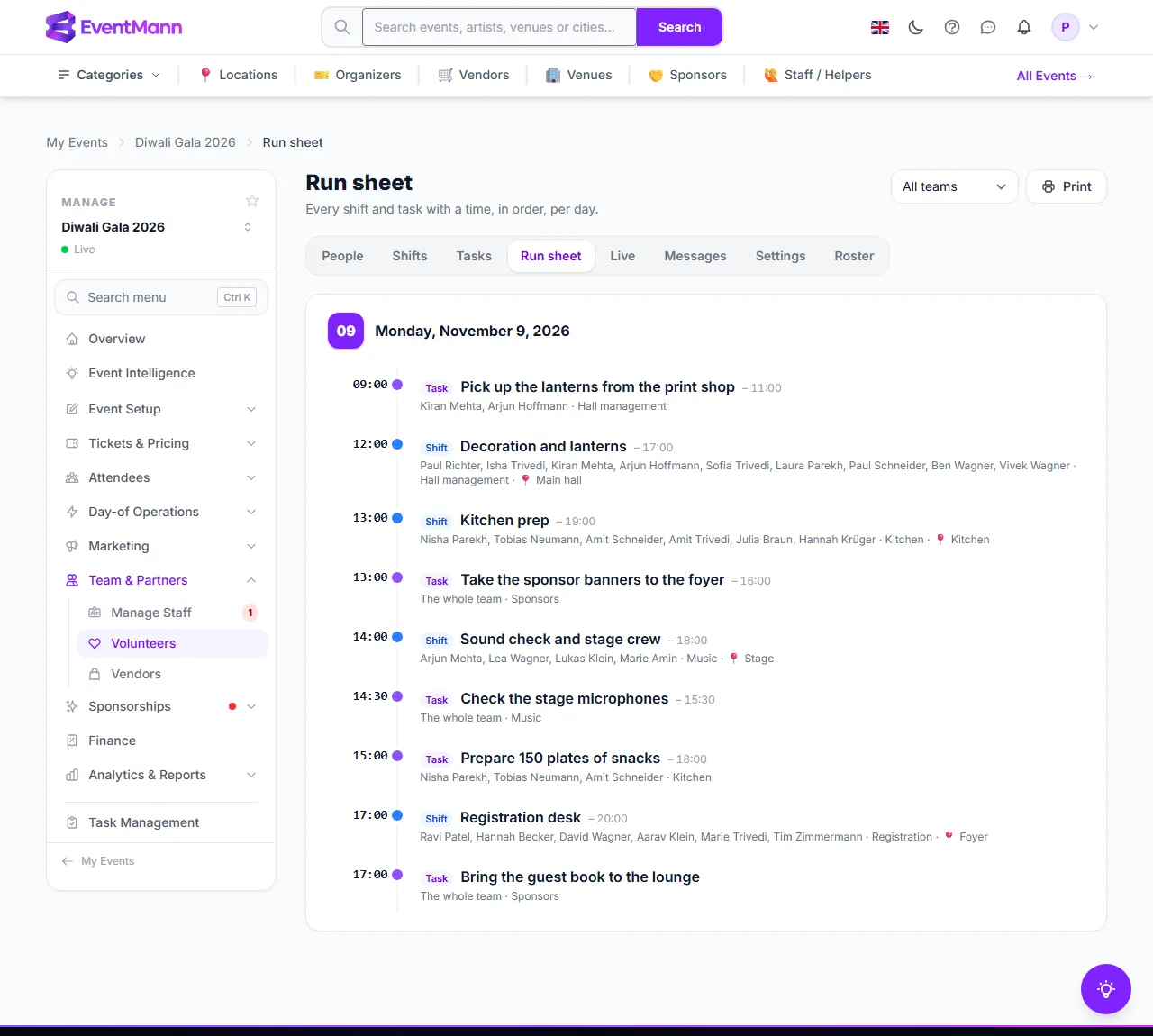
The run sheet has one block per day, each starting with the date ③. Every line shows the time ④, a coloured label for what it is ⑤ and the title, and below it who is doing it and where ⑥. There are three kinds of line:
- Shift — the volunteer shifts with their time span, their people (or “Nobody yet (3 needed)”), their team and their place.
- Task — volunteer tasks that have a start or a due time, for their named people or “The whole team”. Done tasks are greyed out and struck through.
- Task board — tasks of the event task board that have a start time, with their owner. These are shown only to people who hold the Tasks permission.
The dropdown ① narrows the list to one team. Print ② opens a clean version in a new tab without the menus; click its Print button, or use your browser’s print command. Times are the event’s own clock times.
The Live view
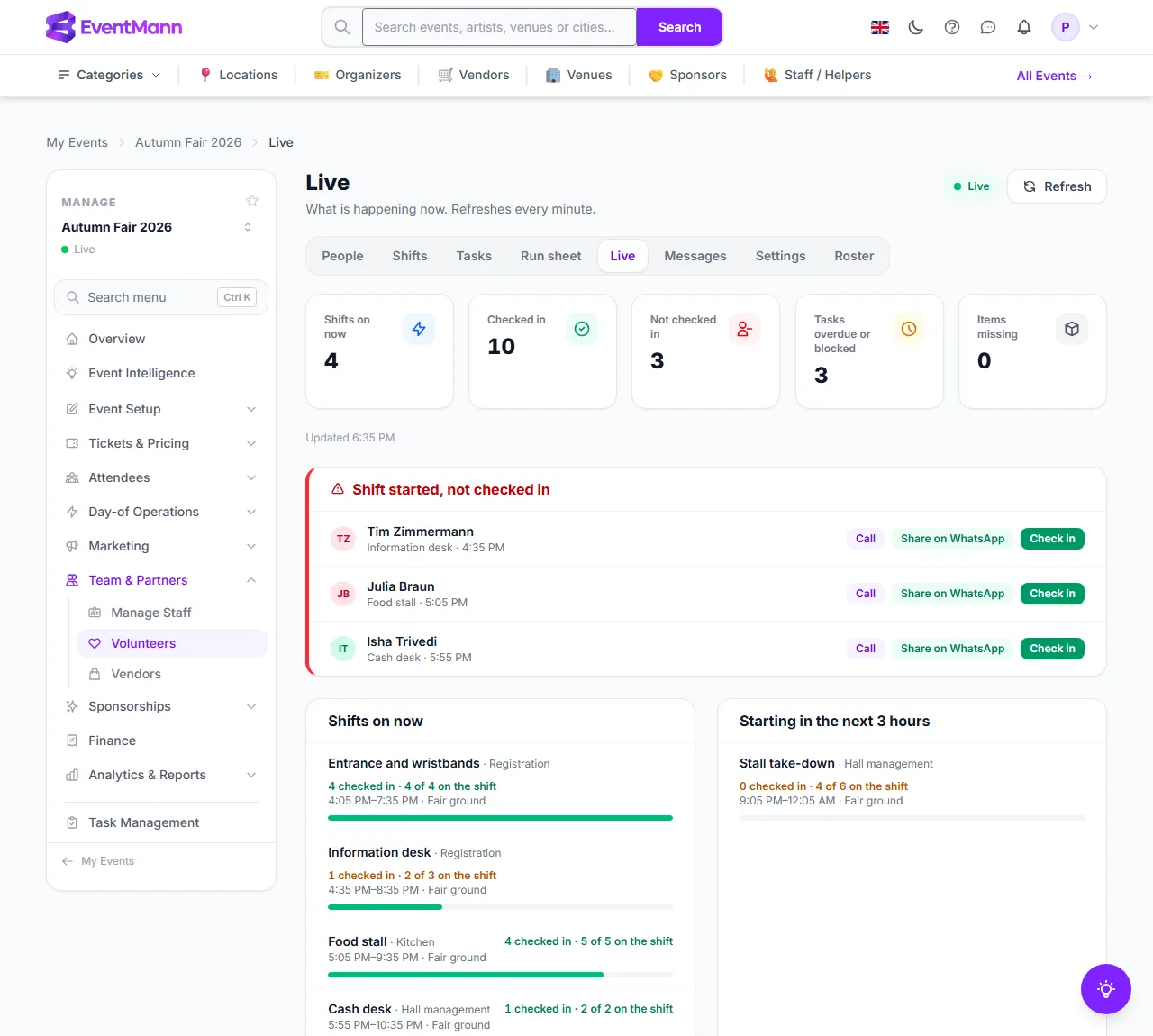
The Live tab refreshes itself every minute, and Refresh ① does it on demand. The cards at the top count the shifts on now, the people checked in, the people Not checked in ②, the tasks overdue or blocked, and the items missing from the packing lists of your teams. Below them:
- Shift started, not checked in ③ lists people whose shift began more than 15 minutes ago and who have not checked in. Each line has Call ④ (opens the phone dialler), Share on WhatsApp when the number is in international form (starting with + or 00), and Check in ⑤ to mark them present.
- Two lists of shifts: the ones that are on right now and the ones that start within the next three hours, each with how many are checked in against how many are on the shift and how many it needs ⑥. Amber means the shift is not full.
- Tasks that need attention ⑦ lists tasks that are Blocked, or whose due time has passed without being done, with who they are for.
Good to know
- The Live view is for the moment. Before the event it shows “Nothing right now” until the first shift starts; use the Run sheet for planning.
- Checking in from here is the same as Check in on the Shifts tab. Hours are counted from that moment.
- A team lead sees their own teams’ shifts and tasks, and those without a team. They can check in only the people of their own teams.
- The page only asks the server for fresh figures in the background. It does not keep you signed in: an unattended screen still signs itself out after your idle timeout.
- Items missing comes from the team packing lists; see Team inventory.
Troubleshooting
- A person is missing from the run sheet — shifts always show; tasks only when they have a start or a due time.
- Share on WhatsApp is missing — the phone number has no international prefix. Edit the number on the roster, for example +49 …, and it appears.
- Everybody shows as not checked in — volunteers check in from My Volunteering up to an hour before their shift. Check them in here if they cannot.
- The run sheet is empty — add shifts and tasks with times first.