




Volunteer tasks
Help articles may not be fully accurate — they can lag behind the app due to frequent updates and automated translation. If in doubt, please contact support.
On this page
- 1. What you can do here
- 2. Add a task
- 3. Work with the list
- 4. Edit a task
- 5. Good to know
- 6. Troubleshooting
- 7. Related
The Tasks tab is the job list of your volunteer team for one event: things that have to happen, who does them and by when. A task can be for one person, for several named people, for whoever works a given shift, for a whole team, or open to everybody. Volunteers move their tasks on themselves. You find it under Team & Partners → Volunteers → Tasks. For the organizer’s own planning board — deadlines, priorities, dependencies — see The event task board.
What you can do here
- Write down what has to happen and give it a start time and a due time.
- Give a task to one or several confirmed volunteers, to a shift, to a team or to everybody.
- Follow it through four statuses: Open, In progress, Blocked and Done.
- Break a task into a checklist, and discuss it in comments.
Add a task
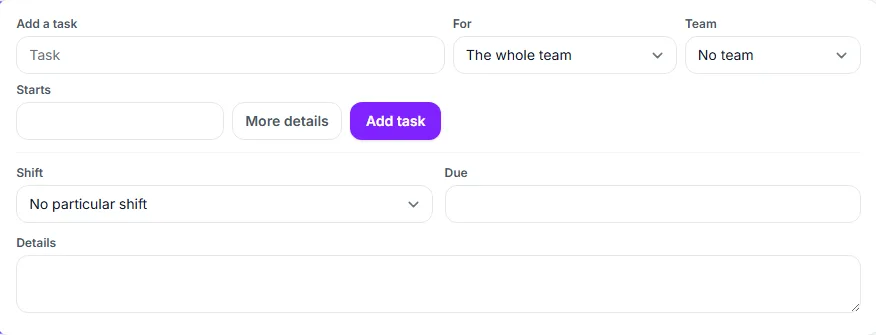
- Type what has to be done in the title field ①, for example “Pick up the lanterns from the print shop”.
- Under For ② choose one confirmed volunteer, or leave The whole team. People who have only been invited are not listed; the page says how many are still waiting.
- Choose the Team ③ the task belongs to. A team lead must choose one of their teams.
- Set Starts ④ if it has a time.
- Click More details to choose a Shift ⑤ (everybody on that shift gets the task), a Due time ⑥ and a description.
- Click Add task ⑦.
Who gets a task is decided in this order: the named people if there are any, otherwise the shift’s people, otherwise the team, otherwise everybody. People who are named get an email “New volunteer task at …” when they are added. A task that has a start time and is for named people, a shift or a team also sends a single reminder about two hours before it starts; a task for everybody has no reminder.
Work with the list
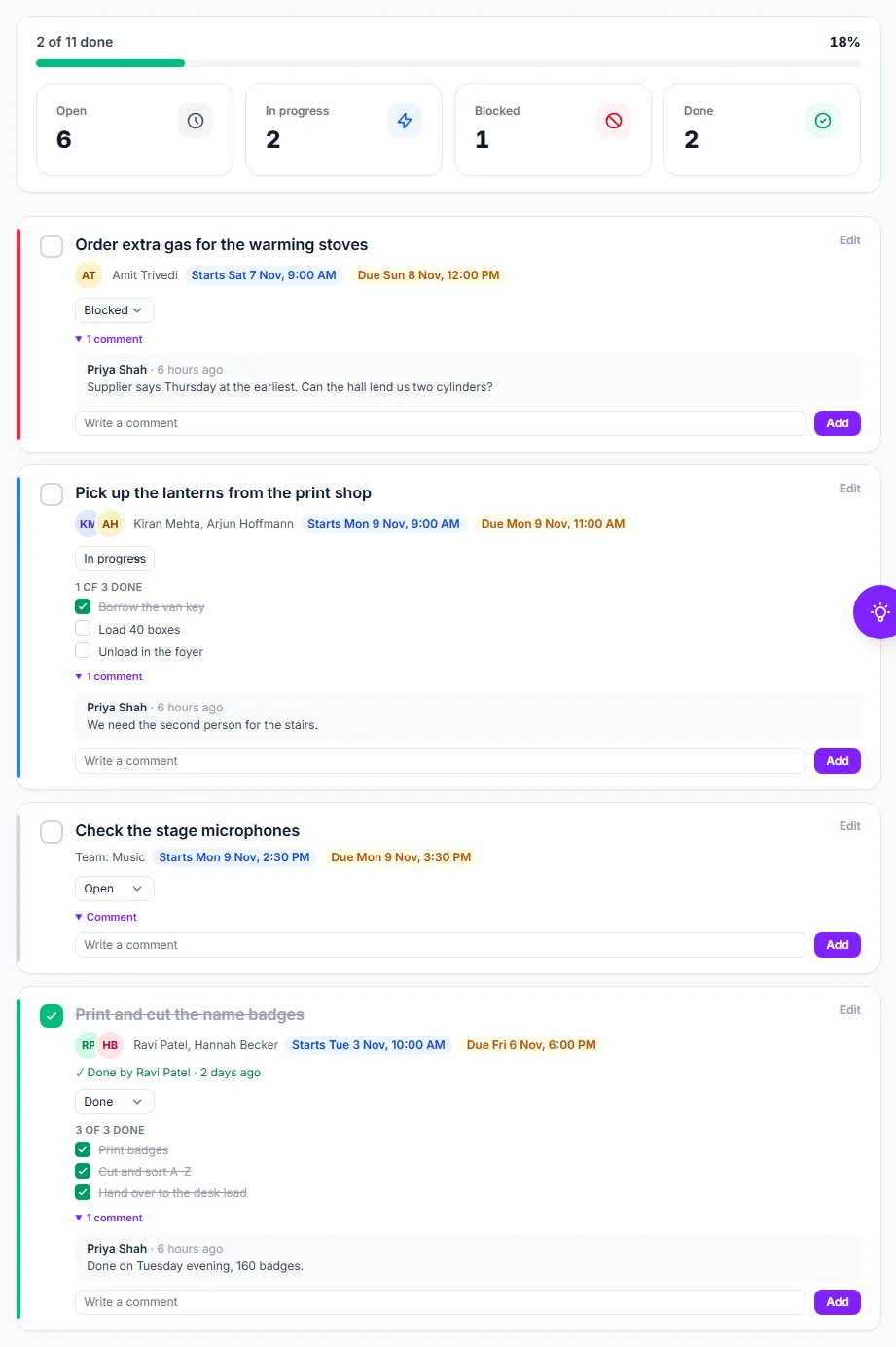
Open tasks come first, then done ones, each in time order. The line under a title says who it is for, its start and its due time, and when it is done, who ticked it — the volunteer, or “Marked done by the organizer”. The round box ① marks a task done or not done. The status menu ② sets Open, In progress, Blocked or Done; use Blocked for a task that waits on something. A checklist ③ shows how many items are done and lets you tick them. Comments ④ keep the discussion with the task. Edit ⑤ changes everything else.
Edit a task
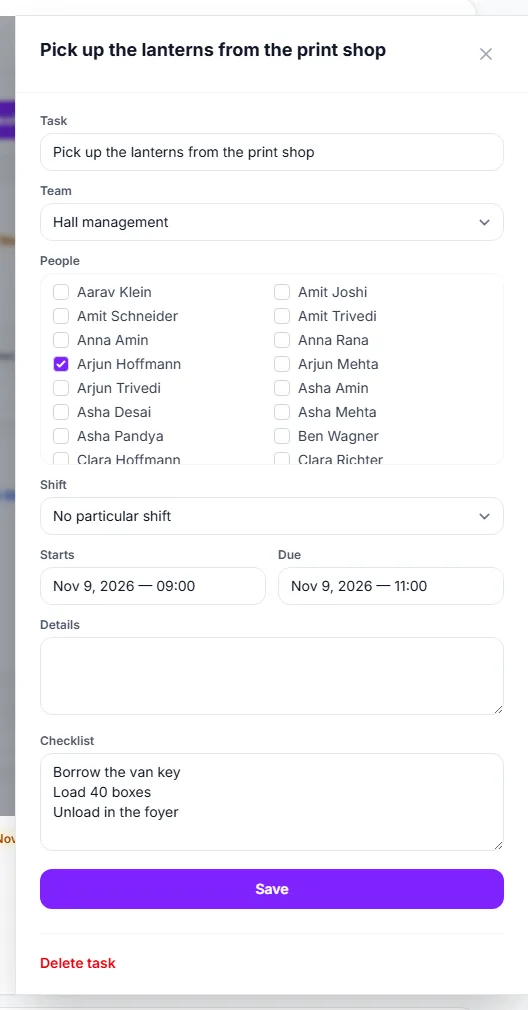
- Click Edit beside the task’s title.
- Under People ① tick everybody it is for. Ticking nobody means the shift, the team or everybody.
- Change the Shift ②, the Starts ③ and Due ④ times and the details.
- Under Checklist ⑤ write one item per line. Items you keep as they were keep their tick, so rewording item three does not untick items one and two.
- Click Save ⑥. Delete task removes it.
Good to know
- Times are the event’s own wall-clock times, the same as on shifts.
- Volunteers see their tasks on My Volunteering. They can change the status, tick checklist items and add comments themselves; the organizer and the team’s lead see it here at once.
- Giving a person a task who is not confirmed is refused. If somebody steps back or is taken off the event, their tasks go back to the team.
- Tasks with a start or due time show on the Run sheet; Blocked and overdue ones show on Live.
- A team lead sees and changes only the tasks of their own teams.
- Marking a task done sets it to Done; marking it not done sets it back to Open.
Troubleshooting
- The person I want is not in the list — only confirmed volunteers can be given tasks. Confirm them on People.
- “That volunteer is no longer confirmed for this event” — the person was removed or stepped back after you opened the form. Choose somebody else.
- Nobody got the email for my task — emails go to people who are named, at the moment they are added. A task for a shift or a team is not mailed when it is created; it appears on their My Volunteering page, and the reminder before its start time reaches them.