




Getting Started as Venue Owner
Venue Owner Guide
3 min read
Help articles may not be fully accurate — they can lag behind the app due to frequent updates and automated translation. If in doubt, please contact support.
On this page
This walks you through creating a venue-owner account and getting your first venue in front of organizers. A venue owner lists spaces (a hall, a studio, a garden pavilion), describes what is on offer and answers booking requests from organizers. Your own portal opens at Venue Dashboard after you sign in.
What you can do here
- List venues with address, capacity, amenities and photos, and design a seating layout.
- Offer services and packages that organizers can add to a request.
- Control availability by blocking dates on a calendar.
- Answer booking requests — approve with a price and deposit, or decline.
- Follow your bookings, revenue and reviews.
Create your account and first venue
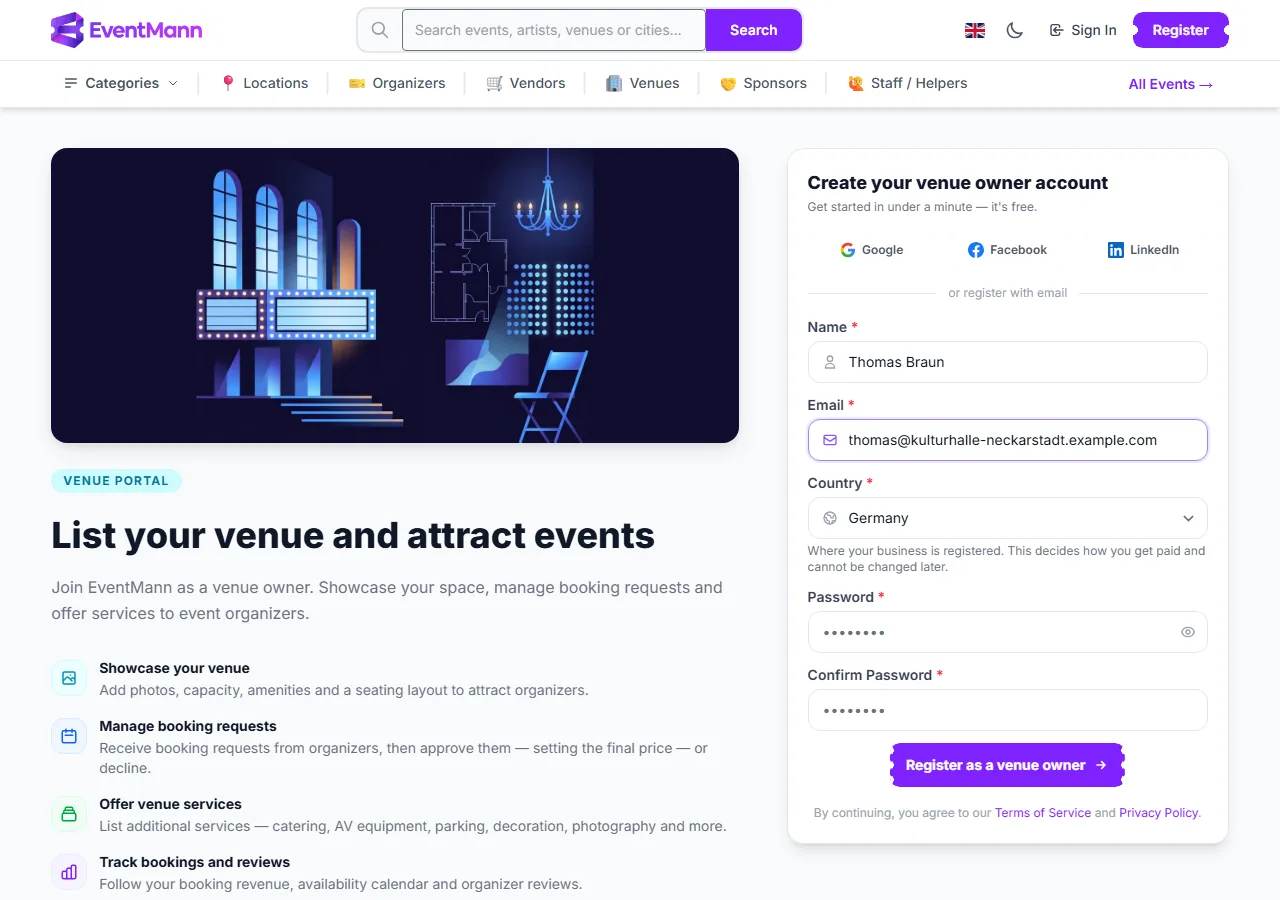
- Open the For Venues page and choose to register as a venue owner. Fill in Name ①, Email, Country ② (where your business is registered; it cannot be changed later) and a Password, or sign up with Google, Facebook or LinkedIn.
- Click Register as a venue owner ③. You are signed in and land on a short setup checklist.
- Add your first venue — see Adding a Venue. Three steps are required before the setup bar disappears: your profile, a venue, and venue details (a capacity above zero).
- Optionally add photos and services. They are on the checklist, but they are what makes a listing attractive: see Venue Photos & Gallery and Venue Services & Packages.
- Wait for the review. A new venue is Awaiting review until an administrator approves it; only then can organizers find it. See Approval and Your Public Listing.
The portal at a glance
- Venue Dashboard — your counts and a row per venue.
- My Venues — the list, plus the pages of each venue (details, designer, services, packages, booking requests).
- Calendar — bookings, pending requests and blocked dates across all venues.
- Reviews, Finances and Analytics — what organizers say, what your bookings are worth, and how requests turn into bookings.
Good to know
- Payments for venue hire are not handled by EventMann. The organizer and you agree the price in the request, and you settle the deposit and the balance between yourselves. The Finances page is a record of those agreements.
- Your notification preferences include Venue booking requests and Venue listing decisions. Both send an email as well as the bell notification when switched on.
- Organizers can also create venues from their own panel under Venues, using the same pages. An organizer cannot book their own venue.
- A venue-owner account does not open the organizer panel. If you also run events, that needs the organizer role on your login.
Troubleshooting
- Your country is not in the list — only the countries EventMann works in are offered.
- You cannot see the venue you added in the public list — it is still being reviewed, switched off by you, or rejected. The status badge on My Venues says which.
- The setup bar stays — one of the three required steps is missing. The most common one is the capacity: it must be greater than zero.