




Completing Assigned Tasks
Staff & Volunteers
2 min read
Help articles may not be fully accurate — they can lag behind the app due to frequent updates and automated translation. If in doubt, please contact support.
On this page
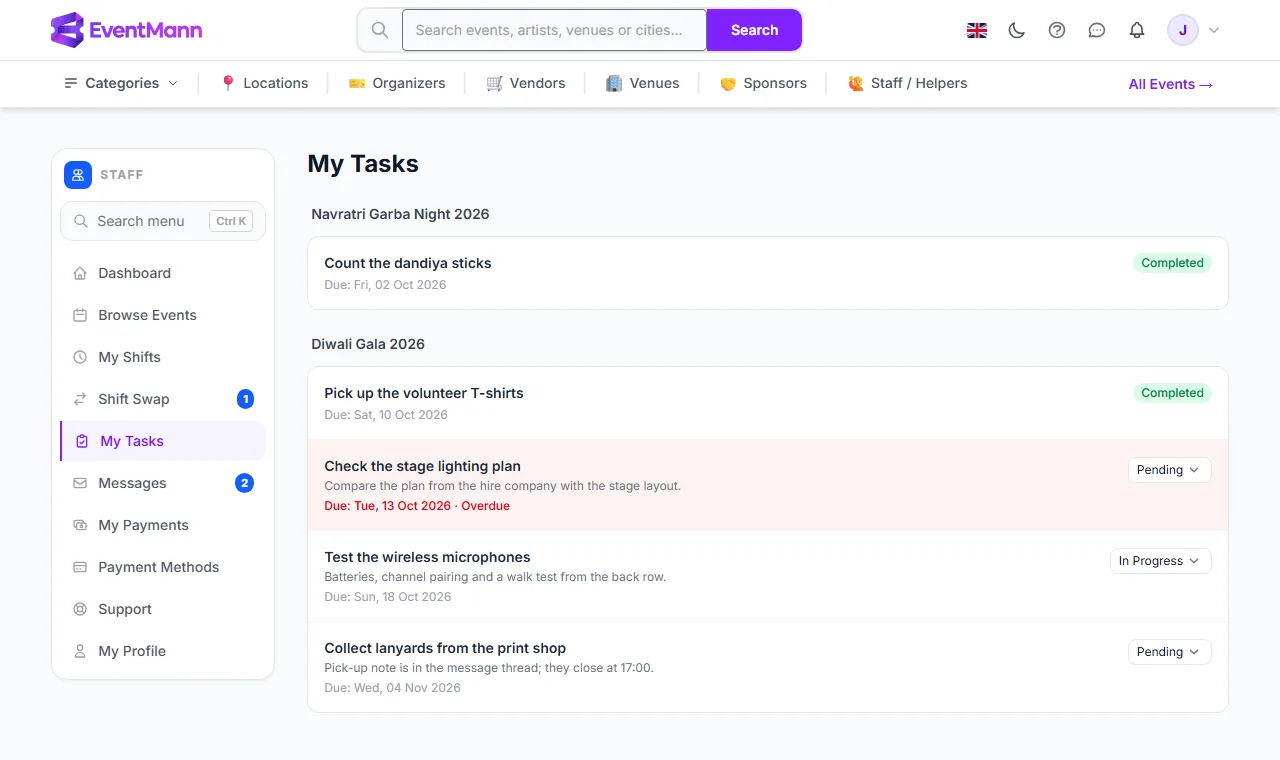
This article follows one task from the moment it is assigned to the moment it is done, and says what the organizer sees along the way. The page you work on is My Tasks.
The life of a task
- The organizer assigns it. They give it a title, an optional description and an optional due date on their staff page. You receive a bell notification and an email (setting Tasks assigned to you) that links to My Tasks.
- You start it. Set the task to In Progress. This is optional but it tells the organizer the job is being handled.
- You finish it. Set it to Completed. The completion time is recorded.
- The organizer is told. Every status change you make sends the organizer a bell notification and an email (setting Task status updates) naming you, the task and its new status.
In the picture: the event heading is ①, a task past its due date ②, the status dropdown ③ and a finished task ④.
Rules that apply to every task
| Rule | What it means for you |
|---|---|
| Three statuses | Pending, In Progress, Completed. You can jump from Pending straight to Completed. |
| Completed is final | Once completed, the dropdown disappears. A completed task cannot be set back, by you. |
| Overdue is automatic | The day after the due date the task turns red and counts on your dashboard until you complete it. |
| No due date | The task is never overdue. |
Good to know
- Completing a task is a statement to the organizer — nothing is checked automatically. Complete only what is done.
- Tasks do not affect your pay. Pay comes from your shift hours.
- If a task needs a decision or a file, answer through Messages; the task itself has no comment box.
- You can turn the emails for task assignments and status updates off in your notification settings; the bell notification stays.
Troubleshooting
- I never got a notification for a new task. Check My Tasks anyway, and check your notification preferences for Tasks assigned to you.
- The organizer says a task is not done but it shows Completed. The status is your own setting — ask the organizer to reset it, then set it again when it really is.