




Venue Photos & Gallery
Venue Owner Guide
3 min read
Help articles may not be fully accurate — they can lag behind the app due to frequent updates and automated translation. If in doubt, please contact support.
On this page
- 1. What you can do here
- 2. Add photos
- 3. Remove a photo
- 4. Where your photos appear
- 5. Good to know
- 6. Troubleshooting
- 7. Related
Photos are the first thing an organizer looks at when choosing a space. You add and remove them in the venue form — when you create the venue, or later under My Venues → Edit in the Photos card. There is no separate gallery manager: the photos of a venue are one list that you edit together with the rest of the form.
What you can do here
- Upload up to twelve pictures at a time.
- Remove pictures you no longer want.
- Rely on the first picture as the cover that appears in lists.
Add photos
- Open My Venues, click Edit on the venue and scroll to the Photos card.
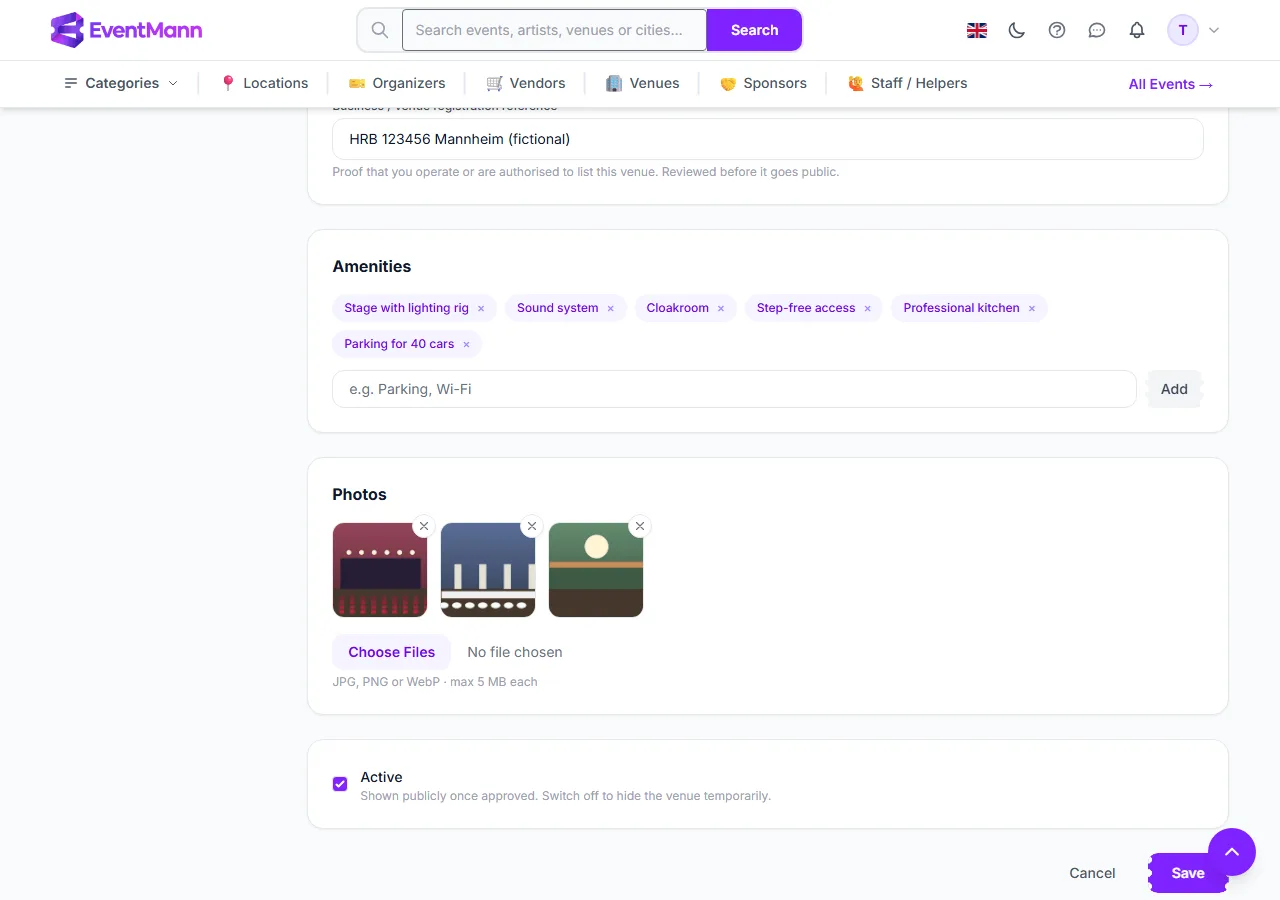
- Click Choose Files ② and select one or several pictures. The card says JPG, PNG or WebP · max 5 MB each.
- Click Save ③. The new pictures are added after the ones already there.
Remove a photo
- In the Photos card, click the × on the thumbnail ①. The picture turns pale to show it is marked for removal; click the × again to keep it after all.
- Click Save ③. Only now are the marked files deleted from storage, so they stop being served at once.
Where your photos appear
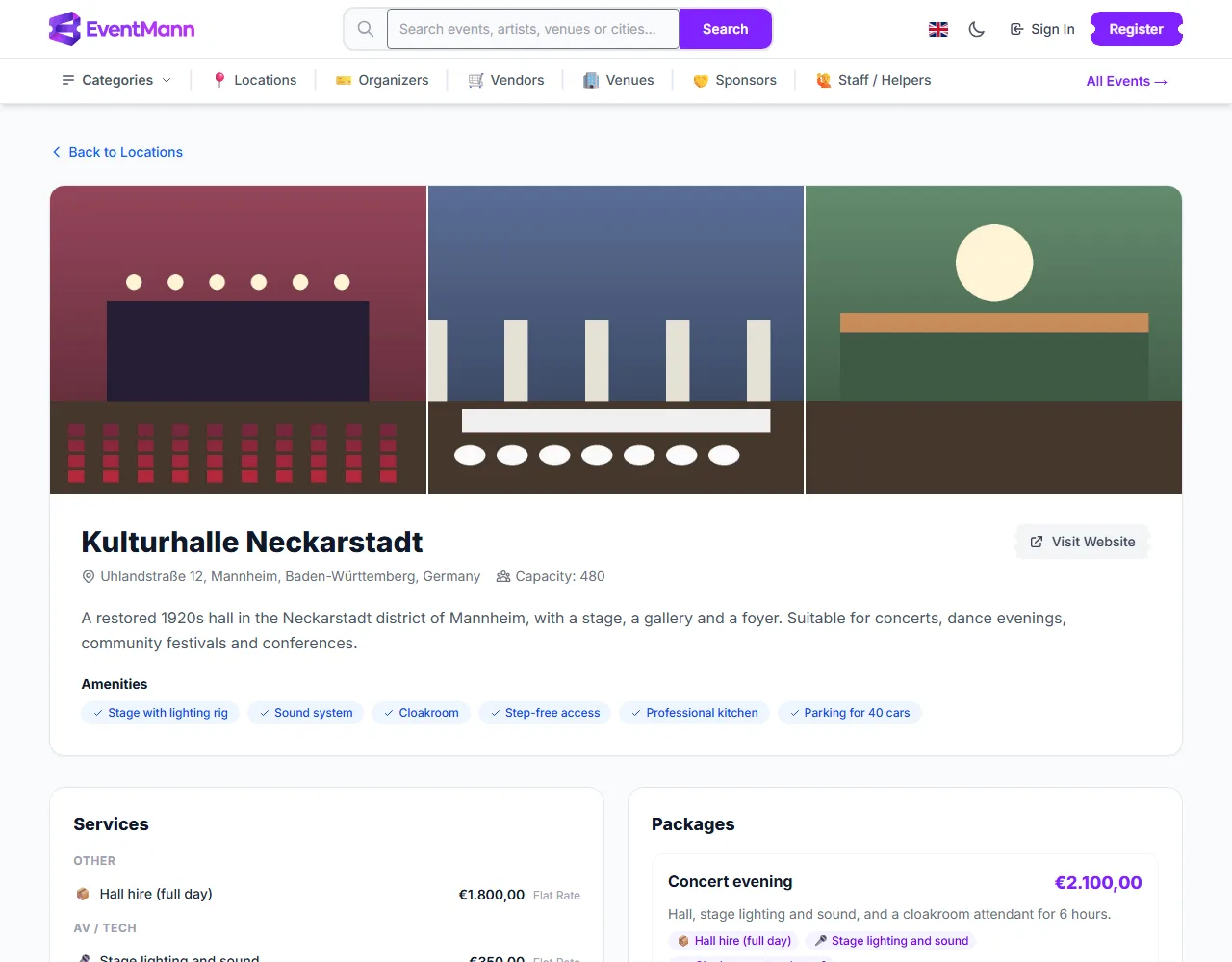
- The cover — the first photo is the one used in lists: your dashboard row, the Browse Venues cards, the organizer’s request form and the public venue directory.
- The public venue page — a strip at the top shows the first three photos.
- Your venue page — every photo, as thumbnails under Photos.
Good to know
- You cannot reorder photos. To make a different picture the cover, remove the others and upload them again after it, or upload the cover first when you create the venue.
- Photos have no captions, and the venue has no separate floor-plan upload: the seating layout is built in the designer.
- Choose pictures that show the space the way an organizer will use it: the hall empty and set up, the entrance, the stage, the kitchen.
- Large photos are accepted up to 5 MB each. SVG, GIF and PDF files are not accepted.
Troubleshooting
- The upload fails — check the type (JPG, PNG, WebP) and that each file is at most 5 MB. A request is limited to twelve new pictures.
- The new photo does not show as cover — the cover is the first picture in the list; new uploads go to the end.
- A removed photo is still visible — you marked it but did not click Save.
- The public page shows only three pictures — that is the size of the strip. All photos remain on your own venue page.