




Account Security & Two-Factor Authentication
Help articles may not be fully accurate — they can lag behind the app due to frequent updates and automated translation. If in doubt, please contact support.
On this page
Your password protects your account, and the settings in this article add layers on top of it. It explains each one: what it does, where to find it and what happens if you lose access. Most of it is on My Profile, reached from your avatar menu.
Password
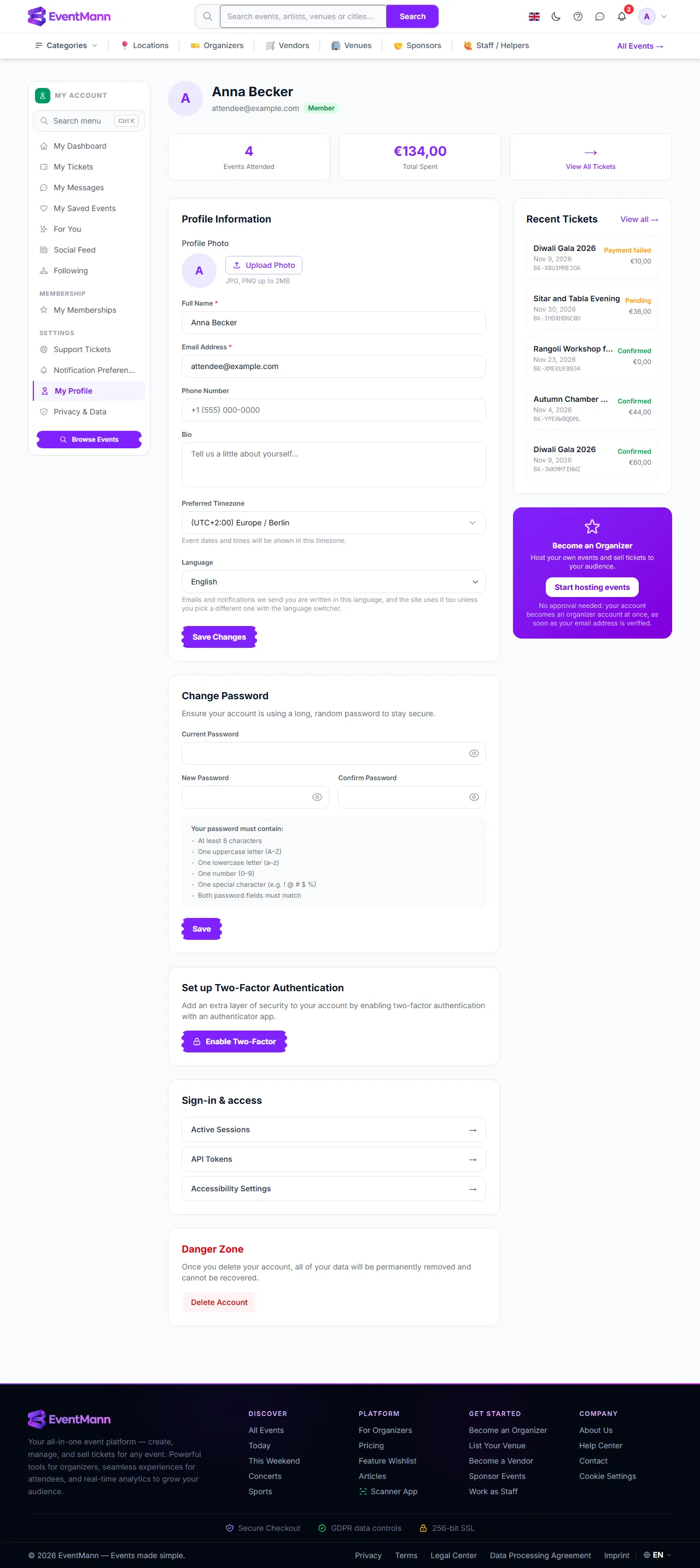
Change it under Change Password ① on your profile. You enter your current password and the new one twice; the new one needs at least 8 characters with an uppercase letter, a lowercase letter, a number and a special character. If you registered with Google, Facebook or LinkedIn, you never chose a password, so the form does not ask for the current one.
If you are locked out, press Forgot your password? on the sign-in page. The emailed reset link is valid for 60 minutes; ask for a new one if it ran out.
Email verification
New accounts start unverified. Click the link in the verification email, valid for 72 hours, to confirm your address. It works on any device because it does not need you to be signed in there. Some features need a verified address, for example buying a membership, accepting a ticket transfer or publishing an event. If the link expired or never came, ask for another from the notice on the site or from your profile. Changing your email address makes it unverified again.
Two-factor authentication (2FA)
2FA adds a second step at sign-in: after your password you enter a 6-digit code from an authenticator app such as Google Authenticator or Authy.
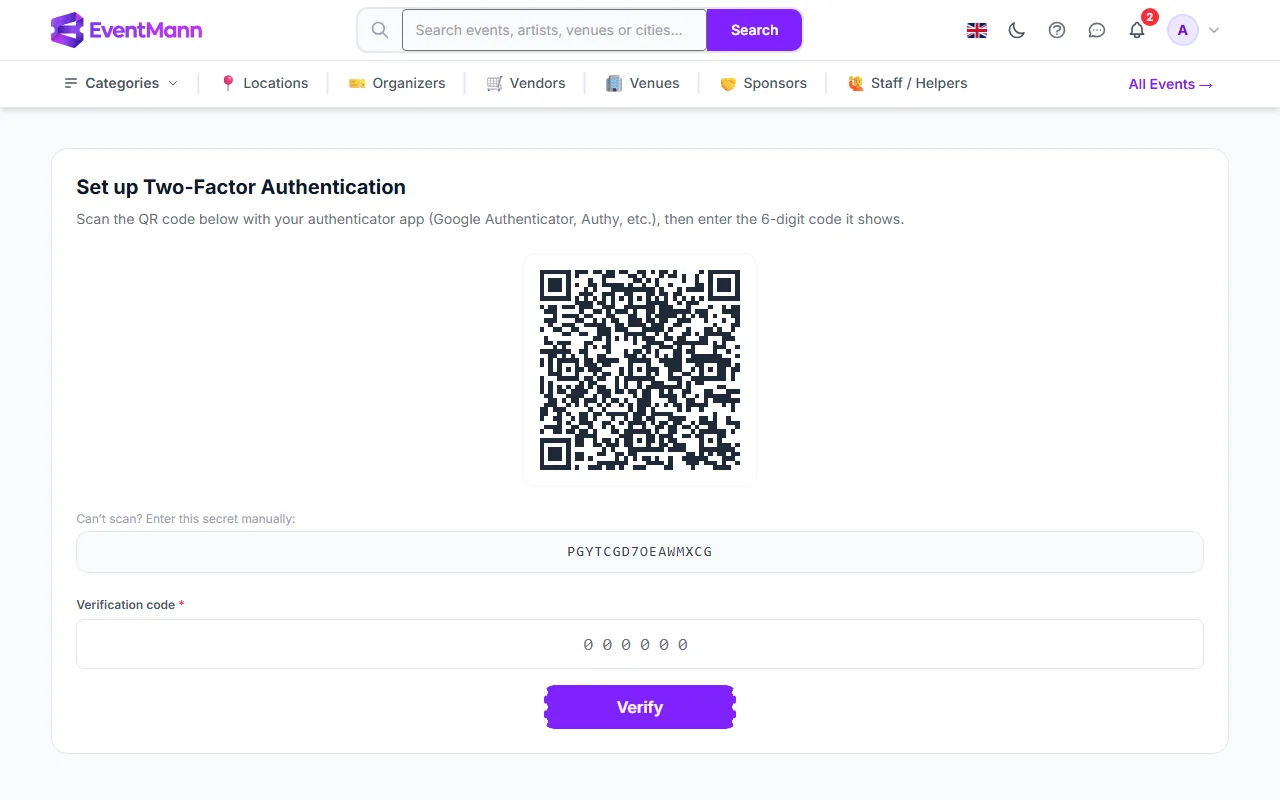
- On your profile press Enable Two-Factor ②. The setup page opens with a QR code.
- Scan the code with your app. If you cannot scan it, type the secret shown under Can’t scan? Enter this secret manually ① into the app.
- Enter the 6-digit code that your app now shows in the Verification code field ② and press Verify.
- You are given 8 recovery codes, shown once. Save them somewhere other than the phone with your authenticator app, such as a password manager or a printout.
- From then on every sign-in asks for a code, after your password. At that screen, Use recovery code lets you enter a recovery code instead. Each recovery code works once and is then removed.
- After 5 wrong codes in a row, 2FA sign-in is locked for 15 minutes.
- To turn 2FA off, use the same section of your profile and confirm with your current password. The secret and the remaining recovery codes are deleted.
- If you lose both your authenticator app and your recovery codes, there is no way to get back in yourself: that is the point of a second factor. Contact Support and be ready to prove who you are in another way.
Active sessions

Open Active Sessions from the Sign-in & access card on your profile page (or go to /profile/sessions) to see every browser or device signed in to your account, with its IP address, browser and how long ago it was last active. Your current one is marked Current ①. Use the sign-out icon on a row to end that session, or Sign out all others ② to end every session except the one you are using. An account can hold at most 5 sessions; signing in on a sixth device signs out the least recently used one.
New device alerts
The first device you sign in with is trusted automatically. When you later sign in from a device we have not seen, we email you a New sign-in to your EventMann account message with the device and, when available, the location. Press Yes, this was me to confirm it. If it was not you, use the link in the email to secure your account and change your password at once.
Automatic sign-out
A session that has been idle for 30 minutes (the default) is signed out, so an unattended browser does not stay signed in. Background activity such as the notification bell does not count as activity.
Restrictions an administrator can apply
- IP allow-listing — an administrator can limit an account to certain IP addresses. From another address you get an access-denied message instead of the sign-in screen. Ask whoever manages the account.
- Suspension — a suspended account is signed out the next time it makes a request and cannot sign in until the suspension is lifted. Contact Support if you think it is a mistake.
Good to know
- 2FA and your password are independent: changing your password does not turn 2FA off, and 2FA does not change the password rules.
- Your 2FA secret and recovery codes can only be changed by the enable, confirm and disable steps above.
- Deleting your account (Danger Zone) asks for your password and cannot be undone; see Privacy & Data.
Troubleshooting
- My authenticator code is rejected — codes are time based. Set your phone’s clock to automatic and use the next code.
- I lost my phone — sign in with a saved recovery code, then set 2FA up again on the new phone.
- I used all my recovery codes and lost my app — contact Support.
- I get no verification or reset email — check spam and the address on your account, then ask for a new link; old ones expire.
- I was signed out on one device after signing in on another — you reached the limit of 5 sessions.