




Cancel or Add Tickets on an Order
Help articles may not be fully accurate — they can lag behind the app due to frequent updates and automated translation. If in doubt, please contact support.
On this page
An order does not have to be all or nothing. From the order page you can cancel some of its tickets and keep the rest, or add a free ticket for a child or companion who was left off at checkout. Both live in the Tickets card of Attendees → Orders → (an order).
What you can do here
- Cancel tickets — cancel one or several tickets of a confirmed order. Their QR codes stop working at once, the places go back on sale and the buyer is emailed.
- Add free ticket — add free tickets to an existing confirmed order without changing what the buyer paid.
Cancel some tickets of an order
Use this when part of a group cannot come. The refund suggested is those tickets’ share of what was paid, worked out with the cancellation terms the order was bought under.
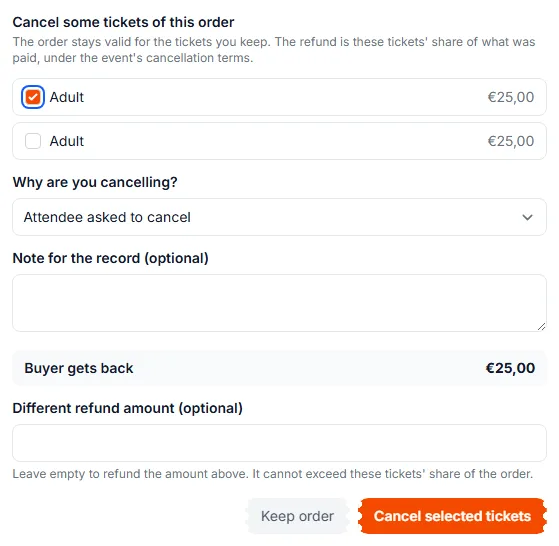
- On the order, click Cancel tickets. The form opens under the ticket list.
- Tick the tickets to cancel ①.
- Under Why are you cancelling? ② pick the reason:
- We cancelled it — you or the event changed. Always refunded in full; no charge can be kept.
- Attendee asked to cancel — your cancellation terms apply and a charge may be kept.
- Does not meet the event requirements — no charge unless you tick Keep the cancellation charge (shown only when your event has a charge configured).
- Optionally add a note for the record.
- Check Buyer gets back. If your terms keep a charge, Cancellation charge kept is listed above it. To refund a different amount, type it under Different refund amount — it can be lower, never higher than these tickets’ share.
- Click Cancel selected tickets ③ and confirm.
Rules and limits
- The order must be Confirmed and have at least two tickets that can still be cancelled. If you tick every remaining ticket, the form warns you that the whole order will be cancelled.
- Tickets that are already checked in or are in the middle of a transfer cannot be cancelled one by one.
- Orders from a bundle or multi-event pass, and orders with an open dispute, cannot have single tickets cancelled.
- You need the permission to cancel bookings.
- Each cancellation is written to the order’s timeline (“2 tickets cancelled”) and its refund appears beside it.
A cancelled ticket can be brought back — see Bring a Cancelled Order Back.
Add a free ticket to an order
The classic case: a family bought two adult tickets and forgot the toddler who comes free. Instead of asking them to place a second order, add it yourself.
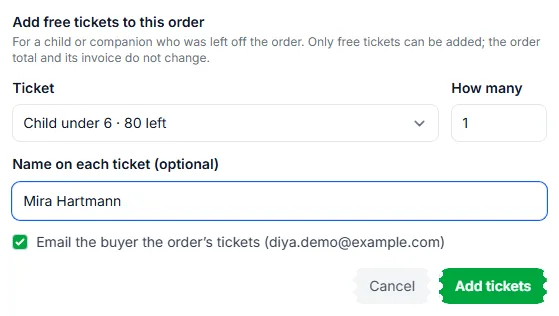
- On the order, click Add free ticket.
- Choose the Ticket ①. Only free ticket types on sale appear, each with how many are left.
- Set How many ② (1 to 10 at a time).
- Optionally type the Name on each ticket.
- Leave Email the buyer the order’s tickets ticked to send them the updated tickets, then click Add tickets ③.
Rules and limits
- Free tickets only. The order total and any invoice already issued do not change. For a paid ticket, raise a new manual order.
- The order must be Confirmed and the event not cancelled or over. You need the permission to create bookings.
- Seated ticket types are not offered — a seat is chosen on the seat map, which this form does not have.
- Stock, the event’s total capacity, the order limit and the rule that a child ticket needs an adult ticket are all checked against the whole order.
- Each added ticket is its own ticket with its own QR code, and it is recorded on the timeline.
Troubleshooting
- There is no Cancel tickets button — see the rules above: the order may have only one ticket left, be part of a bundle, be disputed, or you may lack the permission.
- There is no Add free ticket button — the event has no free, unseated, active ticket type with stock left, or the order is not Confirmed.
- “Only N left” — that ticket type, or the event as a whole, is nearly full.