




Flash Sales
Organizer Guide
3 min read
Help articles may not be fully accurate — they can lag behind the app due to frequent updates and automated translation. If in doubt, please contact support.
On this page
A flash sale is a time-limited percentage off chosen ticket types: “20% off this Saturday”. It switches on and off by itself at the start and end times you set. Open it under Manage → Tickets & Pricing → Pricing & offers → Flash Sales.
Create a flash sale
- Give it a Sale Name ①, for example “Weekend flash sale”. The name is for you.
- Enter the Discount % ② — from 1 to 90.
- Choose Starts At and Ends At. The end must be after the start. Times are in the event’s timezone.
- Under Apply to Ticket Types ③ tick every type that should be discounted; at least one is required.
- Click Create Flash Sale. It appears under Flash Sales ④ with its discount and dates.
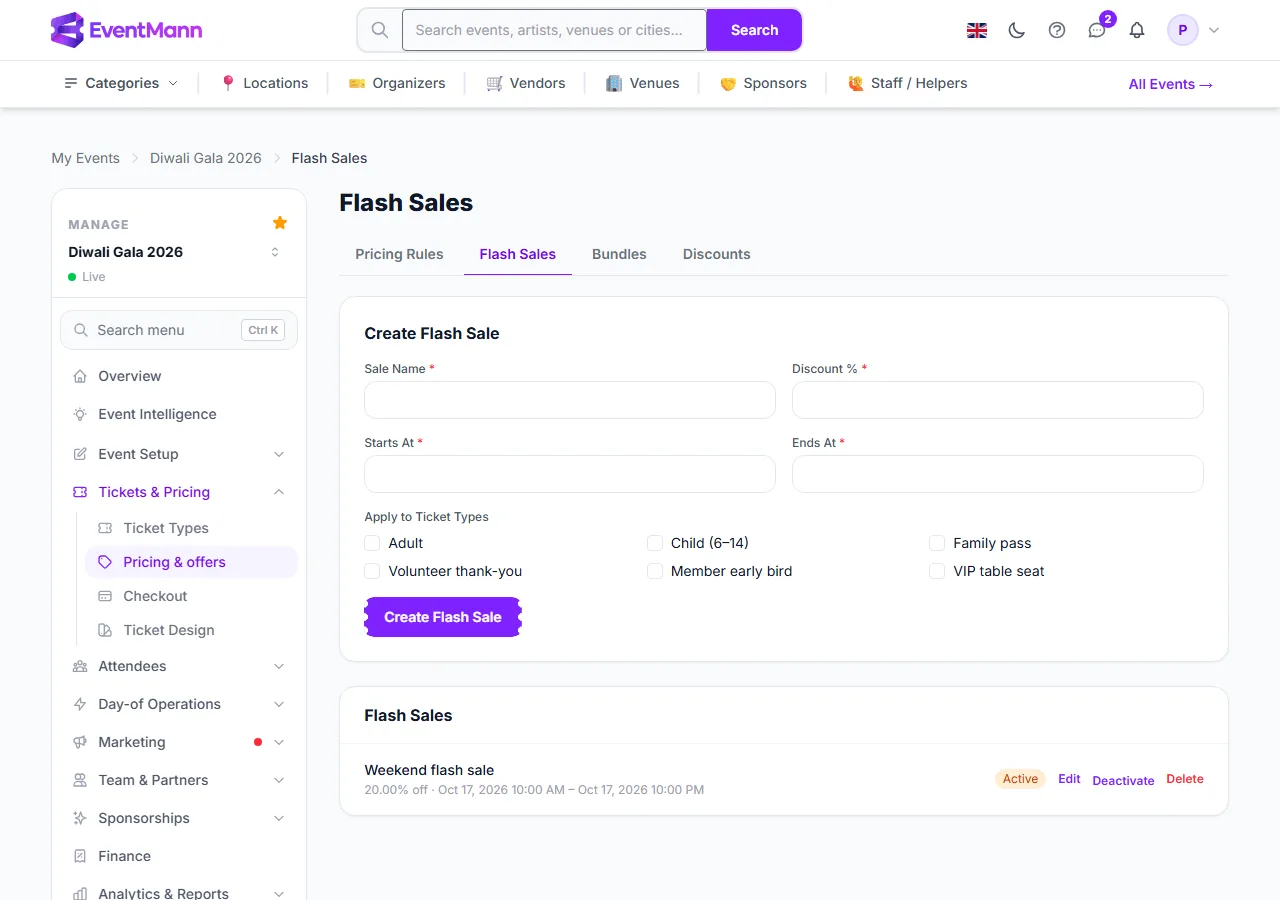
Manage your flash sales
- Edit changes the name, discount, times and ticket types.
- Deactivate switches a sale off without deleting it, and Activate switches it back on.
- Delete removes it. Orders already placed keep the price they paid.
How it combines with other prices
- A flash sale is applied after a pricing rule: the rule sets the price, then the flash sale takes its percentage off that price.
- The two together can never take a ticket below 10% of its regular price.
- A member price is compared with the flash-sale price and the lower of the two is charged. A member never pays more because of a sale.
- A bundle discount is calculated on regular prices and does not stack with a flash sale.
- A discount code is a separate mechanism that the buyer enters at checkout.
Good to know
- While a sale is running, buyers see the reduced price on the event page and in checkout. The figure they see is the figure they pay.
- Only one flash sale applies to a ticket at a time.
- Free tickets have no price to discount.
- Changes apply to new checkouts; a basket already in checkout keeps the price quoted when that checkout started.
Troubleshooting
- The sale does not apply — check that it is active, that the current time is between its start and end in the event’s timezone, and that the ticket type is ticked.
- The end time is rejected — it must be after the start time.
- The discount is smaller than expected — the combined reduction is capped at 90% of the regular price, and the best price for a member wins.
- The percentage is rejected — use a value from 1 to 90.