




Floor Plans & Layouts
Help articles may not be fully accurate — they can lag behind the app due to frequent updates and automated translation. If in doubt, please contact support.
On this page
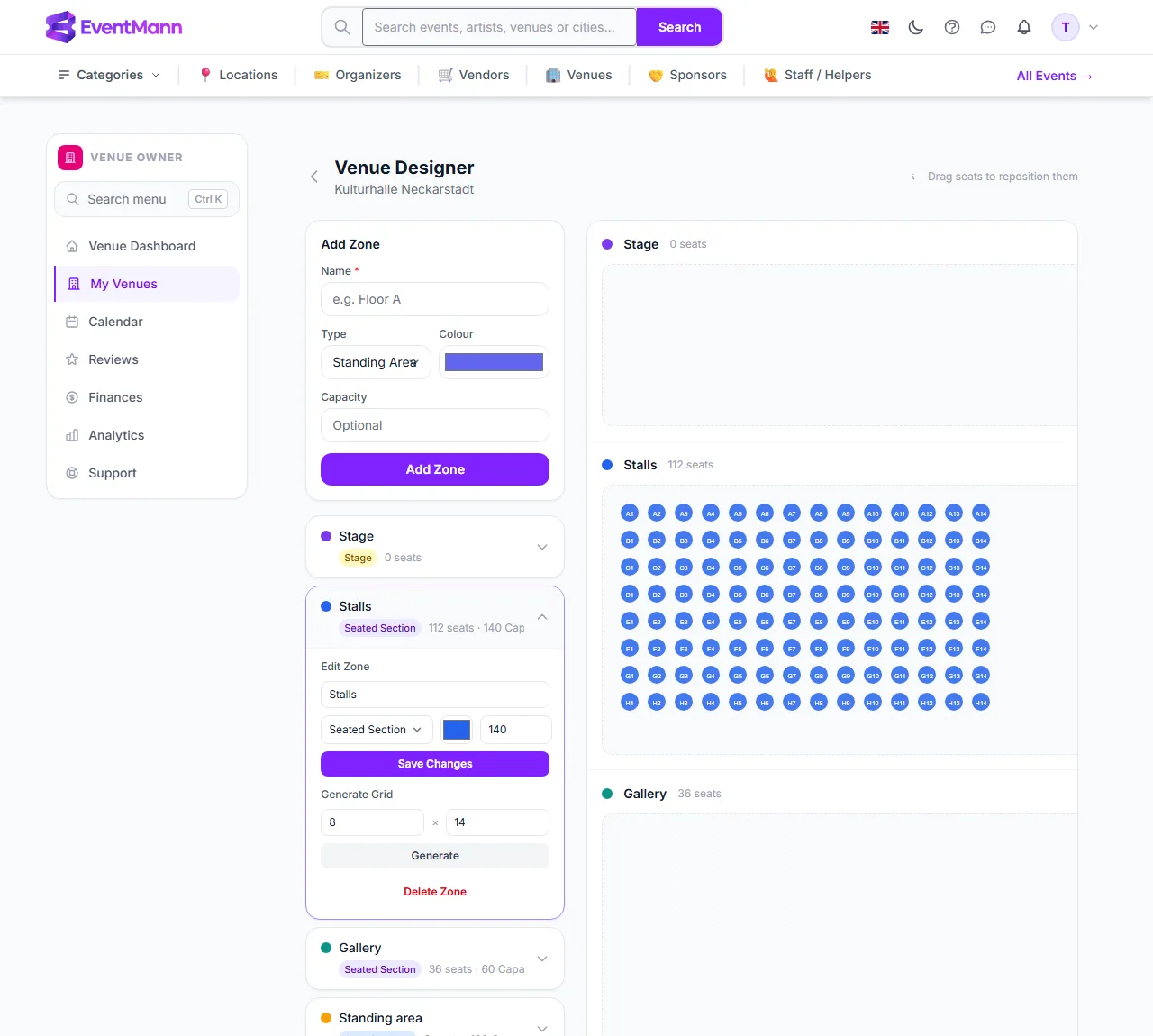
The Venue Designer is where you draw your hall as a set of zones — a stage, a seated stalls area, a gallery, a standing area — and place seats in them. You design the layout once; organizers who book the venue can copy it into the seat map of their event. Open it from a venue’s page with Open Designer.
What you can do here
- Create zones with a name, type, colour and optional capacity.
- Generate a grid of rows and seats in a zone in one step.
- Drag seats to match the real room.
- Edit or delete zones.
Add a zone
- Open My Venues → the venue → Open Designer.
- In the Add Zone card type a Name ① (for example “Stalls”).
- Choose the Type: Standing Area, Seated Section, Stage, Backstage, VIP Area or General Admission, then a Colour and, if you like, a Capacity.
- Click Add Zone ②. The zone appears in the list below the form and as its own canvas on the right.
Put seats into a zone
- Click the zone in the list ③ to expand it.
- Under Generate Grid ④ enter the number of Rows (1–50) and Seats / Row (1–100), then click Generate. Rows are lettered A, B, C… and seats numbered from 1, so the first seat is A1.
- Generating replaces every seat already in the zone. If the zone has seats, you are asked to confirm: “This will replace all existing seats in this zone.”
- If you gave the zone a capacity, the grid may not hold more seats than that. Otherwise you get a message saying how many seats you asked for and what the capacity is.
- On the right, drag a seat ⑤ to move it. Seats snap to a 20-pixel grid and each move is saved when you let go.
Edit or delete a zone
- Expand the zone and change its name, type, colour or capacity, then click Save Changes.
- Delete Zone removes the zone and all its seats after a confirmation (“Delete this zone and all its seats?”).
- Stage, backstage and standing zones can stay without seats; they show an empty canvas and their capacity.
How organizers use your layout
When an organizer has the venue assigned to an event — after you approved their booking request — they can click Clone Layout on the event’s Venue page. Your zones and seats are copied into that event’s seat map, replacing what it had. EventMann refuses this when seats of that event have already been sold, so nobody loses a seat assignment. Seats are re-spaced onto the event’s own grid, and a zone is linked to the event’s ticket type of the same name (not case-sensitive) — so a zone called “Stalls” is linked to a ticket type called “Stalls” automatically; any other zone the organizer assigns by hand. The copy is independent: later changes to the venue do not alter events that already cloned it.
Good to know
- The venue page lists your zones with the number of seats and the capacity of each.
- Seats are template positions. They do not record who sat where; that belongs to the organizer’s event.
- Seats cannot be deleted one by one. To change the count, generate the grid again or delete the zone.
- The designer saves as you work: zone forms save on click, seat drags on release. There is no draft state.
- A layout is optional. A venue without zones works for requests; only the Clone Layout option needs it.
Troubleshooting
- “A grid of 150 seats exceeds the zone capacity of 140” (with your own numbers) — rows times seats is more than the zone’s capacity. Reduce the grid or raise the capacity first.
- A seat jumps back after dragging — it was not saved, usually because the connection dropped. Drag it again.
- The canvas is wider than the screen — large grids scroll sideways inside the card.
- An organizer cannot clone your layout — the venue must be assigned to their event, and the venue needs at least one zone.