




Finding your way around: search, pins and shortcuts
Help articles may not be fully accurate — they can lag behind the app due to frequent updates and automated translation. If in doubt, please contact support.
On this page
Once you run several events, three tools save clicks: the search bar (Ctrl K) that jumps to any page, the event switcher that moves between events, and pins that keep your working events at the top. Keyboard shortcuts tie them together. They work in the organizer panel and in an event’s Manage area.
The search bar (Ctrl K)
Press Ctrl K (⌘ K on a Mac), or / when no text box is focused, or click Search menu at the top of the sidebar.

- Start typing. Results are grouped: Recent pages you opened, Actions (for example Add an order, Message attendees, Preview event page), Pages (every row and tab of the sidebar, such as Ticket Types or Reschedule Event) and Records (your events and, if you may view bookings, placed orders and buyers).
- Move with the arrow keys and press Enter to open; Esc closes the bar.
The bar only offers places you are allowed to open. A team member sees fewer entries than the owner, because the list is filtered by the same permissions as the sidebar. Orders are searchable only if you may view bookings, and only real, placed orders appear.
The event switcher and pins
The header of the Manage sidebar shows the event you are working on. Click its name to open the switcher; type to filter. Pinned events lead the list.
- Click the star ① beside Manage to pin or unpin the event. A filled star means pinned.
- Click the event name ② to open the switcher, then type in Find an event… or pick an event from the list. All my events at the bottom opens My Events.
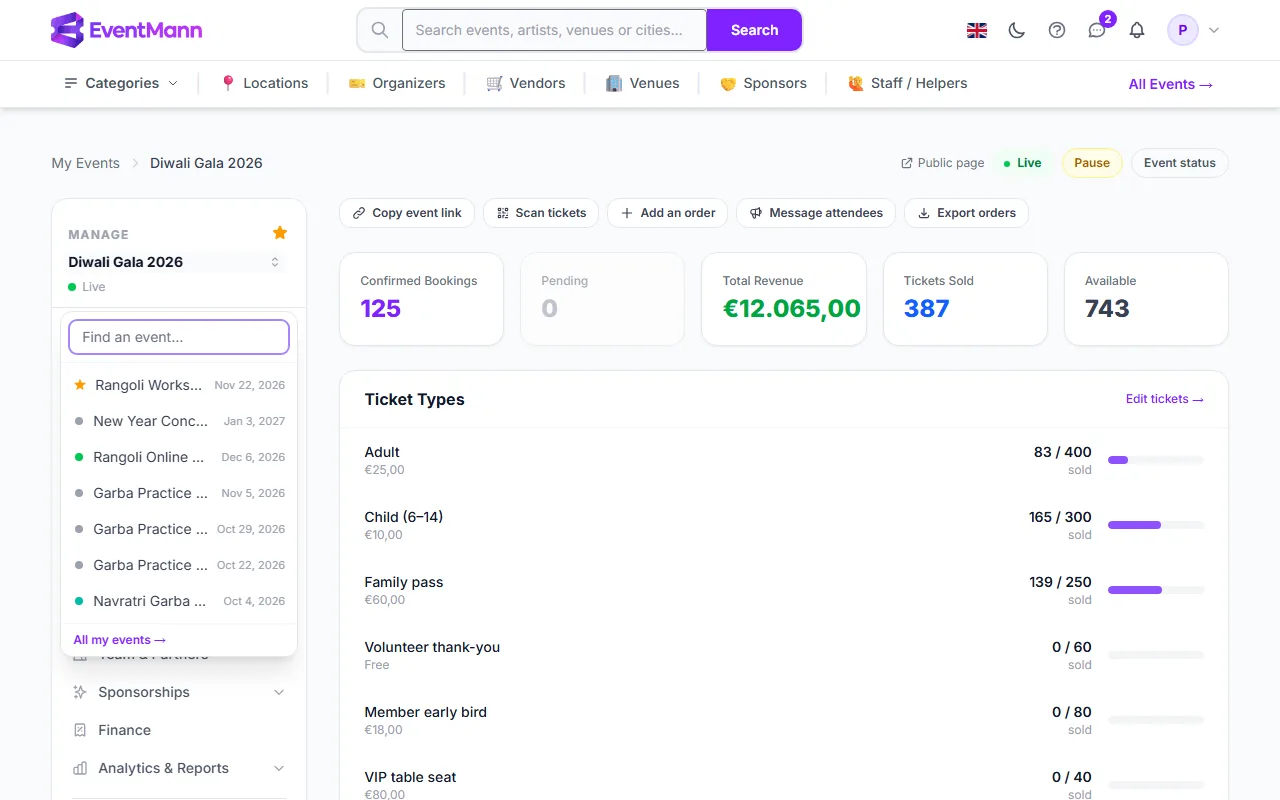
- When you switch between two events of the same organizer, you land on the same page of the other event (for example Ticket Types stays Ticket Types), as long as that page needs nothing but the event. Otherwise you land on its Overview.
- The switcher lists up to 40 events other than the current one.
- Pins are personal: your pins are not shown to your team. You can also pin from the star in the My Events list, where pinned events are listed first.
Keyboard shortcuts
Press ? (when no text box is focused) to list the shortcuts that apply to the page you are on. A shortcut is two keys pressed one after the other: g, then a letter.
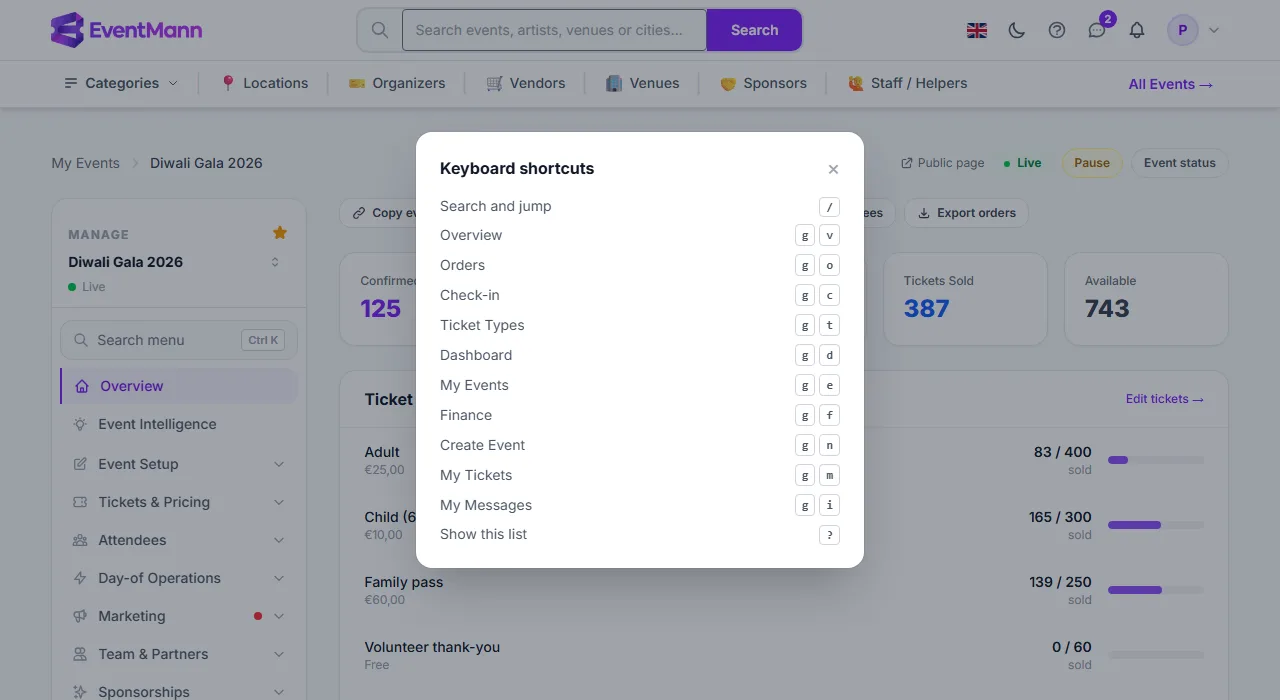
| Keys | Goes to |
|---|---|
| g d | Organizer dashboard |
| g e | My Events |
| g n | Create Event |
| g f | Finance |
| g v | Event Overview (inside an event) |
| g o | Orders (inside an event) |
| g c | Check-in (inside an event) |
| g t | Ticket Types (inside an event) |
| g m | My tickets |
| g i | My messages |
The event shortcuts only appear when you are inside an event and are allowed to open that page. Shortcuts never fire while you type in a field or hold Ctrl, Alt or ⌘.
Good to know
- “Recent” is remembered in your browser only; it is not shared with your team and is lost if you clear site data.
- Every sidebar row is also a link on the page, so nothing is reachable only through the search bar.
- Some sidebar rows are groups with tabs (for example Details & dates has Information, Event Schedule, Reschedule Event, Virtual Event and Event status). The search bar lists those tabs as separate pages.
Troubleshooting
- Ctrl K does nothing — some browsers use Ctrl K for their own search; click Search menu instead, or use /.
- A page I expect is not offered — your role does not include it. Ask the owner to check your role on the Permissions tab.
- The switcher is empty — you have no other event to switch to.
- The shortcut list is short — event shortcuts appear only inside an event.