




Getting Started as Staff
Staff & Volunteers
3 min read
Help articles may not be fully accurate — they can lag behind the app due to frequent updates and automated translation. If in doubt, please contact support.
On this page
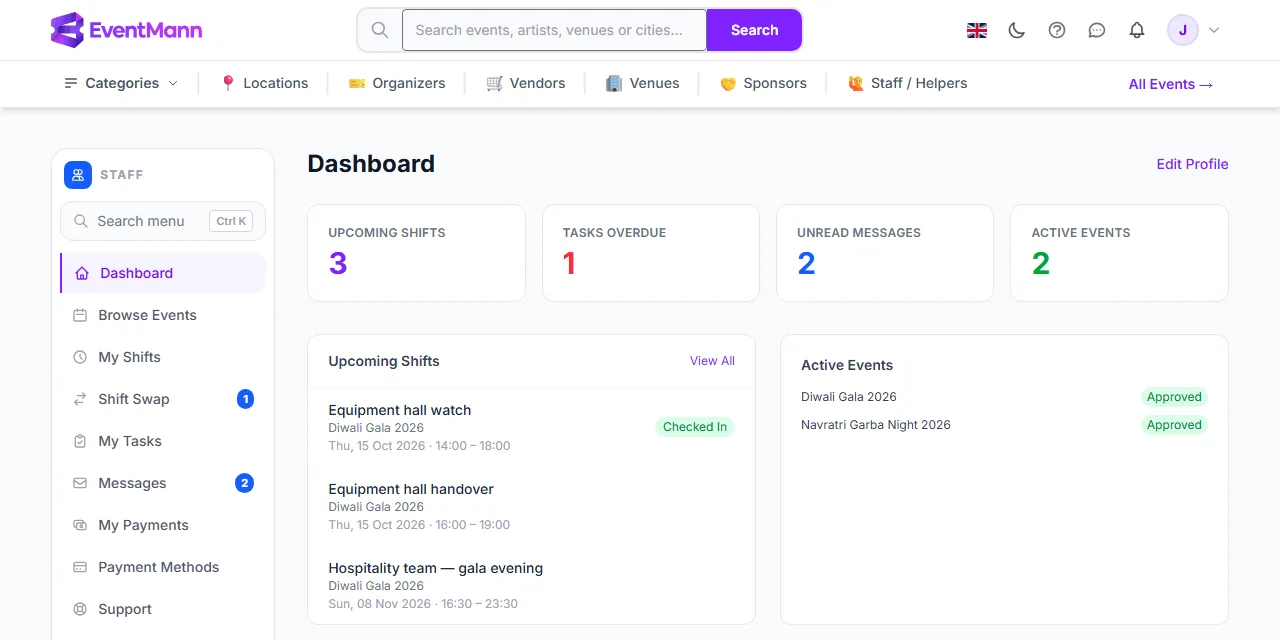
The staff portal is where paid event crew find work, see their shifts and tasks, message the organizer and follow their hours and pay. You land there when you sign in with a staff account (people who hold several roles switch roles from the avatar menu). Everything lives under one sidebar headed Staff.
Paid staff, not volunteers. This section is about paid staff. If you help an event for free — through an invitation link from the organizer, a volunteer team or a volunteer ticket — that is a different module with its own pages. Read Volunteering instead. The help section is titled “Staff & Volunteers” for historical reasons only.
How you get a staff account
- An organizer invites you. They send an invitation by email. Open the link: if you are new you choose a password, if you already have an account you sign in first and then accept. Accepting makes you staff and, when the invitation was for one event, approves you for that event straight away.
- You register as staff yourself from the Work as Staff page. Your staff profile then shows Your account is pending admin approval. until an administrator reviews it.
Your first steps
- Open My Profile and fill in your bio, skills, certifications, availability and an emergency contact. Organizers read this when they decide on your application. See Staff Profile.
- Open Browse Events, read the event and its shifts, and apply — or accept the invitation you were sent. See How to Apply for Events.
- Wait for the organizer’s decision. You get a notification and an email when you are approved or declined.
- Once you are approved, the organizer assigns you to shifts. They appear on My Shifts. You do not pick shifts yourself.
- On the day, press Check In and later Check Out. Those two taps become your hours. See Check-in & Check-out.
What you see in the sidebar
| Row | What it is for |
|---|---|
| Dashboard | Counts and your next shifts. |
| Browse Events | Upcoming public events you can apply to. |
| My Shifts | Your assigned shifts, check-in and check-out, swap requests. |
| Shift Swap | Swap requests you sent and received. A number shows requests waiting for your answer. |
| My Tasks | Jobs the organizer gave you. |
| Messages | Your conversations with the organizer. A number shows unread messages. |
| My Payments | The pay the organizer has calculated for your hours. |
| Payment Methods | A note of how you would like to be paid. |
| Support | Help from the EventMann team. |
| My Profile | What organizers see about you. |
On the dashboard the counters ① and the lists of shifts ② and events ③ sit beside the sidebar; the Messages row ④ carries the number of unread messages.
Good to know
- EventMann does not pay you. The organizer is your employer or client. The platform records your hours and the pay the organizer calculates, but it never moves money to staff. See Understanding Your Pay.
- Nobody is emailed when the organizer puts you on a shift. Look at My Shifts after you are approved.
- Press
Ctrl+K(or use the search box above the sidebar) to jump to any page of the portal.