




Adding a Venue
Venue Owner Guide
3 min read
Help articles may not be fully accurate — they can lag behind the app due to frequent updates and automated translation. If in doubt, please contact support.
On this page
- 1. What you can do here
- 2. Add a venue
- 3. What happens next
- 4. Settings explained
- 5. Good to know
- 6. Troubleshooting
- 7. Related
You add a venue under My Venues with Create Venue. The form describes the place; when you save it, the venue goes to an administrator for review and becomes visible to organizers once approved. This article walks through the form field by field.
What you can do here
- Describe a venue: name, description, address, time zone, capacity, website and amenities.
- Upload photos at the same time.
- Give the administrator a reference that proves you operate or may list the venue.
Add a venue
- Open My Venues and click Create Venue.
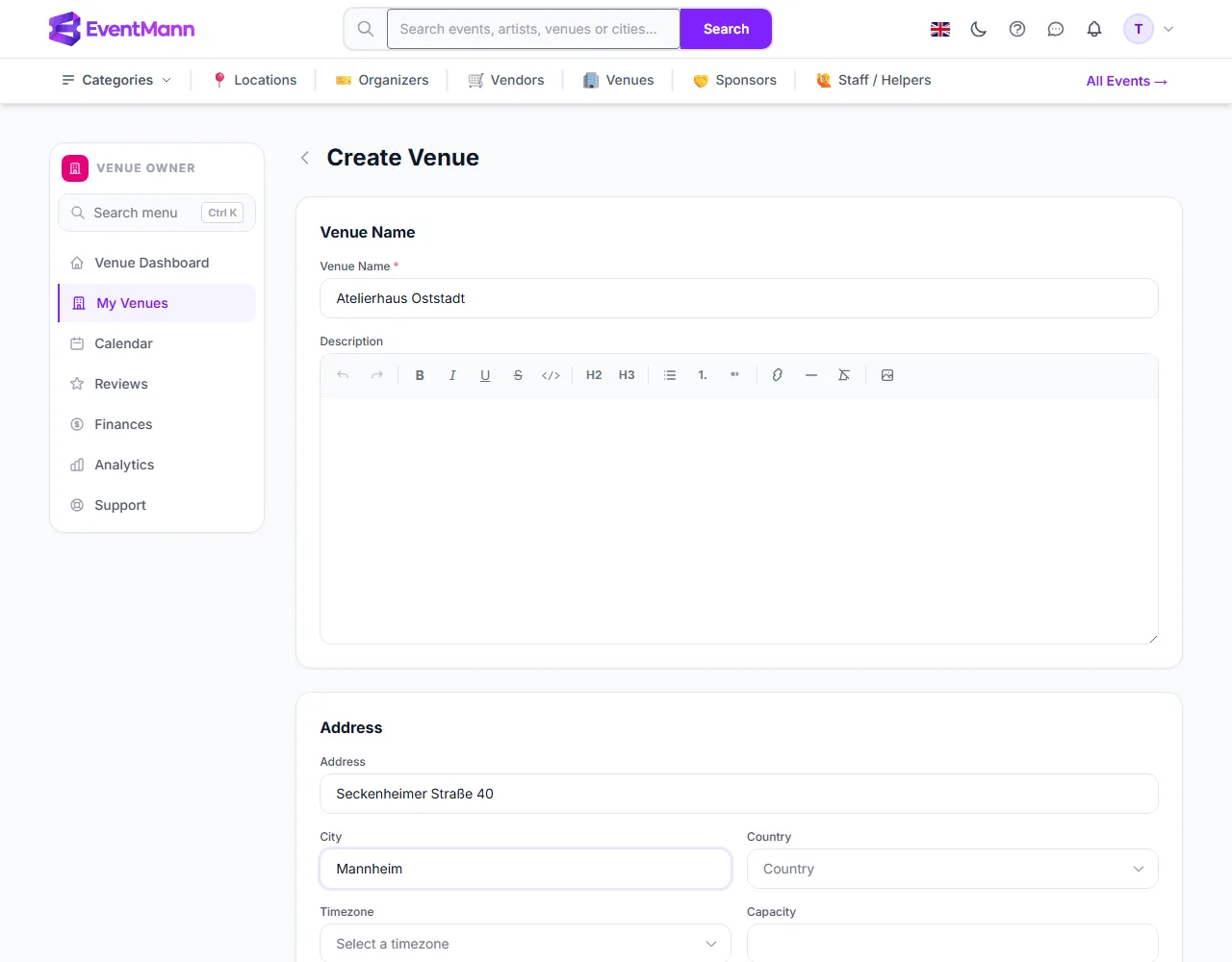
- Enter the Venue Name ① (required) and a description. The description editor supports bold, italic, underline, headings and lists; use it to say what the space is good for, how it is laid out and anything organizers should know.
- Fill in the Address ② card: street address, City ③ and Country. Choose the Timezone (required) — availability and requested times are interpreted in the venue’s own time.
- Enter the Capacity, the largest number of people the venue holds. A capacity above zero is one of the three steps that complete your setup.
- Add a Website if you have one. It must be a full address starting with
https://orhttp://. - Type the Business / venue registration reference — for example a company register number. The form describes it as proof that you operate or are authorised to list this venue; it is reviewed before the venue goes public.
- Under Amenities type a feature (“Cloakroom”, “Step-free access”) and click Add or press Enter. Each one becomes a tag you can remove with ×.
- Under Photos choose your pictures — see Venue Photos & Gallery.
- Leave Active ticked, so the venue is shown as soon as it is approved. Untick it to keep the venue hidden.
- Click Create Venue at the bottom.
What happens next
- You return to My Venues with the confirmation that the venue was created. Its badge reads Awaiting review, not listed yet.
- Administrators are notified that a venue is waiting.
- When they decide, you receive a bell notification and, if your Venue listing decisions preference is on, an email. For a rejection the email carries the reviewer’s note.
- Only an approved, active venue is visible to organizers. See Approval and Your Public Listing.
Settings explained
| Field | Required | Notes |
|---|---|---|
| Venue Name | Yes | Up to 200 characters. It also makes the public web address. |
| Description | No | Formatted text. |
| Address, City, Country | No | Shown on the public page and in organizers’ search. |
| Timezone | Yes | Pick from the searchable list. |
| Capacity | No | Whole number of at least 1. |
| Website | No | A valid address. |
| Business / venue registration reference | No | Up to 120 characters. Helps the review. |
| Amenities | No | Free tags. |
| Photos | No | JPG, PNG or WebP, up to 5 MB each. |
| Active | — | Your own on/off switch. |
Good to know
- Every field except the name and the time zone can be completed or changed later under Edit.
- Venues with a street address, a registration reference and photos are easier for the reviewer to verify, and more attractive to organizers.
- Organizers can also create venues in their own panel, using this same form.
Troubleshooting
- The form does not save — look for a red message: the name and the time zone are required, the website must be a valid address and each photo at most 5 MB.
- The time zone you need is missing — the list is searchable; type the city name of the zone (for example “Berlin”).
- The venue stays in review for long — the review is done by people. Check that the registration reference is filled in.