




Your team's inventory
Help articles may not be fully accurate — they can lag behind the app due to frequent updates and automated translation. If in doubt, please contact support.
On this page
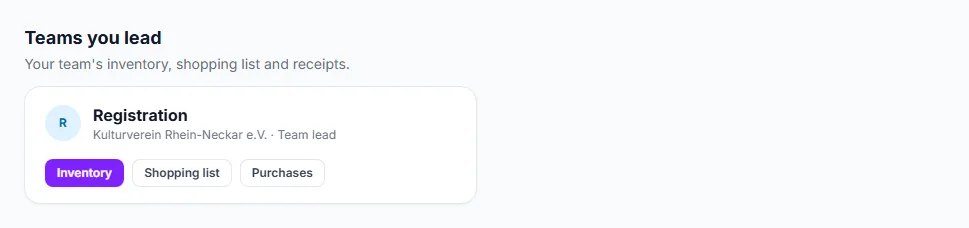
If you lead a team, you look after that team’s stock between events: what you have, where it is, what to buy and what was bought. It is on My Volunteering in the block Teams you lead, which has links for Inventory, Shopping list and Purchases. If you are a core member of a team, you see the same stock read-only, from the block Your teams; see Core members: see the team’s stock below.
What you can do here
- Find the block ① and the team you lead.
- Click Inventory ② for the team’s items, Shopping list ③ for what has fallen to its minimum, or Purchases ④ for the team’s purchases with their receipts.
- The page title ① is Inventory: Registration. You see only your team’s items, never another team’s or the Shared pool.
- Add Item ④ creates an item for your team. The team cannot be changed; it is yours.
- Open an item with Edit to change it, say who holds it or where it is, restock it, log maintenance, record a purchase with its receipt, or delete it. The pages are the same as the organizer’s, see Items and Purchases.
- The Shopping list ② has the text to copy into your team’s WhatsApp group.
- QR labels prints labels for your team’s items.

Scan a label
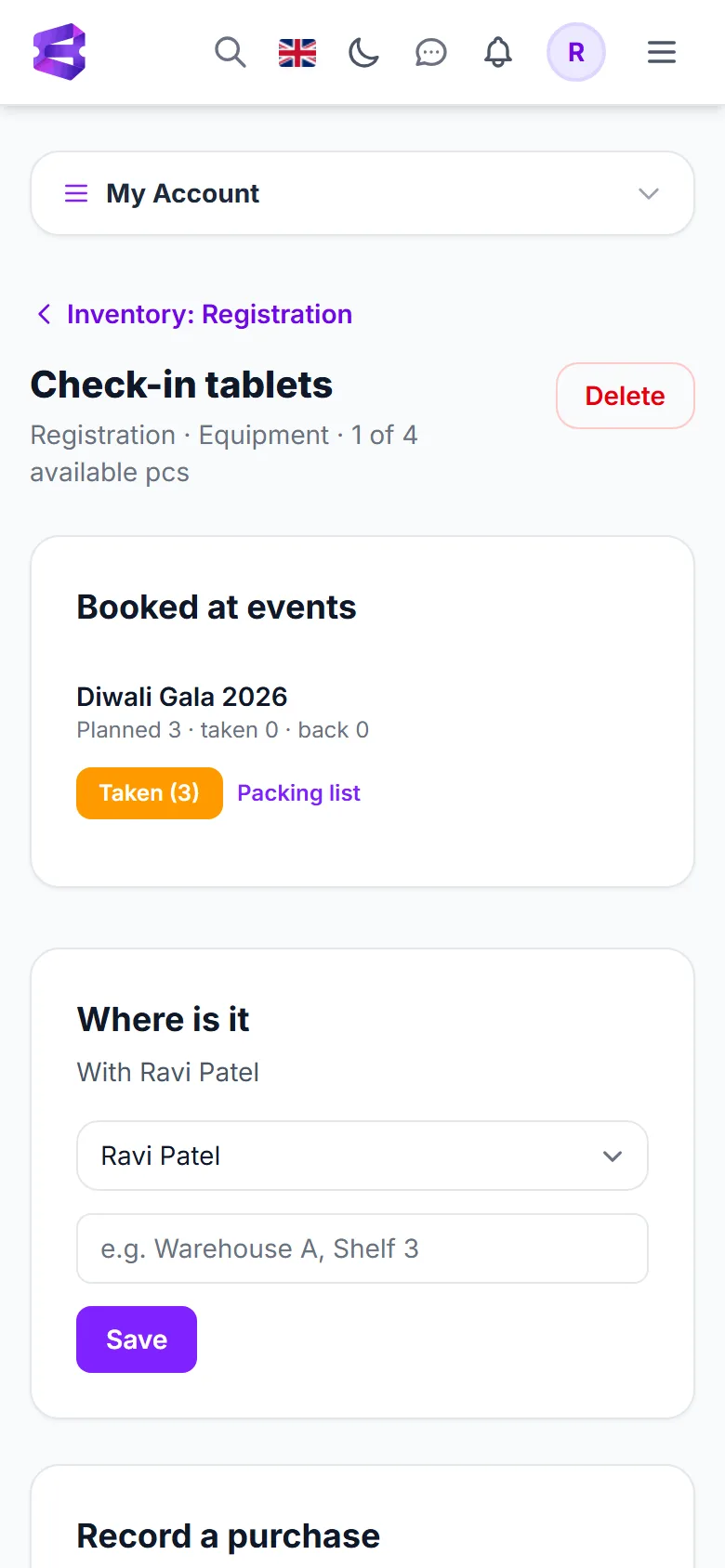
When your phone opens a label of one of your team’s items, you land on the item page. If the item is on a packing list for a current or coming event, the top panel Booked at events shows how many are planned, taken and back.
The panel ① has Taken ② to mark everything planned as taken, and All back when it is out. Below it, Where is it tells who holds the item.
Core members: see the team’s stock
A core member who does not lead the team gets a read-only page of the team’s items, so you know what exists and who has it before you go and fetch something.
- On My Volunteering, under Your teams, click Inventory on your team’s card. The page is called Inventory: Hall management.
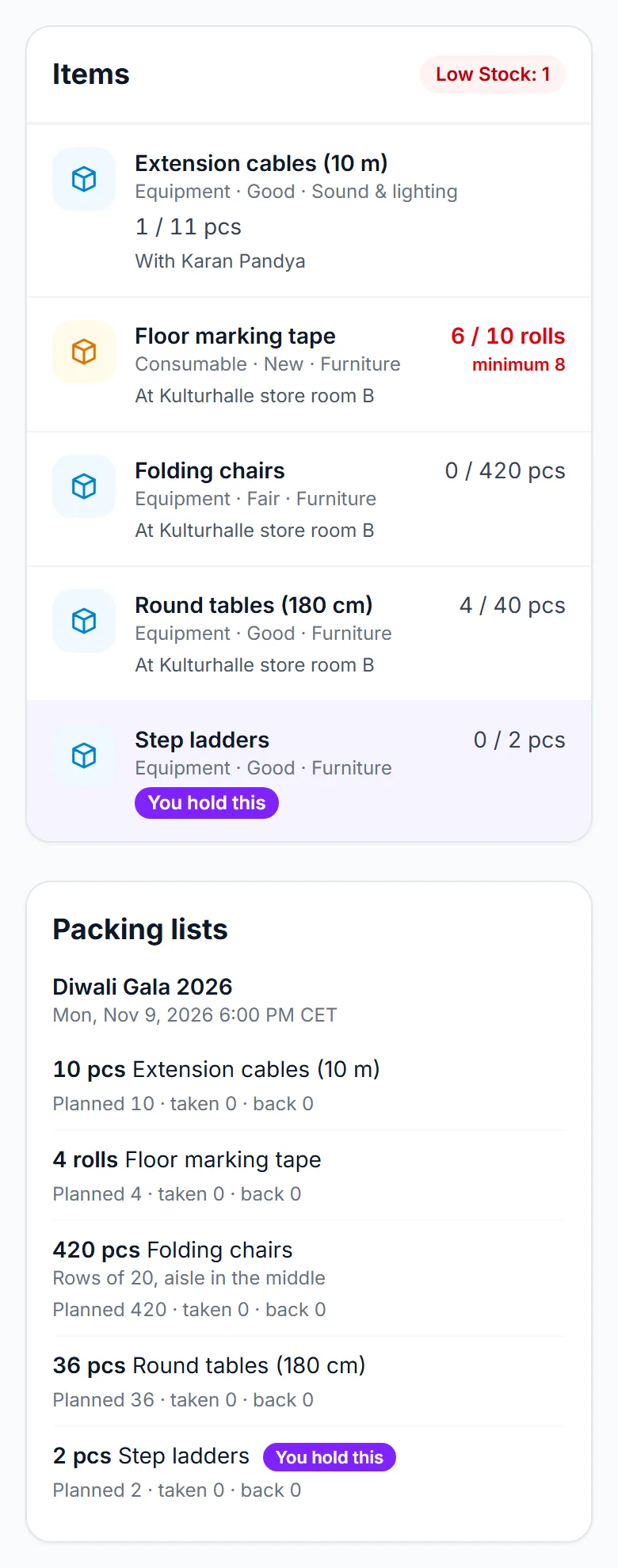
- Each item shows its type, condition and category, how many are available of the total, and who holds it (With …) or where it is stored (At …). Items you hold yourself are highlighted with You hold this ①.
- An item at or below its minimum shows its figures in red with the minimum ②; the heading counts how many items are low.
- Below the items, Packing lists ③ shows what the team takes to each coming event you are confirmed for: the planned quantity, how many were taken and how many came back.
Nothing on this page can be changed. Editing an item, saying who holds it, restocking and recording a purchase stay with the team lead and the organizer, so tell your lead when you take or return something.
Packing lists for your events
For an event you work, the packing list of your team is the Event Inventory page in the event’s Manage sidebar. You see and change only the lists of the teams you lead. See Event packing lists. After an event, missing items become a task for your team on My Volunteering.
Good to know
- The organizer reimburses volunteers who paid out of their own pocket. You see that a purchase is To pay back but you cannot mark it paid back.
- Receipts are private to the organizer and to you.
- Categories are the organizer’s; you can pick one for an item but not add or remove them.
- Items of other teams are not visible, and borrowing between teams happens by asking each other, outside the platform.
Troubleshooting
- No Teams you lead block — the organizer has not marked you as lead of a team, or your roster entry is not linked to your confirmed email address.
- No Inventory link under Your teams — you are not a core member of that team. Ordinary members do not see the team’s stock; ask your lead or the organizer.
- The packing list is empty — nothing is planned for your team at a coming event you are confirmed for yet.
- A scan is refused — the item belongs to another team or the Shared pool.