




Reviews
Venue Owner Guide
3 min read
Help articles may not be fully accurate — they can lag behind the app due to frequent updates and automated translation. If in doubt, please contact support.
On this page
- 1. What you can do here
- 2. Read the page
- 3. Reply to a review
- 4. How a review comes about
- 5. Good to know
- 6. Troubleshooting
- 7. Related
The Reviews page (sidebar) shows what organizers say about your venues after they have used them: an average rating, the number of reviews, how the ratings are spread, and every review with its comment. Reviews also appear on the public page of the venue, so they are part of how the next organizer decides — and so is the way you answer them. You can write one public reply per review, change it and remove it, all from this page.
What you can do here
- Read all reviews across your venues, newest first, twenty per page.
- See the overall average and how many reviews of each rating you have.
- Reply to a review in public, edit your reply, or remove it.
Read the page
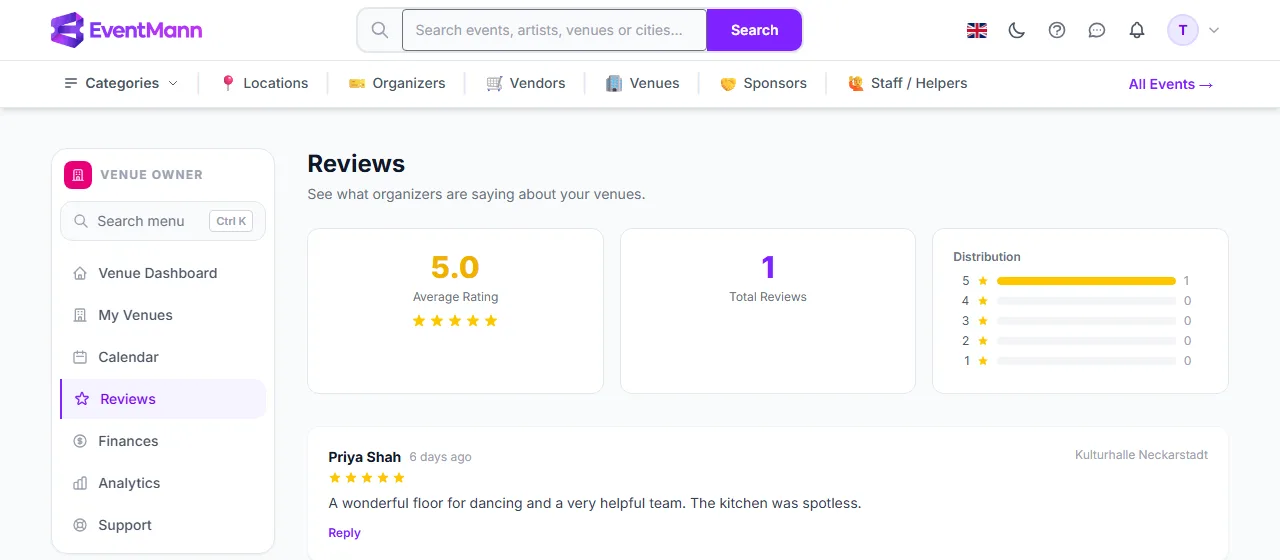
- Average Rating ① — the mean of all ratings for all your venues, from 1 to 5, with stars.
- Total Reviews ② — how many reviews exist.
- Distribution ③ — one bar each for five to one stars, with the count at the end.
- Under the cards, each review shows the organizer’s name, how long ago it was written, the stars and the comment. The venue it belongs to is named at the right; a grey Unpublished tag marks a review that is not public.
Reply to a review
- Click Reply under the review. If you have already answered, the link reads Edit reply and the box opens with your current text.
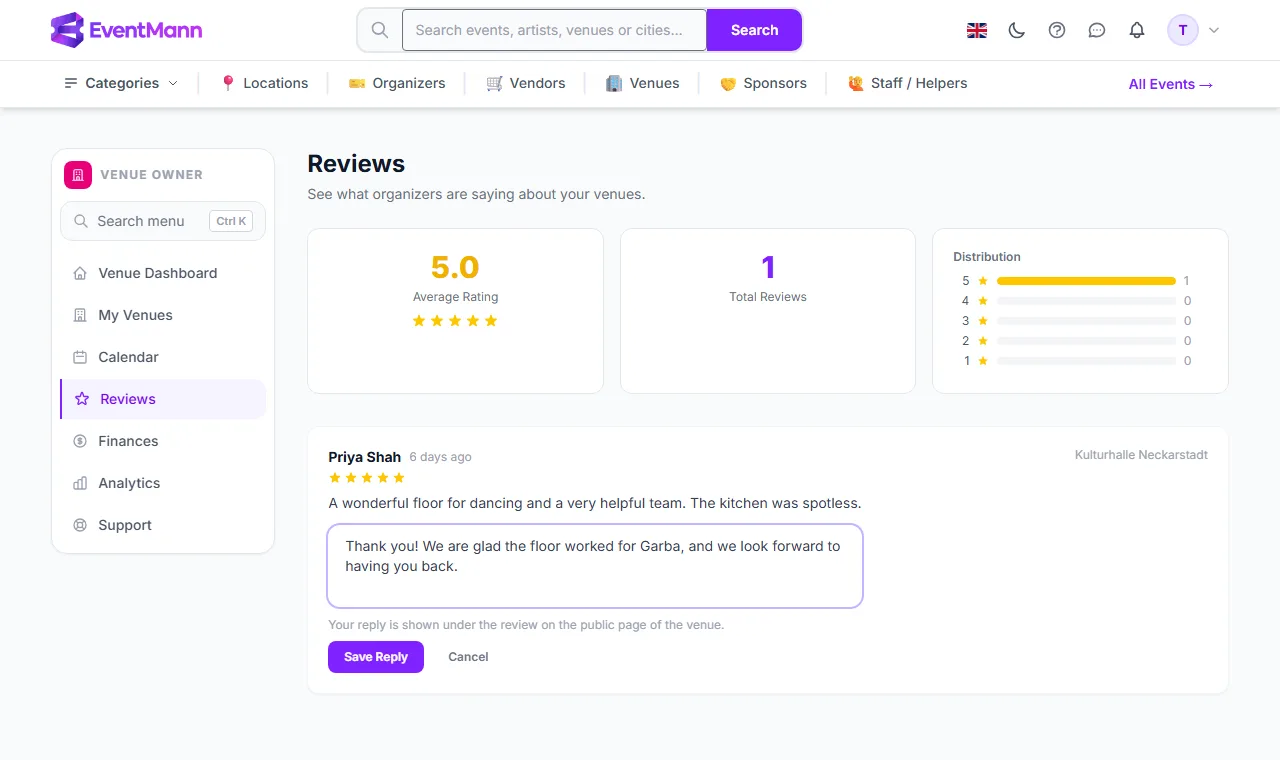
- Write your answer in the box ① (up to 2,000 characters). Keep it to what any reader may see: it is printed under the review on the public page of the venue.
- Click Save Reply ②. The reply appears under the review as Your Reply, here and on your public venue page. Cancel closes the box without saving.
To take a reply down, click Remove reply under it and confirm. It disappears from the public page at once; the review itself stays.
How a review comes about
- You mark an approved booking as Completed (see Handling Booking Requests).
- In their My Venue Requests list the organizer then sees a rating field with one to five stars and a short comment (up to 2,000 characters), and clicks Submit Review.
- The review is published at once. It appears here and on your public venue page.
Good to know
- Only an organizer whose booking you completed can review the venue. One review per organizer and venue: the form disappears after it is sent.
- You cannot edit or delete the review itself — only your reply to it. A review that is not published is still listed here, with the Unpublished tag, but visitors do not see it.
- There is one reply per review. Saving again replaces the earlier text; it does not add a second reply.
- Only the owner of the venue can reply. Platform admins and other venue owners cannot write, edit or remove your reply.
- Reviews belong to the booking request they came from. Declined and cancelled requests cannot produce a review.
- The average counts every review, including unpublished ones.
Troubleshooting
- The page says there are no reviews — no organizer has rated a completed booking yet. Mark finished bookings as completed.
- An organizer says they cannot leave a review — the request must be Completed, and they can review it once.
- A review is missing on the public page — look for the Unpublished tag here.
- Save Reply asks you to fill in the box — a reply needs some text; to take a reply down, use Remove reply instead.