




Volunteers
Help articles may not be fully accurate — they can lag behind the app due to frequent updates and automated translation. If in doubt, please contact support.
On this page
Volunteers are the people who help at your events for free. EventMann gives them their own tools: a roster you keep across all your events, standing teams with leads, an invitation per event, a rota, tasks, messages and a live view for the day itself. It is built for associations whose whole event team is volunteers, and it works just as well for a single helper at a single event. You find it in two places: Volunteers in the Grow group of your sidebar for everything that spans events (roster, teams, import), and Volunteers under Team & Partners in an event’s Manage menu for everything that belongs to one event.
The sidebar entry Volunteers ① opens the volunteer roster. Its tab strip leads to Teams ② and Import volunteers ③.
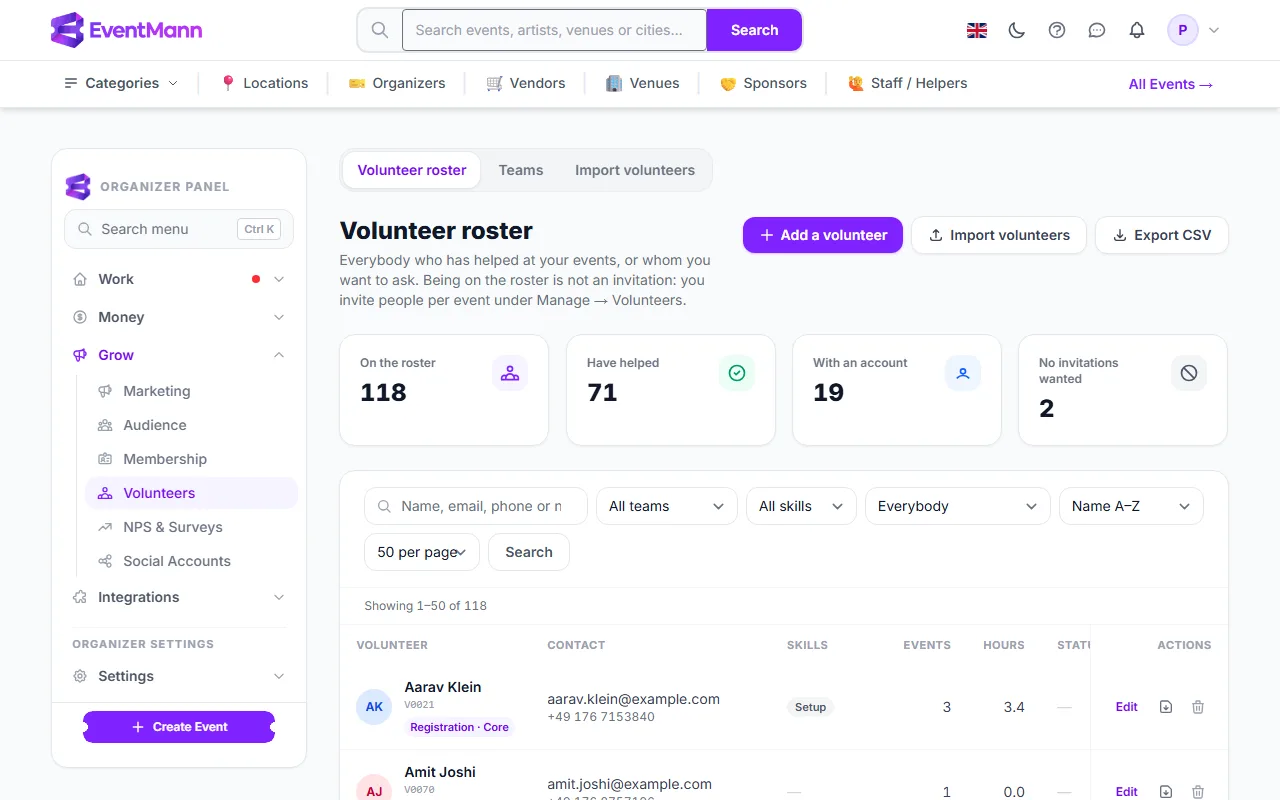
Volunteers, staff and members are three different things
| Volunteers | Staff | Members | |
|---|---|---|---|
| Who | People who help for free, often again and again | Paid helpers for one event | People who bought a membership from you |
| Where | Roster, Teams and Manage → Volunteers | Manage → Manage Staff, the staff portal | Settings → Membership |
| Rota | Volunteer shifts | Staff shifts, with swaps and payroll | None |
| Money | None. Hours are only recorded | Hourly rates and payroll | Plan price, paid by the member |
The three do not mix. A volunteer is never put on the staff rota, and a volunteer rota never feeds payroll. If you pay somebody, they belong under Event Staff.
What you can do here
- Keep a roster of everyone who has helped or whom you want to ask, add people by hand or import them from a spreadsheet — see The volunteer roster and CSV import.
- Run standing teams such as Registration, Music or Kitchen, each with leads and a core team that is on every event — see Standing teams, leads and the core team.
- Invite people to an event, accept sign-ups and bulk-confirm — see Inviting volunteers to an event, and Recruiting with join links, sign-up and copied setups.
- Hand out event roles so a volunteer can run the door, the finances or the other volunteers — see Volunteer roles and team leads.
- Plan the work with shifts, volunteer tasks and the event task board.
- Run the day with the run sheet and Live view and messages to your volunteers.
- Look after hours and privacy — who sees what, the hours statement and deleting a volunteer, see Volunteer hours and privacy.
- Say thank you with a free or reduced ticket only your volunteers can buy — see The volunteer thank-you ticket.
The pages of one event
Open an event, then Team & Partners → Volunteers ①. A strip of tabs runs across the top. People ② lists who was asked and what they answered. Shifts ③ and Tasks ④ are the rota and the job list, Run sheet ⑤ puts both in time order, Live ⑥ shows what is happening right now, Messages ⑦ writes to the team, Settings ⑧ holds the event’s volunteer options and Roster ⑨ is the same roster as in your organizer panel, for people who only hold this one event.
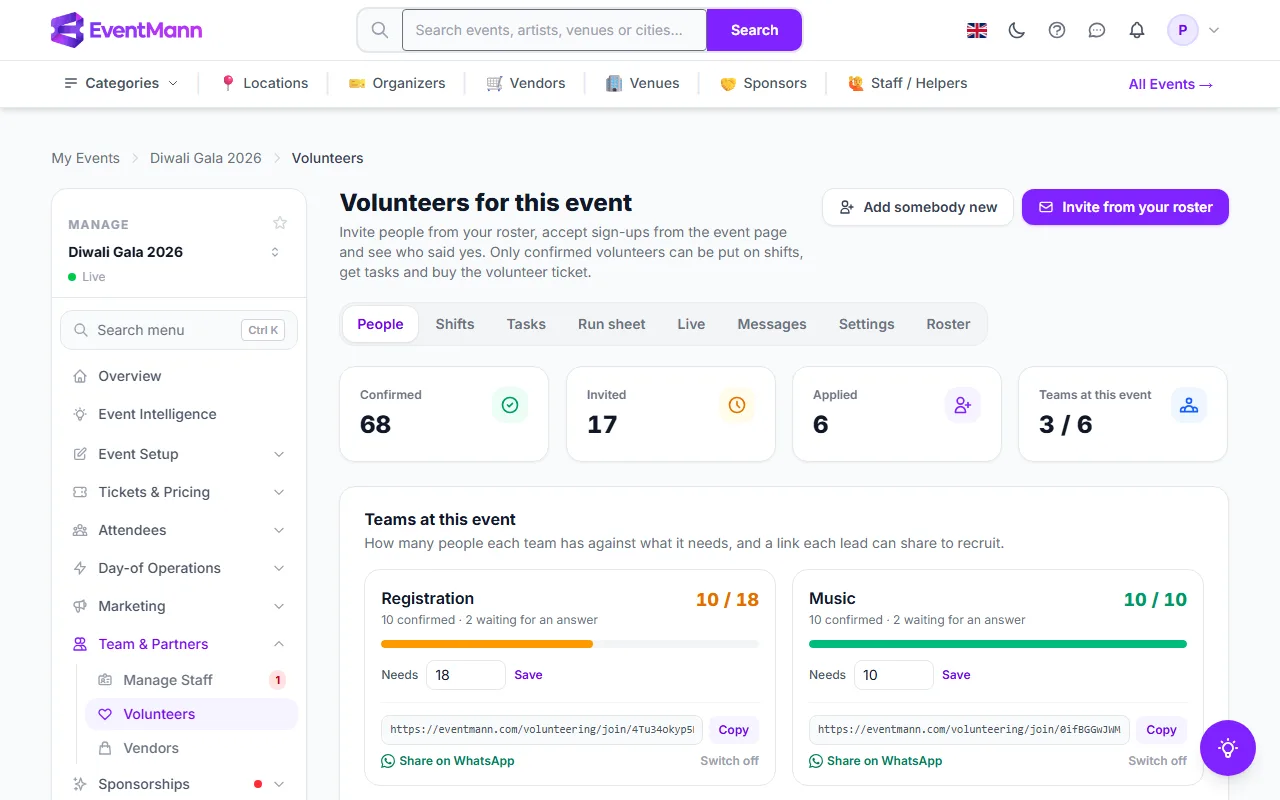
A typical path
- Build your roster once and set up your teams. Make the people who are always there core: they are added to every new event.
- On the event, open People and invite the rest, or post a join link in your WhatsApp group.
- Add Shifts and Tasks, or copy them from last year’s event, then put confirmed people on the shifts.
- Before the day, send a Message, print the Run sheet and check the team sizes on People.
- On the day, keep Live open. Afterwards the hours are on the roster, and you can download an hours statement for each volunteer.
Good to know
- Being on the roster is not an invitation. Importing a list sends no email; you decide per event whom to ask.
- Only confirmed volunteers can be put on shifts, be given tasks, hold a role and buy the thank-you ticket.
- Saying no to an invitation needs no account. Saying yes does: the volunteer creates a free account from the invitation page, or signs in, and only then are they confirmed and you are told. The account is how they see their shifts and tasks, check in and buy the thank-you ticket. Their side is described in Volunteering at an event.
- Invitation, confirmation and message emails leave at your own hourly sending limit (Settings → Email), so a hundred invitations are spread out rather than sent in one burst.
- Every invitation carries a link to opt out of your volunteer invitations. People who opted out are skipped whenever you invite them, and show as No invitations wanted on the roster.
- A team member can work with volunteers when their role holds the Volunteers permission; Team lead (own teams only) limits it to the teams they lead. The Tasks permission opens the task board. Both are ticked in Custom Roles.
Troubleshooting
- The Volunteers entries are missing from the menu — your role does not hold the Volunteers permission for that event. Ask the organizer who owns it.
- A volunteer says they cannot see their shifts — they need an account on the email address you invited and the address must be confirmed. If People shows No account yet beside them, use Send sign-up link.
- Somebody was skipped when you invited — they are already on this event in some status, or they opted out of your invitations.