




Tracking Pixels
Help articles may not be fully accurate — they can lag behind the app due to frequent updates and automated translation. If in doubt, please contact support.
On this page
Tracking pixels connect your event pages to your own analytics and advertising accounts, so you can see where visitors come from and which ads lead to sales. You paste an ID from each service; EventMann does the rest. Find them under Integrations → Tracking Pixels.
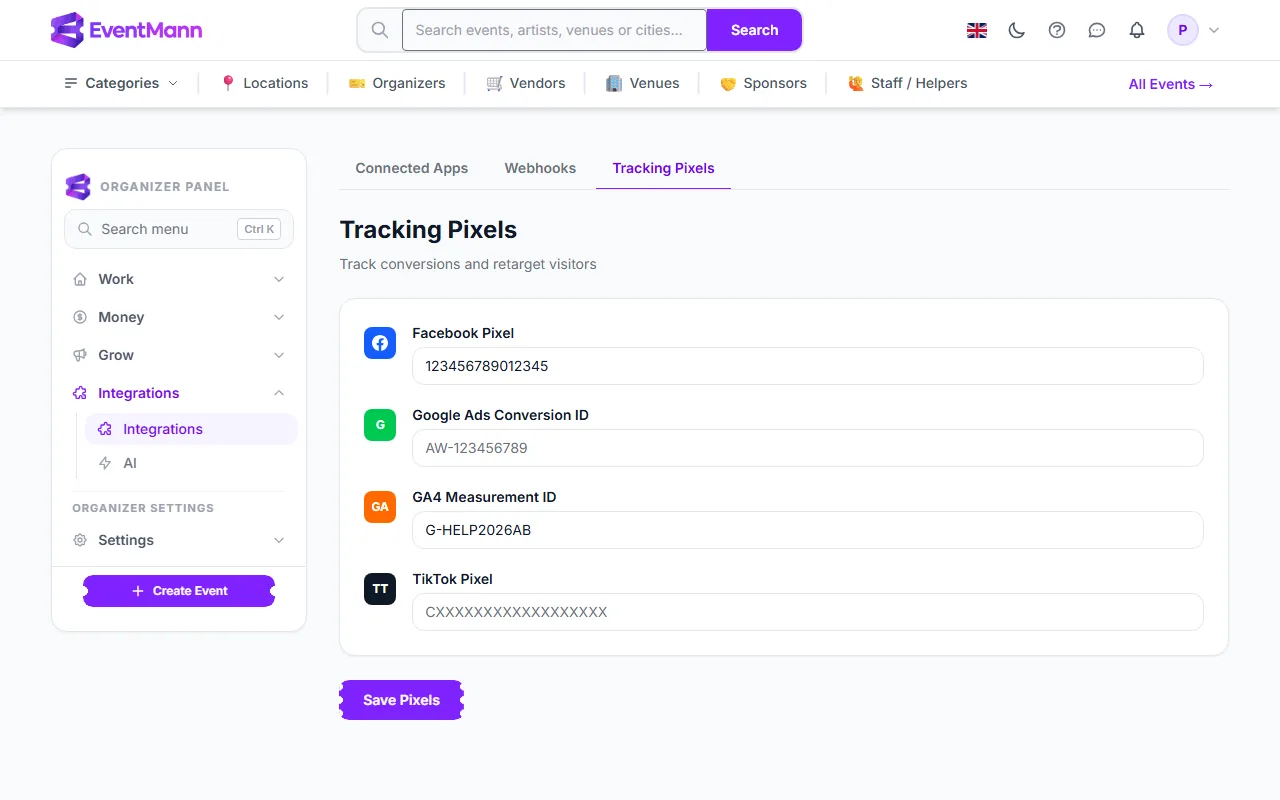
- Open Integrations and click the Tracking Pixels tab ①.
- Paste your Facebook Pixel ID ② (a long number).
- Paste your Google Ads Conversion ID ③ (it starts with AW-).
- Paste your GA4 Measurement ID ④ (it starts with G-).
- Paste your TikTok Pixel ID ⑤.
- Click Save Pixels. Leave a field empty for a service you do not use.
Where the pixels run and what they report
- On your event pages: the visit. For Facebook this is a content view; GA4 and Google Ads record the page.
- On the booking confirmation page, after a successful purchase: the sale itself, with its value, currency and order reference. GA4 receives a purchase, Google Ads a conversion, Facebook a Purchase and TikTok a CompletePayment.
- Nothing runs in the event preview.
They do not run on other EventMann pages such as the cart or the payment page.
Cookie consent comes first
These tools set cookies, so they load only after the visitor has agreed in the cookie banner. GA4 waits for the analytics choice; Google Ads, Facebook and TikTok wait for the marketing choice. If a visitor says yes later, the pixel starts at that moment. A visitor who declines is not measured, so your own numbers will always be lower than the real traffic.
Good to know
- You only enter IDs. You do not paste code snippets, and cannot.
- The same IDs apply to all your events.
- The purchase value is the order total. EventMann does not tell the services which campaign an order came from; the ad platform links the visit to the sale itself.
- The Google Analytics card under Connected Apps leads here and shows Connected once a GA4 ID is saved.
Troubleshooting
- I see no visits in my ad account — only visitors who accepted the matching cookie choice are counted, and the account can take some hours to show them.
- The purchase does not show — the confirmation page must have been opened after consent. A buyer who declines marketing cookies is not reported to Facebook, Google Ads or TikTok.
- Nothing happens in a preview — pixels are switched off in previews on purpose.