




The volunteer roster and CSV import
Help articles may not be fully accurate — they can lag behind the app due to frequent updates and automated translation. If in doubt, please contact support.
On this page
The volunteer roster is your list of everybody who has helped at your events, or whom you would like to ask. It belongs to you, not to one event: a person is added once, gets a volunteer number such as V0001, and keeps their history across all your events. Open it under Grow → Volunteers in your organizer sidebar.
What you can do here
- Add people one by one, or import the list you already keep as a CSV file.
- Search and filter by name, team, skill, whether they have an account, whether they have helped before or have asked not to be invited.
- Edit contact details, skills and your own notes.
- See how many events and hours each person has behind them, and download an hours statement as a PDF.
- Export the whole roster as a CSV file, or delete a person together with their history.
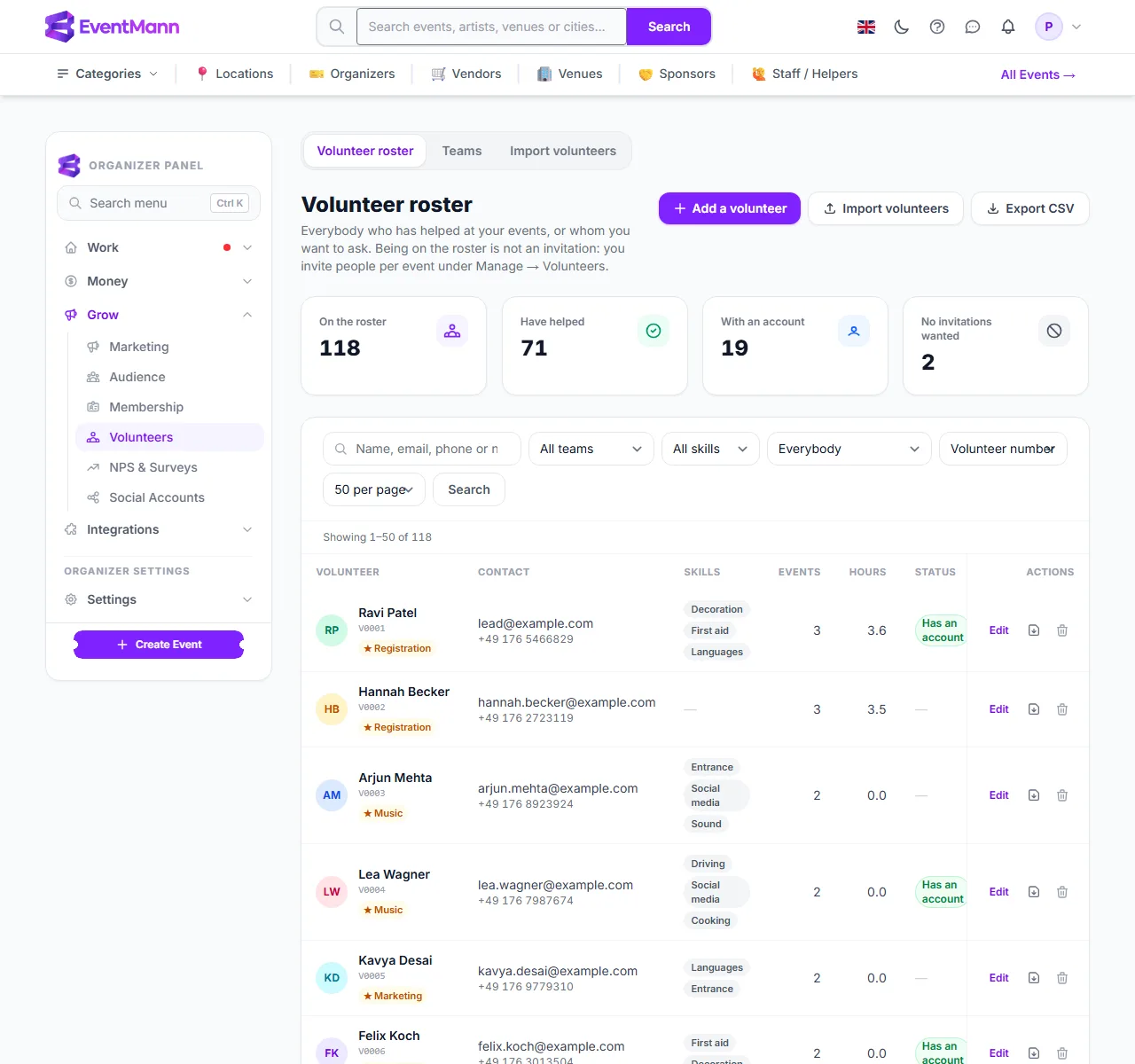
Click Add a volunteer ① to add somebody, Import volunteers ② to load a file, or Export CSV ③ to download the list. The four cards above the table count everybody on the roster, those who have helped, those With an account ④ and those who asked for no invitations; each card is a shortcut to that filter. Use the search box ⑤ for a name, email, phone number or volunteer number, and the dropdowns, such as Everybody ⑥, to narrow the list further.
Add a volunteer
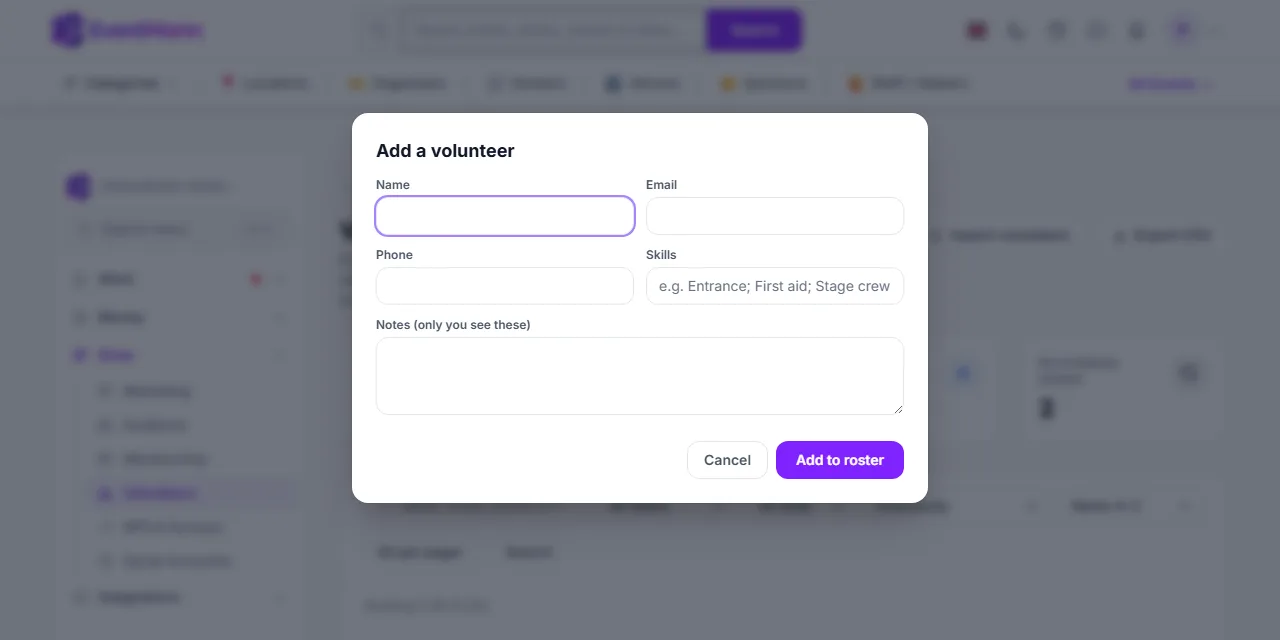
- Click Add a volunteer.
- Type the person’s Name ① and Email ②. These two are required; the email must be unique on your roster, and capital letters do not matter.
- Add Skills ③ separated by semicolons, for example
Entrance; First aid; Stage crew. Up to 20 skills are kept, and they become a filter on the roster. - Optionally write Notes; they are for you only.
- Click Add to roster ④. Nobody is emailed.
Read the table
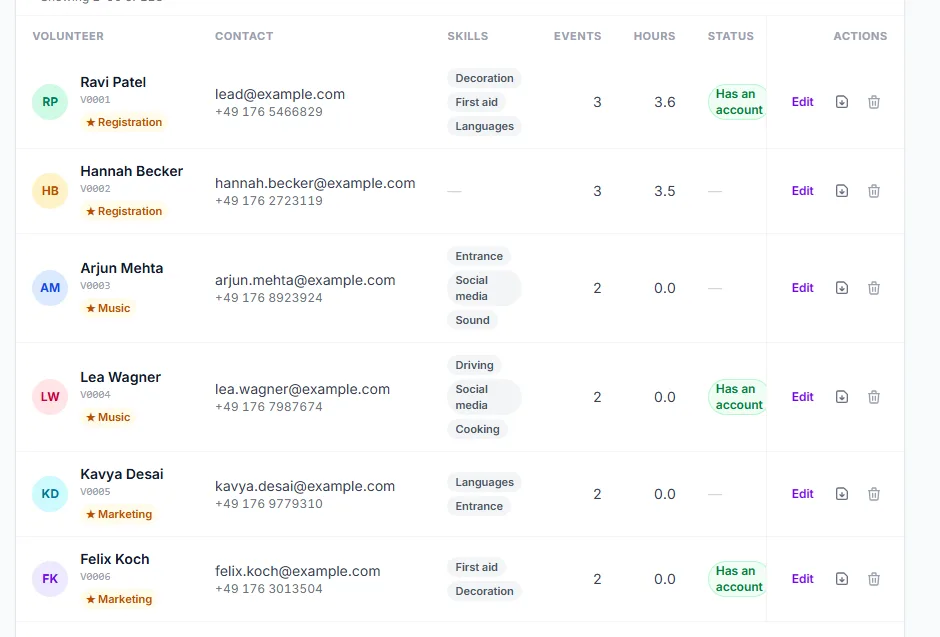
Each row starts with the person’s volunteer number ① and the teams they belong to ②, with a star for the teams they lead. The Events column counts events where they were confirmed, Hours adds up the time between check-in and check-out of every shift that was checked out. A green badge ③ Has an account means a confirmed EventMann account uses this email address, and No invitations wanted means the person opted out of your invitations. Edit ④ opens the same fields as the add dialog. The download icon ⑤ gives the person’s hours statement as a PDF, and the bin deletes them.
Import a list from a spreadsheet
Under Import volunteers you load the list you already keep. Importing adds people to your roster only. It sends no email and it never changes anyone who is already there.
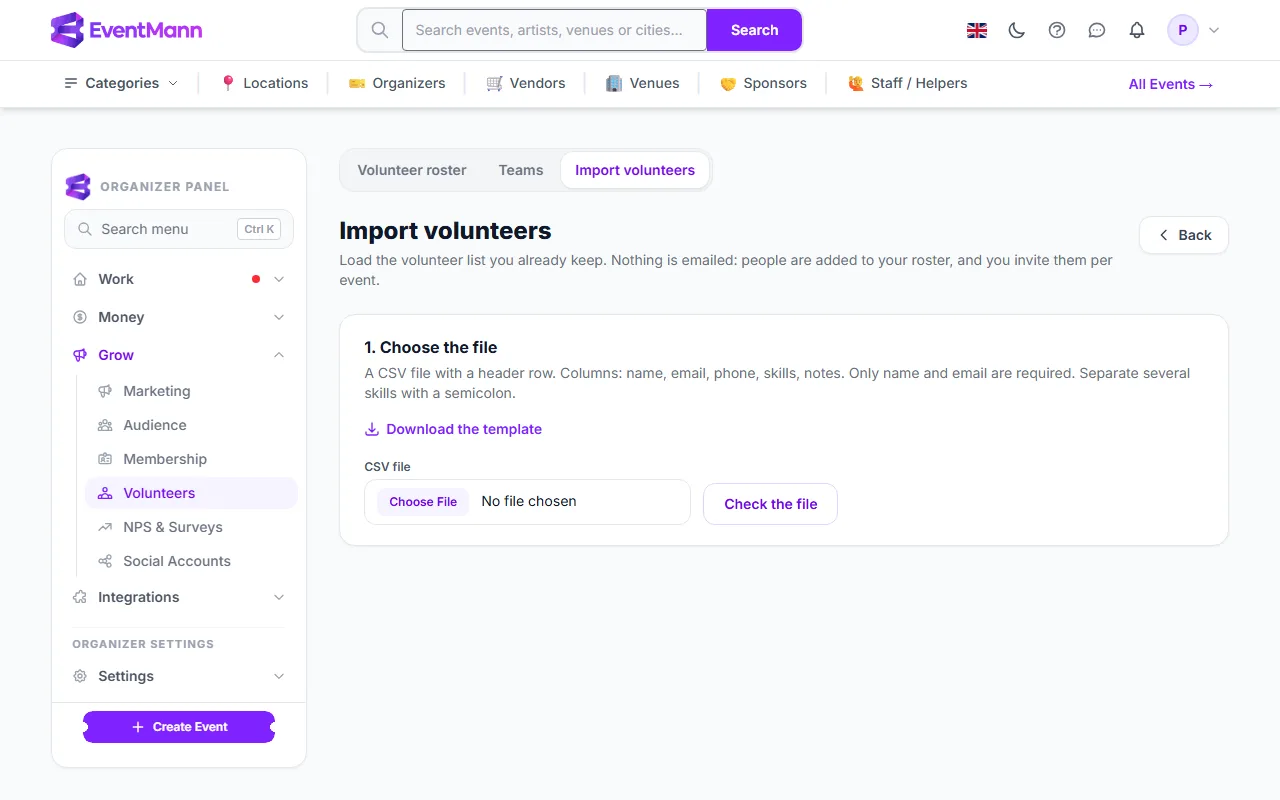
- Click Download the template ① to see the exact column names, or save your spreadsheet as CSV.
- The first row must name the columns:
name,email,phone,skillsandnotes. Onlynameandemailare required. Separate several skills with a semicolon. Files saved by Excel, including German Excel with semicolons as separators, are read as they are. - Choose the file ② — up to 5 MB and 5,000 rows — and click Check the file ③.
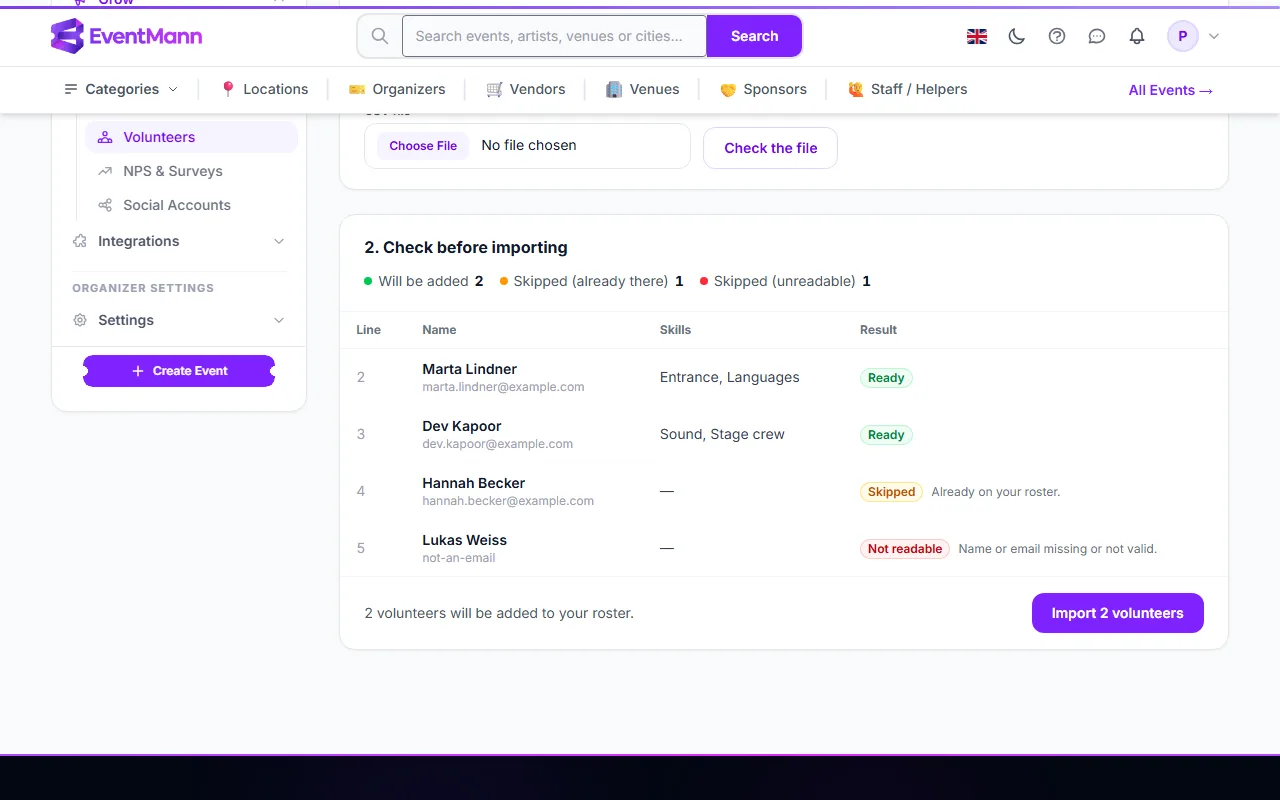
You then see a preview with the counts Will be added, Skipped (already there) and Skipped (unreadable). Rows marked Ready ① will be added. A row is Skipped ② when the email is already on your roster or appears twice in the file, and Not readable ③ when the name or the email is missing or not valid. Nothing has been written yet. Click Import ④ to add the ready rows.
Settings explained
- Volunteer number — assigned automatically from your own sequence (V0001, V0002 and so on) and never reused.
- Skills — free text, separated by semicolons. The skill filter reads the skills actually on the roster.
- Notes (only you see these) — never shown to the volunteer or to team leads.
- Rows per page — 25, 50, 100 or 200; Sort by name, volunteer number, most events or most recently added.
Good to know
- If you change a person’s email address, the link to their account is cut. It is re-attached automatically when somebody signs in to a confirmed account on the new address.
- A person may opt out of your invitations from the link in any invitation email. You cannot send them an invitation until they sign up again themselves.
- Delete from roster removes the person together with their invitations, shifts and hours on every one of your events. It cannot be undone; this is what a deletion request asks for.
- The Export CSV file contains contact details, skills, your notes and hours. Treat it as personal data. See Volunteer hours and privacy.
- A volunteer coordinator who holds only one event reaches the same roster under that event’s Roster tab. A team lead sees it read-only, to recruit from.
- The import preview waits for you for 30 minutes. After that, choose the file again.
Troubleshooting
- The import says a column is missing — the first row must name the columns, at least
nameandemail. Use the template for the exact spelling. - The import says the file is no longer available — the checked file was kept for 30 minutes. Choose it again and check it again.
- A person I added is not offered when I invite to an event — they are already on that event in some status, or they opted out. See Inviting volunteers to an event.
- The email is refused as already used — each email address can appear once on your roster. Search for it; the person may already be there.