




My Shifts
Staff & Volunteers
3 min read
Help articles may not be fully accurate — they can lag behind the app due to frequent updates and automated translation. If in doubt, please contact support.
On this page
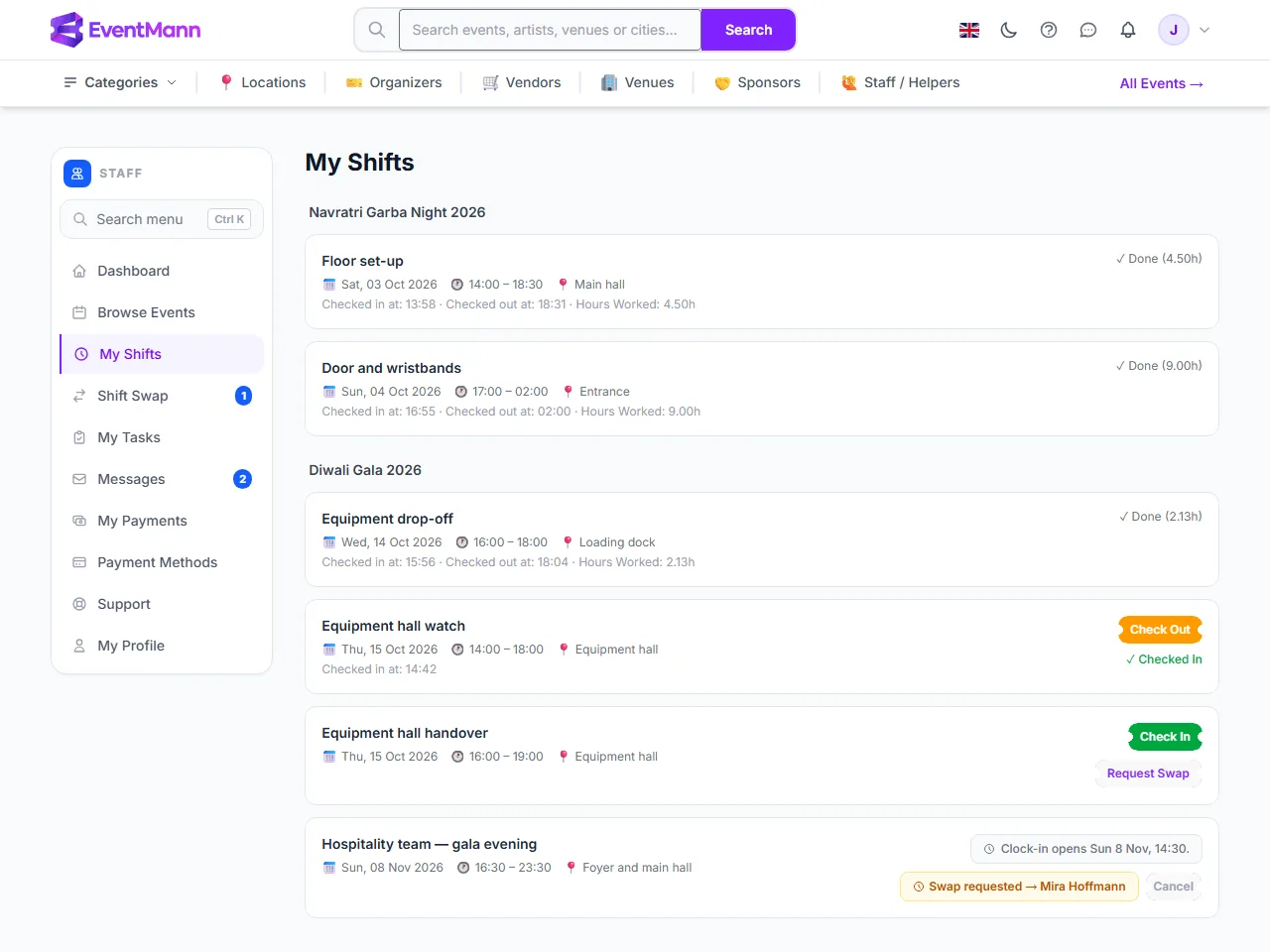
My Shifts (sidebar → My Shifts) lists every shift an organizer has assigned to you, grouped by event and ordered by date. It is also where you clock in and out and ask for a swap.
What each card shows
- The shift title, the date, the start and end time and the location (when the organizer entered one).
- Once you have checked in: the time you checked in. After you check out: the check-out time and Hours Worked.
- On the right, the one thing you can do right now.
The states you will see
| On the card | What it means | What to do |
|---|---|---|
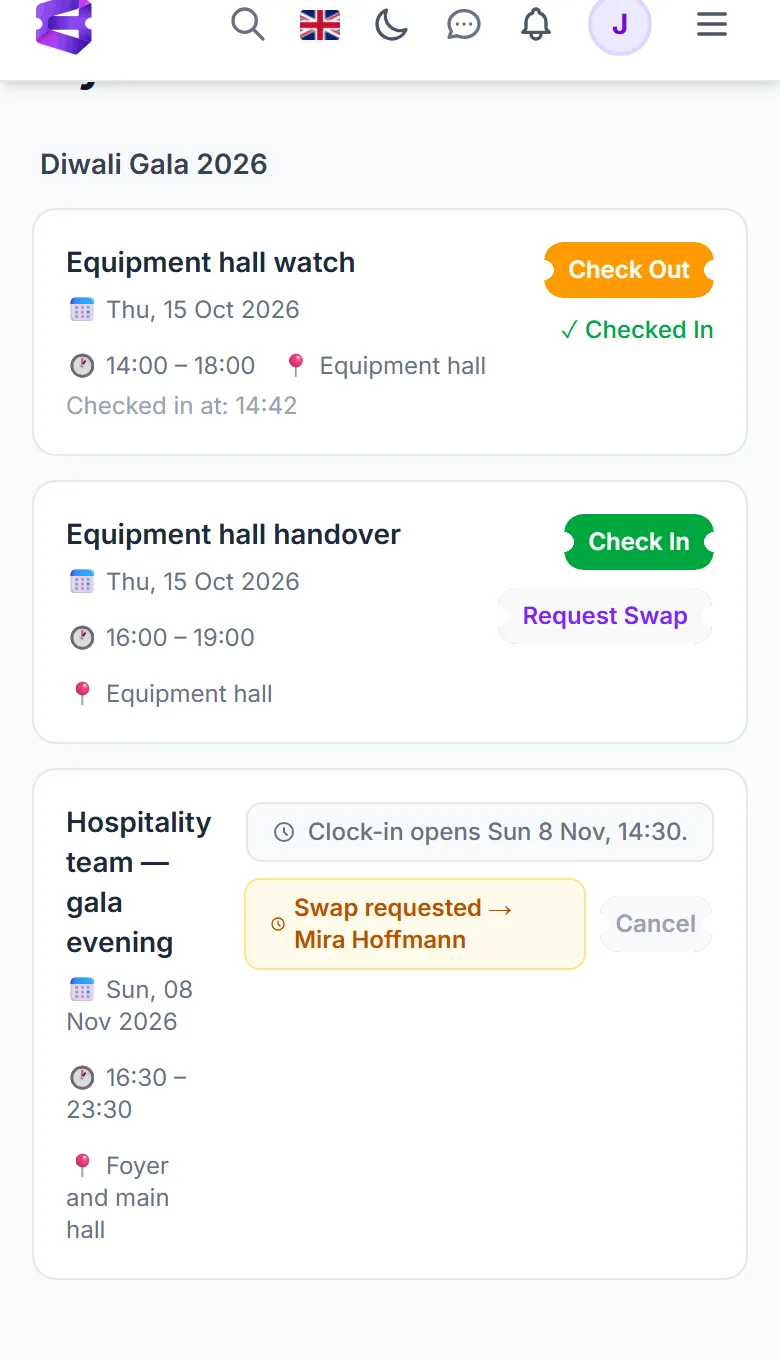
| Check Out ① with Checked In | You are clocked in. | Press Check Out when you finish. |
| Check In ② | Clock-in is open for this shift. | Press it when you start. |
| Request Swap ③ | You may ask someone to take the shift (only before you check in). | See Shift Swaps. |
| Clock-in opens Sun 8 Nov, 14:30. ④ | Too early. Clock-in opens two hours before the shift starts. | Come back at that time. |
| Swap requested → Mira Hoffmann ⑤ | A request is waiting. The name is the colleague you asked, or nothing when you left it open. | Wait, or press Cancel to withdraw it. |
| Done (4.50h) ⑥ | You have checked out. The figure is the hours that will be paid. | Nothing. |
Check in on your phone
The page is made for a phone. Open it from the home screen or the sidebar menu, scroll to your shift and tap the green Check In button ②. The shift you are working shows Check Out ①, and a shift that is not open yet says when clock-in opens ③.
Good to know
- You cannot sign up for shifts yourself. Only the organizer assigns them. Nobody is emailed when this happens, so look at this page after you are approved.
- If you are taken off the event’s team, your shifts that have not started yet are released automatically and clock-in is refused for the rest. Hours you already worked stay on record.
- The organizer can also check you in from their side, using the same time rules.
Troubleshooting
- The shift is not in the list. It has not been assigned to you, or you were removed from the event. Ask the organizer.
- There is a grey line instead of a button. Read it — it names the time clock-in opens, says the window has closed, or says you are no longer on this event’s team.