




Permissions grid
Organizer Guide
2 min read
Help articles may not be fully accurate — they can lag behind the app due to frequent updates and automated translation. If in doubt, please contact support.
On this page
- 1. What you can do here
- 2. Good to know
- 3. Troubleshooting
- 4. Related
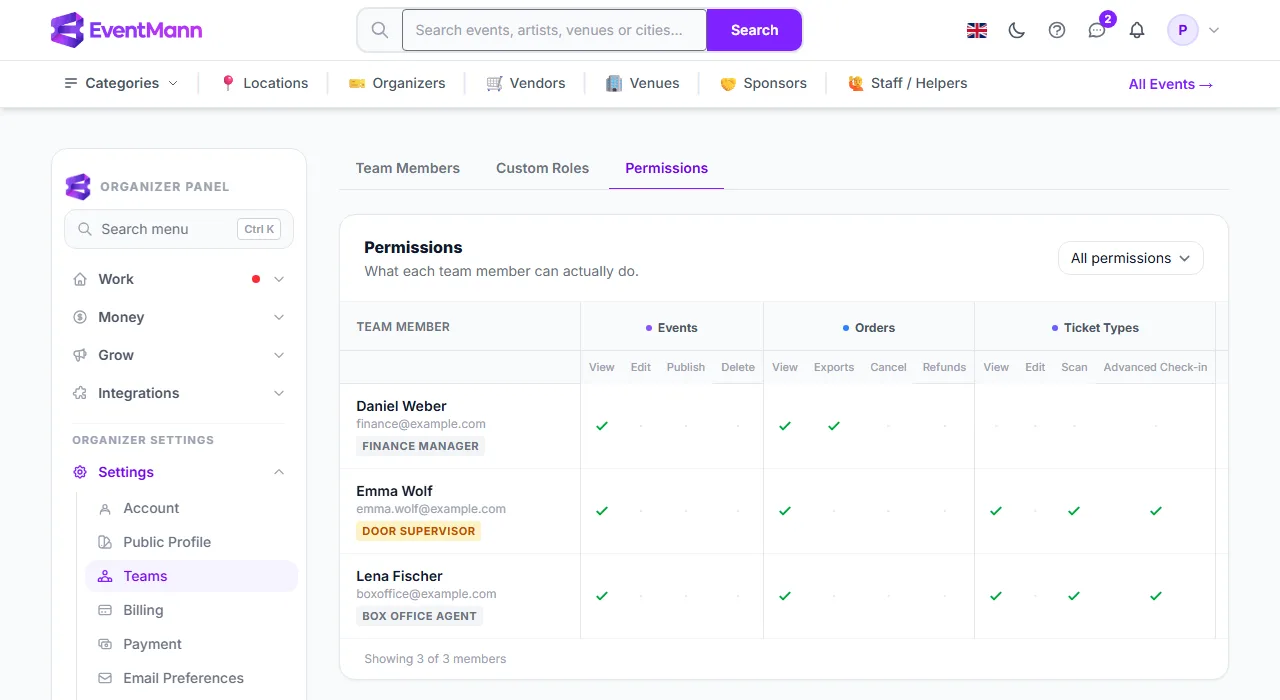
The Permissions grid answers the question “who on my team can do what?” in one table, instead of opening every member. Find it under Settings → Teams → Permissions. Each row is an active team member; each column is something they may or may not do.
What you can do here
- Read down a member’s row ②. The badge under their name is the role in force: a built-in role (for example Finance Manager) or, when you assigned one, the name of their custom role (Door Supervisor).
- Read across to a group of columns ③ — Events (View, Edit, Publish, Delete), Orders (View, Exports, Cancel, Refunds), Ticket Types (View, Edit, Scan, Advanced Check-in), Discounts, Analytics and Manage Staff. A green tick means the member holds that permission; a dot means they do not.
- To find out who can do one thing, choose it in the Filter by permission list ① (for example Orders · Refunds). The grid then shows only members who hold it, and the footer reads “Showing 1 of 3 members”.
Good to know
- The grid shows the effective permissions: a custom role replaces the built-in role, exactly as it does when your team works in an event.
- Only active members appear. Somebody with a pending invitation has no access yet and is not listed.
- You, the owner, are not a row: the owner can do everything on their own events.
- The grid is read-only. Change a member’s role on the Team Members tab and the grid updates.
- Access is granted per organizer, so one row covers all your events.
Troubleshooting
- A member is missing — they have not accepted their invitation yet, or they were removed.
- Everything shows a dot for a member — their custom role holds only permissions outside these columns, or none of the shown ones. Open Custom Roles to check it.
- The grid is wider than the screen — scroll it sideways; the member names stay in view.