




Team Communication
Help articles may not be fully accurate — they can lag behind the app due to frequent updates and automated translation. If in doubt, please contact support.
On this page
This article explains who you can talk to as staff, what EventMann tells you on its own, and what it does not. For the screen itself read Messages.
Who you can talk to
- The organizer of an event you work. That is the one channel built into the portal. Your message goes to the organizer’s account; team members with permission to manage staff read and answer it from the organizer area (Manage → Staff → Messages).
- The EventMann team through Support in the sidebar — for problems with your account or the platform, not for event questions.
There is no direct chat between staff members and no group chat. To coordinate with a colleague, use the organizer, or exchange details outside EventMann. Swaps with a colleague go through Shift Swaps.
What the organizer can send you
- A message to you alone — a thread in your inbox.
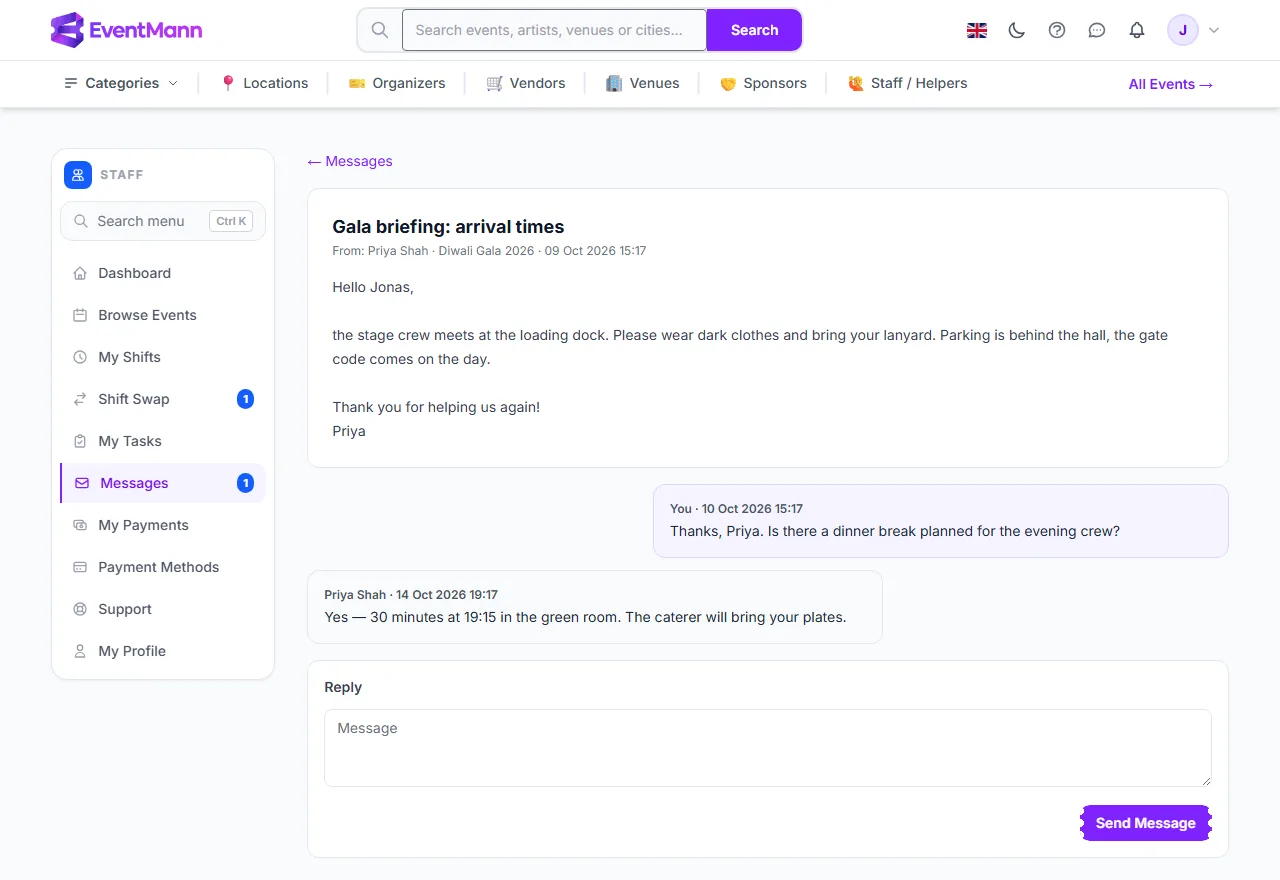
- A message to the whole event team — a broadcast. Every approved staff member receives their own copy, so it lands in your inbox as a normal thread, and you can reply to the organizer who sent it. Replies are private; the other staff do not see them.
In a thread the subject is ①, the organizer’s reply ②, and your answer goes in the box ③ with Send Message ④.
What EventMann tells you automatically
| Event | You get |
|---|---|
| A new message or reply | Bell, email, push (setting Staff messages) |
| Your application is approved or declined | Bell and email (Event team decisions) |
| You are removed from an event team | Bell and email (Event team decisions) |
| A task is assigned to you | Bell and email (Tasks assigned to you) |
| A shift swap is requested, accepted, approved, rejected or cancelled | Bell and email (Shift swaps) |
You decide which emails you want in your notification preferences (avatar menu). The bell notification stays on.
What does not notify you
- Being put on, or taken off, a single shift.
- A change to a shift’s time or place.
- A payroll period being created, approved or marked paid.
For those, look at My Shifts and My Payments regularly, and ask the organizer to message you about changes.
Good to know
- Keep messages short and say which event and shift you mean — an organizer may run several.
- Never send bank details or passwords in a message.
Troubleshooting
- I get emails but no bell, or the other way round. The bell is always on; emails follow your preferences.
- A broadcast reached me twice. You may be on two events from the same organizer. Each event sends its own copy.