




Messages
Staff & Volunteers
2 min read
Help articles may not be fully accurate — they can lag behind the app due to frequent updates and automated translation. If in doubt, please contact support.
On this page
- 1. What you can do here
- 2. Write a new message
- 3. Read and reply
- 4. On a phone
- 5. Good to know
- 6. Troubleshooting
- 7. Related
Messages (sidebar → Messages) is your inbox for conversations with the organizers of the events you work. Each conversation is a thread: one subject, with replies underneath.
What you can do here
- Start a conversation with New Message ①.
- Open a thread ②. Unread threads carry a dot and are tinted. A thread that has unread replies shows a small number with an arrow, like 1 ↩ ③.
- Reply inside the thread.
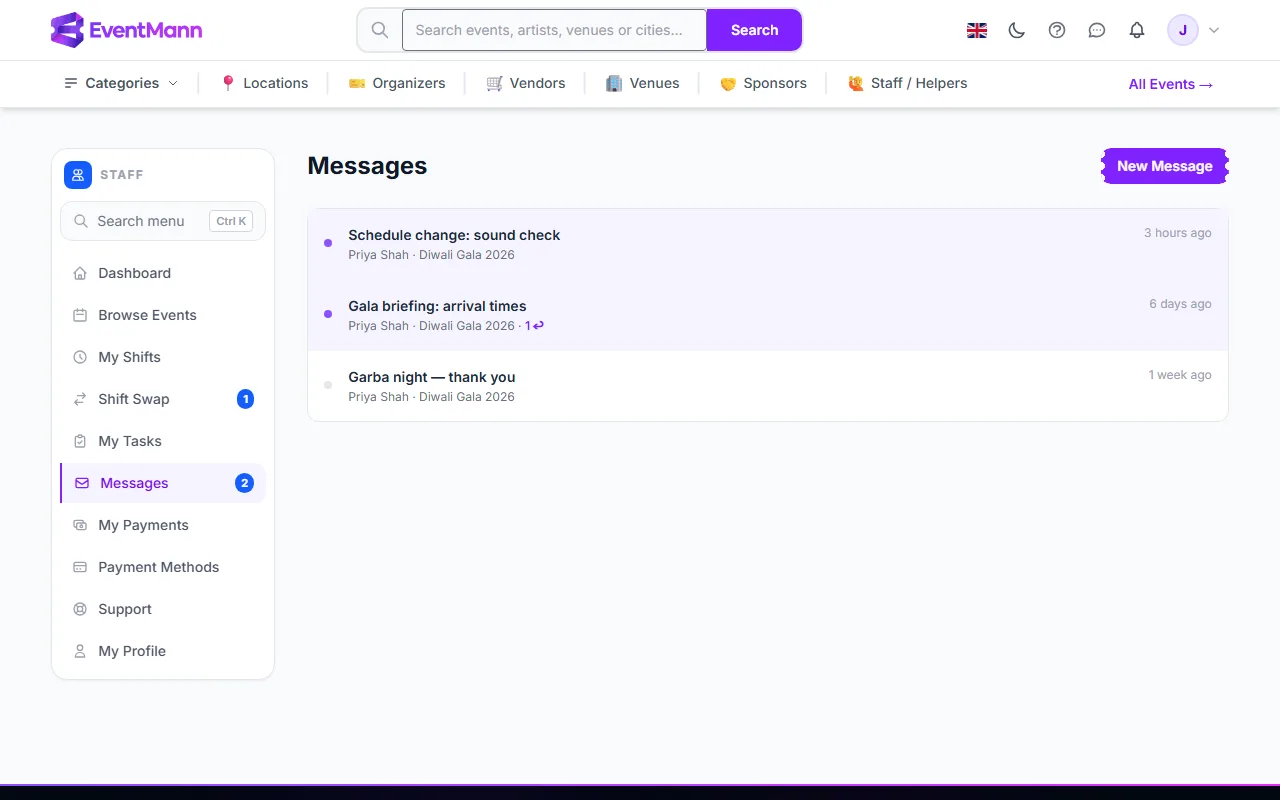
The sidebar badge and the Unread Messages counter on the dashboard show how many messages you have not opened.
Write a new message
- Click New Message ①.
- Choose the Event ① — the list contains the events you are approved for. The event decides who receives the message: the organizer of that event.
- Type a Subject ② (up to 255 characters) and your Message ③ (up to 5,000).
- Press Send Message ④.

Read and reply
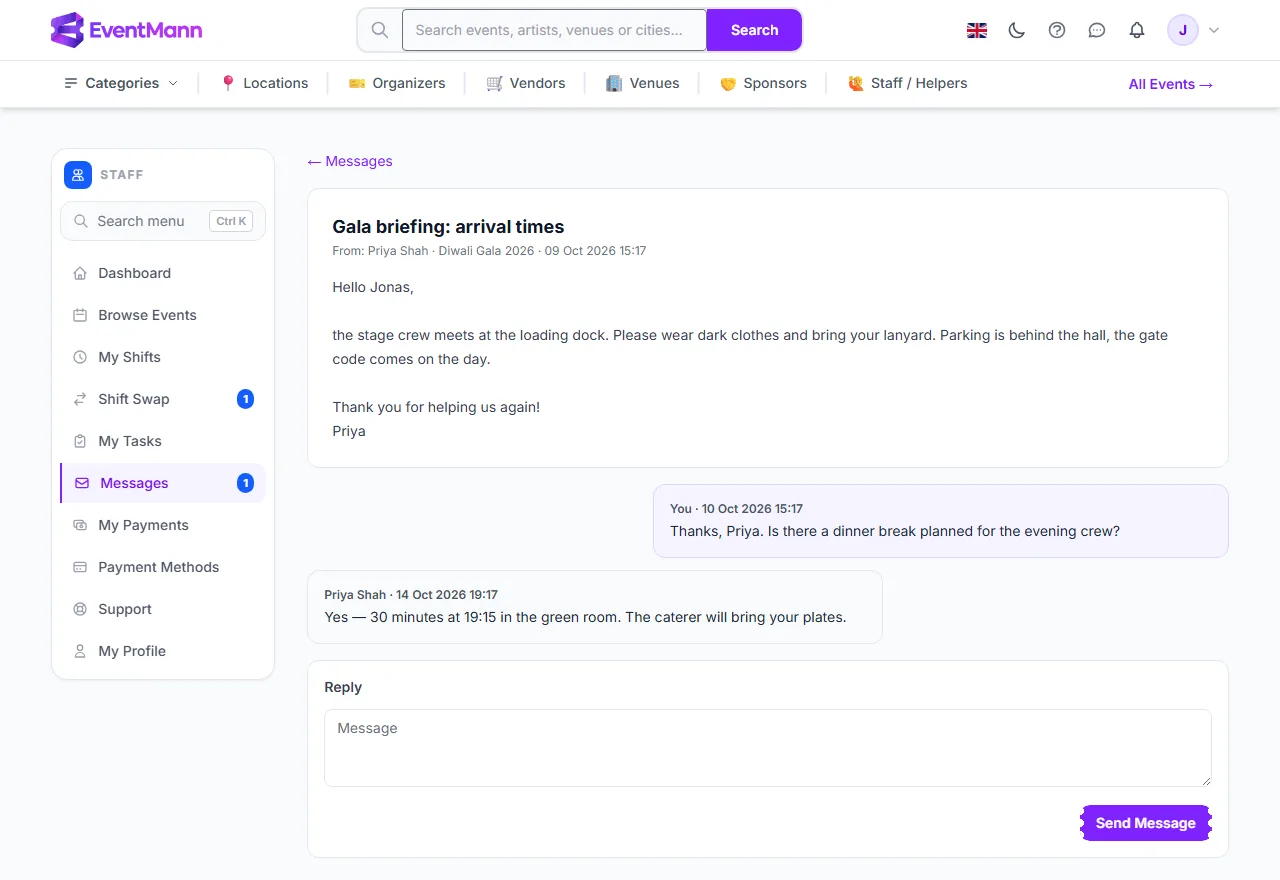
- Click a thread to open it. Opening marks it, and any replies to you, as read.
- The first message is at the top ①; replies follow in order, yours on the right and the organizer’s on the left ②.
- Type under Reply ③ and press Send Message ④.
On a phone
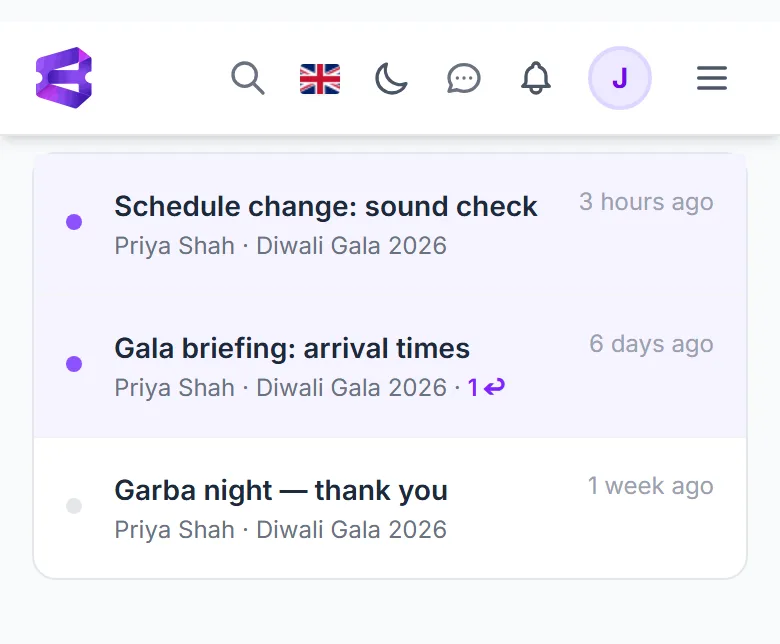
The inbox works the same on a phone: New Message ① at the top, the threads ② below.
Good to know
- Every message you send also reaches the organizer as a bell notification and an email, so they can answer from anywhere.
- Messages arrive with you the same way: a bell notification and an email (setting Staff messages), plus a push notification if you enabled it.
- Messages are plain text. There are no attachments.
- You can only start a conversation about an event you are approved for.
Troubleshooting
- The event list is empty. You are not approved for any event yet.
- The organizer did not answer. Check the thread again later; if it is urgent, use Support in the sidebar for platform problems — it does not reach event organizers.