




How to Submit an Invoice
Vendor Guide
3 min read
Help articles may not be fully accurate — they can lag behind the app due to frequent updates and automated translation. If in doubt, please contact support.
On this page
- 1. Submit an invoice
- 2. What happens next
- 3. Settings explained
- 4. Good to know
- 5. Troubleshooting
- 6. Related
You submit an invoice from My Invoices after you have confirmed an assignment. The form lists your line items, adds tax and sends the invoice to the organizer. Once sent it cannot be changed, so check it first.
Submit an invoice
- Open My Invoices and press Create Invoice. Under Select Event click the event you worked.
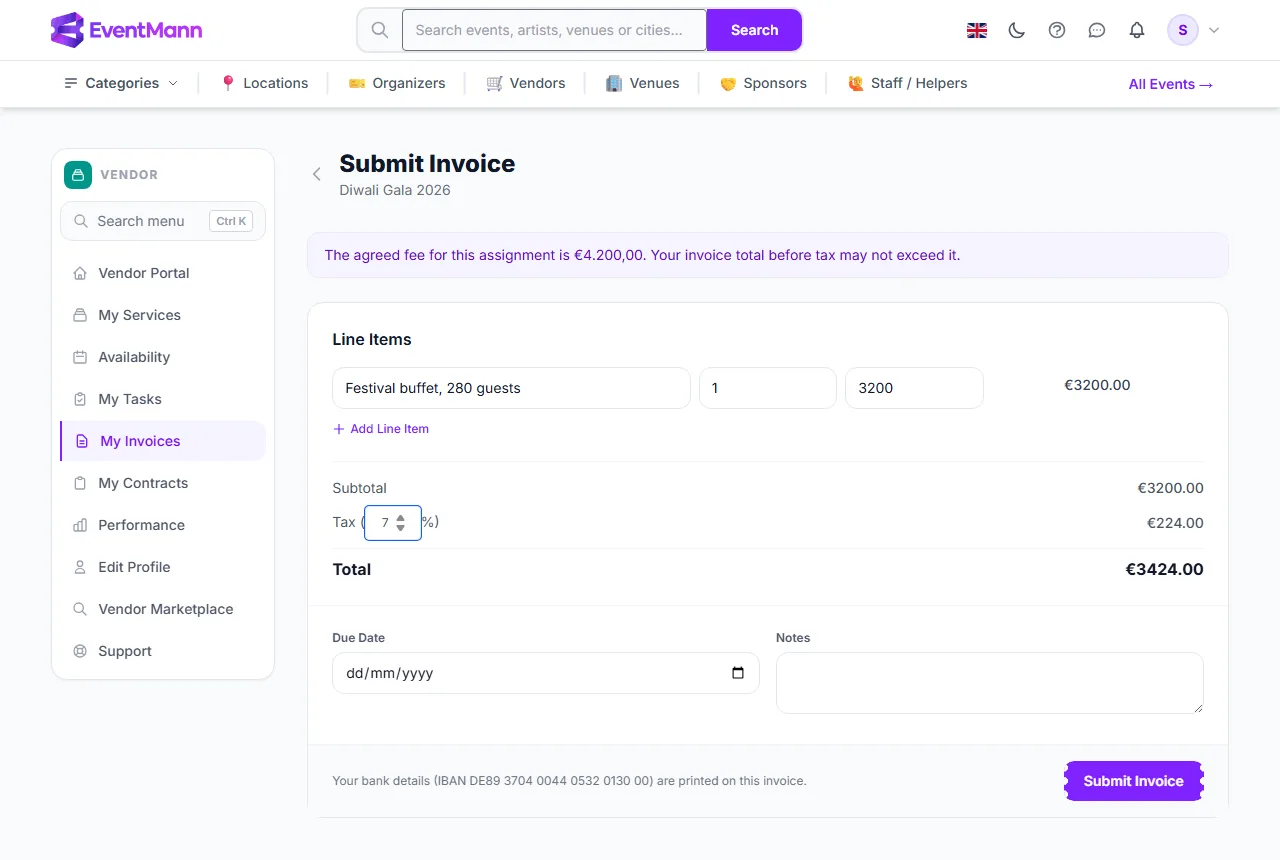
- Read the note at the top ①: The agreed fee for this assignment is … Your invoice total before tax may not exceed it. It appears only when the organizer entered a fee.
- Under Line Items, fill in a description ②, a quantity and a unit price for each line. The amount of the line and the running totals update as you type.
- Press Add Line Item ③ for every extra line. You need at least one.
- Type a Tax percentage ④ if you charge tax (0 to 100). It is applied to the subtotal as a whole.
- Optionally choose a Due Date ⑤ and write Notes for the organizer.
- Check the line next to the button: it shows the IBAN that will be printed on the invoice, or tells you that no bank details will be printed and links to Edit Profile.
- Press Submit Invoice ⑥.
What happens next
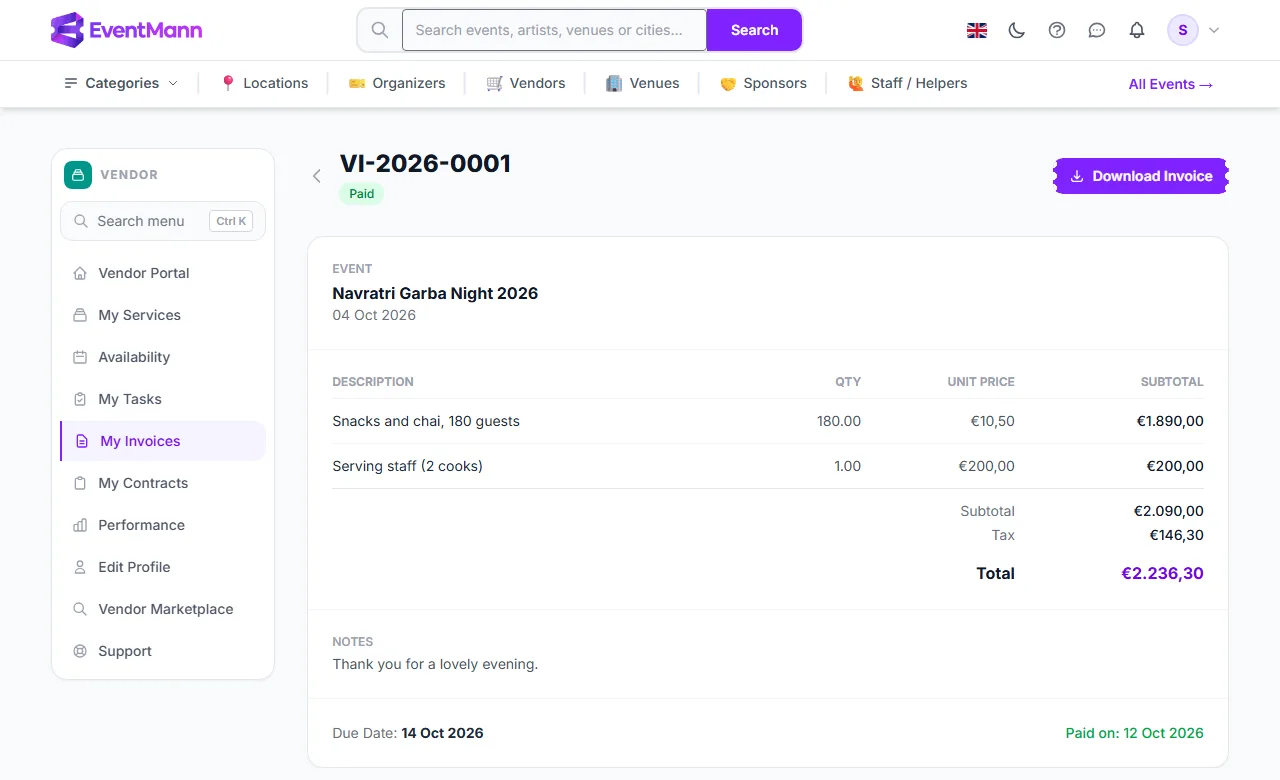
- You land on the invoice page with the number (for example
VI-2026-0002) and the status Submitted. - The organizer sees it on the event’s vendor page, approves it and later marks it paid. See Invoices.
- Download the PDF with Download Invoice ① whenever you want a copy. The invoice page lists your lines ② and the total ③.
Settings explained
| Field | Rule |
|---|---|
| Quantity | A number of at least 0.01; decimals allowed, for example 7.5 hours. |
| Unit price | 0 or more. |
| Tax | Optional percentage, 0–100. The tax amount is the subtotal times this percentage. |
| Due Date | Optional. Shown on the invoice and in your list. |
| Notes | Optional free text printed on the invoice. |
Good to know
- You cannot edit, delete or re-send a submitted invoice. If you made a mistake, tell the organizer; they decide whether to approve it.
- The amounts are shown in the event’s currency.
- The PDF prints the bank details saved in your profile at the time you download it. Add them before you send the invoice, so the organizer knows where to pay.
- If the lines add up to more than the agreed fee, the form refuses with a message that names the fee. Lower the lines, or ask the organizer to change the fee before you submit.
- Remember that Paid is the organizer’s own mark — EventMann does not transfer money.
Troubleshooting
- You can only invoice a confirmed assignment. Accept the invitation on the dashboard first.
- “An invoice for this assignment has already been submitted.” One invoice per assignment; check My Invoices.
- The event is not offered under Select Event. It is not confirmed, or it already has an invoice.