




Surveys
Help articles may not be fully accurate — they can lag behind the app due to frequent updates and automated translation. If in doubt, please contact support.
On this page
Surveys and polls let you ask your attendees structured questions after the event — a feedback survey with a recommendation score, or a one-question poll you can share with a WhatsApp group. Find them under Analytics & Reports → Feedback, on the Surveys tab (the other tab, Reviews, holds what attendees wrote on their own; see Ratings & Reviews). You need permission to edit the event.
What you can do here
- See every survey and poll for the event with its question count, responses, status and send mode.
- Create Survey with any mix of question types, or Create poll for a single question with a few answers.
- Send now to invite ticket holders yourself, or let it go out automatically after the event.
- Copy a poll’s shareable link.
- Open Results to see the answers, the NPS and the response rate, and export them.
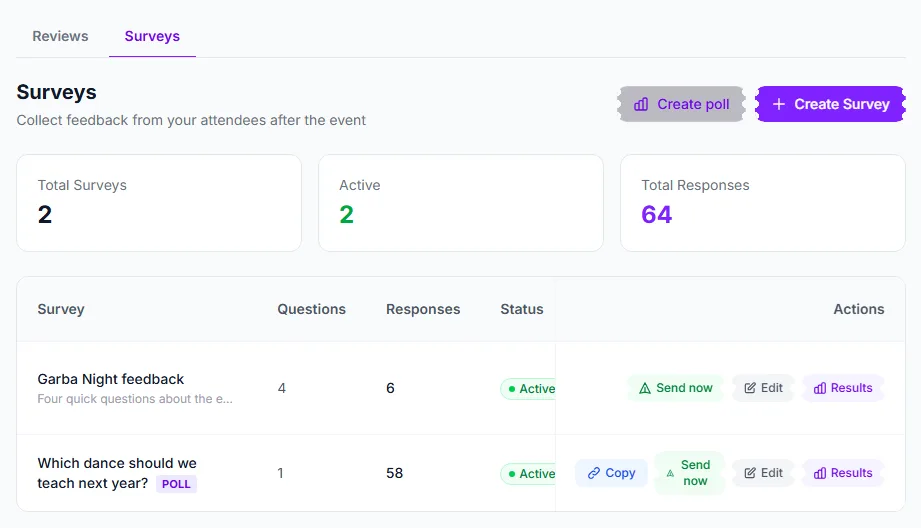
Start a poll with Create poll ① or a full survey with Create Survey ②. On each row, Send now ③ invites ticket holders and Results ④ opens the answers.
How to create a survey
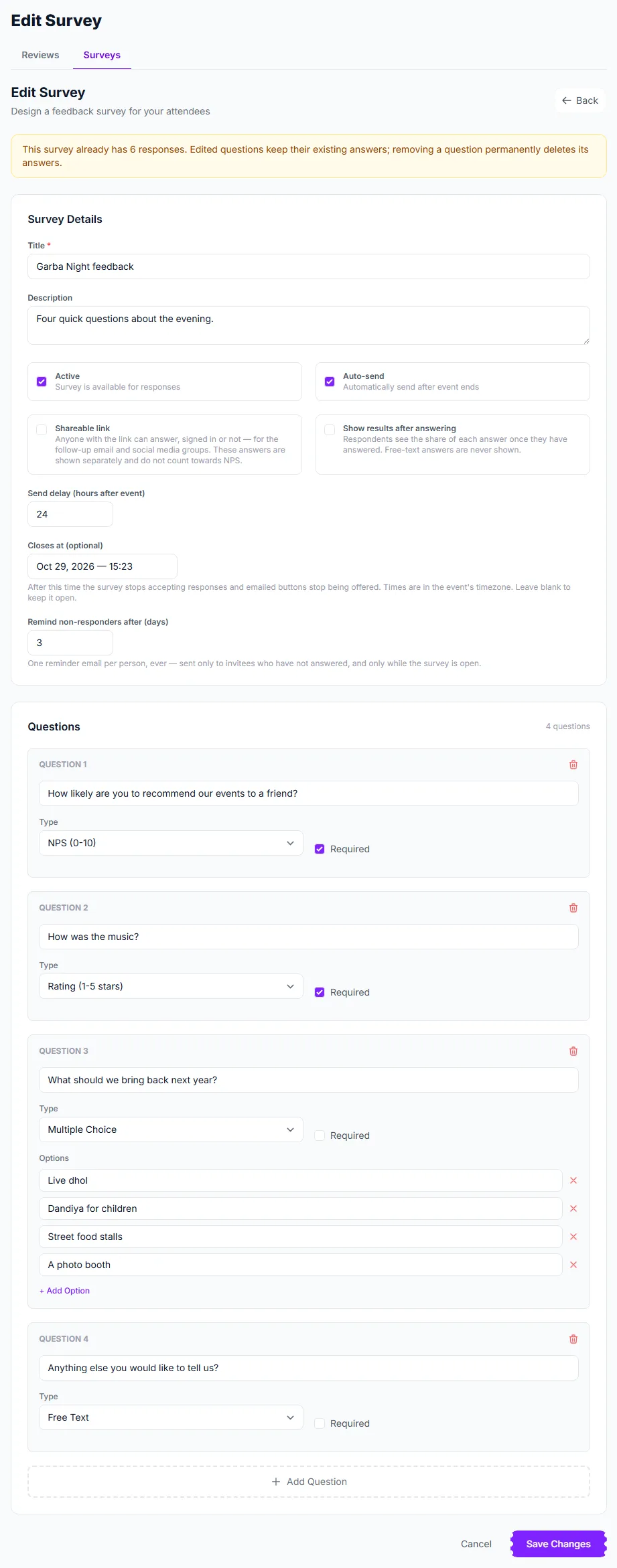
- Click Create Survey and give it a Title ① and an optional description.
- Tick Active — inactive surveys are saved but not shown or sent.
- Tick Auto-send to have it emailed automatically after the event, and set Send delay (hours after event) ② (1–720). Leave it off to send by hand.
- Optionally set Closes at ③. After that time the survey stops accepting answers and its email buttons stop being offered. The time is in the event’s time zone.
- Optionally set Remind non-responders after (days) ④ (1–30). Each person gets at most one reminder, ever, and only while the survey is open.
- Add your questions (see below) and click Save Changes.
The question types
- Rating (1–5 stars), Emoji scale (5 faces) and Scale 1–10 — numeric answers with an average in the results.
- NPS (0–10) — the “how likely are you to recommend us” question; it feeds your Net Promoter Score.
- Multiple choice — pick any number of the options you list.
- Single choice (poll) — pick exactly one option.
- Yes / No
- Free Text — an open answer.
Any question can be marked Required. Choice questions take a list of options (use Add Option). Editing a survey keeps the answers already given to its questions; removing a question permanently deletes its answers.
Who gets invited, and when
- Auto-send invites every ticket holder with a confirmed order once the event has ended plus your delay, checked hourly.
- Send now invites every ticket holder who has not been invited yet, straight away (and asks you to confirm first). Each gets an email with a personal link, and a bell notification when they have an account.
- Guests who bought without an account can answer too: their email carries a personal link that does not need a login.
- A survey invitation is treated like marketing mail: people who opted out of marketing email or unsubscribed from you are skipped.
- A closed or inactive survey sends nothing.
Polls and the shareable link
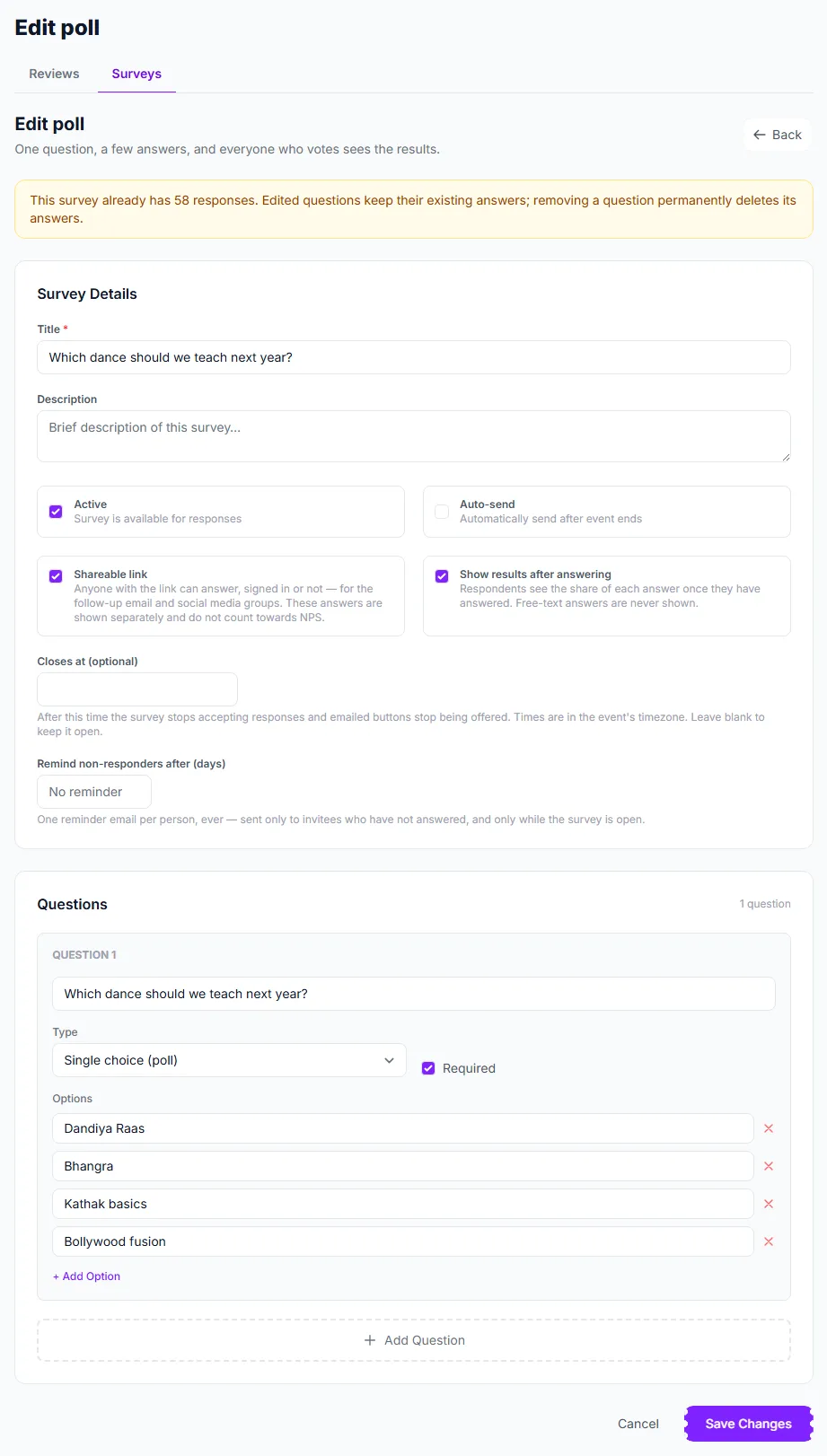
A poll is a survey with one choice question. Two settings make it work for groups:
- Shareable link ① — anyone with the link can answer, signed in or not. Paste it into a WhatsApp group or a social post, or let a follow-up email use it. Each browser and each account can answer once. These answers are kept apart and do not count towards NPS, because the link can reach anybody. Turning the link off kills it at once; turning it on again creates a new one.
- Show results after answering ② — people see the share of each option after they vote. Free-text answers are never shown.
On the surveys list, a poll with a link has a Copy button. See After-the-event follow-ups to put a poll into an email.
Reading the results
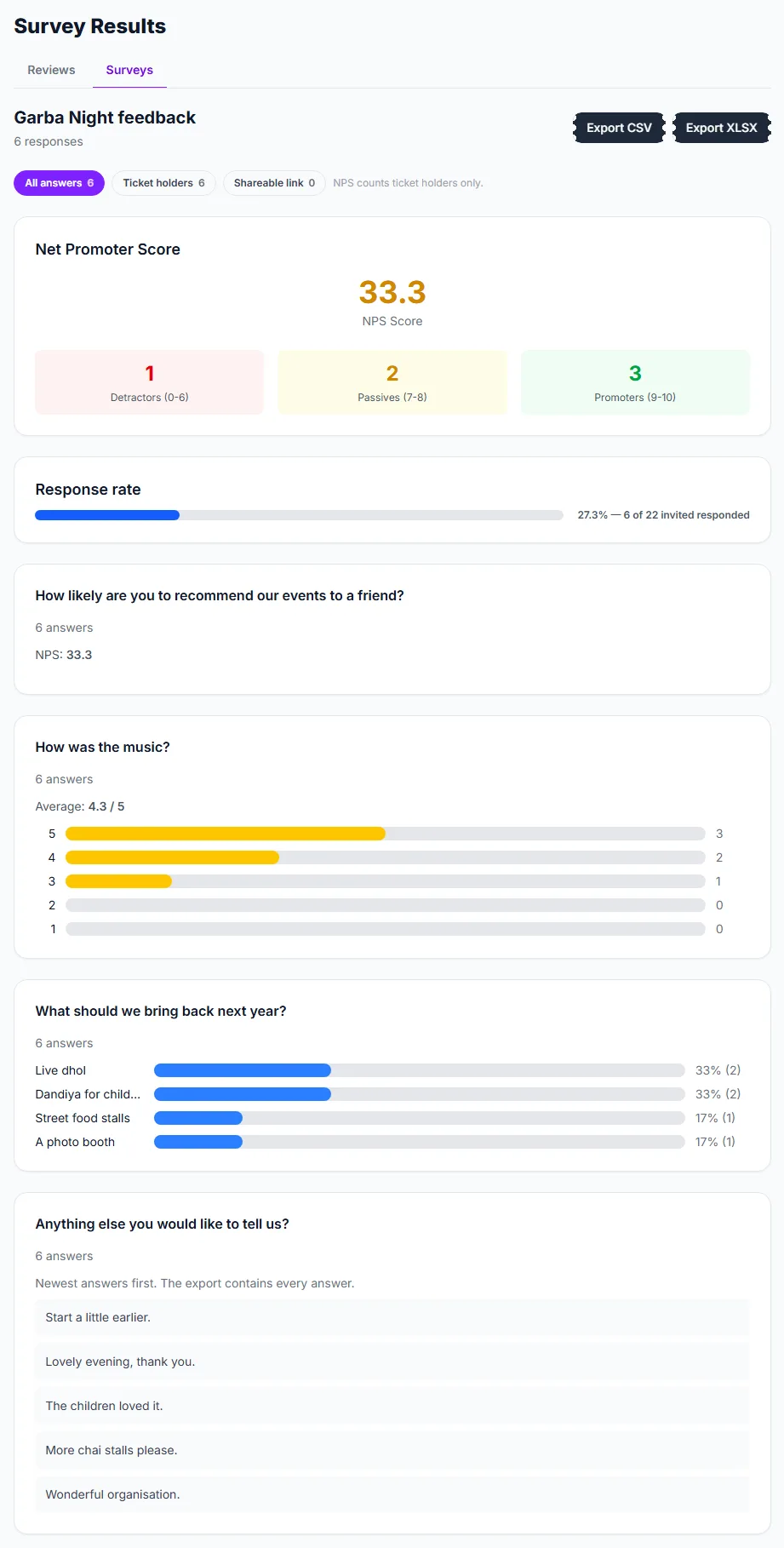
- Export CSV ① and Export XLSX download the answers.
- The Net Promoter Score ② is promoters (9–10) minus detractors (0–6) as a percentage, with the three groups counted; passives are 7–8. It counts ticket holders only.
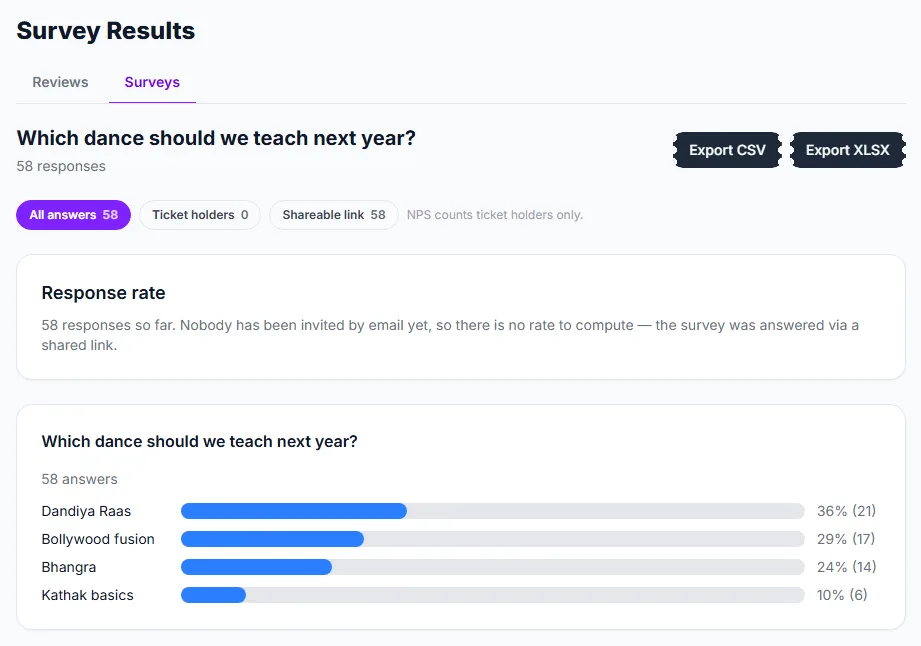
- The Response rate ③ divides answers by the people actually invited. If nobody was invited by email (a poll shared by link), it says so instead of showing a made-up percentage.
- Each question shows its answers: averages and bars for ratings, shares for choices, and the written answers for free text, newest first (the latest 50 on the page; the export has every one).
- If the survey has answers from the shareable link, the page offers All answers, Ticket holders and Shareable link views.
Good to know
- Only people with a ticket (an account or the email on the order), invitees and you can answer a survey through its normal page. The shareable link is the one deliberate exception.
- The response count on the list rises as answers arrive.
- Both switches have to be on for an automatic send: Active and Auto-send.
Troubleshooting
- The survey never went out — check Active and Auto-send, the delay, and that the event has ended. Or use Send now.
- Nobody was invited — every ticket holder may already have been invited, opted out of marketing email, or the survey is closed.
- The results page is empty — nobody has answered yet.
- NPS is missing — the survey has no NPS question, or the only answers came from the shareable link.